System Permission Tracking
Overview
System Permission Tracking monitors and detects changes in System Permissions across Permission Sets and Profiles in your Salesforce environment. Each scan compares the selected permissions against previous snapshots and generates a Change Log for any detected differences. When a permission changes—either because a Permission Set/Profile is modified or because a user gains or loses an assignment—the system records the impact at the user level, creating an individual Change Log entry for every affected user.
Tracked permissions scope
System Permission Tracking only monitors permissions listed under the System section of the Salesforce System Permissions page (Setup > Users > Profiles > select a profile > System Permissions). System Permission Tracking excludes all permissions listed under the Users section from change detection and the generated Change Log.
Accessing System Permission Tracking
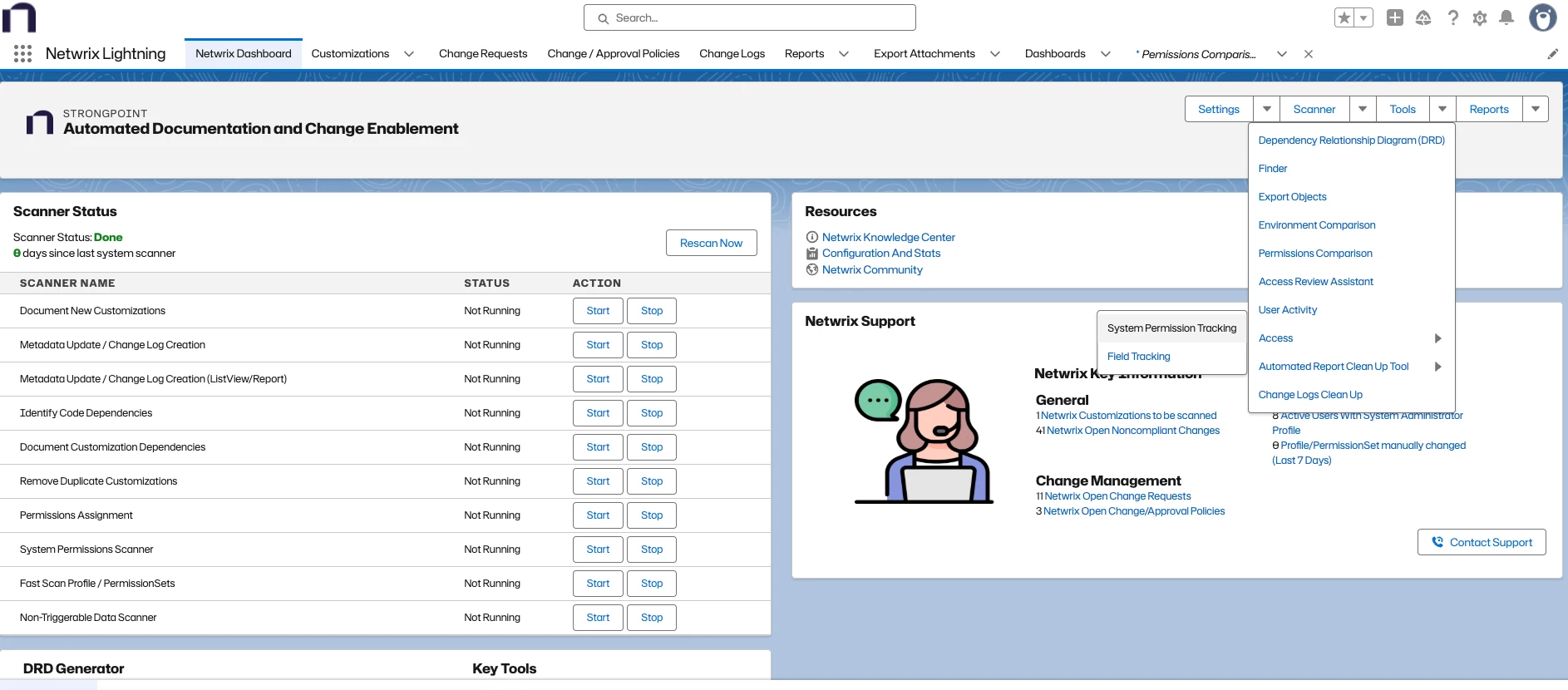
Navigate to: Tools > Access > System Permission Tracking
Key Sections
- Settings
- Recommended Permissions
- All Permissions
- Selected Permissions
Settings
The Settings section contains all configuration options for enabling change detection, running the scanner, scheduling automated scans, and configuring email and in-app notifications.
Run Now
Runs the System Permission scanner immediately, generating updated results without waiting for the scheduled scan.
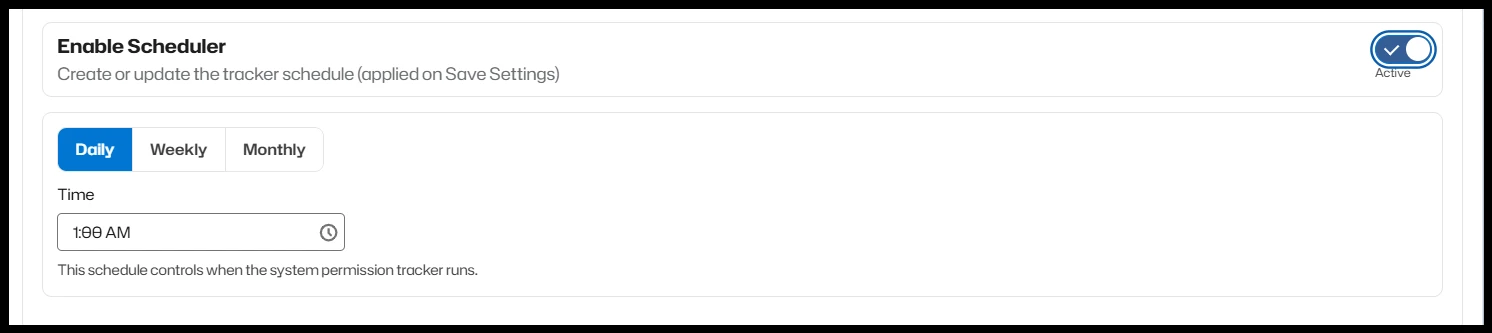
Tracker Scheduler
Automates the scanning process. You can choose between three scheduling options—Daily, Weekly, or Monthly—and configure only the essential fields such as time and applicable days.
Email Notifications
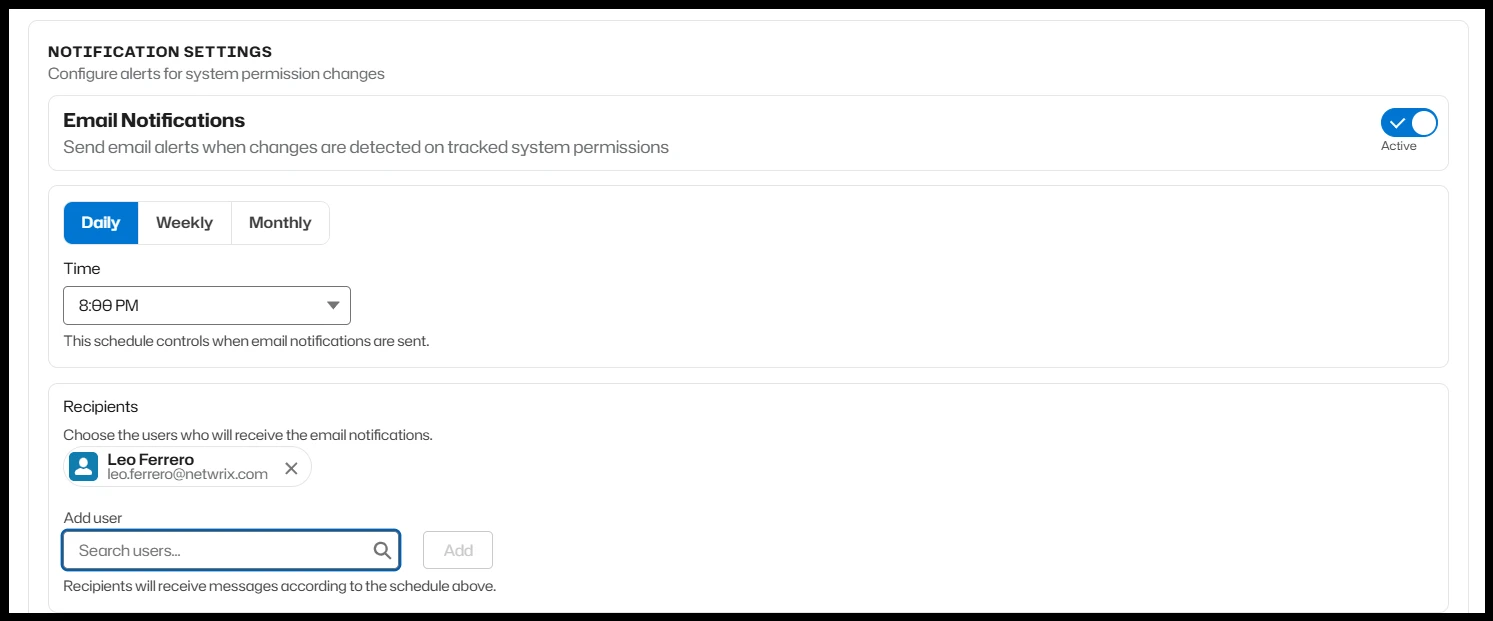
You can enable Email Notifications to receive reports showing System Permission changes. Select a notification frequency and define the list of recipients. The system automatically handles subscriptions. Recipients must have the 'Netwrix Grant Permissions' Permission Set assigned.
Email Frequency & Timing
Choose whether to send the report daily, weekly, or monthly, and configure the corresponding delivery time or date.
Recipients
Add users to receive notification emails. Recipients must have the required Permission Set to access the internal components used by this feature. After you save, the system automatically subscribes the recipients to the System Permission Change Log report.
In-App Notifications
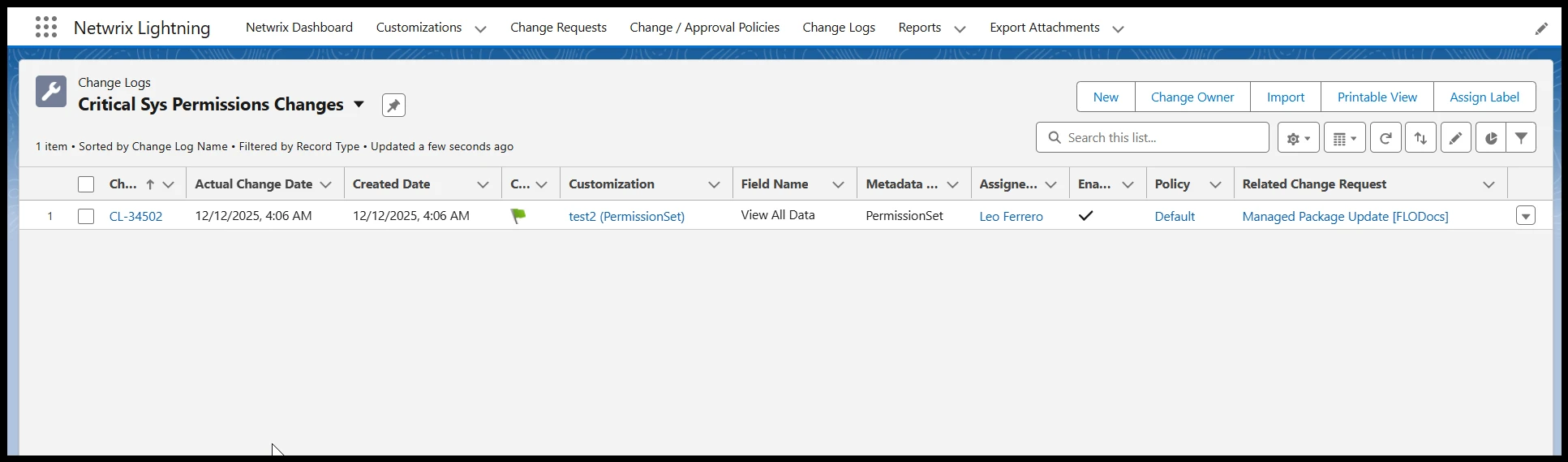
If In-App Notifications are enabled, each scan creates a record in the Downloaded Files component on the Netwrix Dashboard. This provides links to reports showing all detected System Permission changes. The system also creates an Export Attachment record, but users typically don't need to access it directly.
Example of a System Permission Change in Downloaded Files:
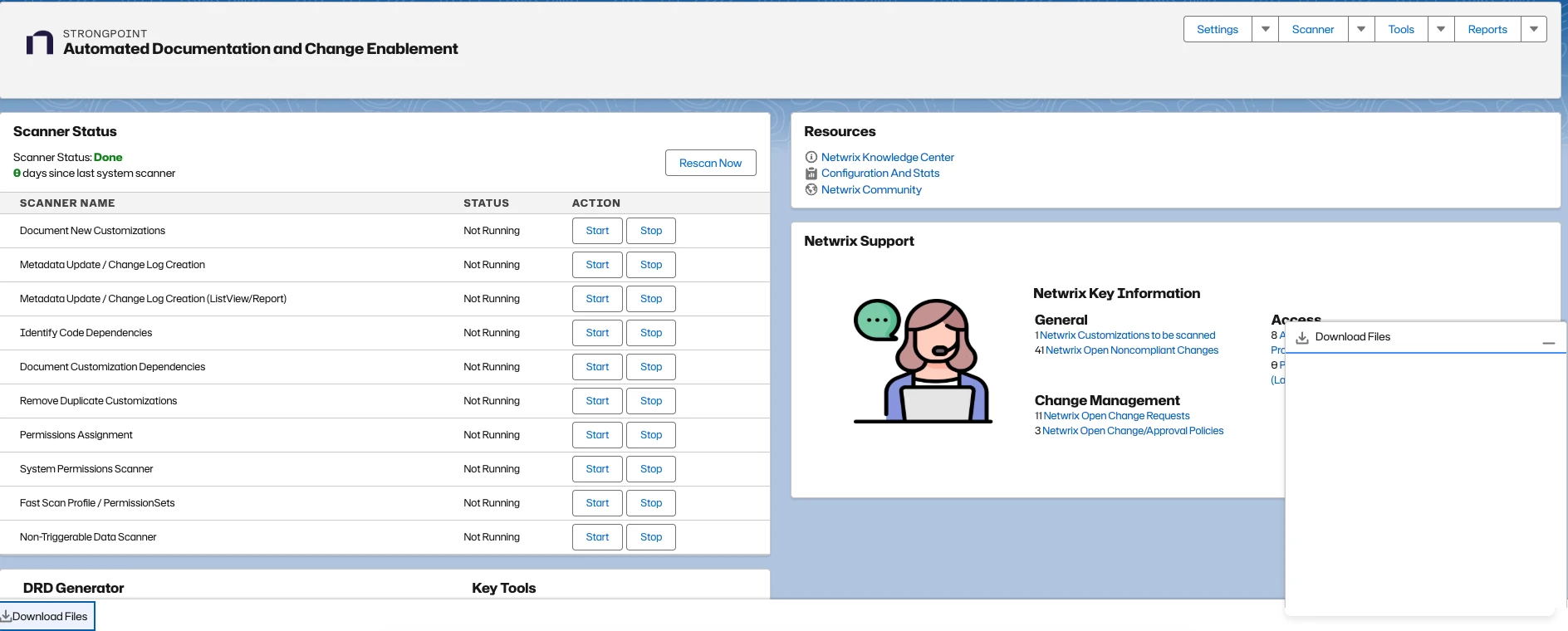
The Downloaded Files component displays a new entry for each scan that detects changes.
Example of a System Permission Change Log report opened from Downloaded Files:
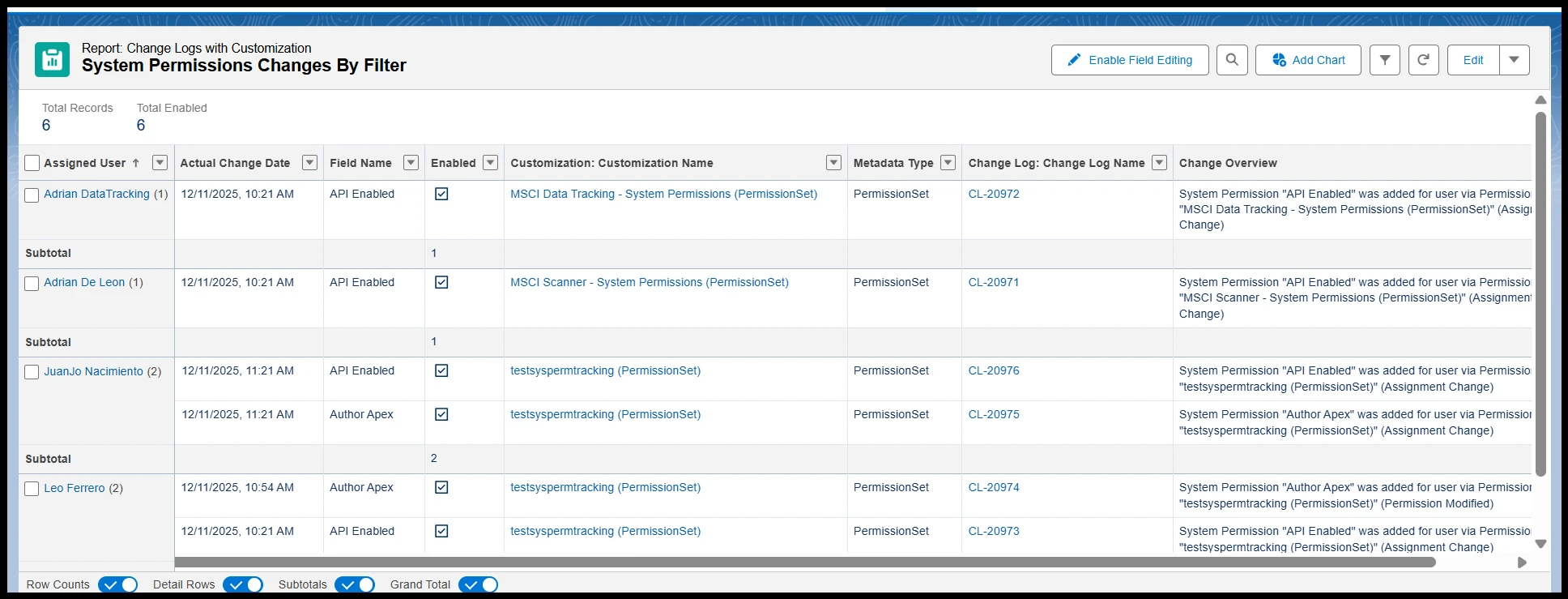
The report shows detailed information about each permission change, including the affected users and the specific permissions that were modified.
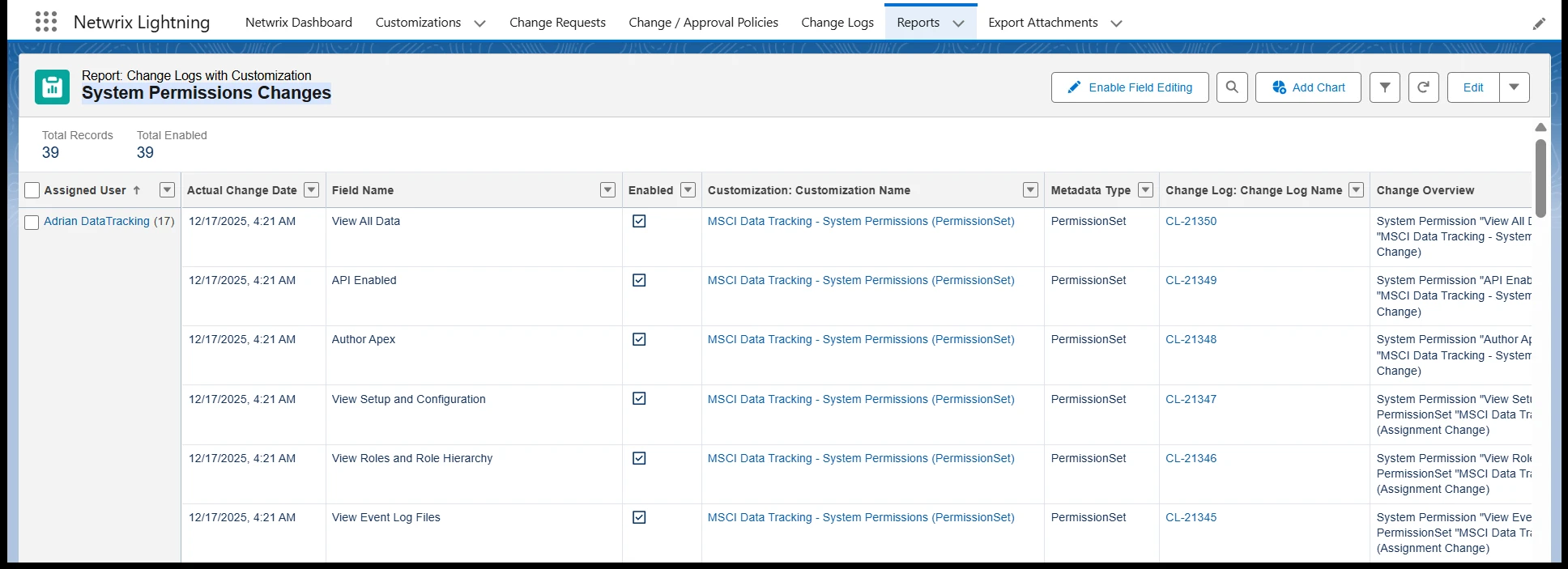
Recommended Permissions
Displays a curated list of high-risk permissions recommended for tracking. You can select or remove permissions and then click Save to update the tracked list.
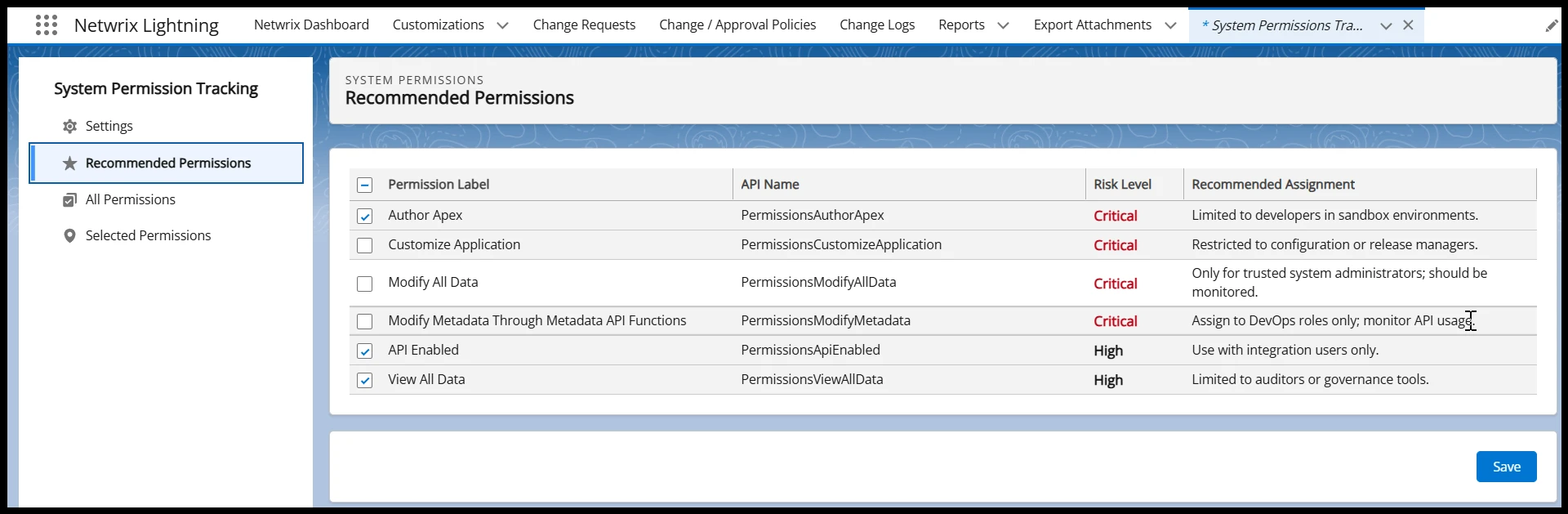
All Permissions
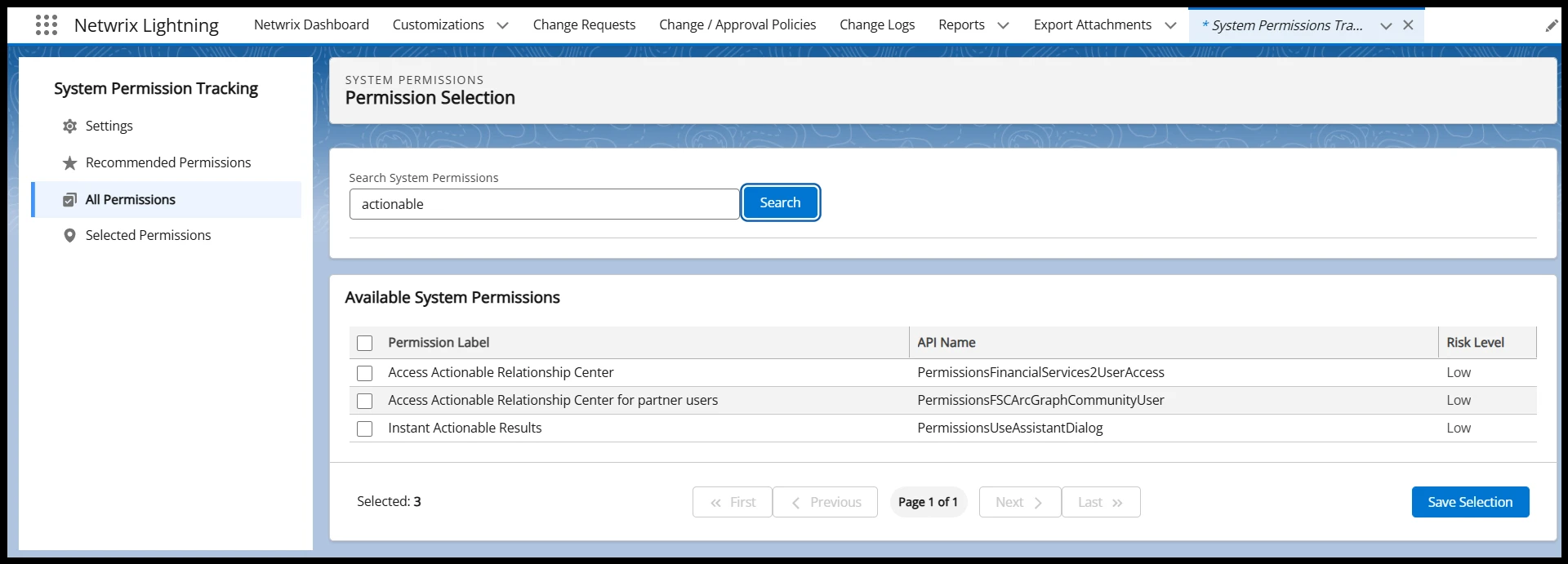
Allows searching and selecting System Permissions not included in the recommended list. Use the search bar to filter results, and click Save after selecting or removing permissions.
Selected Permissions
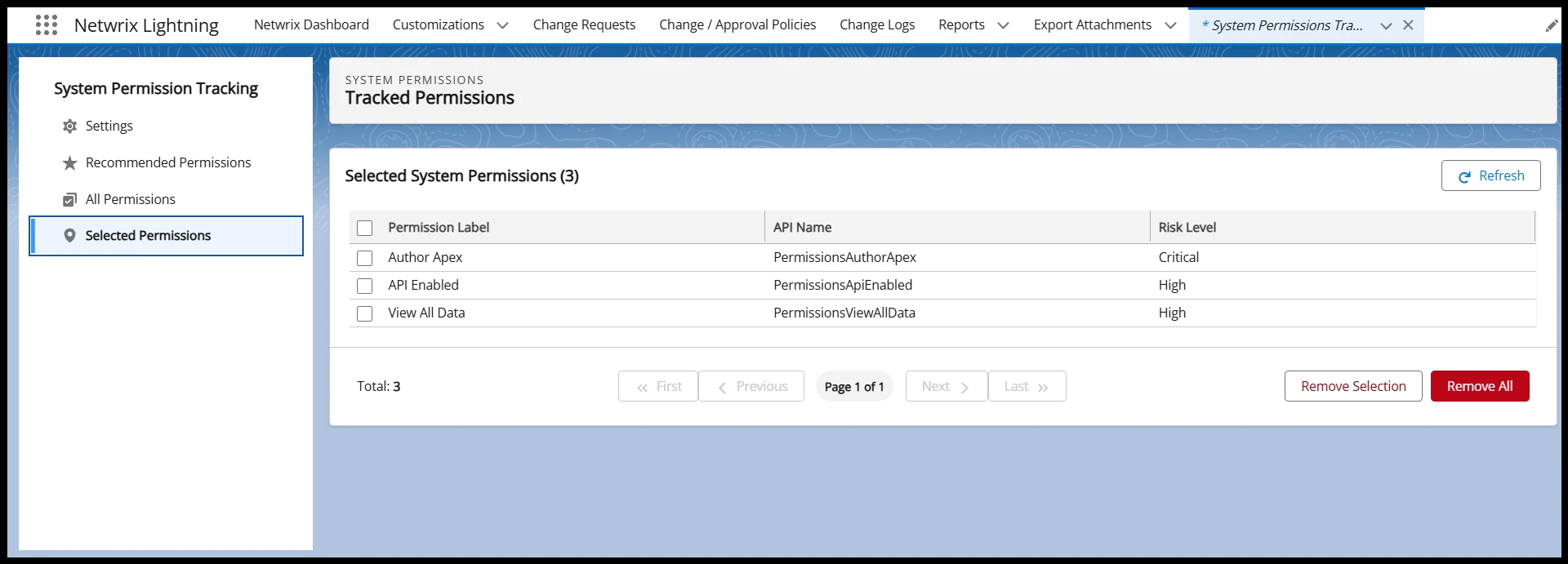
Displays all System Permissions selected for tracking, whether selected from Recommended Permissions or All Permissions. You can remove all tracked permissions or selectively remove only specific ones.
Change Log
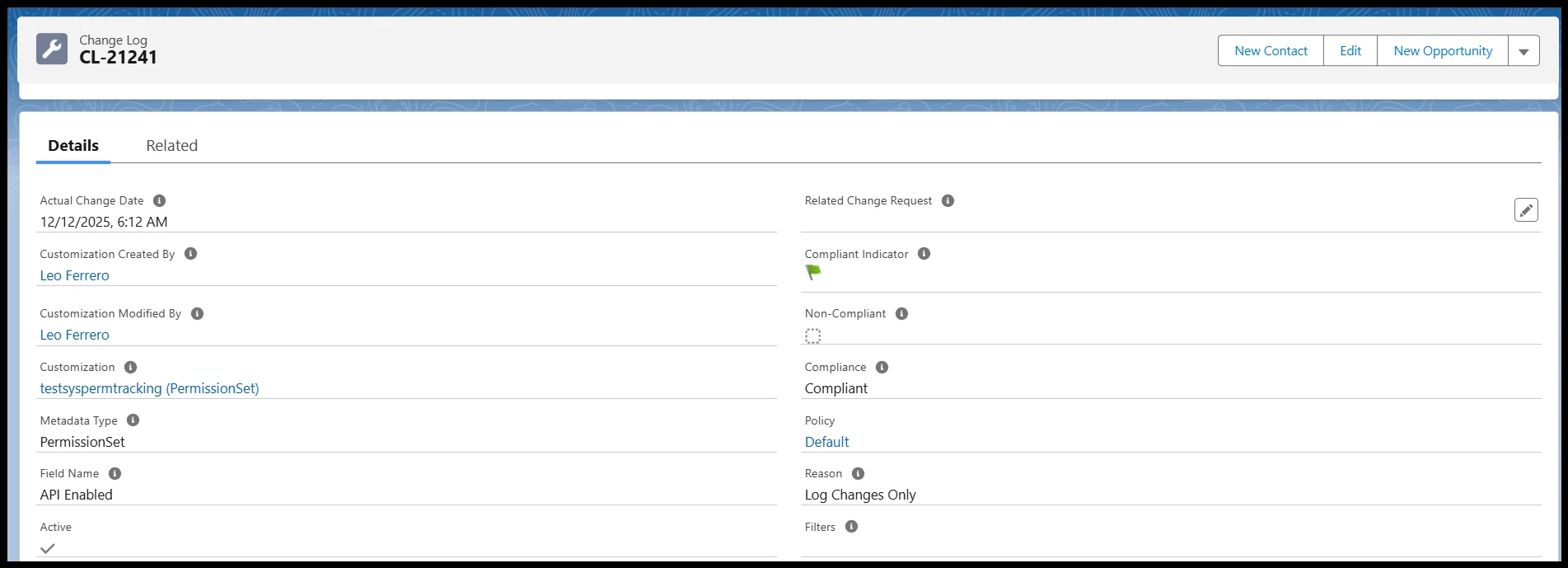
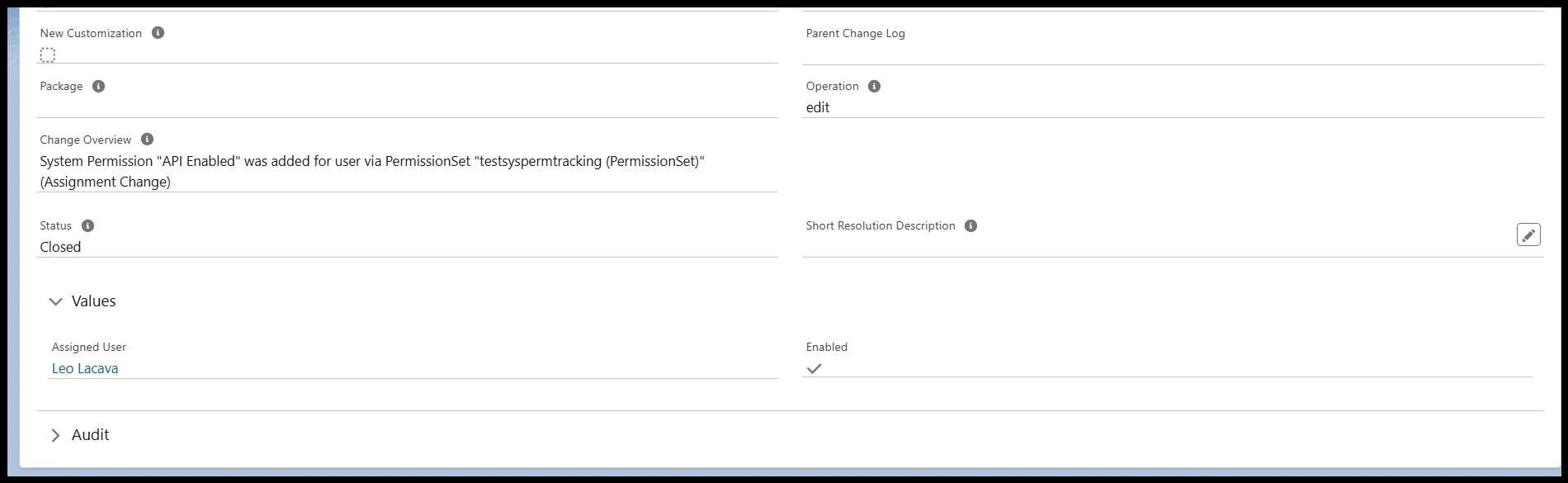
The Change Log provides a detailed record of each detected change. Key fields include:
- Customization: Related Profile or Permission Set
- Field Name: System Permission name
- Assigned User: User impacted by the change
- Enabled: Indicates whether the permission was granted (True) or removed (False)
Viewing Change Logs
- Navigate to the Change Log section
- Review the list of detected changes
- Use filters to narrow down results by:
- Date range
- User
- Permission type
- Customization (Profile/Permission Set)
- Click individual entries to view detailed information
Exporting Change Logs
Export change logs for further analysis or compliance reporting:
- Select the change log entries you want
- Click Export to download the data
- The export includes all relevant details about the permission changes
Best Practices
- Start with Critical and High-risk permissions: Focus on the most important permissions first
- Use the Recommended Permissions list as your baseline: This list is curated based on security best practices
- Avoid tracking large numbers of permissions: This can increase scan duration and complexity
- Schedule scans outside peak business hours: Minimize impact on system performance
- Periodically review selected permissions: Ensure alignment with your organization's security policies
- Document your tracking strategy: Maintain clear documentation of which permissions are tracked and why
- Set up appropriate notifications: Ensure the right people receive alerts about permission changes
- Regular review of change logs: Establish a routine for reviewing and acting on detected changes
Limitations
- Tracking is limited to the System section of the Salesforce System Permissions page; permissions in the Users section are excluded (see Tracked permissions scope)
- Tracking too many permissions can increase scan times
- Some Salesforce permissions may behave differently depending on org configuration
- Historical data covers only the period since you enabled tracking
- Change detection requires at least two scans to establish a baseline
Troubleshooting
No Change Logs Are Created
Issue: The scanner runs but no change logs appear
Solutions:
- Confirm System Permission Scanning is enabled
- Verify that Selected Permissions contains at least one permission
- Ensure recent changes occurred in Profiles, Permission Sets, or user assignments
- Check that at least two scans have been completed (baseline + comparison)
- Review scanner execution logs for errors
Email Notifications Not Being Received
Issue: Configured recipients aren't receiving email notifications
Solutions:
- Ensure Email Notifications are enabled
- Verify you have added at least one valid recipient
- Check that recipients have the required Permission Set ('Netwrix Grant Permissions')
- Ensure you have configured a valid schedule
- Verify email addresses are correct in Salesforce
- Check spam/junk folders for notification emails
Permissions Not Appearing in All Permissions
Issue: Expected permissions aren't showing in the All Permissions list
Solutions:
- Clear any applied search filters
- Permissions already marked as selected don't appear in search results
- Use Refresh to reload the list
- Verify the permission exists in your Salesforce org
- Check if the permission is already in the Recommended Permissions list
Scanner Takes Too Long to Complete
Issue: System Permission scans are taking excessive time
Solutions:
- Reduce the number of tracked permissions
- Schedule scans during off-peak hours
- Review system resources and performance
- Consider tracking only critical permissions
- Contact Netwrix support if performance issues persist
Change Logs Show Unexpected Results
Issue: Change logs contain entries that don't match expected changes
Solutions:
- Verify the baseline scan completed successfully
- Check for bulk permission changes or user assignments
- Review the time range of the changes
- Ensure no other administrators made concurrent changes
- Validate that you have correctly configured the tracked permissions