Field Tracking
Overview
Field Tracking is a specialized configuration tool designed to monitor and detect changes in field permissions across Permission Sets and Profiles in your Salesforce environment. Each time the Field Tracking Scanner runs, it reads active monitoring rules, determines the monitored fields, and checks for permission changes.
Monitoring Rules are a specialized configuration tool designed to track and detect changes in field permissions across Permission Sets and Profiles in your Salesforce environment.
Changes in field access for Profiles and Permission Sets are no longer documented by the autoscanner. This new tool replaces the previous feature for Fields. Add all sensitive fields to the Monitored Rules.
Accessing Field Tracking
Navigate to the Netwrix Dashboard:
- Tools > Access > Field Tracking
Key Sections
The left-hand panel contains three main sections:
- Settings
- Monitoring Rules
- Monitored Fields
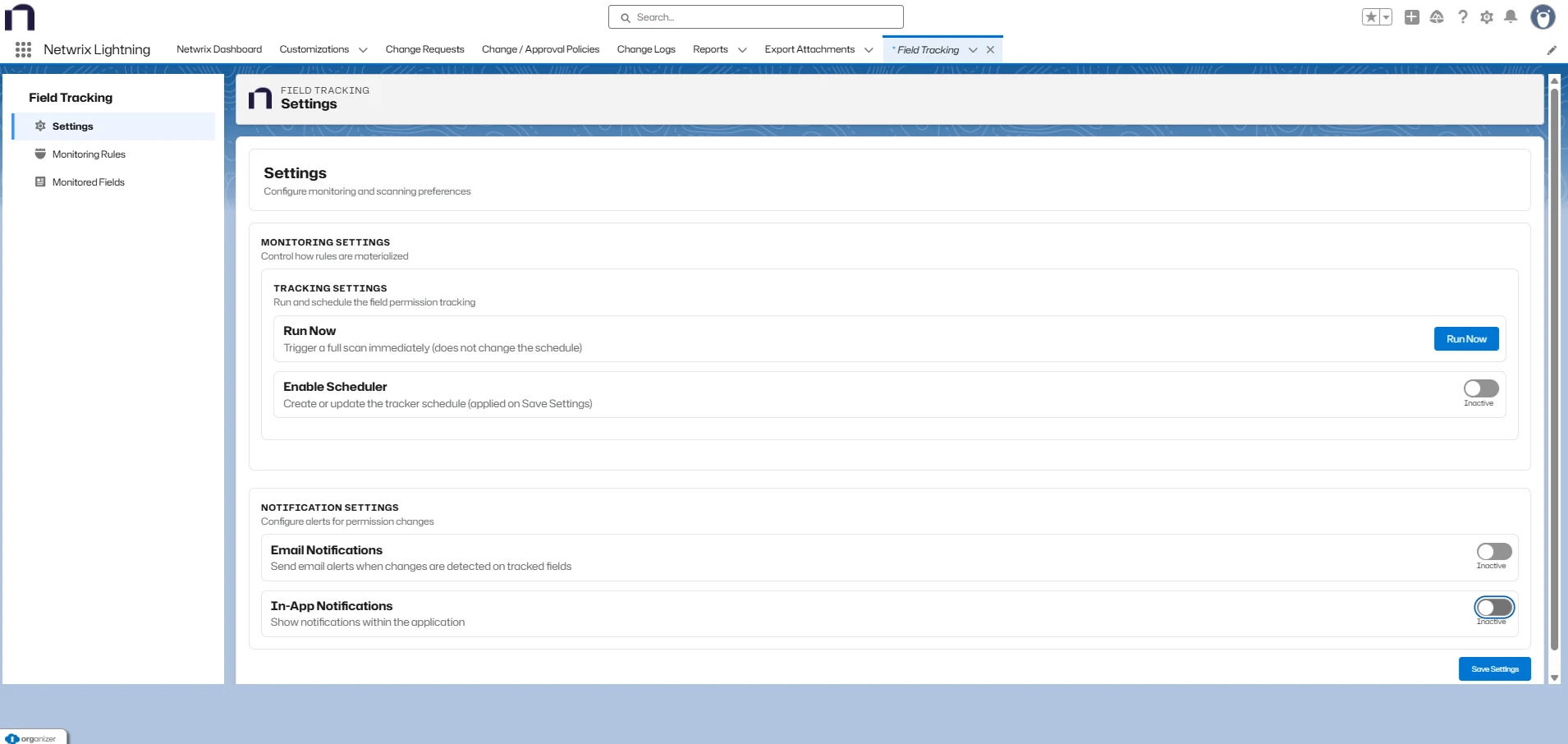
Settings
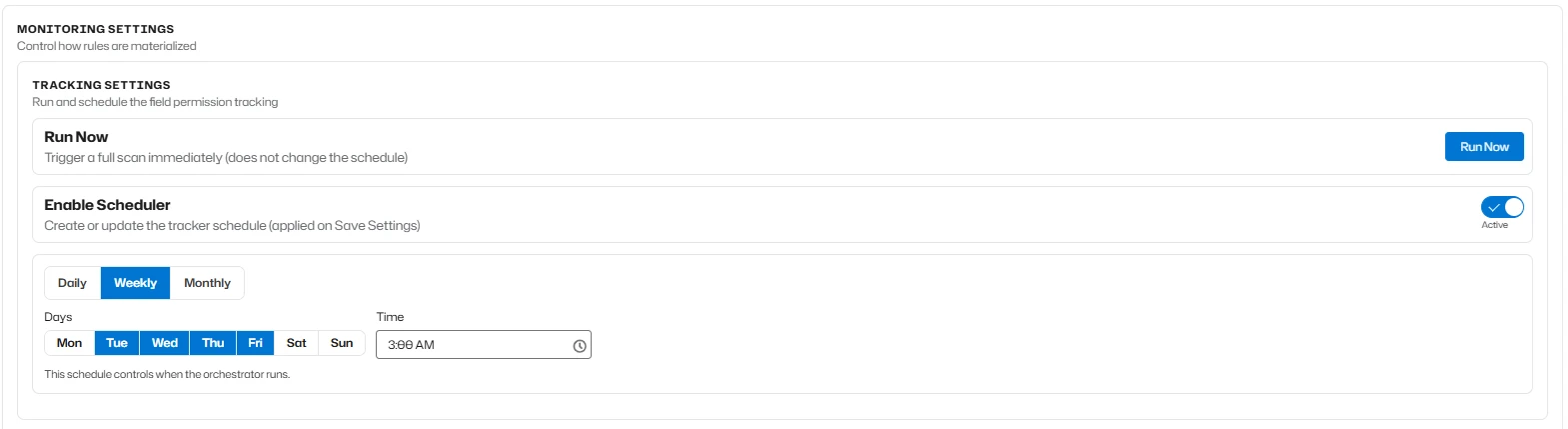
Monitoring Settings
- Manually run the batch process by clicking "Run Now"
- Automate the process with a Scheduler (daily, weekly, or monthly)
- The process takes a snapshot of field permissions and creates a Change Log for detected modifications
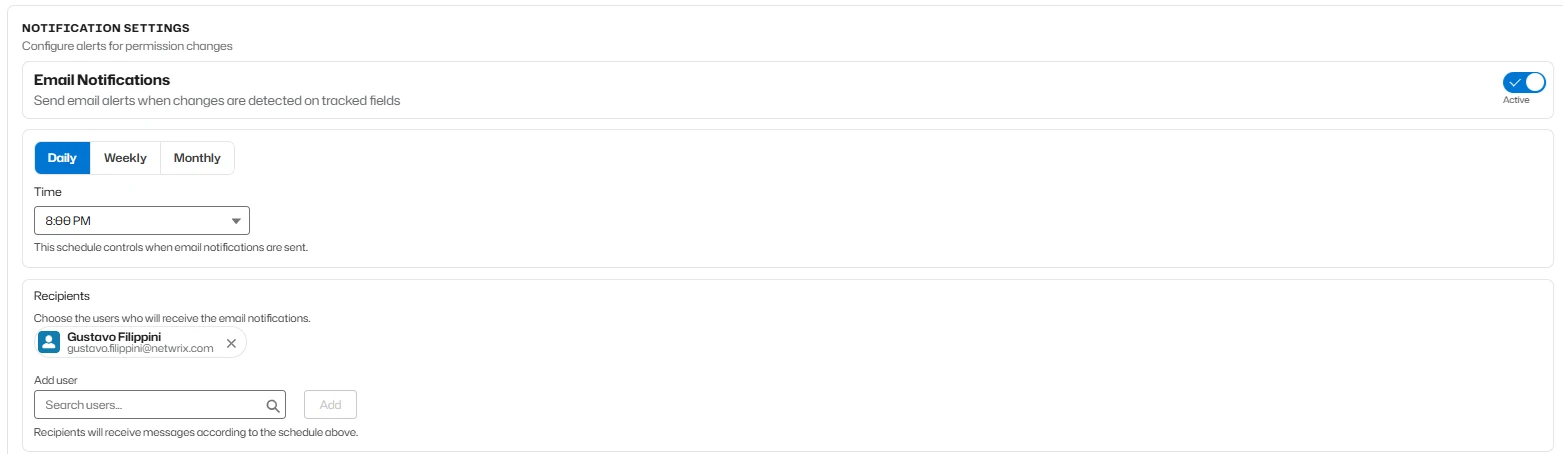
Notification Settings
You can enable Email Notifications to subscribe to reports showing field changes. Select the notification frequency — daily, weekly, or monthly — and define the list of recipients. Enable notifications and add the users who should receive the emails. The system automatically handles subscriptions. Any user receiving email notifications must have the "Netwrix Grant Permissions" PermissionSet assigned, as this permission set grants access to the related objects and features within the application.
-
Enable Email Notifications
- Choose notification frequency: daily, weekly, or monthly
- Define recipient list
-
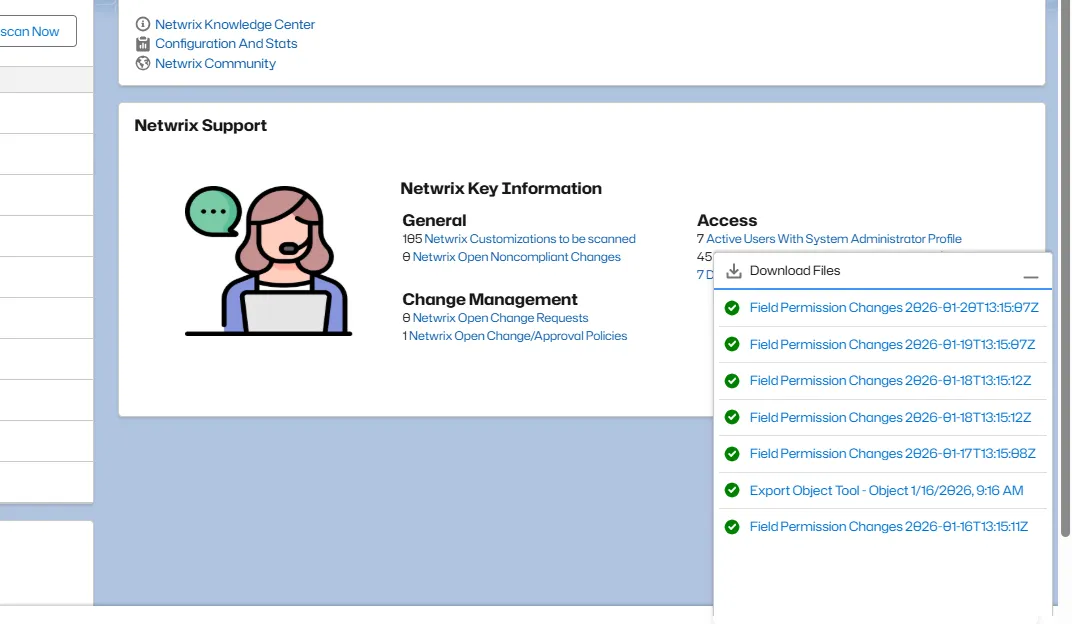
Enable In-App Notifications If In-App Notifications are enabled, each batch execution creates a record in the Download Files component on the Netwrix Dashboard. This component provides links to daily reports showing all field permission changes detected for each day.
Additionally, the system creates an Export Attachment record for each report. This tab is visible within the application and contains the export file associated with the report. All relevant information is available through the Dashboard’s Downloaded Files bar.


To save all configuration changes, click Save Settings.
Monitoring Rules
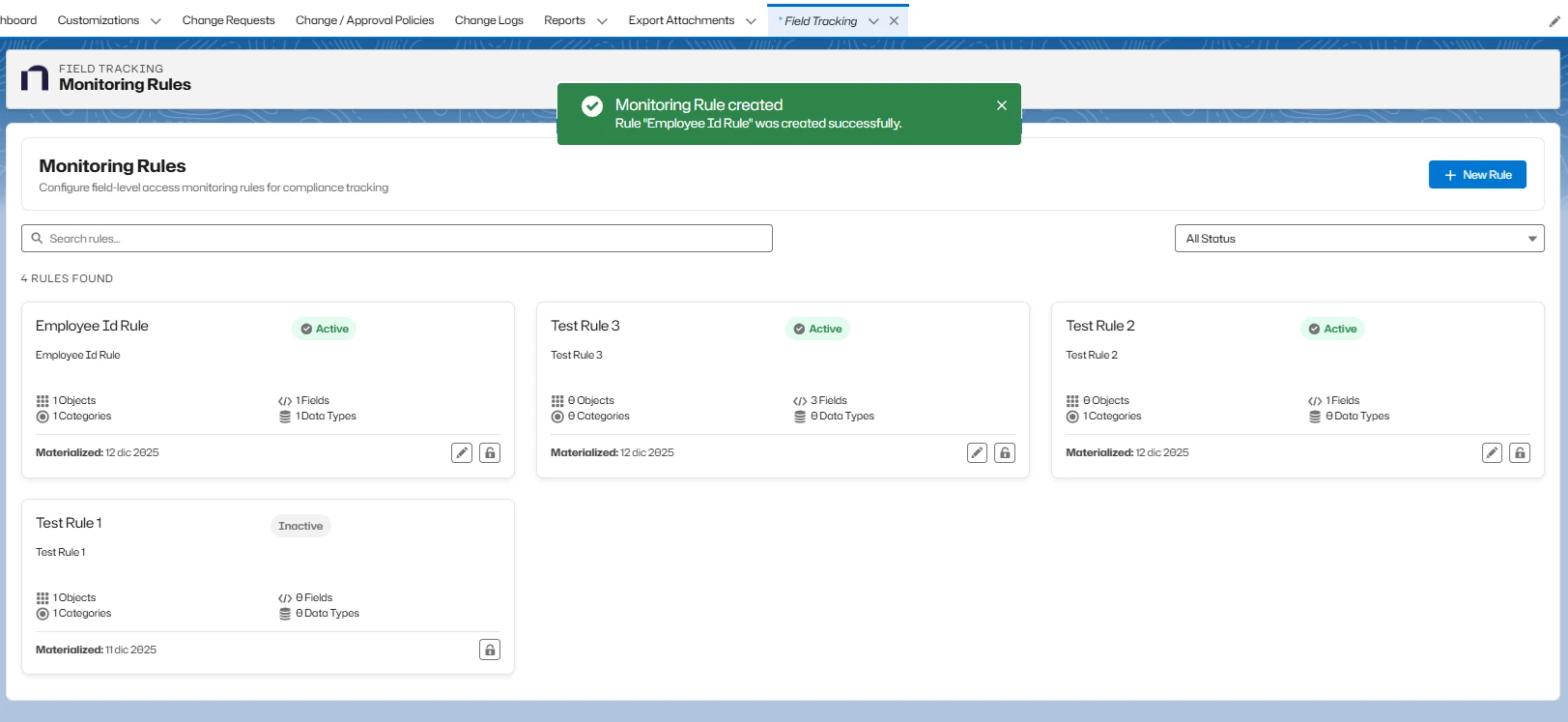
This screen displays all existing monitoring rules. You can create, edit, or deactivate rules, and you can also search for rules by name or status.
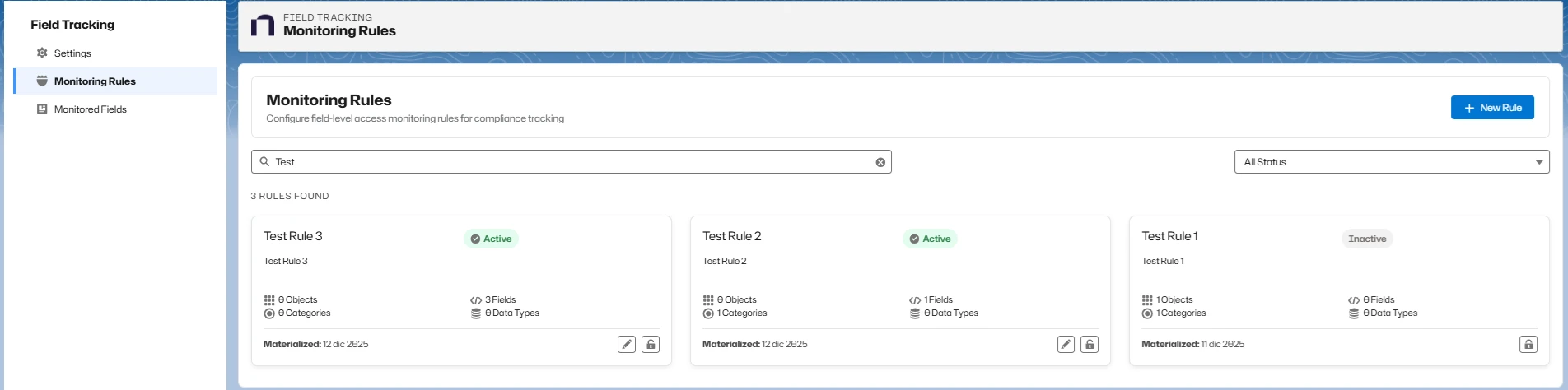

Creating a New Rule
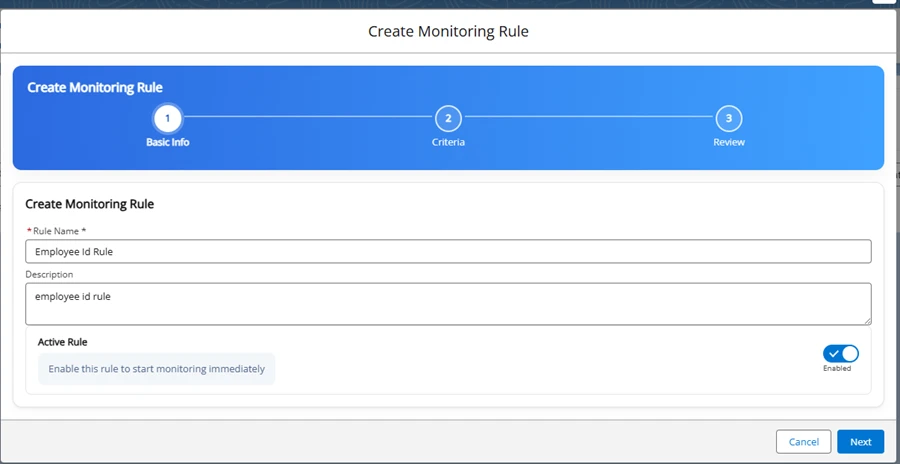
Use the three-step wizard:
- General Information
- Enter rule name
- Add description
- Set activation status
- Criteria Selection
You can filter fields by:
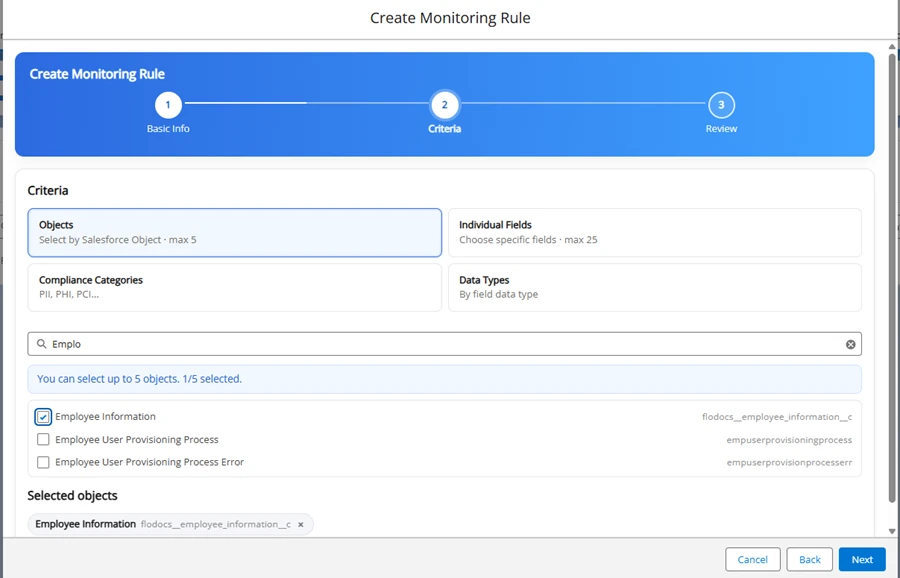
- Objects
- Maximum of 5 different objects per criterion
- Error message if more than 5 objects are selected
- If you first select the “individual fields” criterion, the “objects” criterion displays only the objects of the fields selected under “individual fields.”
- Objects
- Individual Fields
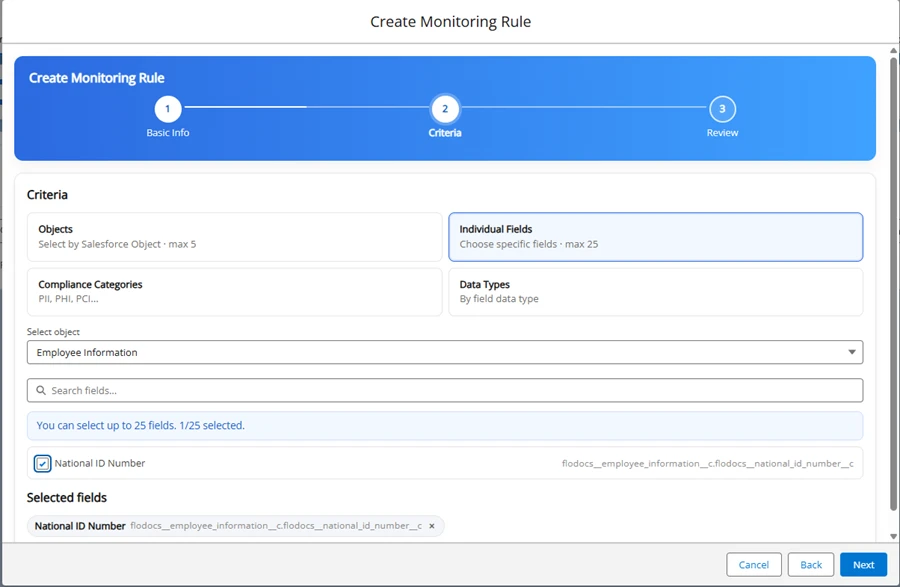
- Maximum of 25 fields total
- Automatic removal of associated fields when an object is deselected
- If you first select the “objects” criterion, the “individual fields” criterion displays only the fields of the objects selected under “objects”
- Compliance Categories
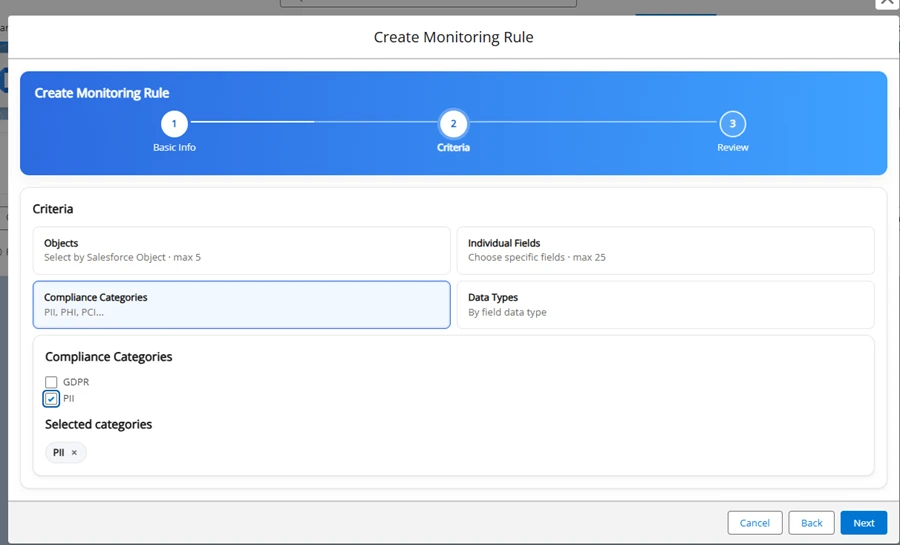
- Compliance Categories are classifications used to group data, records, or processes according to regulatory or compliance requirements, helping organizations manage and track adherence to laws, standards, and internal policies.
- No maximum limit
- Based on "Compliance Group" field in custom field customizations
- Data Types
- Free selection
- Requires prior object selection
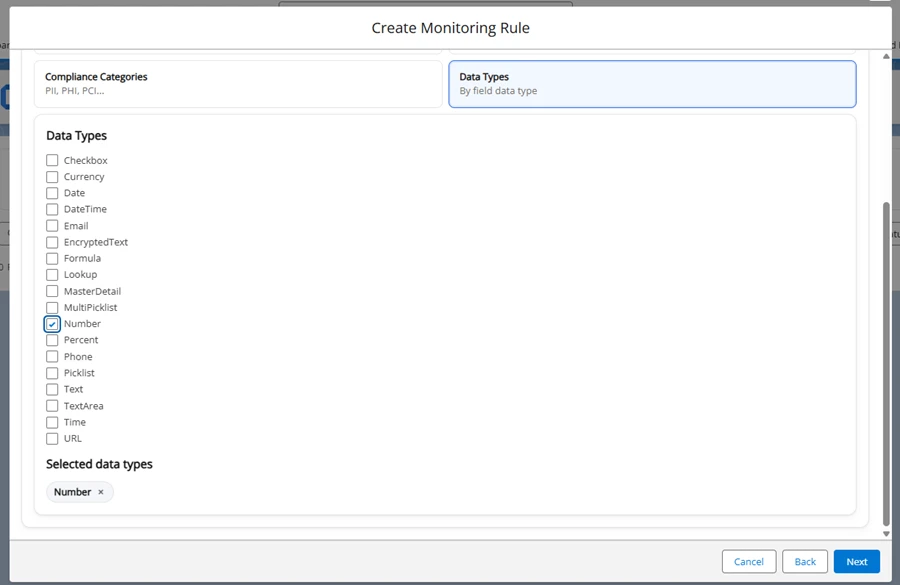
The tracked fields must match all selected criteria.
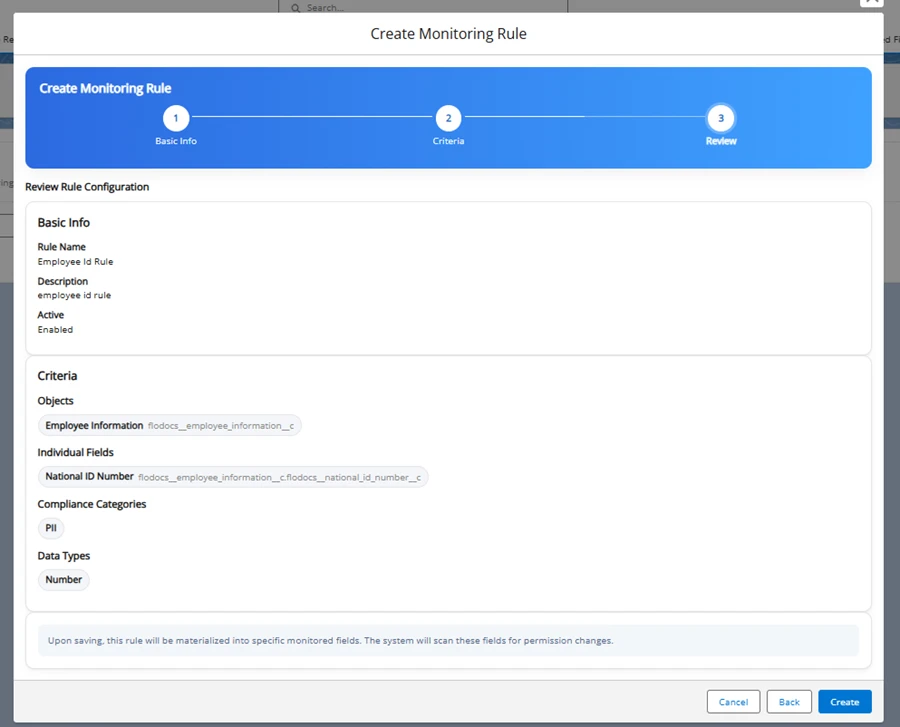
- Summary
- Review selections
- Click Create to finalize the rule
After creation, a confirmation message appears, and the list of rules updates automatically.
Rule Management
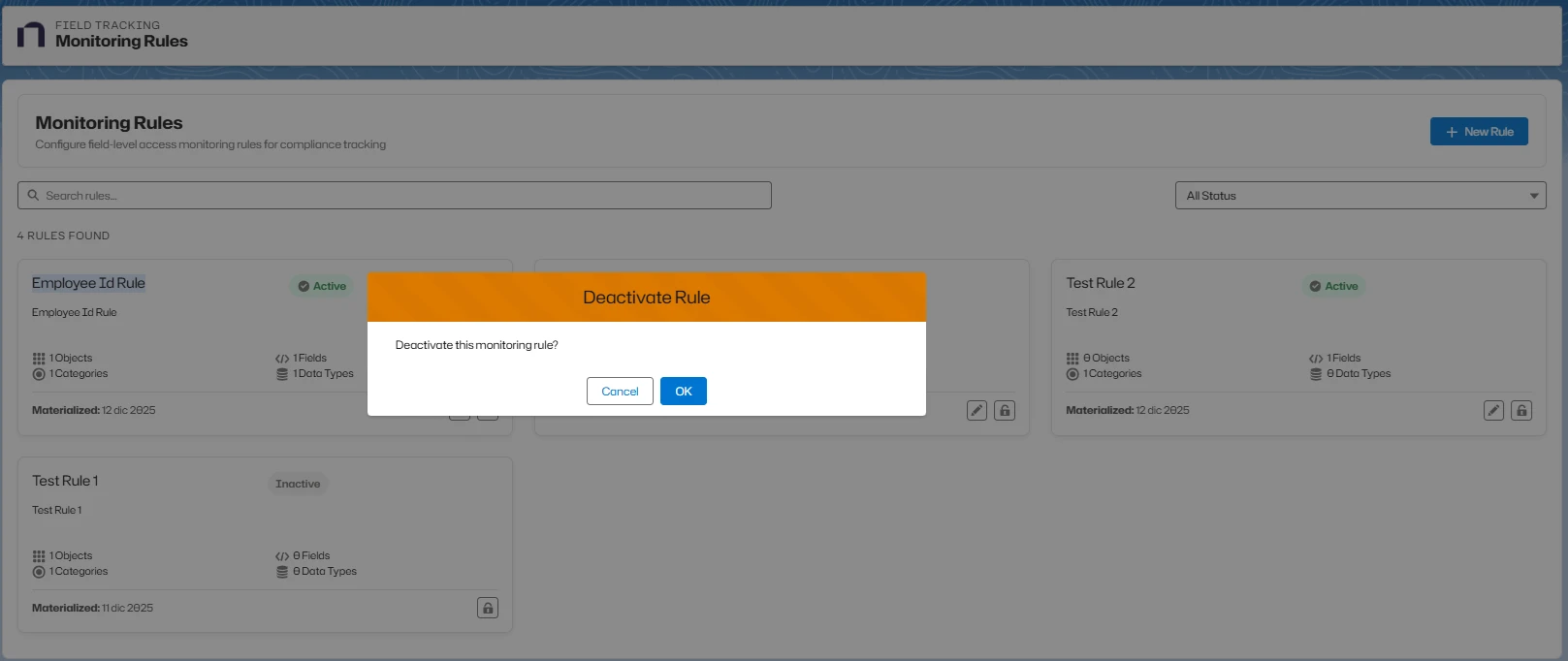
- Edit or deactivate rules directly from the list
- Deleting a rule sets it to Inactive

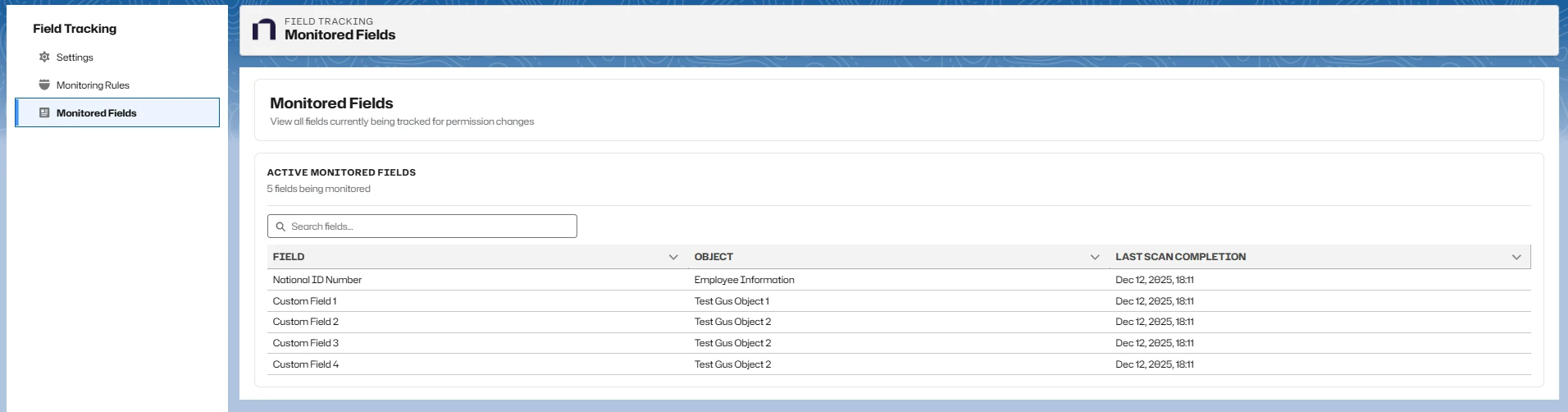
Monitored Fields
After running the batch process, view:
- All monitored fields
- Last monitoring date
- Current tracking status
Change Logs
The Field Tracking tool automatically generates change logs when the batch process runs. These logs provide a detailed record of field permission changes detected during the monitoring process.
Example Change Log
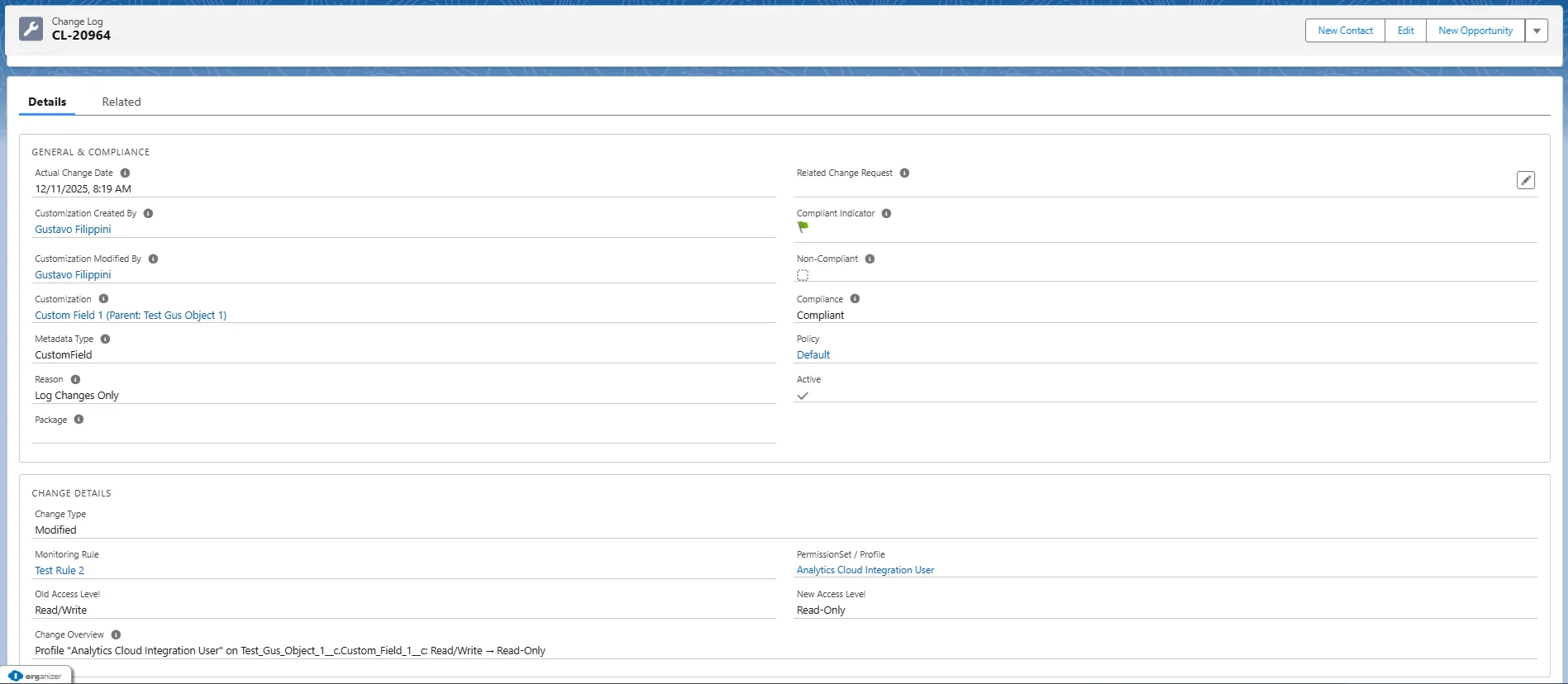
The change log provides a detailed record of field permission modifications, including:
- Timestamp of the change
- Object name
- Field name
- Change Type
- Monitoring Rule
- Profile or Permission Set
- Old Access and New Access
Available Reports
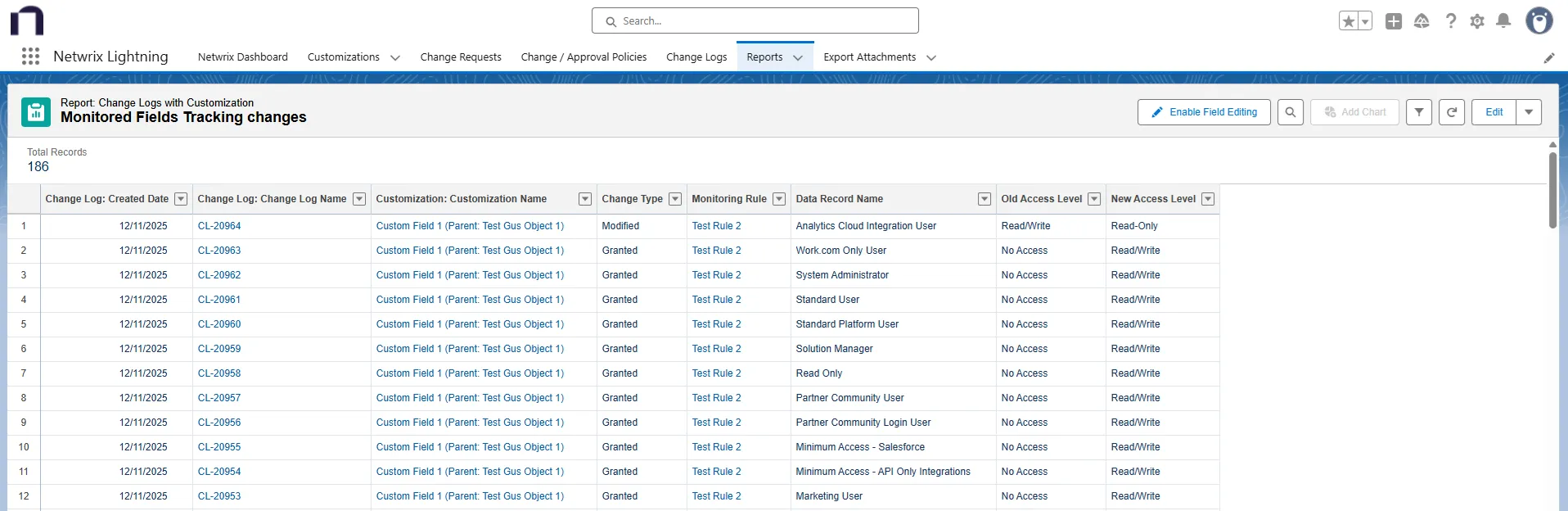
Monitored Fields Tracking Changes Report
Access this report at: Reports > Access Reports > Monitored Fields Tracking Changes
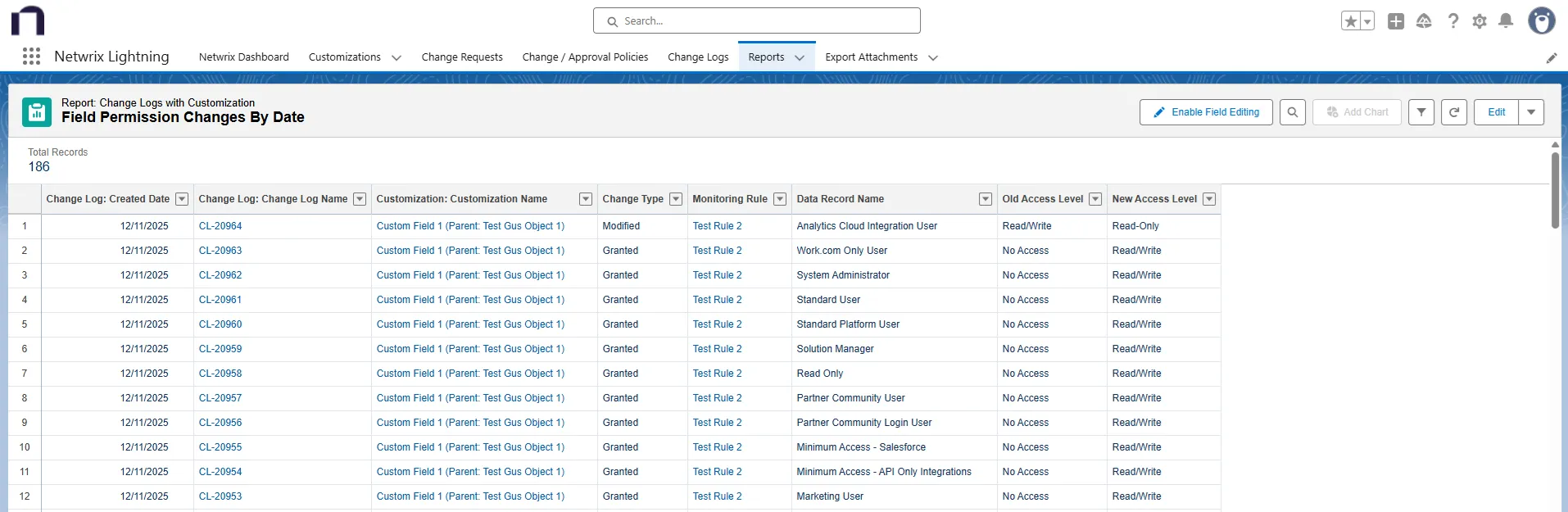
Field Permission Changes By Date Report
Access this report from the Download Field component on the Home page.
Best Practices
- Carefully select fields to track
- Use compliance categories for better organization
- Regularly review monitoring rules
- Set up notifications to stay informed about field changes
- Every time you create a new field, evaluate if the new field needs to be added to any existing Monitored Rule or if you need to create a new one.
- Ensure the Field Tracking scanner is scheduled on a regular basis.
Limitations
- Object selection limited to 5 per criterion
- Field selection limited to 25 total
- Requires careful configuration to avoid performance impacts
Troubleshooting
- Check notification settings if reports aren't received
- Verify object and field selection criteria
- Ensure proper permissions for tracking
- Missing field access change log: Review if the field is part of a monitoring rule and/or if the rule is active.