Export Objects
Administrators can use this to export one or more objects, including all child objects, into a single view for review and management. For each export, you select the settings and optional profiles and permission sets to include in the object details. The export runs in the background to avoid timing out or exceeding the Salesforce Governor Limits. You receive an email with a link to the Export Object Attachment record, where you can download your file. You can also use the Download Files link on this page or on the Netwrix Dashboard to download your file.
You can export Permissions by Object or Object Permissions by Profile/PermSet.
Platform Governance for Salesforce stores Object-level permissions in a Custom Object. There are two reports (Netwrix Dashboard > Reports > Access Reports) for easy access to this information:
Open Netwrix Dashboard > Tools > Export Objects Objects is the default tab.
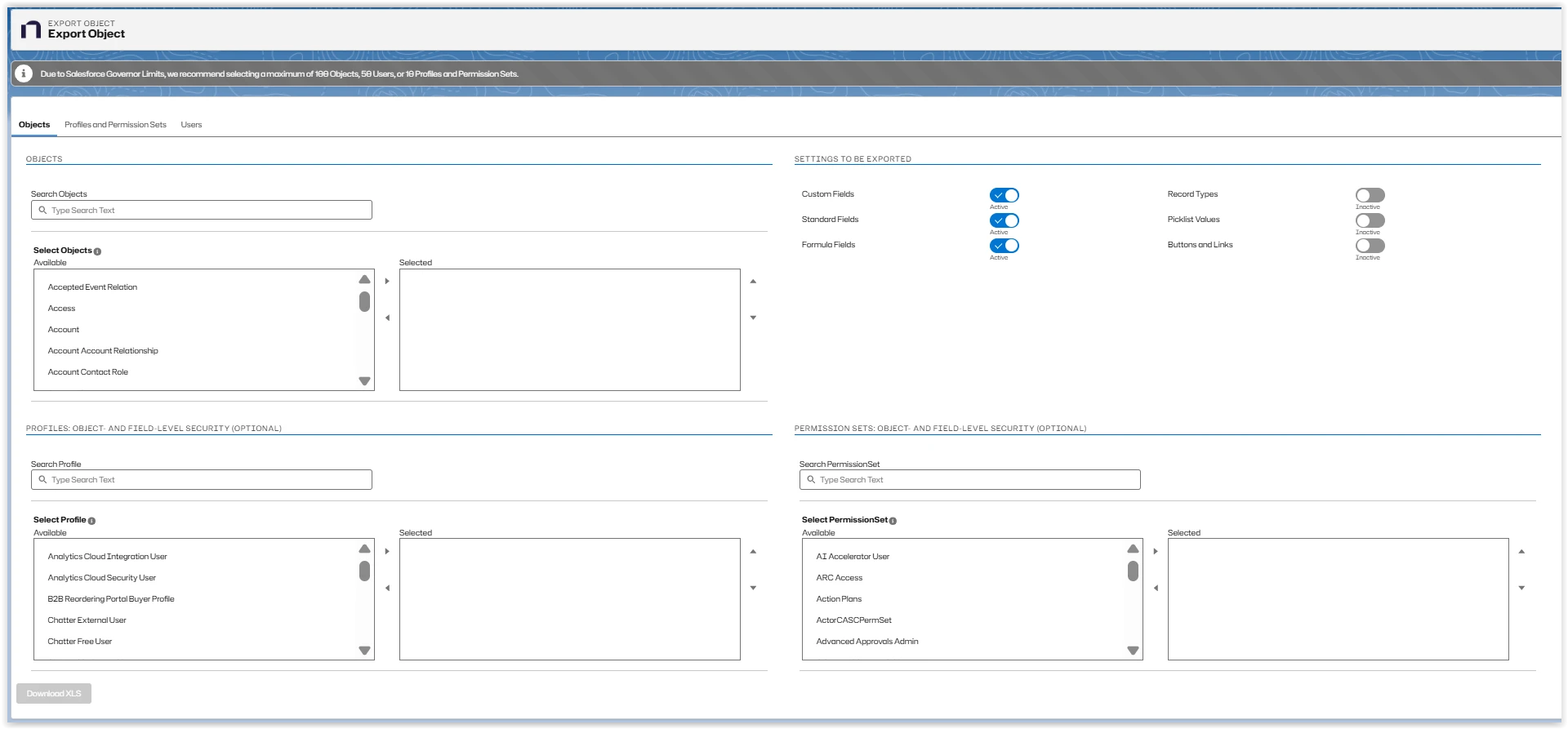
Objects
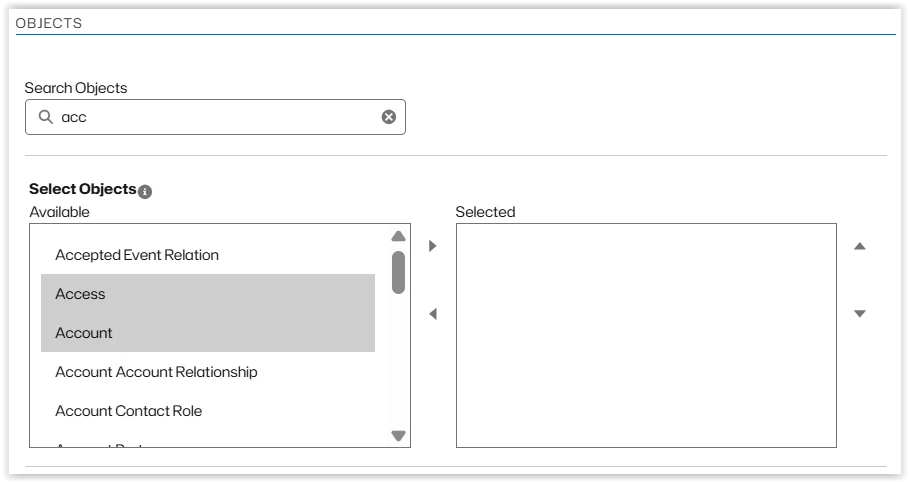
Search for an object by entering all or part of its name in Search Objects.
Select one or more profiles from the Available list and use the arrow buttons to move them to Selected. To remove profiles, select them in the Selected list and use the left arrow to move them back to Available.
Settings to be Exported
Click the toggles to activate or inactivate the settings you want to export.

Profiles: Object and Field Level Security (Optional)
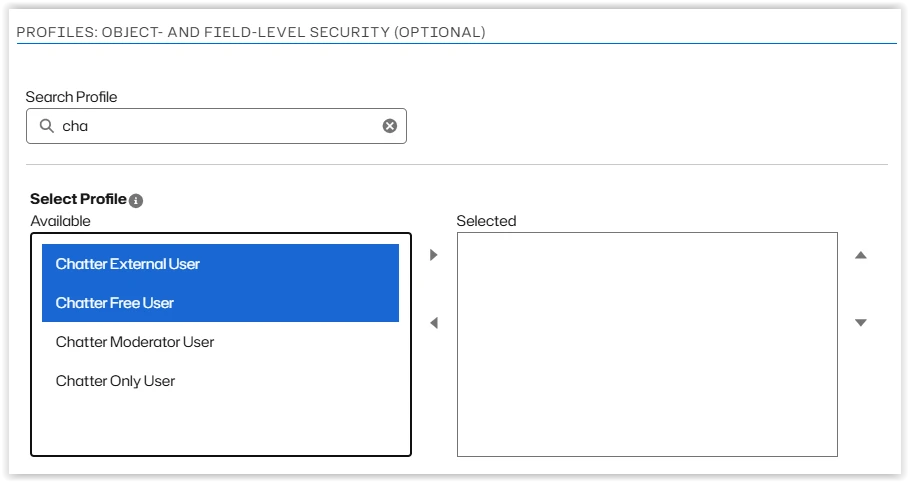
Search for a Profile by entering all or part of its name in Search Profile.
Select one or more profiles from the Available list and use the arrow buttons to move them to the Selected list. To remove profiles, select them in the Selected list and use the left arrow to move them back to Available.
Permission Sets: Object and Field Level Security (Optional)
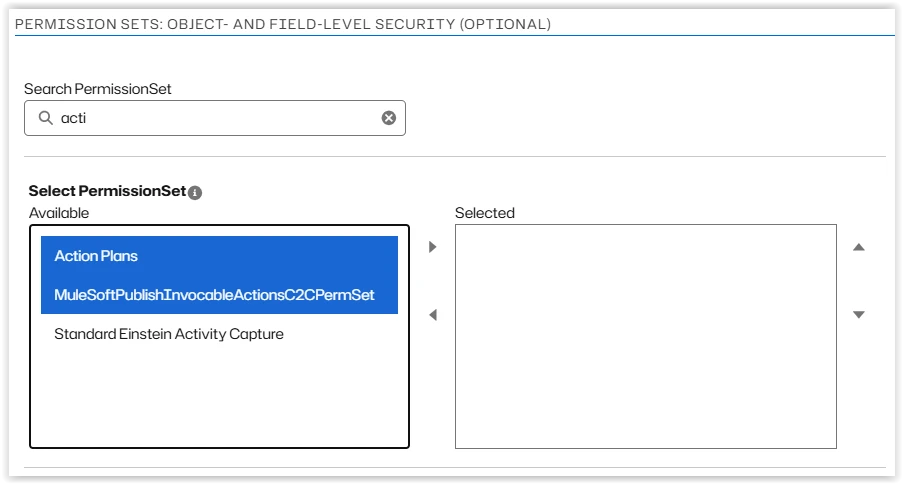
Search for a permission set by entering all or part of its name in Search PermissionSet.
Select one or more permissions set from the Available list and use the arrow buttons to move them to Selected. To remove permissions set, select them in the Selected list and use the left arrow to move them back to Available.
Download XLS
Click Download XLS to export your selections. You receive an email with a link to the file Object_Export.xls.
Download Files
Click Download Files to see a list of generated files. The file doesn't appear in the list until it is complete.

Click the export name. The Export Attachments tab is opened, showing the attachment detail for your file. Click View file to download it to your Downloads folder.
ObjectExport.xls File
When you open an exported file, this message may be displayed, as the exported ObjectExport.xls file is in XML instead of the Excel format. Click Yes to load the file.

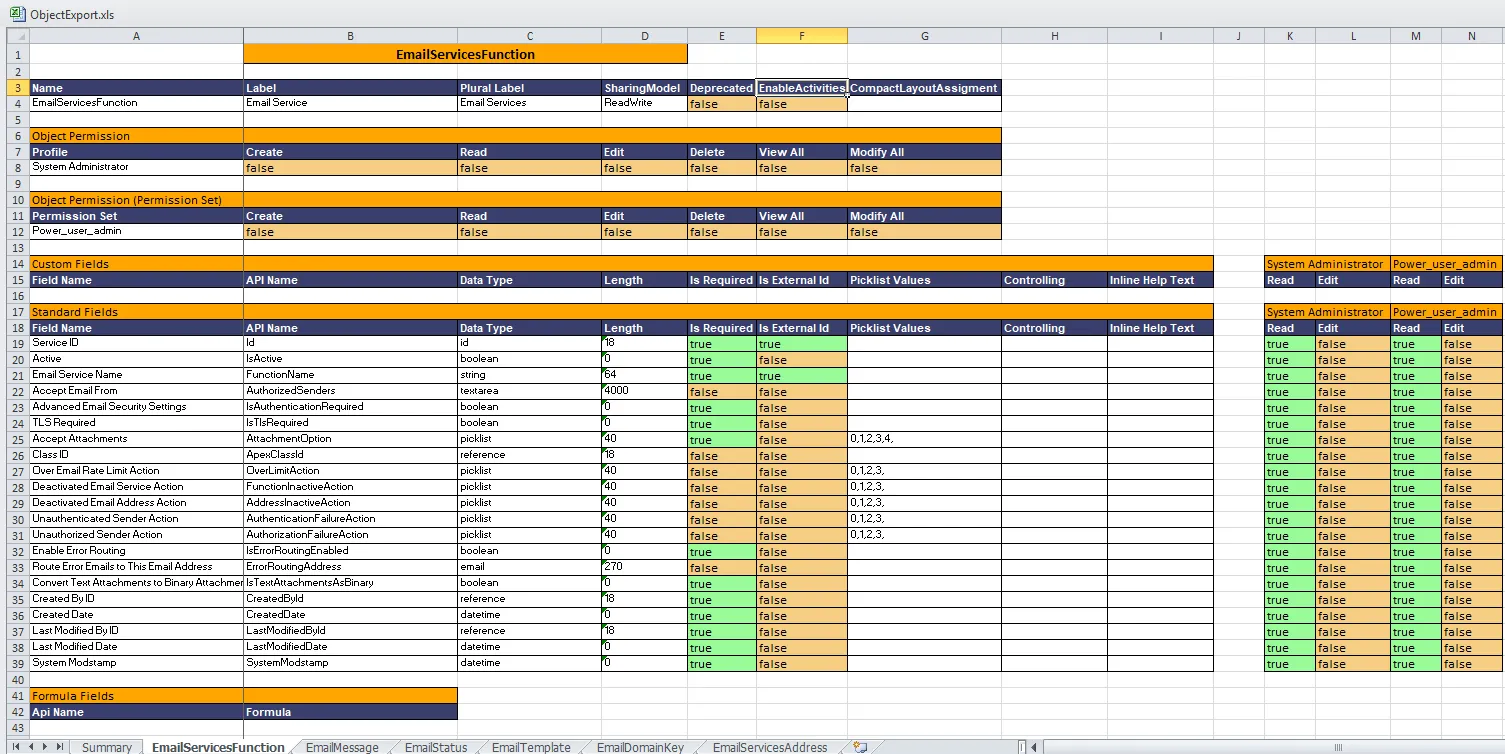
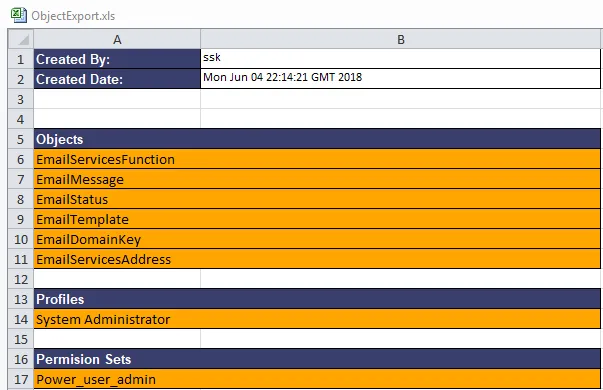
The ObjectExport.xls file contains a Summary tab and a separate tab for each selected object.
The Summary tab shows who created the export, the creation date and time, list of selected objects, and lists of any selected optional Profiles and Permission Sets.
The Object tabs contain all of the requested information for each object.