Change Monitoring
Activating change monitoring is the next step on the path to reduce your Technical Debt. Change monitoring records all changes that occur in the org and automatically alerts stakeholders of any that fall outside of policy or impose unacceptable levels of risk.
Change monitoring can be integrated into your change governance process or used as the foundation of a new efficient process using Platform Governance for Salesforce. For now, oversight is the goal. In particular, notification of any changes that touch automation (code, workflows, triggers), profiles or roles is essential. The severity level can be set to the level of change a policy should impose. For example, code-related changes normally follow a tighter approval process than simple data model changes.
How Change Policies Work: Every time a customization is created or changed in an org, Platform Governance for Salesforce checks to see if the change should have been reviewed or approved. By default, this depends on the dependencies — a picklist with no dependencies is a relatively safe change compared to a picklist with risky code dependencies. Default policies can be customized and applied to specific customizations. For example, most reports don't need change control, but management reports need to be tightly controlled.
Policies define the level of change control to follow to reduce risk. The five change levels contain escalating levels of rigor and/or skill required to address a change:
| Change Level | Change Process | Example | Skill Level Required |
|---|---|---|---|
| L1: Log Changes | This is a safe change. | Ordinary report. | Anyone. |
| L2: Change Request | This needs approval from management but not sandbox review. | Management report or Control. | Anyone, provided prior approval is granted. |
| L3: Sandbox Development and Testing | The change is low complexity, but best practices require testing in a sandbox first. | Data model changes with no dependencies. For example, adding a new field. | Business Analyst or Admin with prior approval, working in sandbox before deploying in production. |
| L4: Full Software Development Lifecycle | This change requires careful handling and rigorous testing. | Changes to code or a picklist used in field with code or Salesforce Object Query Language (SOQL) dependencies. | Admin / Developer with prior approval working through a full development cycle in multiple sandboxes. |
Changes made without the policy-required approval are reported as Non-Compliant. Review the Non-Compliant Changes Report to ensure dangerous changes don't slip through and cause process or data problems.
Policies can also be used to block unauthorized changes.
Default Policy
Netwrix recommends the default policy as a foundational best practice. In addition, consider Specific Monitoring for anything needing special protection.
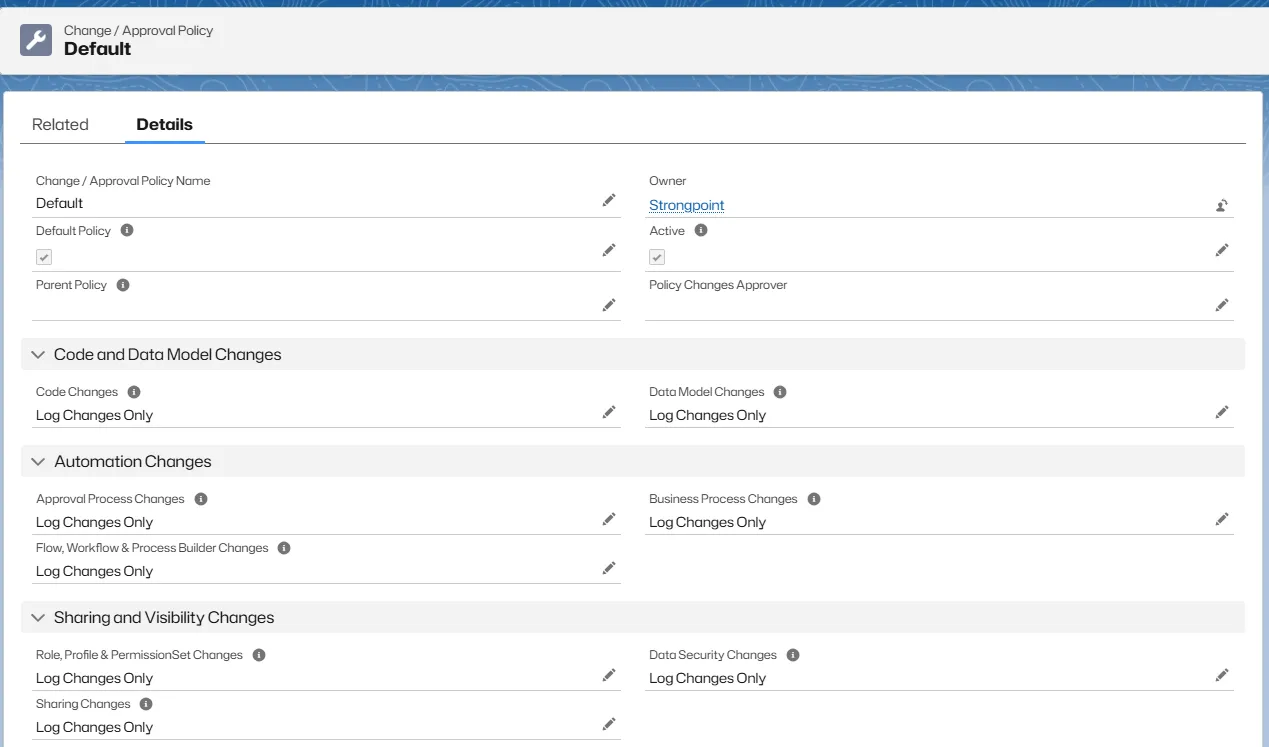
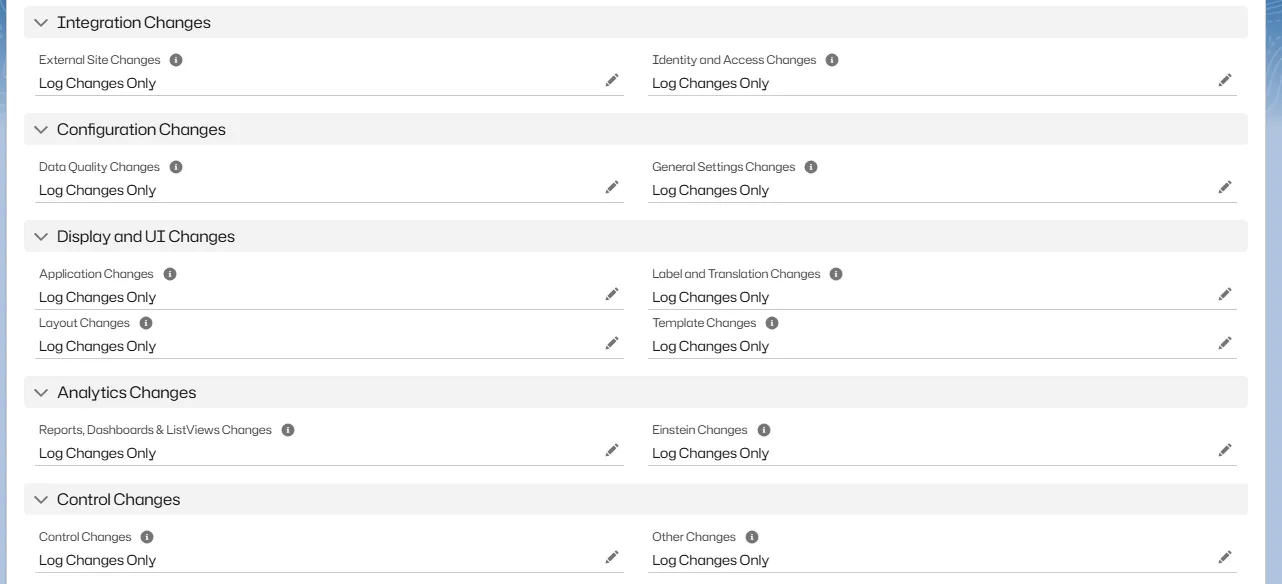
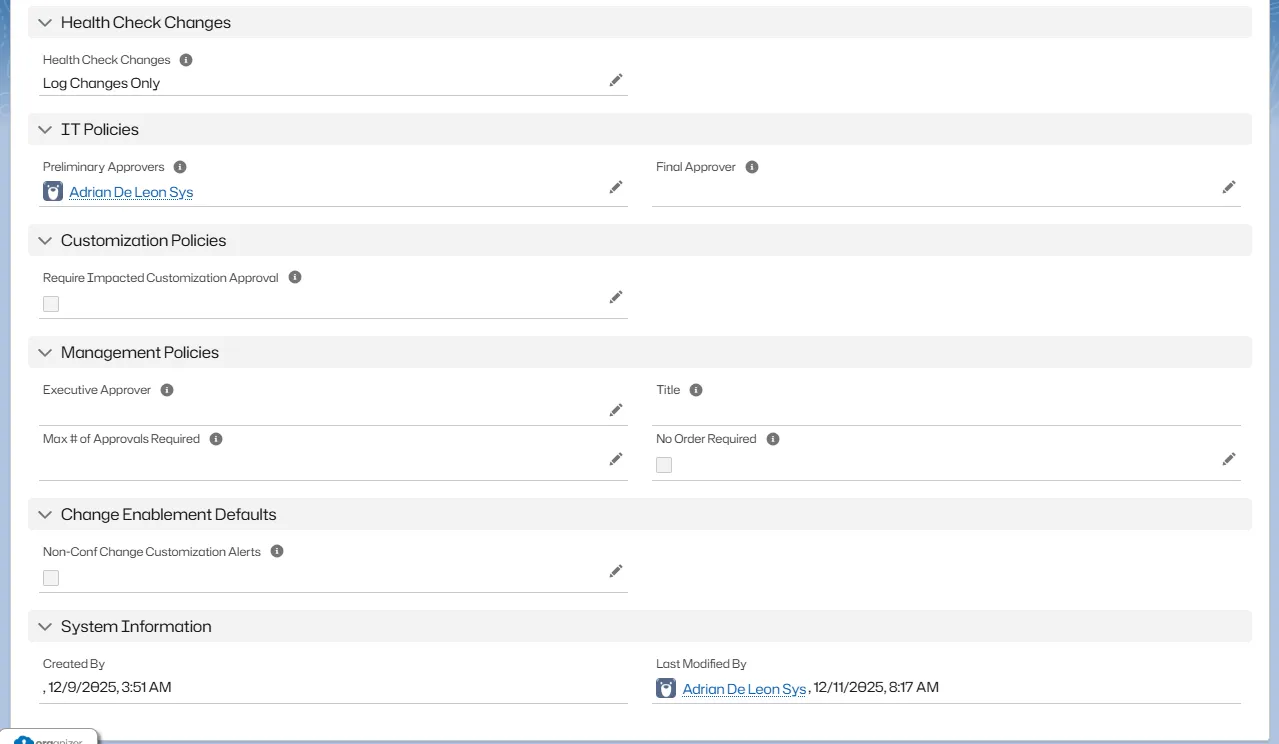
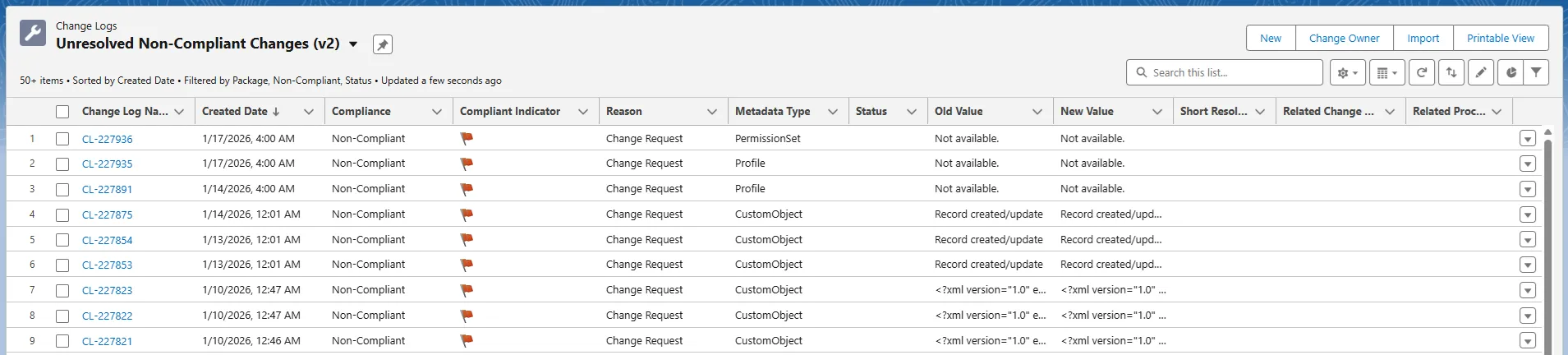
Platform Governance for Salesforce documents Unresolved Non-Compliant Changes in both a List View and a Report. Both show you all the changes that should have received approval and the level of change control required for the change. Use the List View to review and manage the resolution from a single screen through the Short Resolution Description and Status fields.
To restrict your review of changes, filter out object types or risk levels that don't apply to your team. Alternatively, you can create different reports for different team members to prioritize what you see.
Related Tab Overview
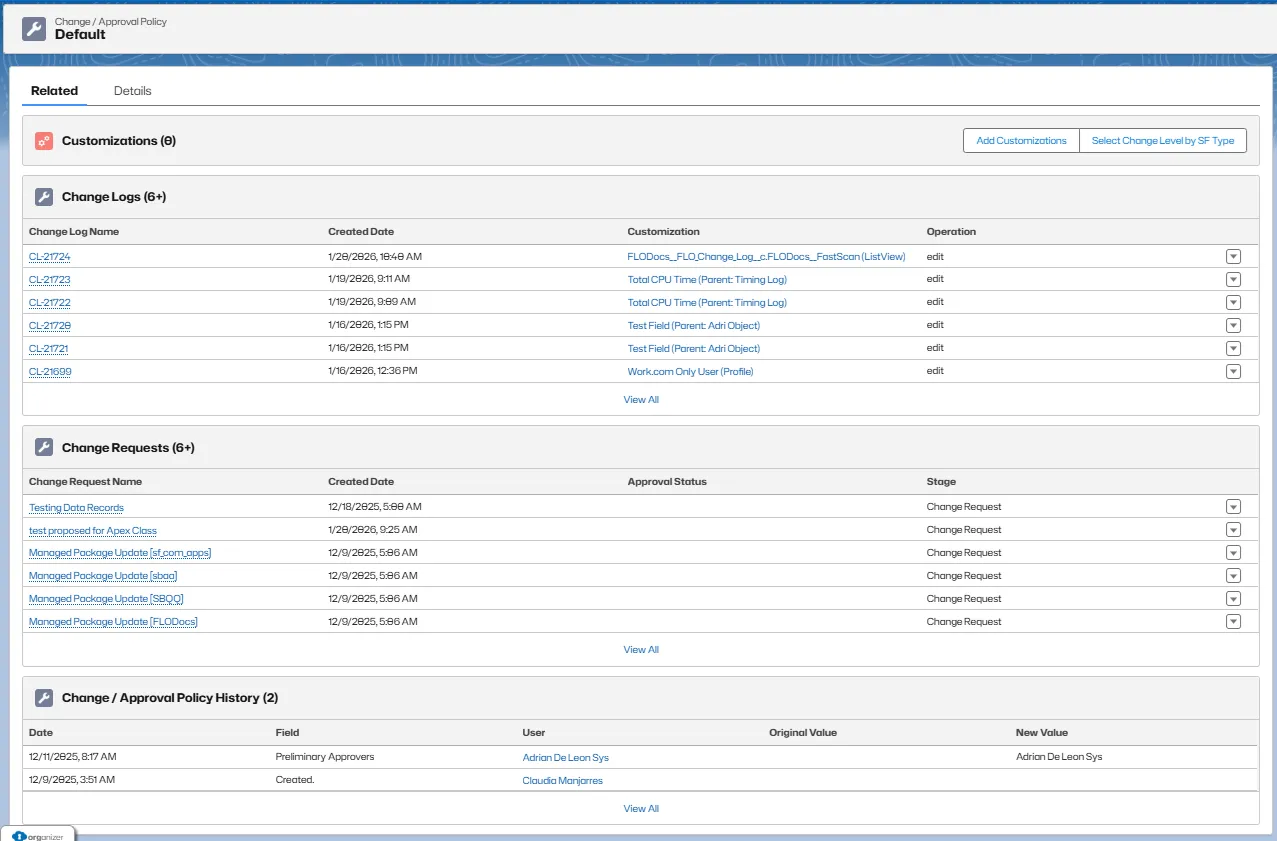
The Related tab on the Policy page provides a consolidated view of all elements associated with a Change / Approval Policy and serves as the main workspace for managing policy scope and tracking its usage.
From this tab, you can:
View Customizations Associated with the Policy
The Customizations section shows which Salesforce customizations are governed by the policy.
Add or Manage Customizations
You can associate new customizations with the policy using two actions:
- Add Customizations: Manually select and assign specific customizations to the policy.
- Select Change Level By SF Type: Assign the policy automatically to all customizations of selected Salesforce Types (for example, ApexClass, Profile, PermissionSet, CustomObject).
Review Change Logs
The Change Logs section lists all change events related to customizations and/or change requests that are governed by this policy. This provides visibility into what was changed, when it was changed, and the type of operation performed.
Review Change Requests
The Change Requests section displays all change requests that have this policy applied, along with their current approval status and stage.
Track Policy History
The Change / Approval Policy History section records all modifications made to the policy itself, including changes to approvers, settings, and creation details, providing a full audit trail.
Together, these sections make the Related tab the central place to manage policy assignments, understand how a policy is being applied, and audit both customization activity and policy configuration changes.
Automatic Policy Assignment
Platform Governance introduces an intelligent policy assignment mechanism for Salesforce customizations. When you define a policy and select specific Salesforce Types (such as Profile, PermissionSet, CustomObject), the system automatically applies this policy to any new customizations that match those types.
How Automatic Policy Assignment Works
There are two primary methods for assigning policies to customizations:

Option 1: Select Change Level By SF Type
To configure Automatic Policy Assignment by Salesforce Type:
- Navigate to the Policy record.
- Go to the Related tab in the Customizations panel.
- Click the "Select Change Level By SF Type" button.
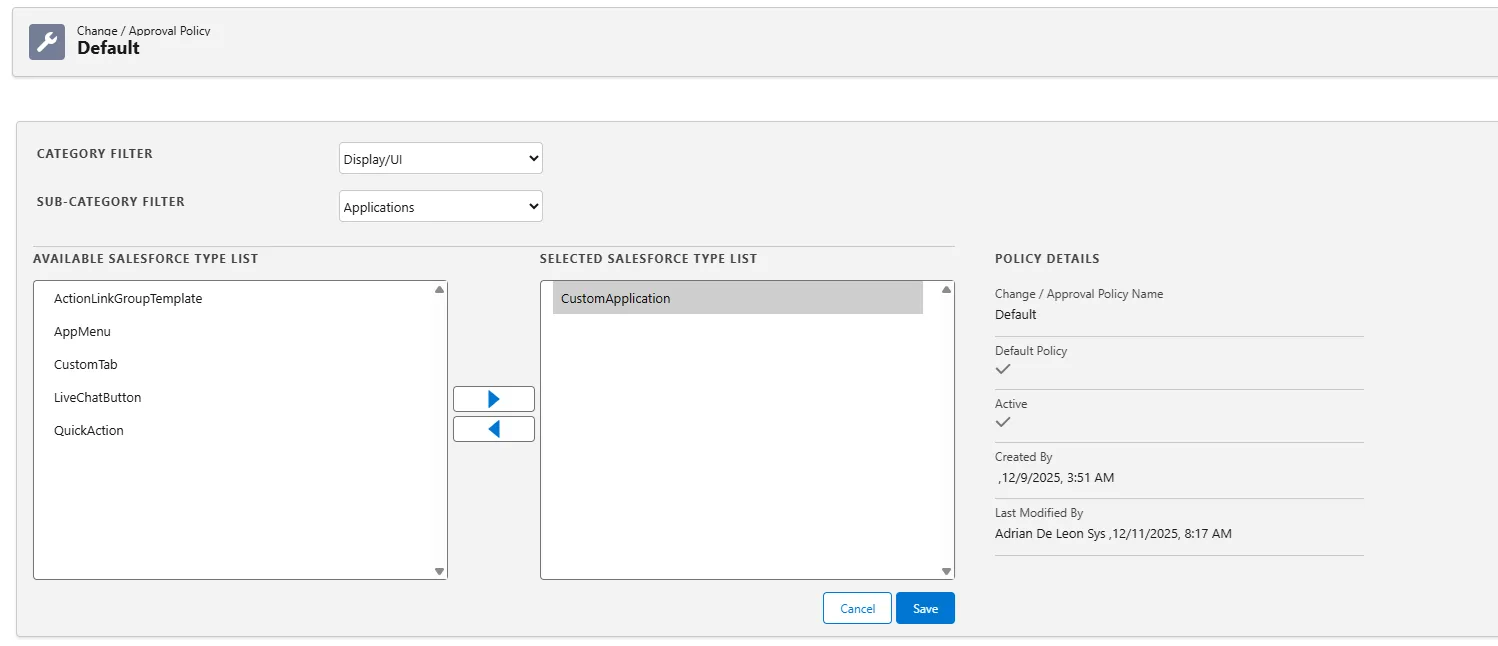
Use this method to automatically assign policies to specific Salesforce object types.
Option 2: Add Customization
Alternatively, you can manually add specific customizations to a policy:
- Navigate to the Policy record.
- Go to the Related tab in the Customizations panel.
- Click the "Add Customization" button.
- Select the customizations you want to apply the policy to.
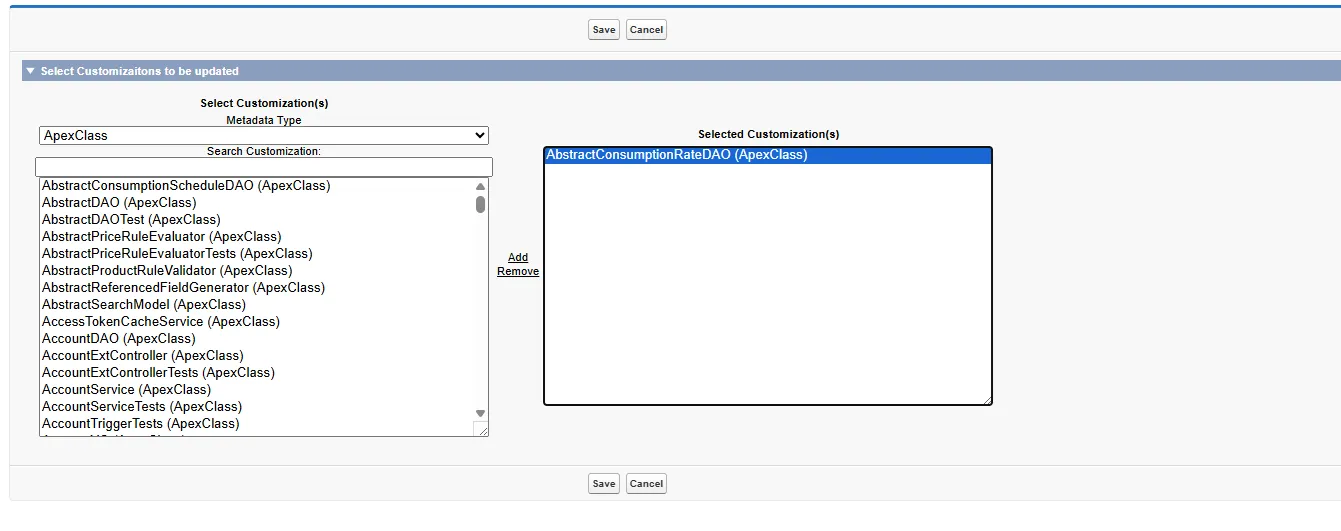
This method provides flexibility in applying policies to individual customizations.
The core process remains the same:
- Policy Configuration: Select target Salesforce Types or specific customizations in the policy configuration interface.
- Customization Creation: When a new customization is created, the system checks its type against the defined policy.
- Automatic Mapping: If the customization type matches the policy's selected types, the policy is automatically assigned.
This feature ensures consistent governance by:
- Reducing manual policy assignment
- Maintaining uniform change monitoring across your Salesforce org
- Minimizing human error in policy management
Specific Monitoring
The default policy may be all you require. Consider whether specific people, objects, reports, or fields need special protection. Address these through:
- Specific People
- Specific Customizations
- Specific Changes
- Adding Custom Fields and Objects to the Policy
Specific People
Sometimes the behavior of certain individuals in your system is essential to monitor. This could be a maverick developer, or a new hire not completely familiar with your system.
Create a List View or Report against one or both:
- Customization records based on the Last Modified By field
- Change Logs filtered by the Changed By field showing the Customization, the date of the change, the person making the change, the resolution explanation and status (requires Intelligent Change Enablement or Enterprise Compliance license). Either approach can also be very useful to monitor new hires.
You can filter the Unresolved Non-Compliant Changes List View by the Changed By field. This has the advantage of showing you the Non-Compliant Changes and providing an easy workflow to resolve them.
Specific Customizations
In some cases, it is essential to monitor and govern individual customizations, regardless of their Salesforce Type, rather than applying policies broadly by type. This approach is useful when specific components require stricter oversight than others of the same category.
Typical examples include:
- Business-critical Apex classes, triggers, or flows.
- Sensitive objects or fields related to security, privacy, or compliance.
- High-impact reports, dashboards, or list views used for management or regulatory purposes.
- Any customization that requires special approvals or tighter change control due to risk or business impact.
While policies can be automatically applied from the Policy record itself (as described in Automatic Policy Assignment), you can also assign a policy directly from the Customization record for more granular control.
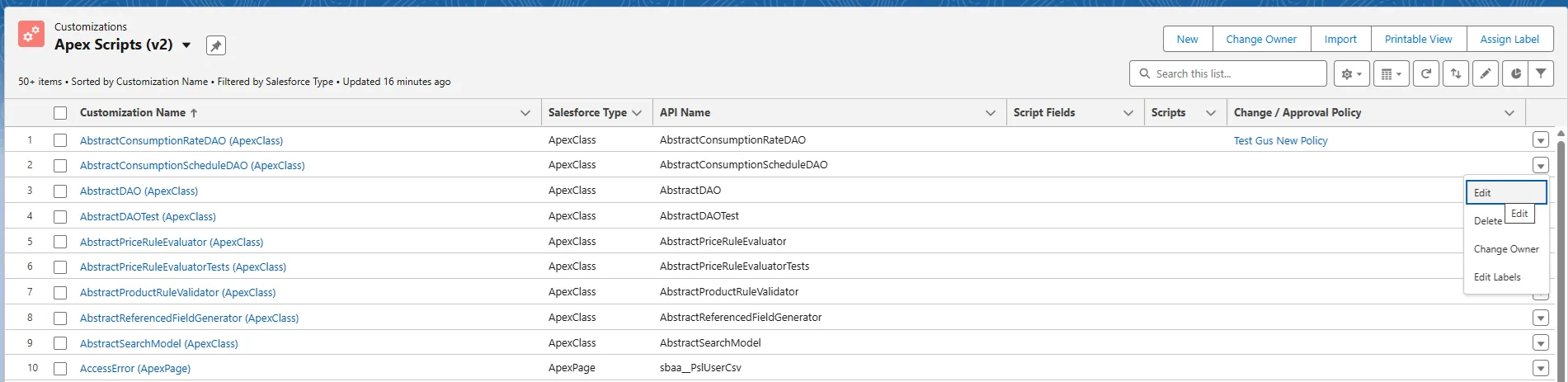
Applying a Policy from a Customization
To associate a Change / Approval Policy with a specific customization:
-
Navigate to Customizations and open the relevant list view (for example, Apex Scripts, Objects, Fields, or any other Salesforce Type).
-
Select the customization you want to govern.
-
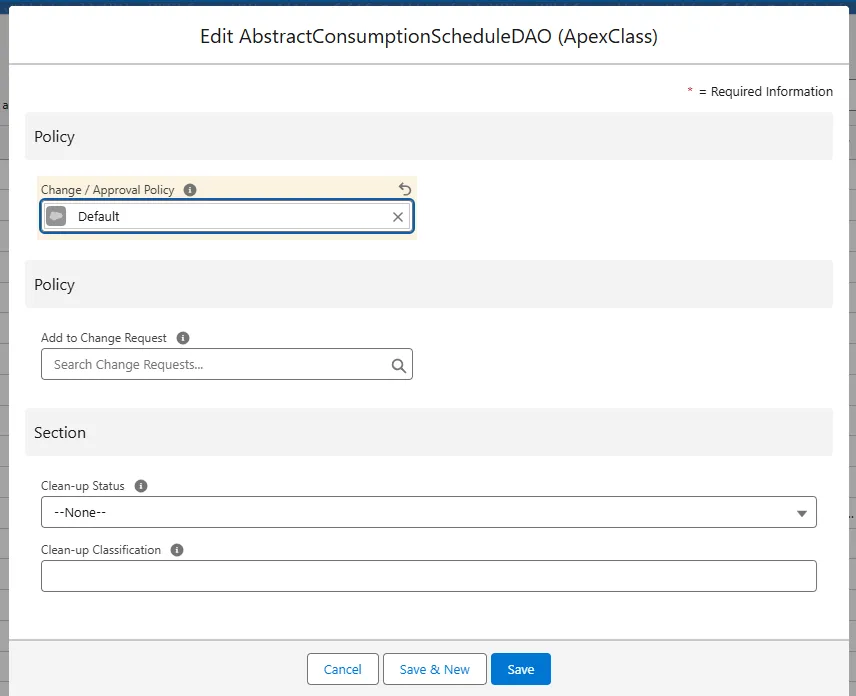
Click Edit from the row action menu.
-
In the Edit Customization dialog:
- Use the Change / Approval Policy field to search for and assign an existing policy, or create a new one.
- Optionally, associate the customization with an existing Change Request using the Add to Change Request field.
-
Click Save to apply the changes.
This method provides fine-grained governance at the individual customization level and complements the automatic assignment mechanisms described in the Automatic Policy Assignment section.
Specific Changes
Sometimes, you are more concerned about what is being changed than who is doing it. The Technical Debt topic Ongoing Monitoring has some specific examples for watching your org to spot problems before they happen.
Adding Custom Fields and Objects to the Policy
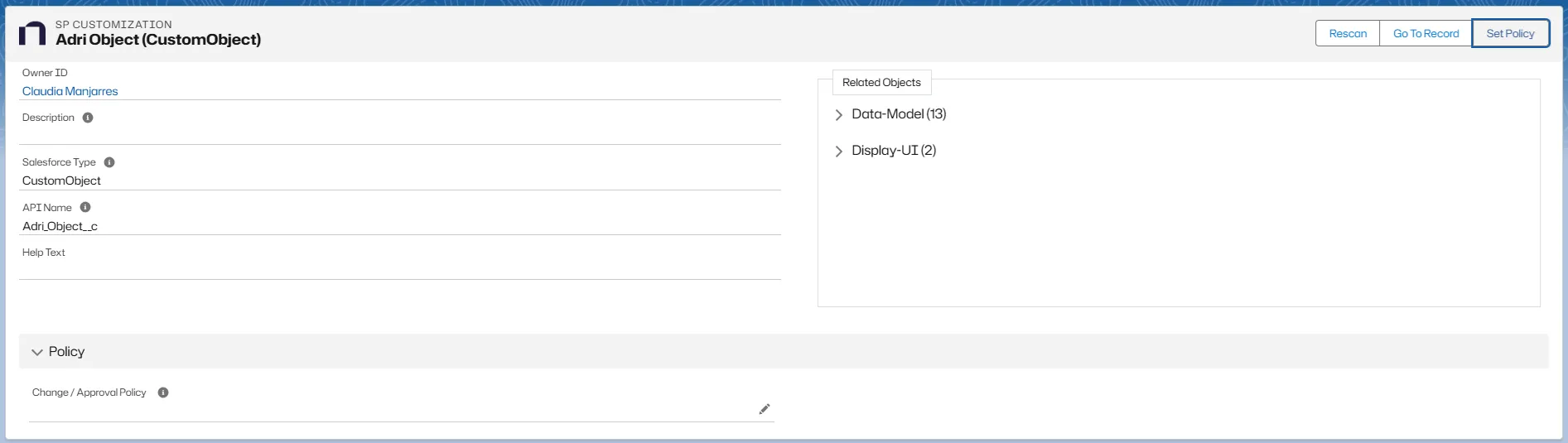
When you add sensitive objects to a policy, also apply the same policy to the custom fields that belong to that object. Platform Governance for Salesforce provides a streamlined Set Policy action directly on the Customization record to support this workflow.
Applying a Policy from a Custom Object
To assign a Change / Approval Policy to a Custom Object and its related fields:
- Navigate to Customizations.
- Search for and open the CustomObject you want to govern.
- On the Customization record, click Set Policy.
-
In the Set Policy dialog:
- Assign the Change / Approval Policy you want to the Custom Object.
- Review the list of related Custom Fields associated with the object.
-
Select individual fields, or use the header checkbox to select all fields.
-
Click:
- Update Selection to apply the policy only to the selected fields, or
- Update All to apply the policy to the object and all its fields.
-
Click Save to complete the assignment.
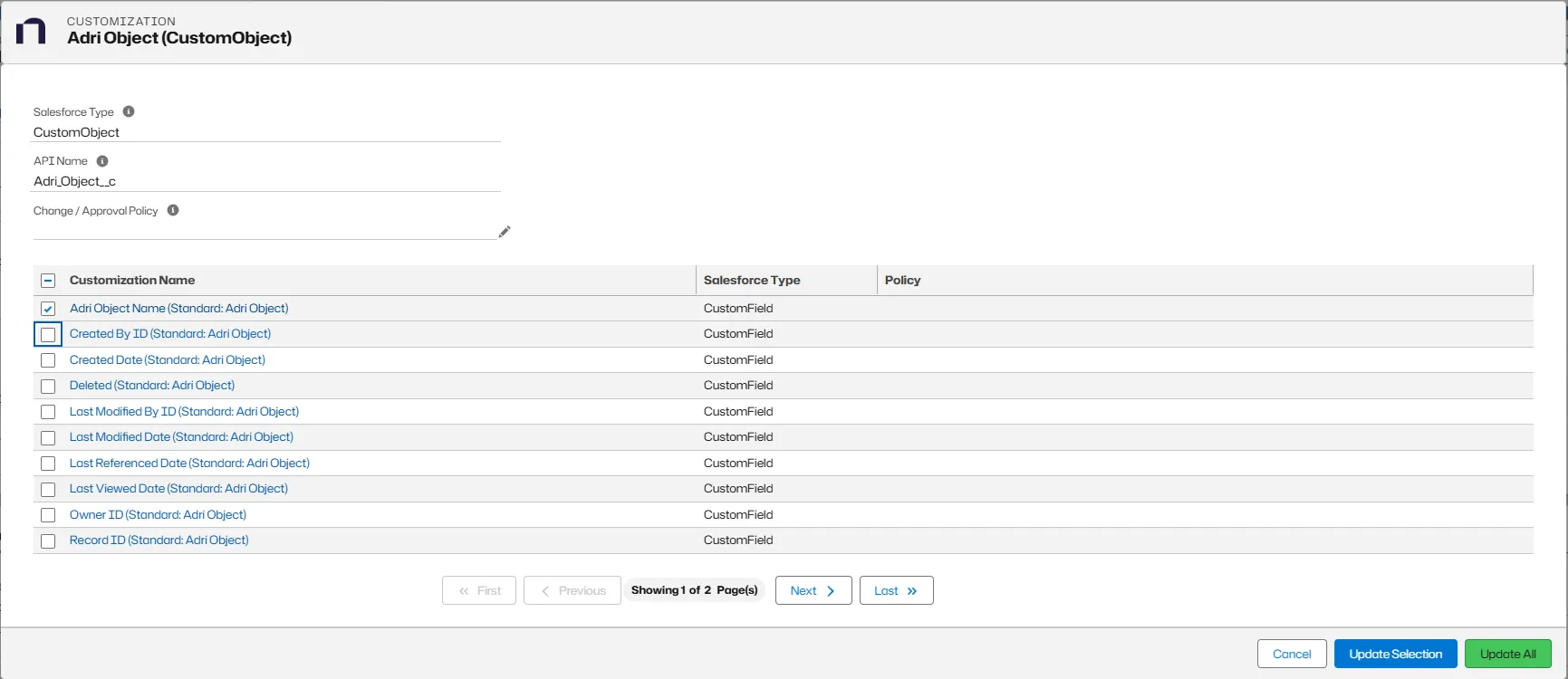
This approach ensures consistent governance across an object and its underlying fields while allowing flexibility to apply policies only where needed.
Next Technical Debt Topic: Org Clean Up