Automated Documentation
Platform Governance for Salesforce continuously maintains automated digital documentation of each Salesforce org and provides diagrams and clean-up tools. Install the managed package in a sandbox or production org and start the scanners. You can print or export results for offline reference.
Learning About the Scanners: Review the Running the Scanner topic or reach out to the Customer Success team. Setup takes about half an hour.
The scanning process is a function of size: smaller orgs index in only a few hours, while large orgs can take up to 5 days.
Platform Governance for Salesforce is a 100% native Salesforce App. Records and code usage don't count against your governance limits. Moreover, after the initial scan is complete, Platform Governance for Salesforce automatically updates documentation relating only to things that have changed, greatly reducing the amount of time required to scan.
Once your orgs are documented, Platform Governance for Salesforce provides several ways to understand the downstream dependencies of any change:
- Dependency Relationship Diagram (DRD)
- Customization Record
- Finder
- Object Exporter
- Reports and List Views
Dependency Relationship Diagram (DRD)
The DRD is a graphical presentation of an object to help you visualize the dependencies.
-
The DRD can be launched from both the Home tab and the Tools menu. Open Netwrix Dashboard > Tools > Dependency Relationship Diagram, and select an object from the list.
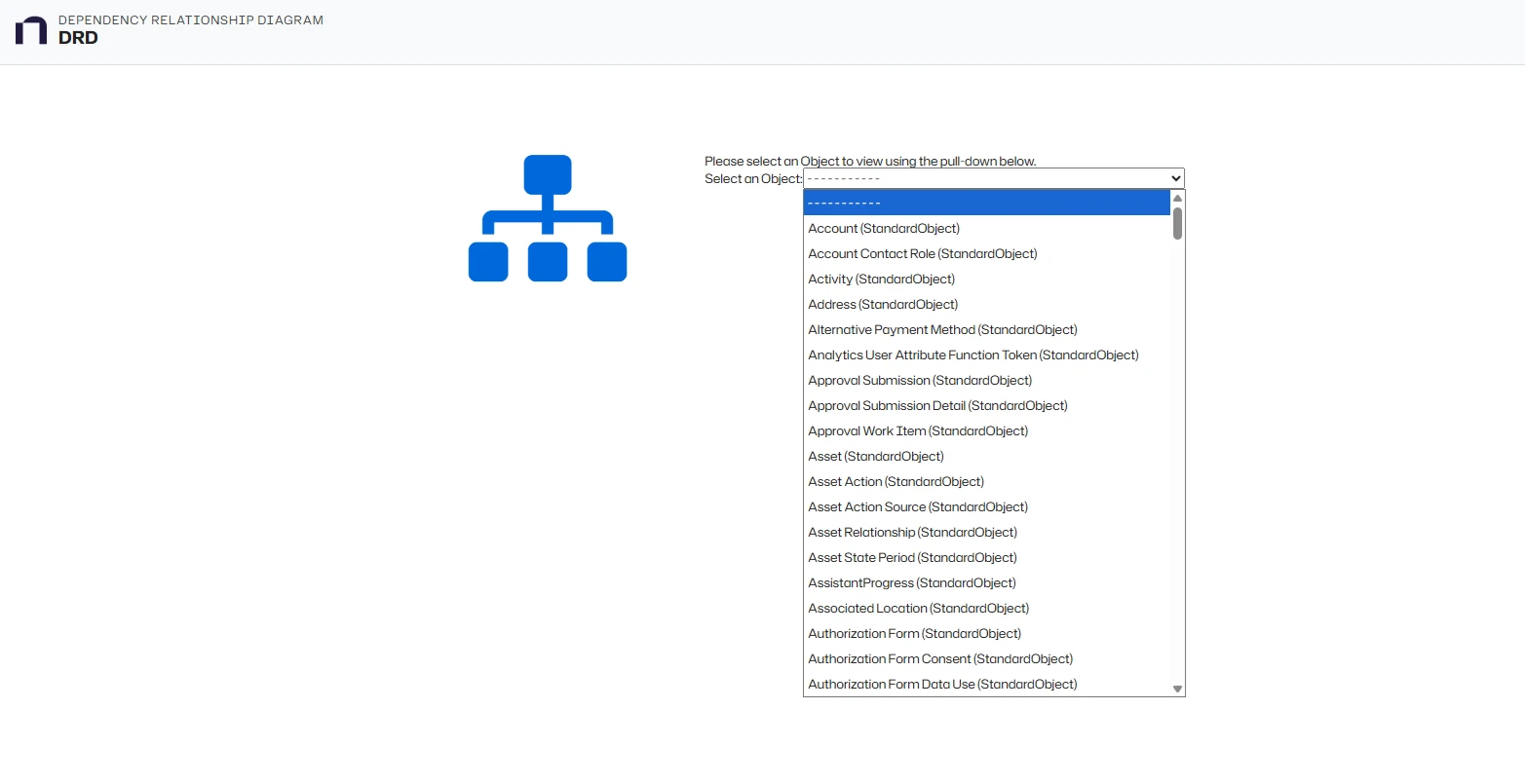
From the Netwrix Dashboard tab, use the DRD Generator to launch the DRD for a particular Customization. You can search by Name or API Name.

-
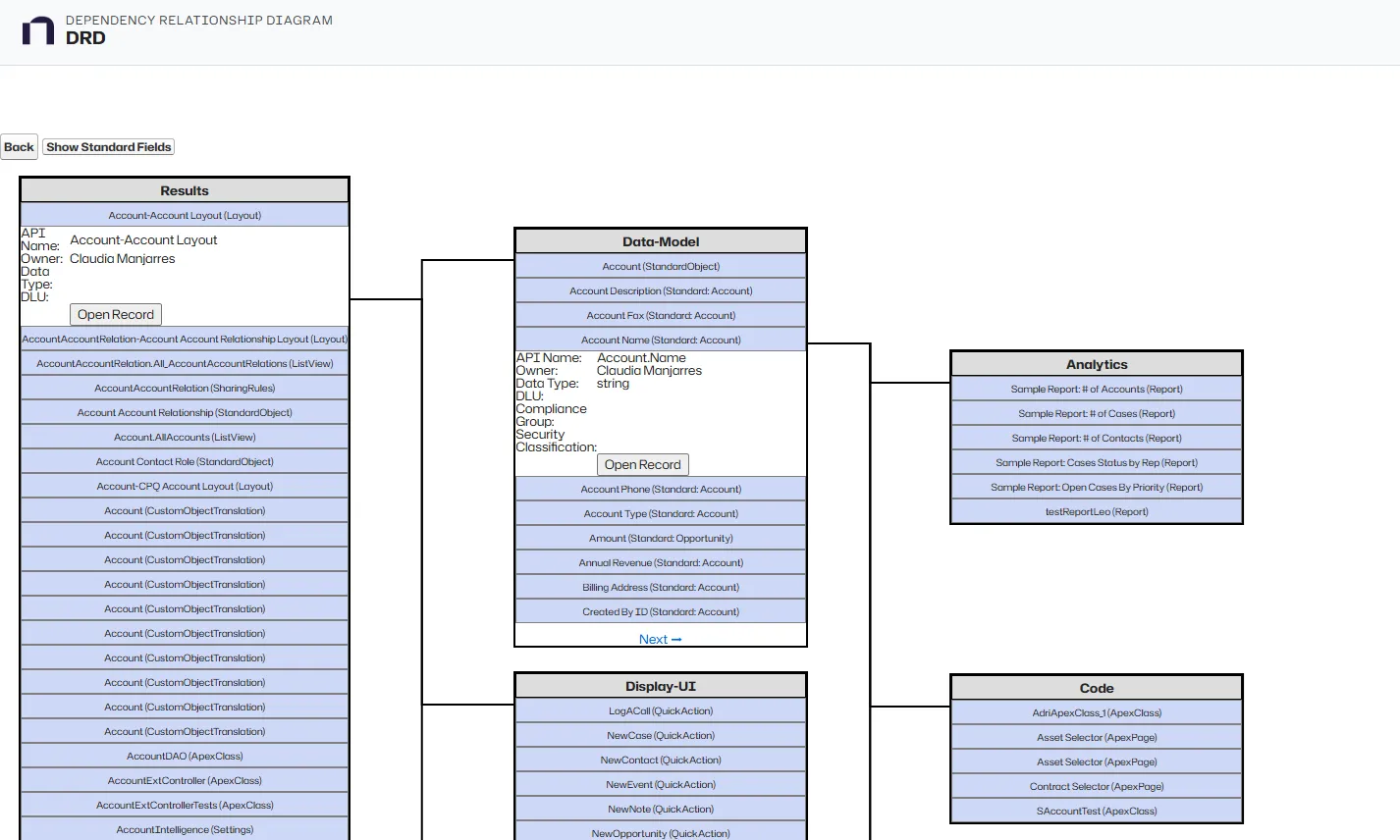
Click an attribute to expand the metadata record and view all the dependencies. Select nested items for details to fully understand the downstream dependencies.
-
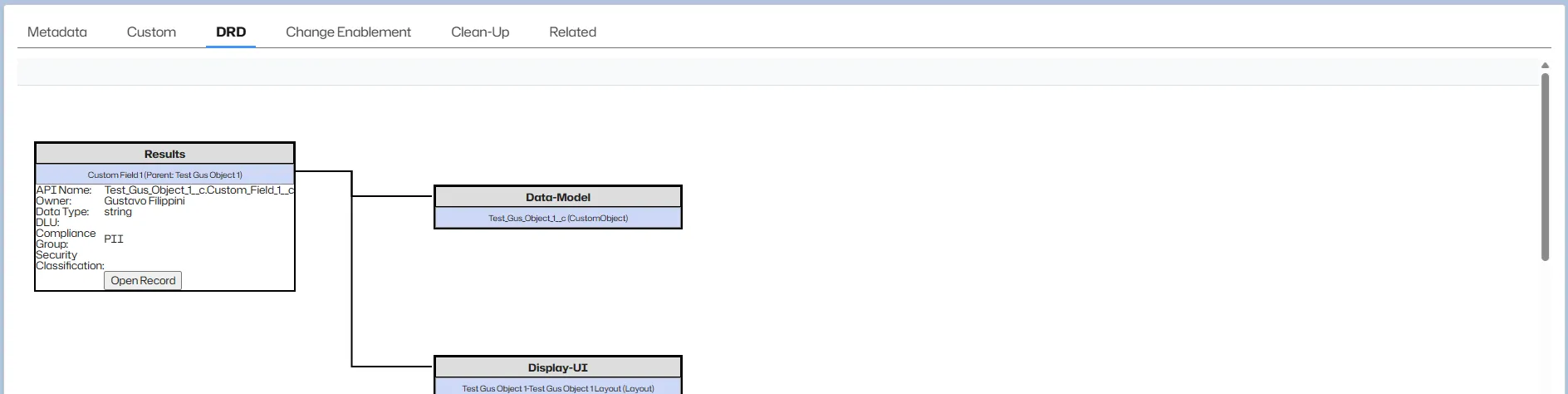
The DRD exposes other critical metadata such as the Owner, API Name, Data Type, Date Last Used (DLU), Compliance Group and Security Classification. This data expedites clean up, enabling you to filter and group Customizations in List Views or Reports.

-
Click Open Record to open the full Customization Record with complete access to the detailed metadata and change history for the Customization.
See Customization Record for an overview of the record structure.
Click Show/Hide Standard Fields to toggle displaying Standard Fields in the DRD.
Customization Record
The Customization record is the central element of Platform Governance for Salesforce documentation. It consolidates technical, operational, and governance-related metadata into a single, structured view that helps administrators, architects, and change agents fully understand a customization, its context, and its impact.
Each Customization record is organized into sections and tabs, allowing users to navigate between metadata, dependencies, change controls, and historical activity.
- Main Customization Record Sections
- Header and Overview
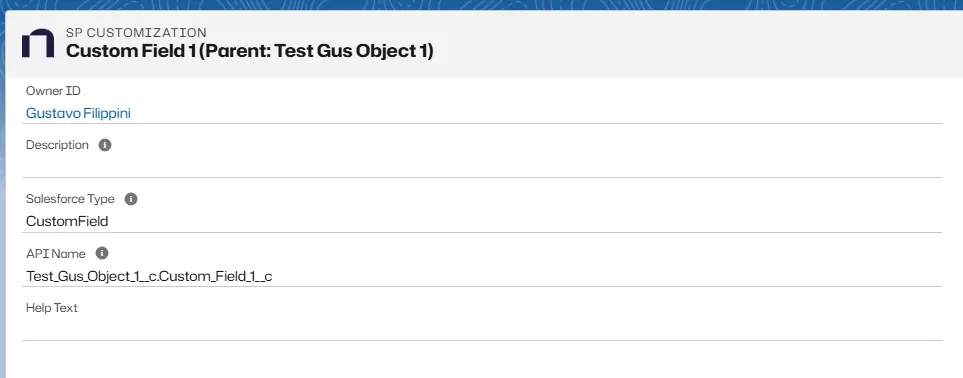
At the top of the Customization record, you can see key identifying information:
- Customization Name
- Owner
- Salesforce Type (for example, CustomField)
- API Name
- Description (if provided)
The header also provides quick access to actions such as Rescan and Go To Record, allowing authorized users to open the underlying Salesforce record directly.
- Related Objects Panel
This panel summarizes the main dependency categories for the customization and provides quick navigation to them:
- Data-Model – Objects, fields, and data structures related to the customization
- Display-UI – Layouts and UI elements where the customization is exposed
Each category shows a count, indicating how many related items are associated.

- Customization Tabs
- Metadata Tab
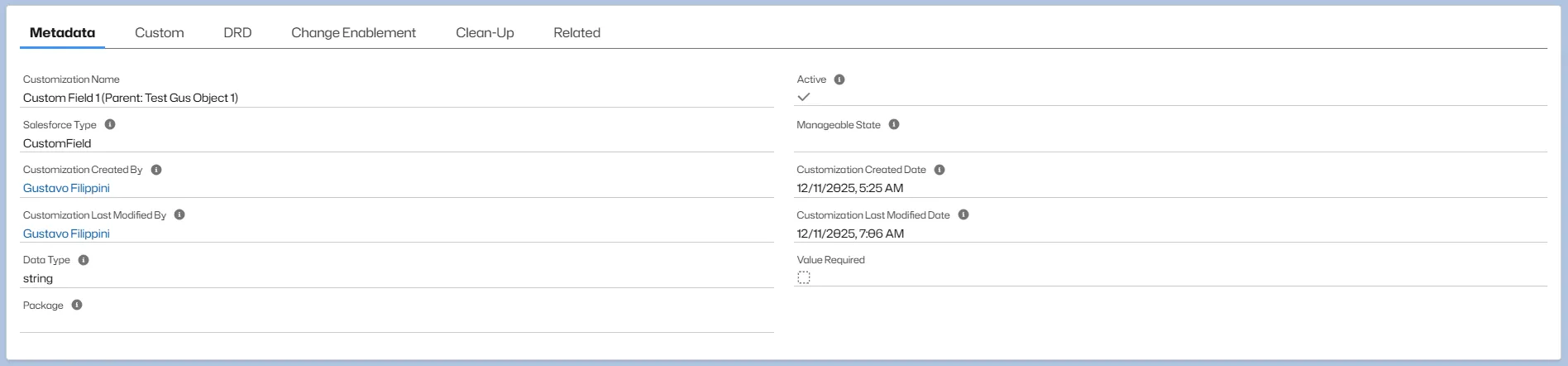
The Metadata tab provides the foundational details of the customization, including:
- Customization name and Salesforce type
- Active status and manageability state
- Data type and package information
- Created by / Last modified by
- Creation and last modification dates
- Whether a value is required (for applicable types)
This tab answers the question: "What is this customization?"
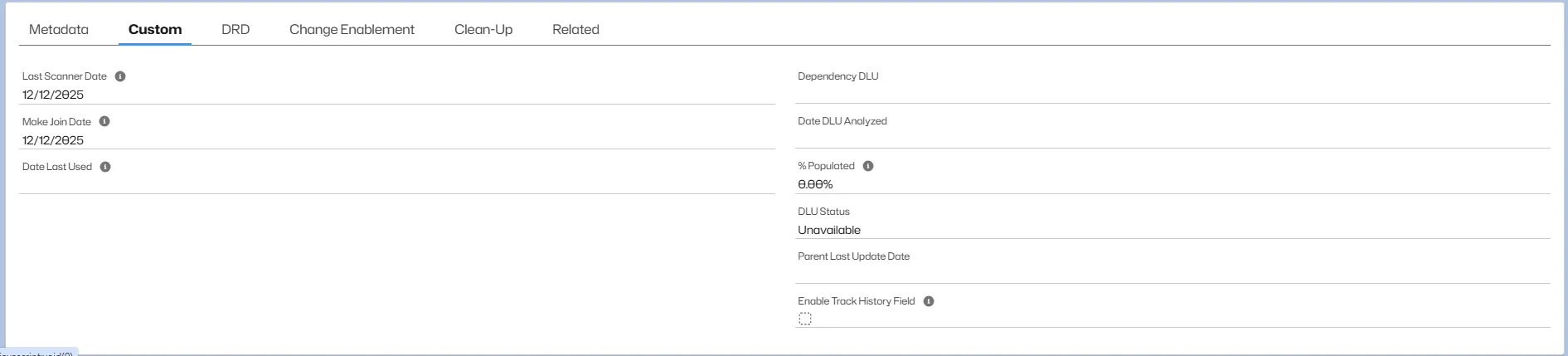
- Custom Tab
The Custom tab displays usage and lifecycle-related data gathered through scanning, such as:
- Last scan date
- First detected (join) date
- Last used date (when available)
- Percentage populated (for data fields)
- DLU (Date Last Used) status
- Parent last update date
- Track History Field enablement status
This information helps assess data relevance, usage, and technical debt.
- DRD Tab
The DRD tab provides a visual representation of how the customization relates to other components in Salesforce. It shows dependencies grouped by category, such as:
- Data-Model – Objects and fields using or referenced by the customization
- Display-UI – Layouts and UI elements where it appears
This tab answers: "What does this customization depend on, and what depends on it?"
- Change Enablement Tab
The Change Enablement tab displays governance and control-related configuration, including:
- Associated Change / Approval Policy
- Whether the customization is added to a Change Request
- Data Tracking settings (when enabled)
This tab is available when Intelligent Change Enablement or Enterprise Compliance is licensed and helps control how changes to this customization are governed.

- Clean-Up Tab
The Clean-Up tab supports technical debt management by allowing classification and status tracking:
- Clean-up status
- Clean-up classification
This tab helps teams identify candidates for remediation, optimization, or removal.

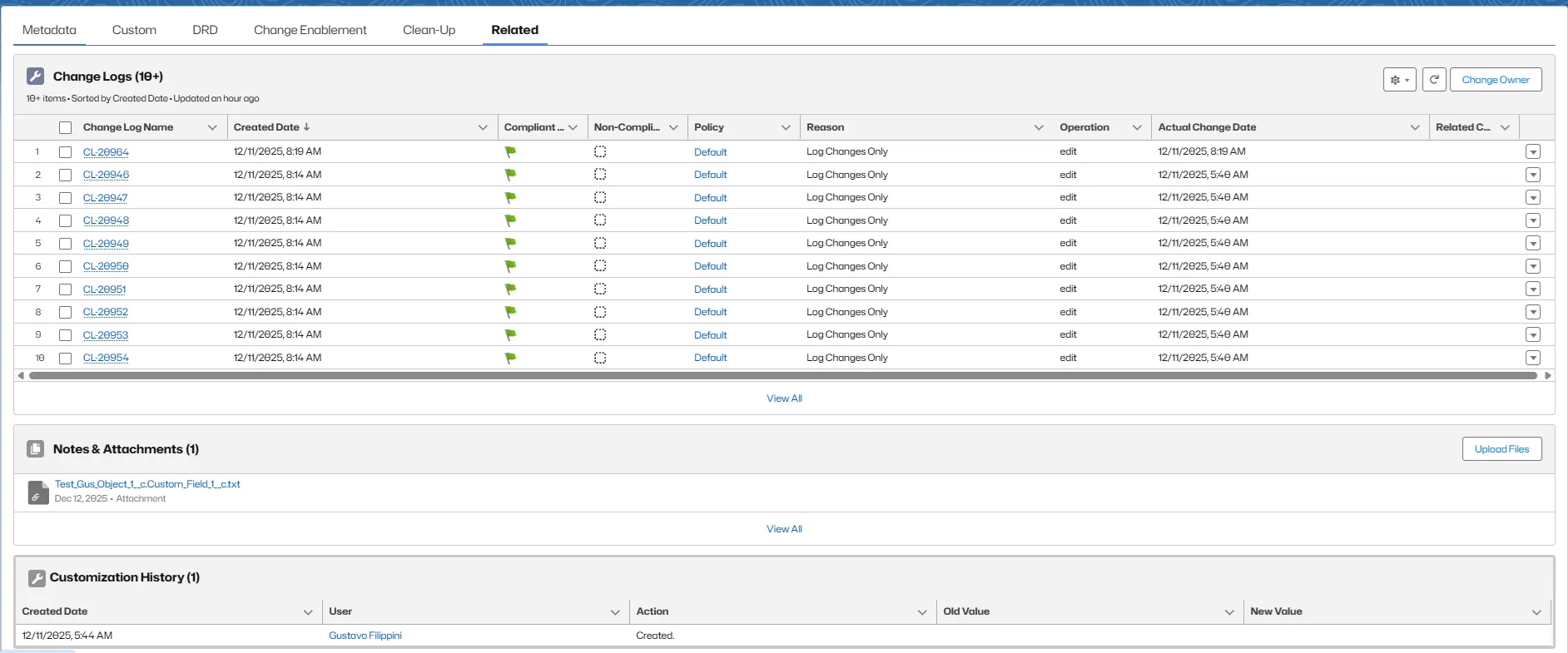
- Related Tab
The Related tab provides historical and operational context, including:
- Change Logs: A list of all detected changes related to the customization.
- Notes & Attachments: Any supporting files or documentation associated with the customization.
- Customization History: A record of lifecycle events over time.
Additional Customization Record Actions
Two key actions are available in the Customization Record:
-
ReScan Button:
- Click the "ReScan" button to manually trigger a new scan of the customization.
- This detects recent changes not captured in the previous scan.
- Use this to ensure you have the most up-to-date information about the customization.
-
Go To Record Button:
- Click the "Go To Record" button to directly navigate to the original Salesforce record for this customization.
- Provides immediate access to the full Salesforce configuration of the component.
- Requires appropriate user permissions in Salesforce.

Finder
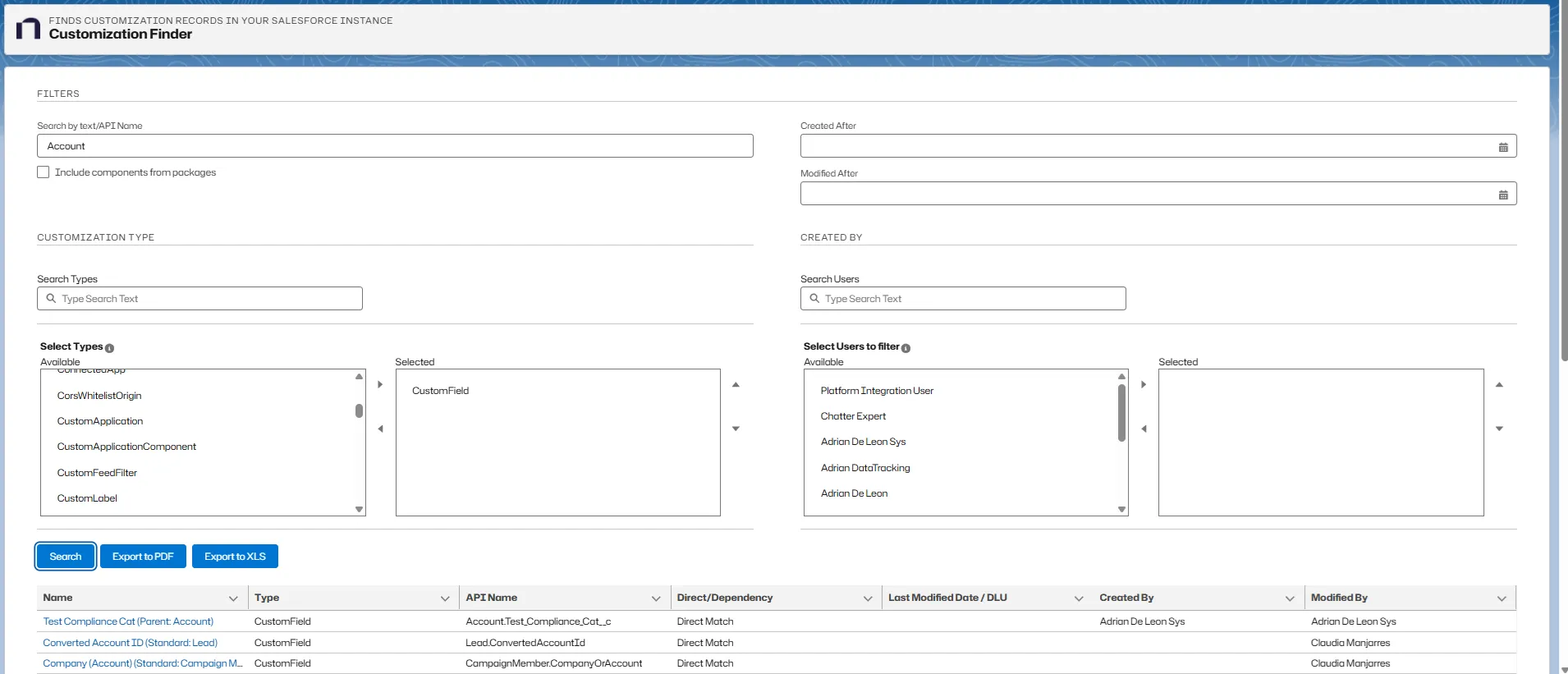
The Customization Finder is a search and filtering tool that helps you locate and analyze Customization records across your Salesforce instance. Use it to find specific customizations, understand ownership and usage, and export results for further analysis.
Finder is especially useful for audits, clean-up initiatives, impact analysis, and documentation reviews.
Finder Filters
The upper section of the Finder page provides a comprehensive set of filters to refine search results.
Text and API Name Search
Search by text / API Name Searches customization names and API names using free text.
Date Filters
Created After Filters Customizations created after a specific date.
Modified After Filters Customizations modified after a specific date.
Package Filtering
Include components from packages When enabled, Finder includes managed package components in the results. When disabled, only custom (non-package) components are returned.
Customization Type Filtering
Use this section to narrow results by customization type.
Search Types Quickly filter the list of available customization types.
Select Types Choose one or more customization types (for example, Apex Classes, Apex Pages, Custom Fields, Reports, etc.) to include in the search.
Only selected types are included in the results.
Created By Filtering
Use this section to filter customizations by the user who created them.
Search Users Quickly locate users by name.
Select Users to filter Choose one or more Salesforce users to include as creators in the results.
Search Actions
At the bottom of the filter section, Finder provides the following actions:
- Search – Executes the search using the selected filters
- Export to PDF – Exports the current result set to a PDF file
- Export to XLS – Exports the current result set to an Excel file
Search Results
Search results appear in a table and include key information for each customization, such as:
- Name
- Type
- API Name
- Direct / Dependency – Indicates whether the customization is directly selected or included as a dependency
- Last Modified Date / DLU
- Created By
- Modified By
Use the pagination controls and page size options to navigate large result sets efficiently.
Object Exporter
Object Exporter exports information about entire objects, profiles, or users into Excel for further research. See Exporting Objects, Exporting Profiles, and Exporting Users for instructions.
Reports and List Views
Platform Governance for Salesforce is fully built into Salesforce so you can use the built-in libraries of List Views and Reports or build your own.
Next Technical Debt Topic: Change Monitoring