Scheduler
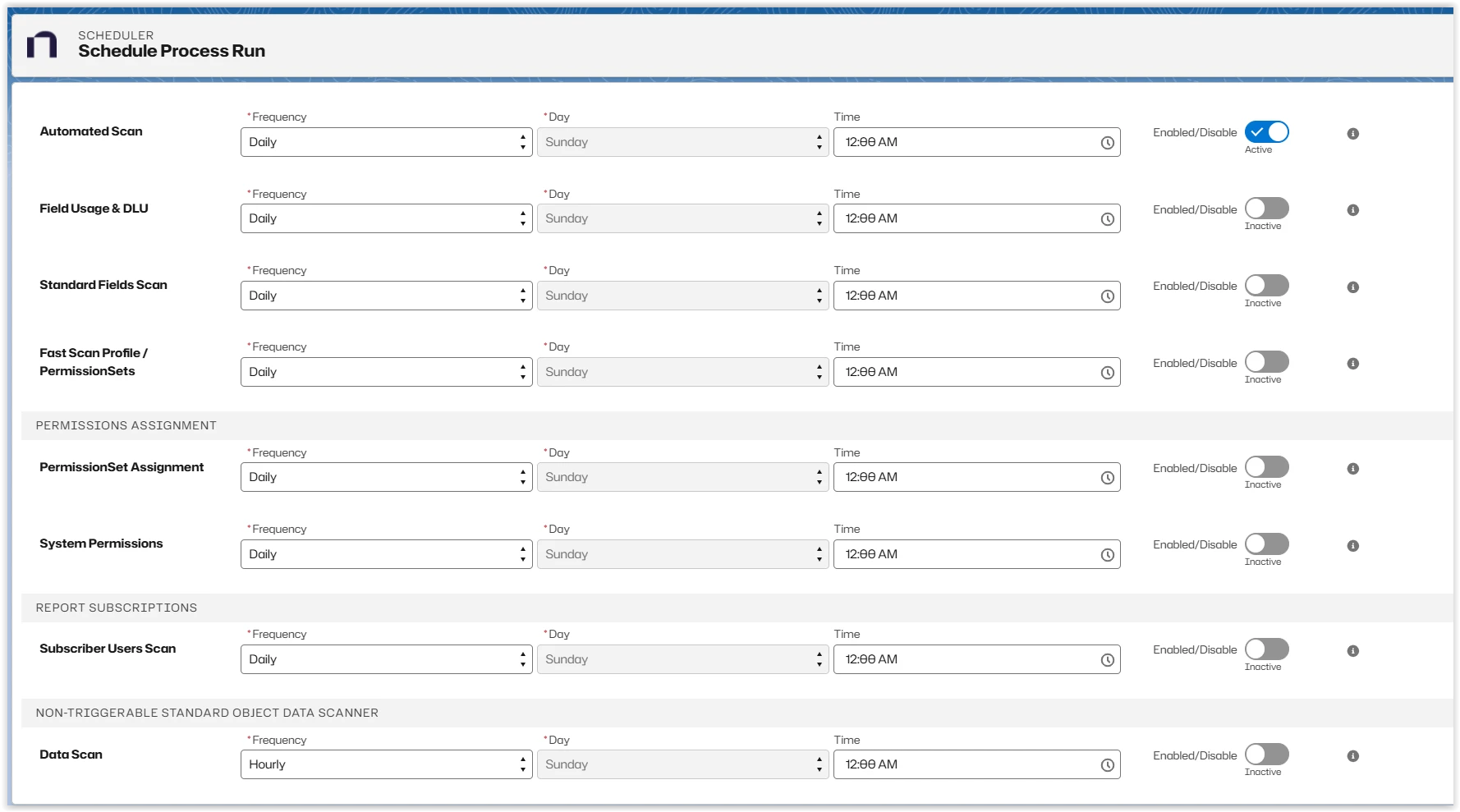
Platform Governance for Salesforce's scheduler creates automated scans, manages scripts, uses the Agent and finds the date last used (DLU). The schedules are validated to prevent scanners from running concurrently, potentially causing conflicts and incomplete documentation. The scheduler displays a warning if you create an overlapping scanner schedule.
To use the scheduler tool:
-
Open Netwrix Dashboard > Scanner > Scheduler All categories are initially disabled by default.
-
Select the category to automate by clicking on Disabled to enable it. There is no save button, automation is turned on and saved by toggling Enabled/Disabled.
-
Select the Frequency, Day, and Time. Your selections are automatically saved.
-
Click any menu item to close the Scheduler.
Best Practices
Initial Documentation Phase
When you first install Platform Governance for Salesforce, enable only the Automated Scan with Daily frequency. Don't enable other scanners until your org is fully documented. This approach ensures:
- Complete baseline documentation before change detection begins
- Optimal resource utilization during initial scan
- Accurate change logs once incremental scanning starts
Profile and Permission Set Heavy Orgs
For orgs with many profiles and permission sets, enable the Fast Scan for faster change detection and change log generation. The Fast Scan provides quicker turnaround than the Daily Scan while maintaining accuracy for permission-related changes.
Scanner Selection
Enable only the scanners necessary for your organization's requirements. Consider:
- Your compliance and audit needs
- The metadata types your team actively modifies
- Your organization's change management processes
Avoid enabling all scanners by default, as this can consume unnecessary resources and processing time.
Scheduling Strategy
Configure logical time windows between scanners to prevent batch execution conflicts. Stagger your scanner schedules to ensure:
- Scanners don't run concurrently
- Each scanner completes before the next one starts
- System resources remain available for other Salesforce operations
Field Usage & DLU Scanner
For the Field Usage & DLU scanner, schedule weekly execution during weekends. This recommendation helps:
- Minimize resource consumption during business hours
- Avoid impact on user activities
- Ensure thorough field usage analysis without time pressure
Configure this scanner to run on Saturday or Sunday when system usage is typically lower.