Field Level Security Scanner
Overview
The Field Level Security scanner lets users analyze access to selected fields across multiple Salesforce objects that may be critical to the organization. It evaluates and records which Profiles, Permission Sets, and Permission Set Groups have read access, write access, or both, for the specified fields.
This scanner captures an exact snapshot of the system at the moment it is executed.
Use it to review the results in the Field Permissions report.
Accessing Field Level Security
Navigate to the Netwrix Dashboard:
Scanner > Field-Level Security Scanner
Field Level Security Scanner UI
From this screen, users can search for and select multiple fields from different objects. The selected fields are displayed in the table at the bottom of the screen. The maximum number of fields that can be selected is 50.
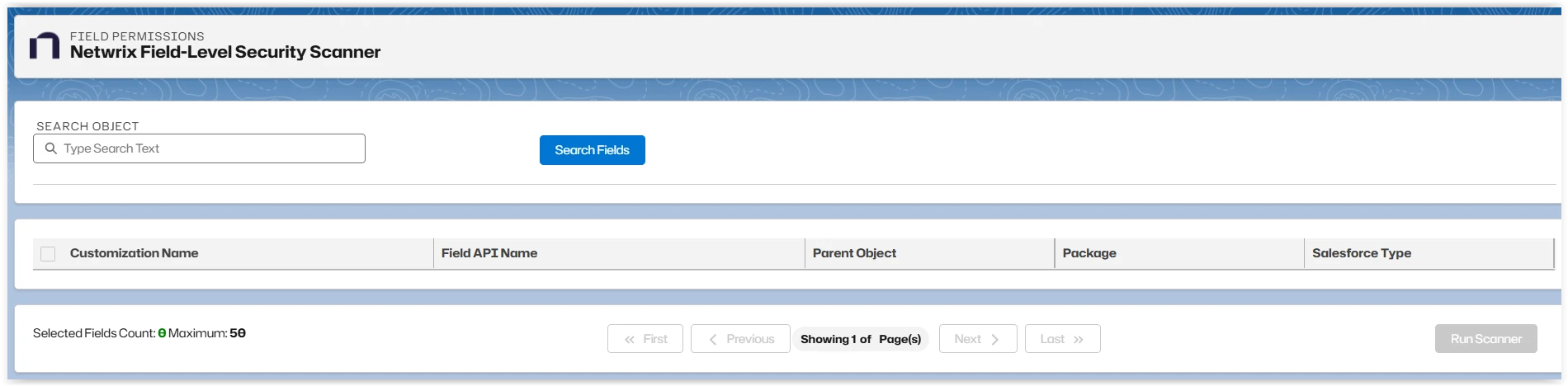
The Field Level Security Scanner creates a comprehensive list of Customizations, Field API Name, Parent Object, Package, and Salesforce Type for a selected Object.
Run the scanners before you search to ensure you have the latest data.
The following example shows how to run the scanner:
-
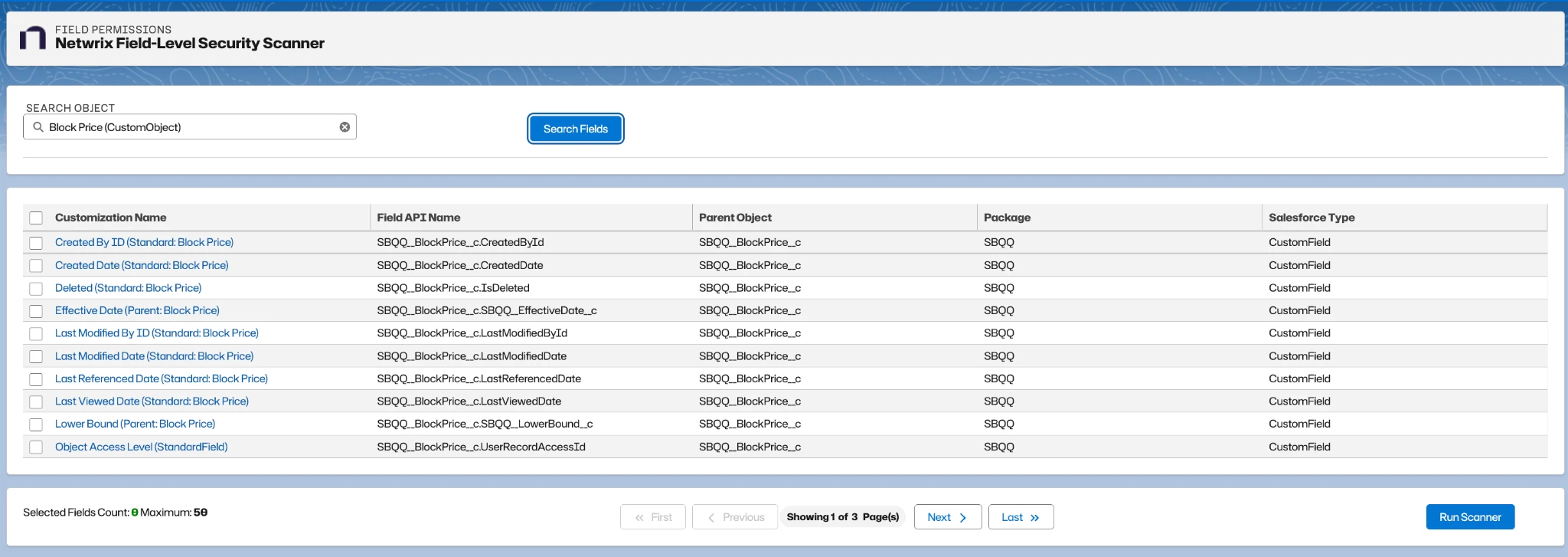
Start typing the name of a Salesforce Object, then select it from the autocomplete list.
-
Click Search Fields.
-
Select one or more fields from different objects to be analyzed by the scanner. The Customization Name is a link to the Customization Record.
It isn't technically possible to scan permissions on all fields in each object.
- Selected fields are shown in a list at the bottom of the form. You can uncheck individual fields or all fields from the Selected Fields list.
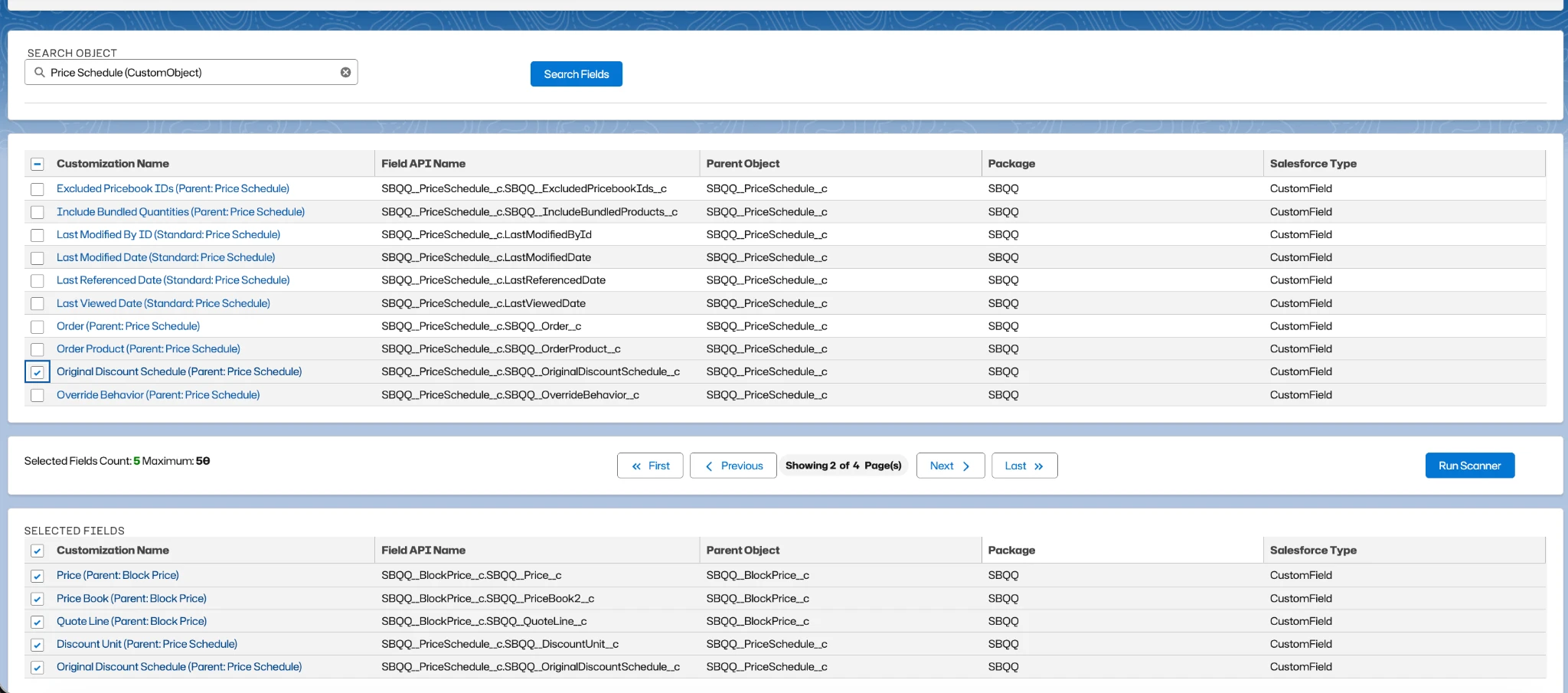
- Click Run Scanner.
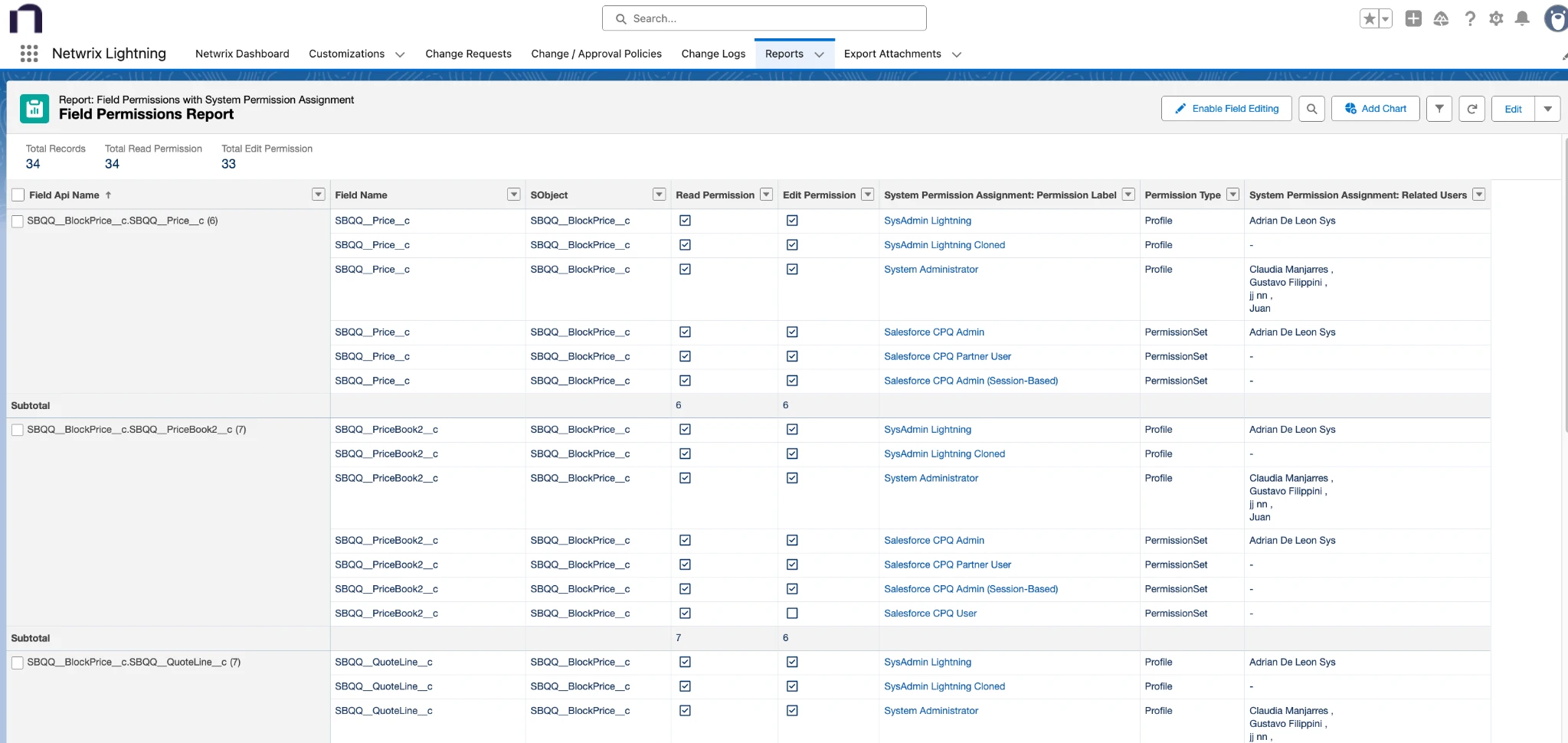
After the scan is complete, open the Reports tab and select Field Permissions Report.
After the scanner is executed, the functionality is locked until the process is complete.
If you need to run it again, the results represent a snapshot at the time of execution. Previous executions aren't stored, and no historical data is maintained.
Field Level Security Report
The report is available from the Netwrix Dashboard: Reports > Access Reports > Field Permissions.
Best Practices
- Ensure the customization record for the field you want to analyze has been created before running the scanner.
- Carefully select the fields to be analyzed.
Limitations
- Execution history isn't stored.
- The maximum number of fields that can be selected across multiple objects is 50.