Launch Platform Governance for Salesforce
To access Platform Governance for Salesforce in Salesforce Lightning Experience:
-
Select the App Launcher (grid icon) in the upper-left corner of the Salesforce header.

-
Search for and select Netwrix Lightning.
If you don't see the app, select View All to display all available apps.
The Netwrix Lightning app opens.
Netwrix Dashboard
When you open the Netwrix Lightning app, the default navigation items load in the navigation bar.
To add additional items to the navigation bar, select + (Add More Items).
The following navigation items are available:
- Netwrix Dashboard – Opens the main Platform Governance dashboard.
- Customizations – Opens the Customizations home page.
- Change Requests – Opens the Change Requests list view.
- Change / Approval Policies – Opens the Policies list view.
- Change Logs – Opens the Change Logs list view.
- Reports – Opens the Reports list view.
- Export Attachments – Opens the Export Attachments list view.
Netwrix Dashboard Overview
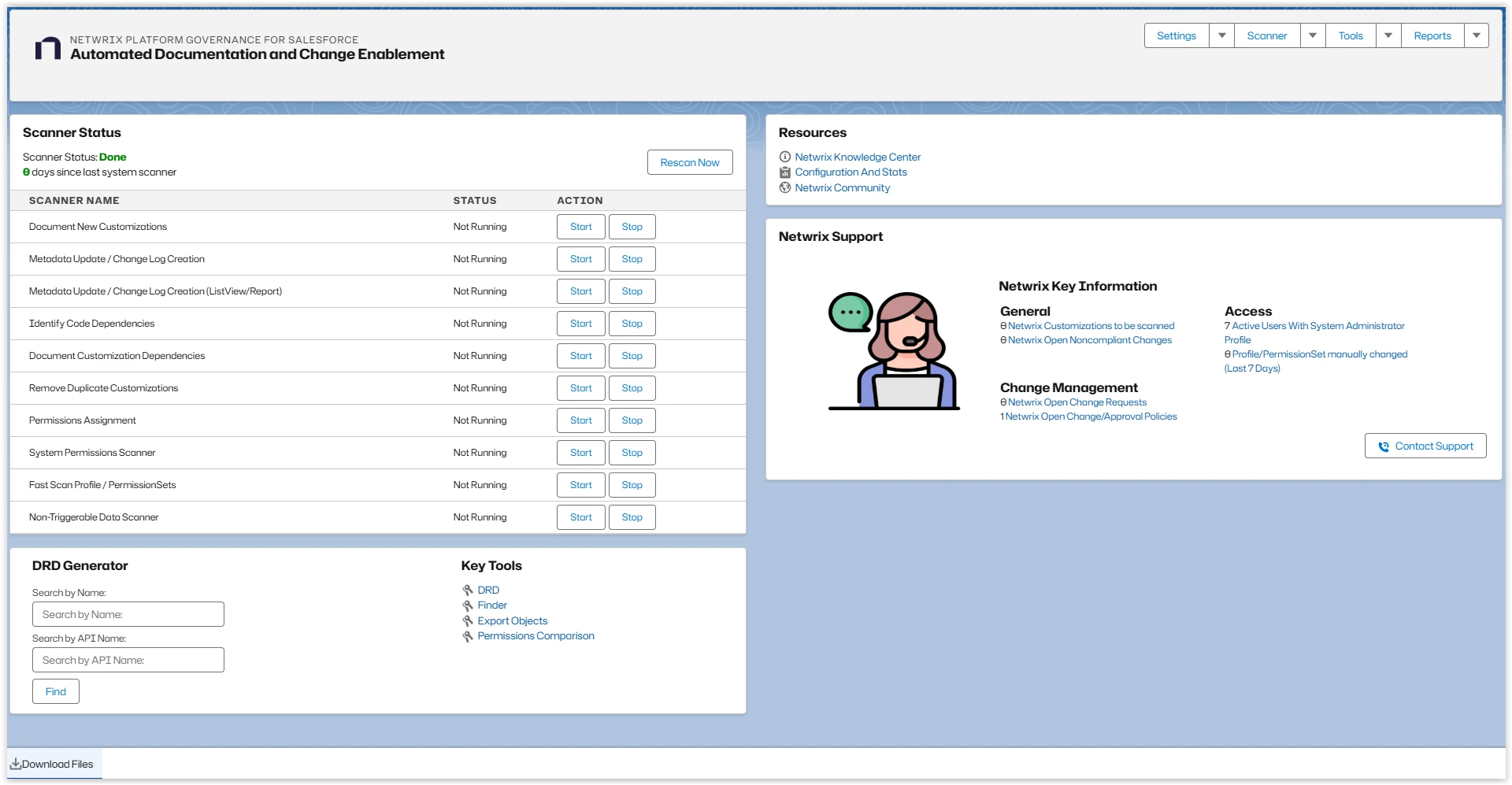
The Netwrix Dashboard provides access to scanning status, tools, reports, and key account information.
Top Navigation Menu
Use the dropdown menus at the top of the dashboard to access the main features:
- Settings – Access Getting Started, system status, installation tools, credentials, and the Knowledge Center.
- Scanner – Access the Scheduler, manual scanners, the field-level scanner, and the DLU Configuration scanner.
- Tools – Access tools such as the dependency relationship diagram, environment comparison, profile comparison, and the access review assistant.
- Reports – Access reports related to customizations, change enablement, cleanup, release, deployment, audit, and financial controls.
Scanner Status
The Scanner Status panel provides an overview of scanning activity in your Salesforce environment. It shows:
- The current status of each scanner
- The number of days since the system scanner was last run
To run the system scanner immediately, select Rescan Now.
The Rescan Now option runs the main system scanner only. It doesn't include the following scanners:
- Permissions Assignment
- System Permissions Scanner
- Fast Scan Profile / PermissionSets
- Non-Triggerable Data Scanner
To run any of these scanners, select Start next to the corresponding scanner in the list.
You can also access and manage these scanners from Scanner > Scheduler.
DRD Generator
The Dependency Relationship Diagram (DRD) Generator displays a graphical view of a selected item and its relationships.
To generate a diagram:
- Enter the Name or API Name.
- Select Find.
Key Tools
The Key Tools section provides quick access to frequently used tools, such as:
- DRD
- Fields
- Export Objects
- Permissions Comparison
Netwrix Key Information
The Netwrix Key Information panel displays a dynamic overview of your account, including general information, change management metrics, and access details.
Contact Support
To open the Netwrix support site, select Contact Support.
Download Files
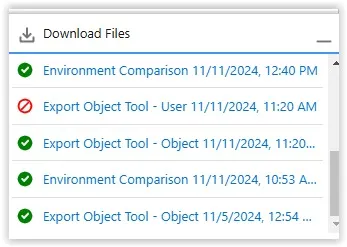
The Download Files section displays files that Platform Governance for Salesforce generates and their current status.
To download a file:
- Locate the file in the list.
- Select the file name.