Run the Getting Started Wizard
The Getting Started Wizard helps you set up Platform Governance for Salesforce after you have done the basic installation and configuration.
Prerequisites
Before running the Getting Started Wizard, ensure you have completed:
- ✅ Installed the Platform Governance package
- ✅ Assigned the Netwrix Grant Permissions permission set to users
- ✅ Configured authentication using one of these methods:
- Recommended: Named Credentials (for MFA-enabled orgs)
- Legacy: Session ID authentication (username/password/token)
Access the Wizard
To use the Getting Started Wizard:
- Open Netwrix Dashboard from the Salesforce App Launcher
- Navigate to Settings > Getting Started Wizard
The Getting Started Wizard opens to help you finish the configuration and set up.
Choose Your License Type
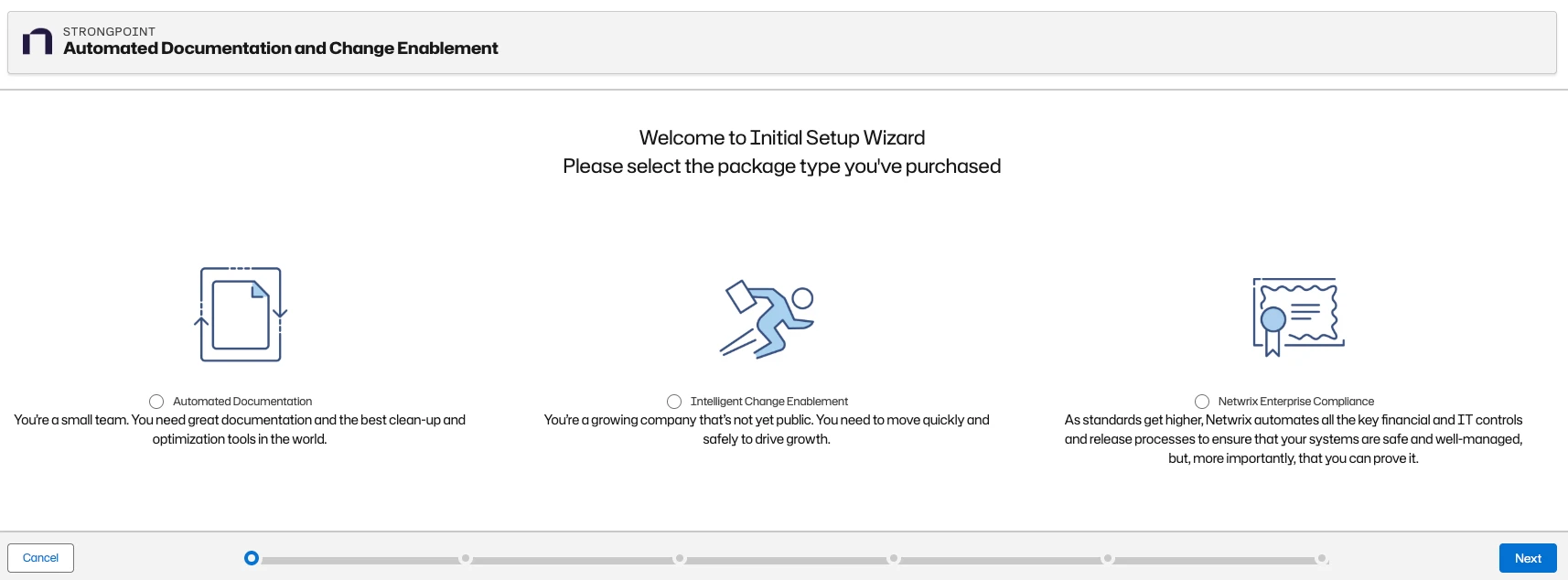
On the Initial Setup Wizard page, choose the package type you have purchased and enter the License Key sent to you. Click Next.
Add your Credentials
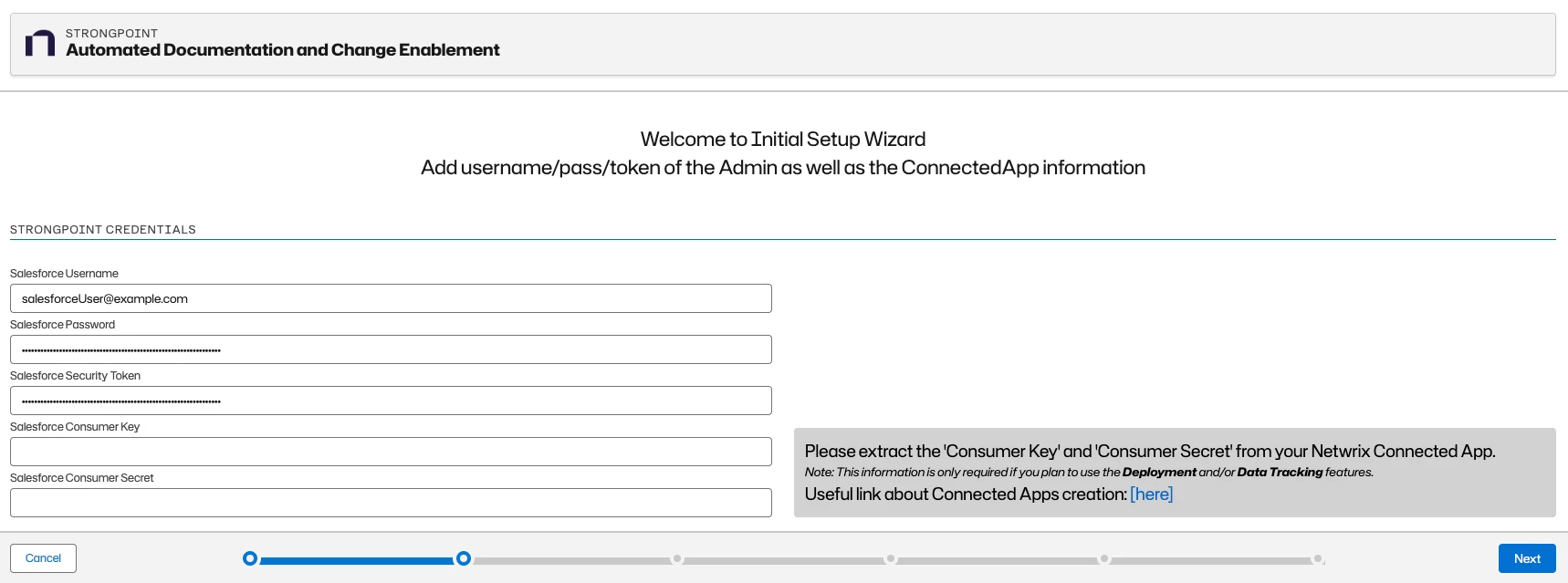
After you have chosen your license type, add your credentials. If your credentials change, the system sends an alert to update the saved credentials. Expired credentials can cause auto scanners to fail. Use Netwrix Dashboard > Settings> SP Credentials to update your credentials.
If your organization has High Assurance enabled, you can't use this credential method. You must use Named Credentials instead.
For Session ID Authentication only:
-
On the Credentials page, add the following values:
- Salesforce Username
- Salesforce Password
- Salesforce Security Token
- Salesforce Consumer Key (optional)
- Salesforce Consumer Secret (optional)
-
Click Next
Test Your Connection
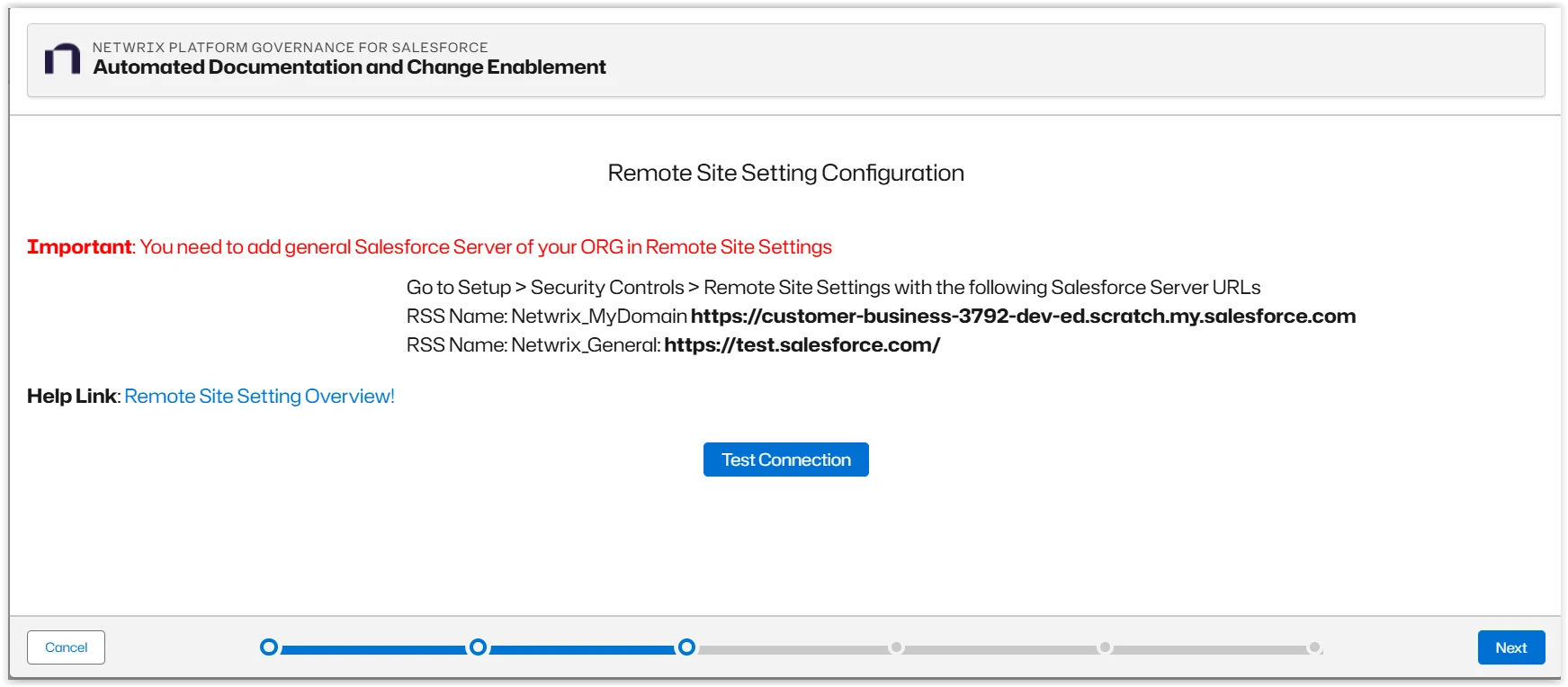
This step applies to both Named Credentials and Session ID authentication methods. Configure the remote site settings to allow Platform Governance to communicate with external services.
Configure Remote Site Settings
-
Open Salesforce Setup > Security > Remote Site Settings
-
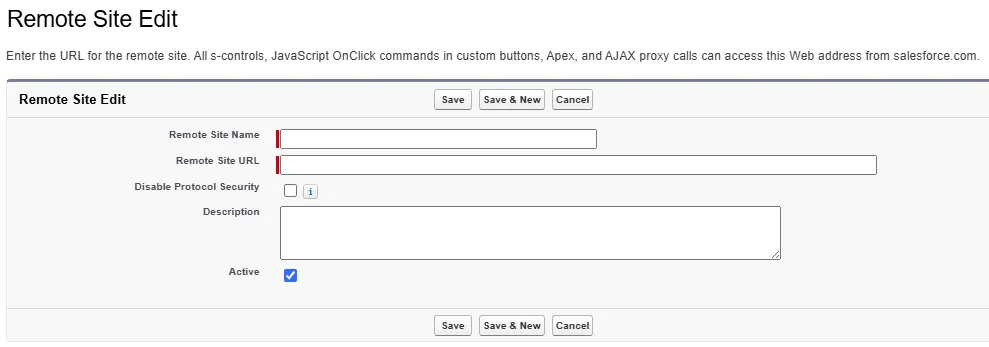
Click New Remote Site
-
Copy/paste the information from the wizard to create the remote sites
-
Repeat for each remote site URL shown in the wizard
You may need to create multiple remote site settings. The wizard displays all required URLs. Create a separate remote site entry for each URL shown.
Test the Connection
- Return to the Getting Started Wizard
- Click Test Connection
- If the connection succeeds, Test connection was Successful appears.
- After the test is successful, click Next
Next Steps
After completing the Getting Started Wizard: