Install Platform Governance for Salesforce
The Netwrix customer success team sends you a package installation file. To install Platform Governance for Salesforce:
- Click the install URL. If installing in the sandbox, replace the initial portion of the URL with http://test.salesforce.com
- Select Install for Admins Only
- Click Install
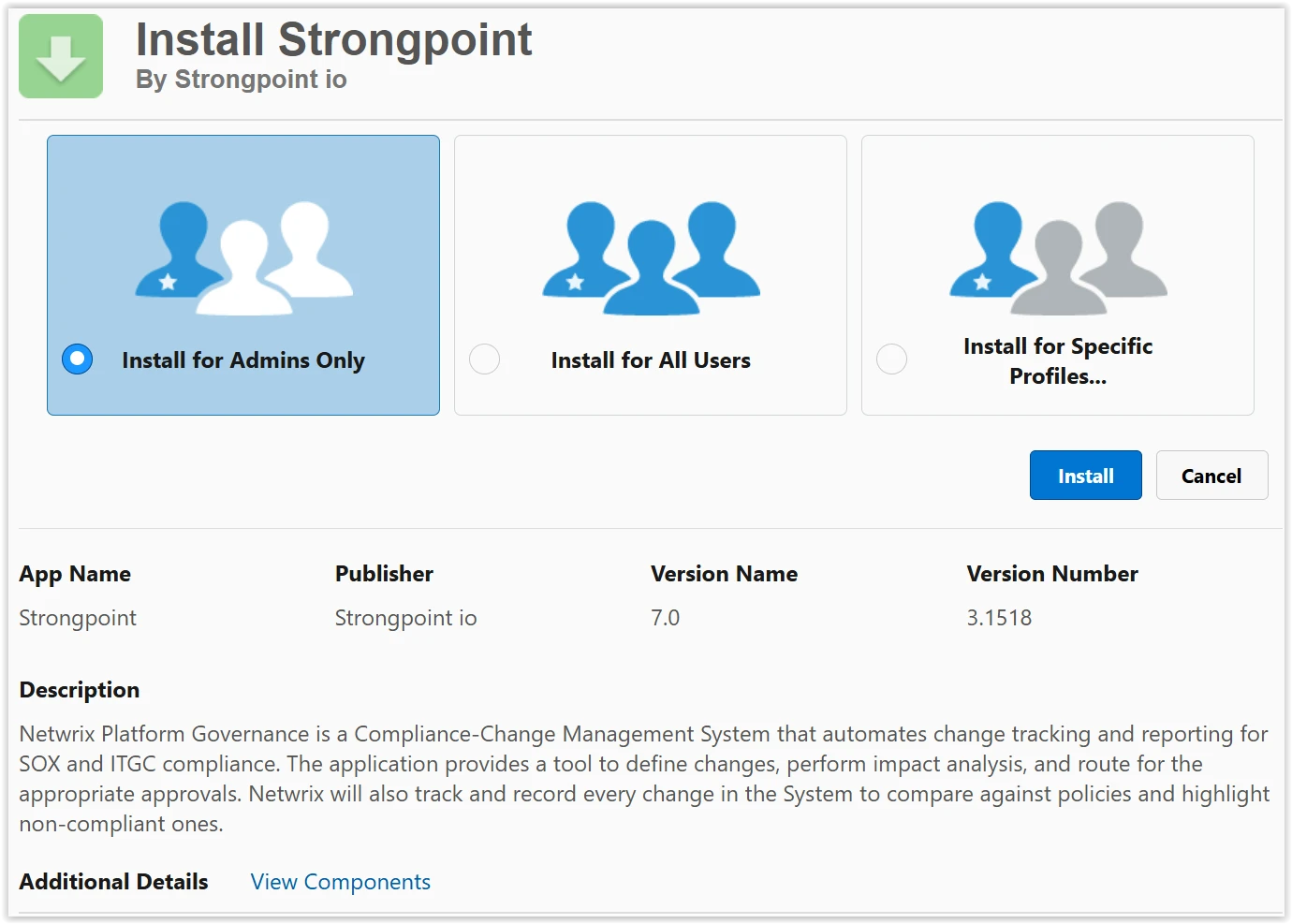
The installation runs in the background. You receive an email notification when the installation completes.
Configure Authentication
After installing the package, configure authentication credentials. Platform Governance for Salesforce supports two authentication methods:
Recommended: Named Credential Authentication (OAuth)
This is the recommended approach for all organizations, and is required when user profiles have High Assurance enabled.
Named Credentials provide:
- High Assurance compatibility - Required when Salesforce profiles have High Assurance enabled
- Independent authentication - Doesn't rely on specific user credentials, improving security and reliability
- Automatic token refresh - No session expiration issues
- Enhanced security - Limited OAuth scopes instead of full user permissions
For detailed step-by-step instructions on configuring Named Credentials with External Client App and OAuth, see Named Credential Setup.
Legacy: Session ID Authentication
The traditional method uses direct user credentials (username, password, and security token) to authenticate API calls. This method doesn't require a Connected App, but has significant limitations:
- Doesn't work with High Assurance - Fails when user profiles have High Assurance enabled
- User-dependent - Relies on specific user credentials; if using this method, Netwrix recommends creating a dedicated Integration User for this purpose
If your Salesforce organization has High Assurance enabled on user profiles, you must use the Named Credential authentication method. Session ID authentication will not work with High Assurance. While many organizations associate High Assurance with MFA requirements, the High Assurance setting itself makes Named Credentials mandatory.
Legacy Session ID Setup
This method uses direct user credentials without requiring a Connected App setup.
Requirements:
- Salesforce username (Netwrix recommends using a dedicated Integration User)
- Salesforce password
- Salesforce security token (obtained from user settings)
Configuration: Enter the credentials directly in the Platform Governance application during the Getting Started Wizard. You don't need a Connected App or OAuth configuration.
Best Practice: When using Session ID authentication, create a dedicated Integration User specifically for Platform Governance. This approach provides better control and reduces dependencies on individual user accounts.
Limitations:
- Doesn't work when user profiles have High Assurance enabled
- Depends on specific user credentials, creating maintenance overhead
- Not suitable for organizations with High Assurance requirements
Assign Permission Set to Users
After configuring authentication, assign the required Permission Set to users who need access to Platform Governance for Salesforce, and to any users running scheduled jobs or background processes the application requires.
The Permission Set grants access to the data and system processes Platform Governance uses, including metadata scanning and other automated operations.
Assign Netwrix Grant Permissions
- In Salesforce, open Setup > Users > Permission Sets
- Search for and click Netwrix Grant Permissions
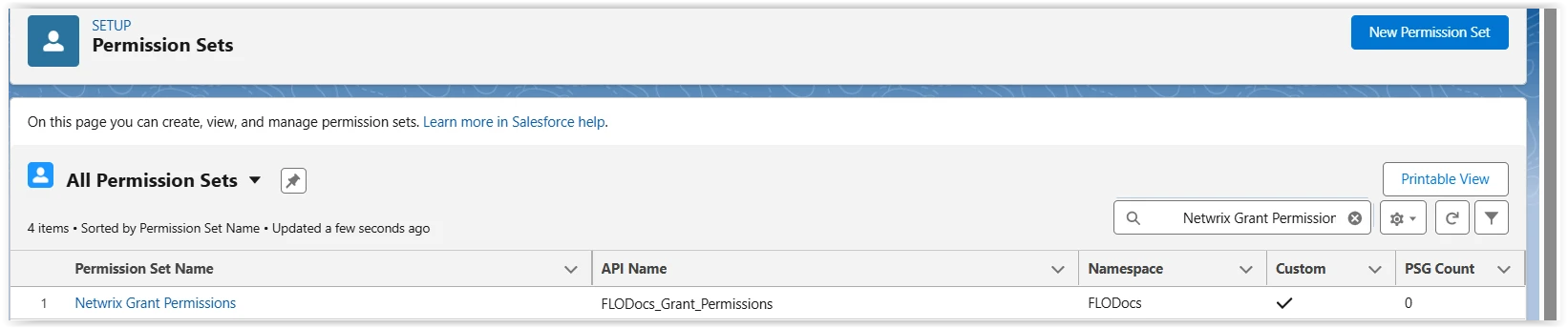
- Click Manage Assignments
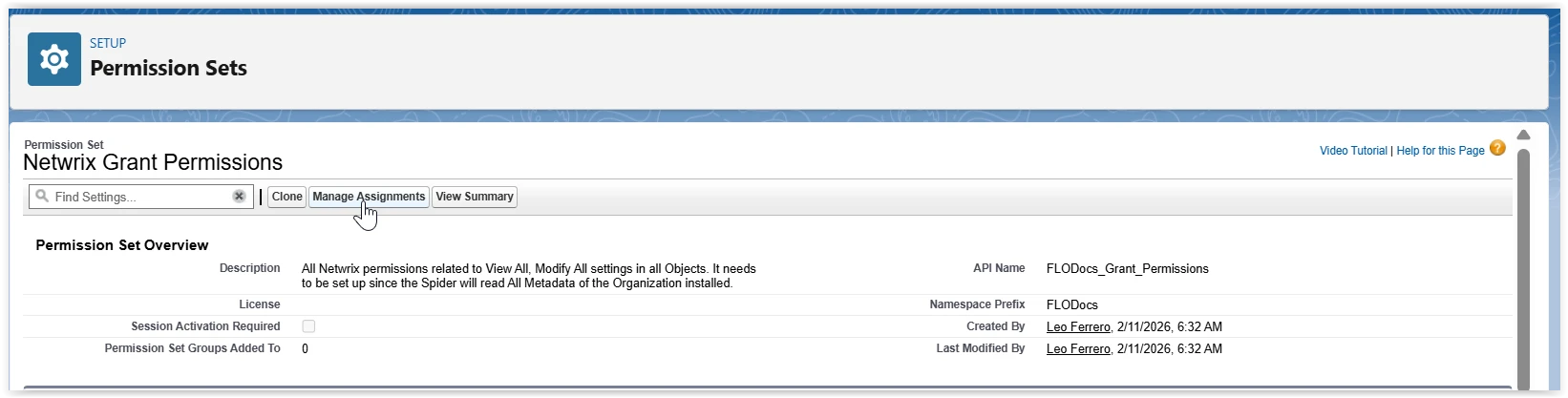
- Click Add Assignments
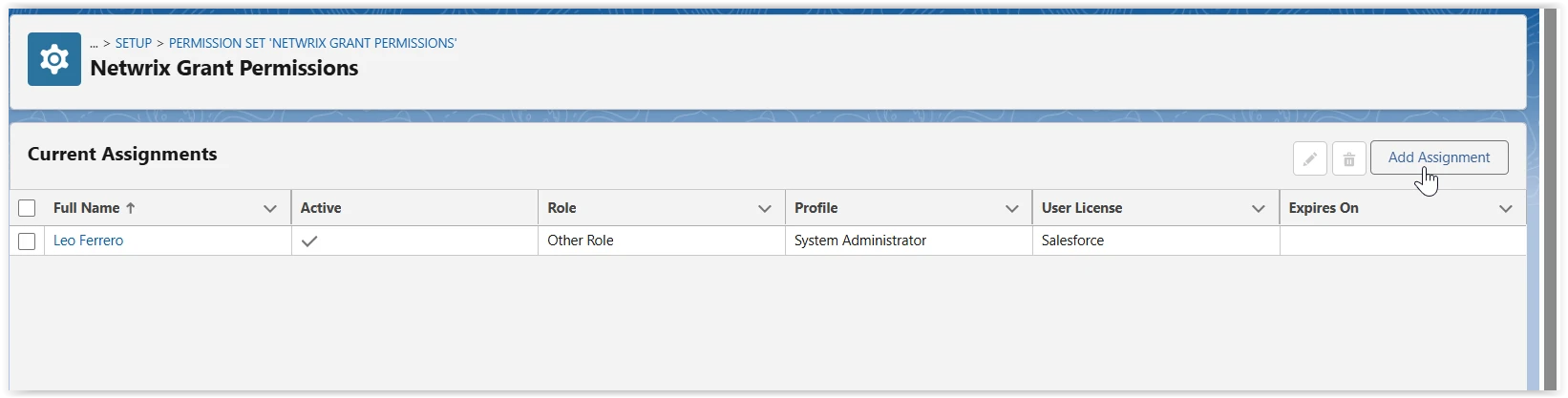
- Select the users who need access to Platform Governance for Salesforce
- Click Assign
- Click Done
All users who access the Netwrix Lightning application need the Netwrix Grant Permissions permission set to use Platform Governance for Salesforce.
Verify Permission Assignment
To verify that you assigned the permission set correctly:
- In Salesforce, open Setup > Users > Users
- Click a user who should have access
- Scroll to the Permission Set Assignments section
- Verify that Netwrix Grant Permissions appears in the list
Access the Netwrix Lightning Application
After configuring authentication (either Named Credentials or Session ID), access the Platform Governance application:
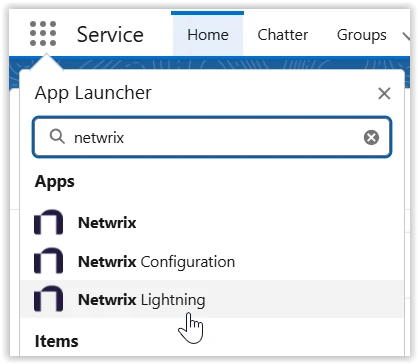
- Open the Salesforce App Launcher (grid icon in the top navigation)
- Search for and select Netwrix Lightning
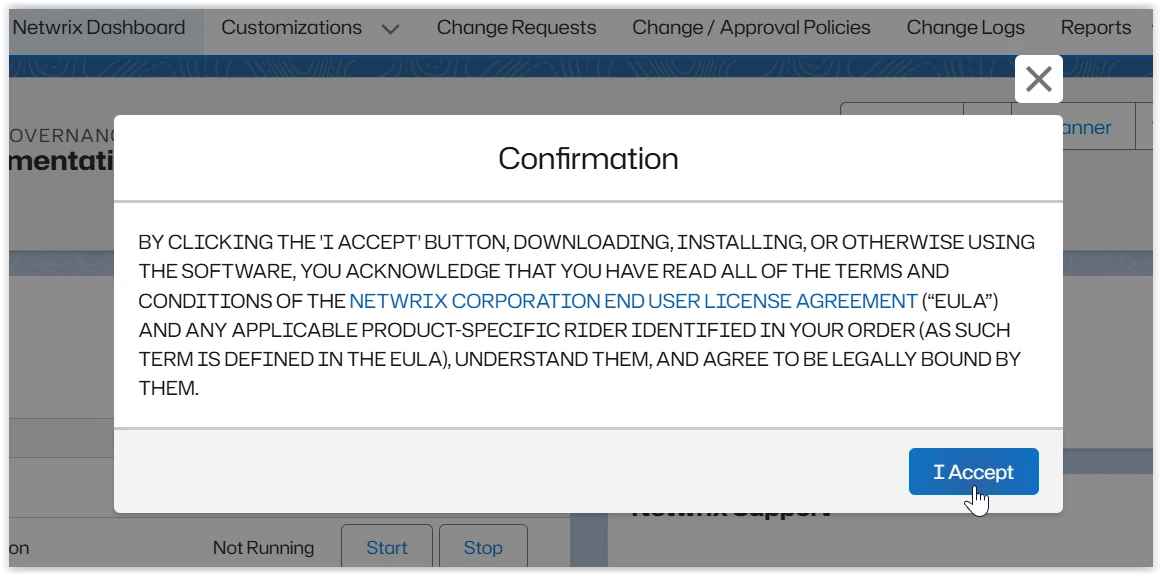
- A window displays the License Agreement and EULA. Review the contents carefully and then select Accept.
You can now use Platform Governance for Salesforce.
Next Steps
After completing the installation and authentication setup:
-
Configure Authentication:
- Recommended: Named Credential Setup - Required for High Assurance profiles, recommended for all organizations
- Legacy: Session ID setup - Only for organizations without High Assurance
-
Initial Configuration: