Using Change Logs
Use Change Logs to see the type of change, who made the change, and view the system notes of the Salesforce record. Access Change Logs from the Change Logs tab or through Change Enablement Reports.
- Click Change Logs tab.
- Change the Recently Viewed pinned list to show the types of Change Logs to view. For example, Data Tracking Changes or Fast Scan Permission Changes changes. The Details and Diff Summary differ slightly depending on the selected Metadata Type.
- Click a Change Log Name to open it.
You can also open Change Logs from Netwrix Dashboard > Reports > Change Enablement. Select a report, such as What Changed to see a list of Change Logs.
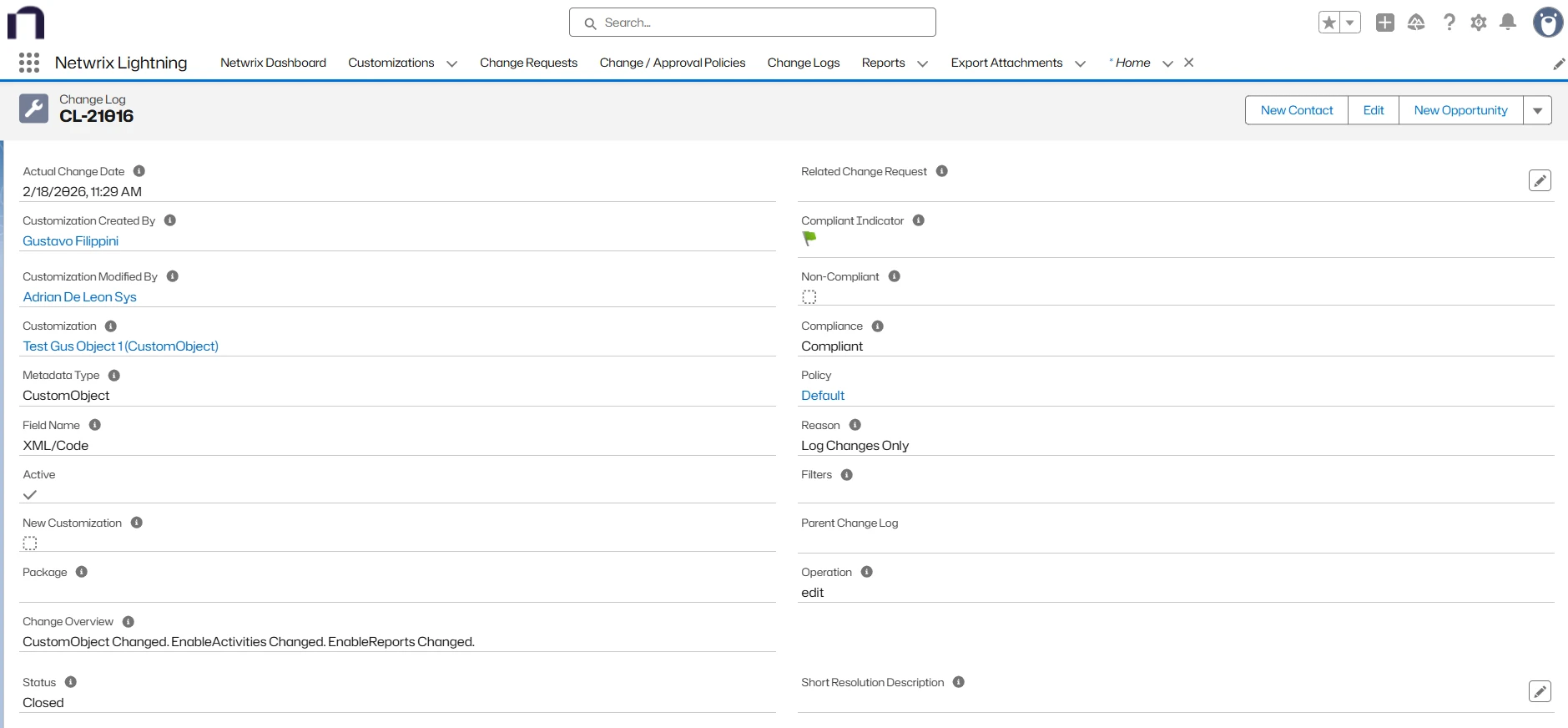
Here is an example change log for a CustomObject Metadata type.
Details Tab
- Actual Change Date: Date the Customization was last modified.
- Customization Created By: User who created the customization.
- Customization Modified By: User who last modified the customization.
- Customization: Linked customizations that have changed.
- Metadata Type: Salesforce metadata type of the Customization.
- Field Name: Name of the changed field.
- Active: Checked if the Customization is active.
- New Customization: Checked if this is a new customization.
- Package: Name of the Managed Package if the customization belongs to a managed package.
- Operation: Flags whether a change was made, a new record was created or deleted.
- Change Overview: Overview of the change.
- Related Change Request: Change request related to the change or used to perform regression analysis of a non-compliant change. This field is editable.
- Compliant Indicator: Green flag indicates compliant, red flag indicates non-compliant.
- Non-Compliant: Checked if the change is non-compliant.
- Compliance: The change status: Compliant or Non-compliant.
- Policy: Policies associated with the Change Log.
- Reason: Name of the policy violated by the change.
- Short Resolution Description: Summary description of any steps taken to bring the change back into compliance. This field is editable.
- Status: Current state of the Change Log. This field is editable.
Diff Summary
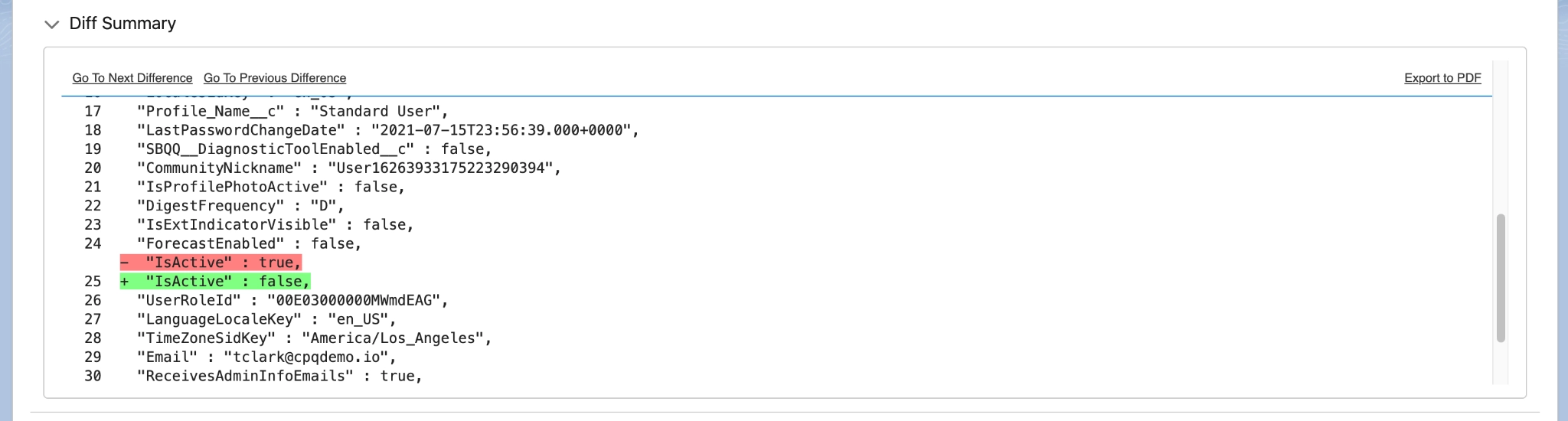
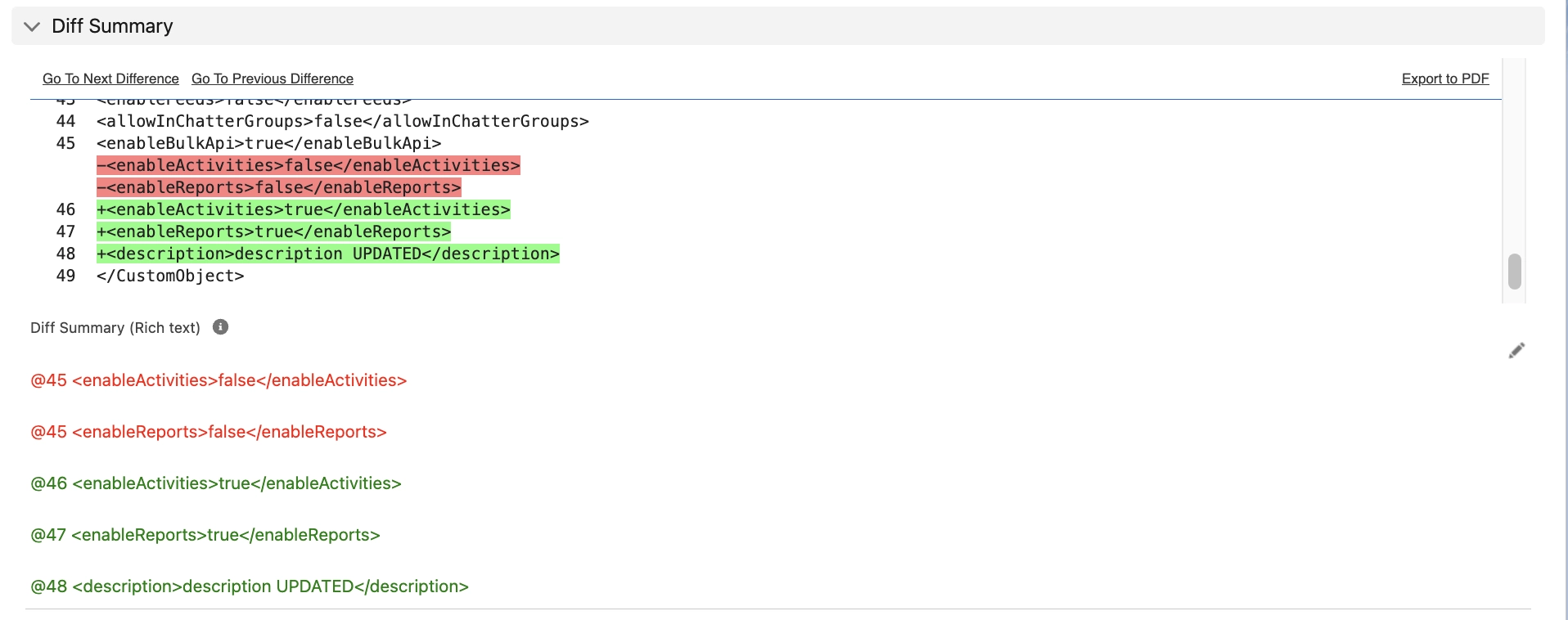
The Diff Summary section displays the differences in the objects that occurred in the change. There is an Export to PDF option.
Example Diff Summary for a Data tracking Change Log:
Example Diff Summary for a CustomObject metadata type Change Log:
Values
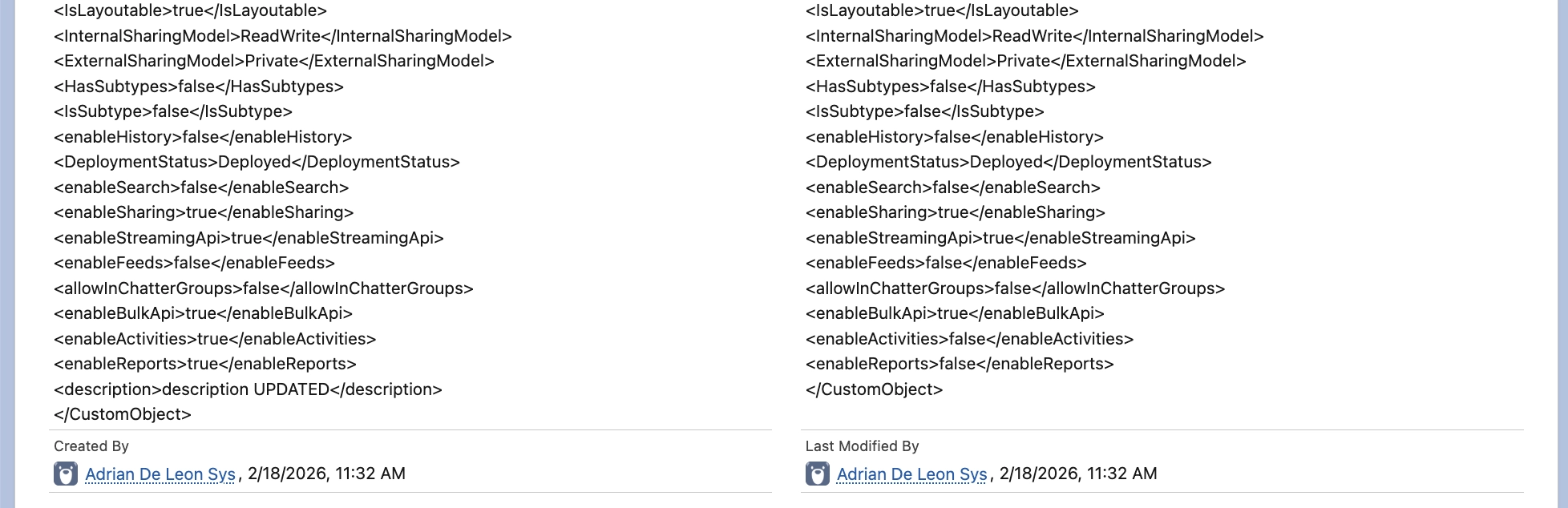
The Values section displays the New Value and Old Value of each field after the update.
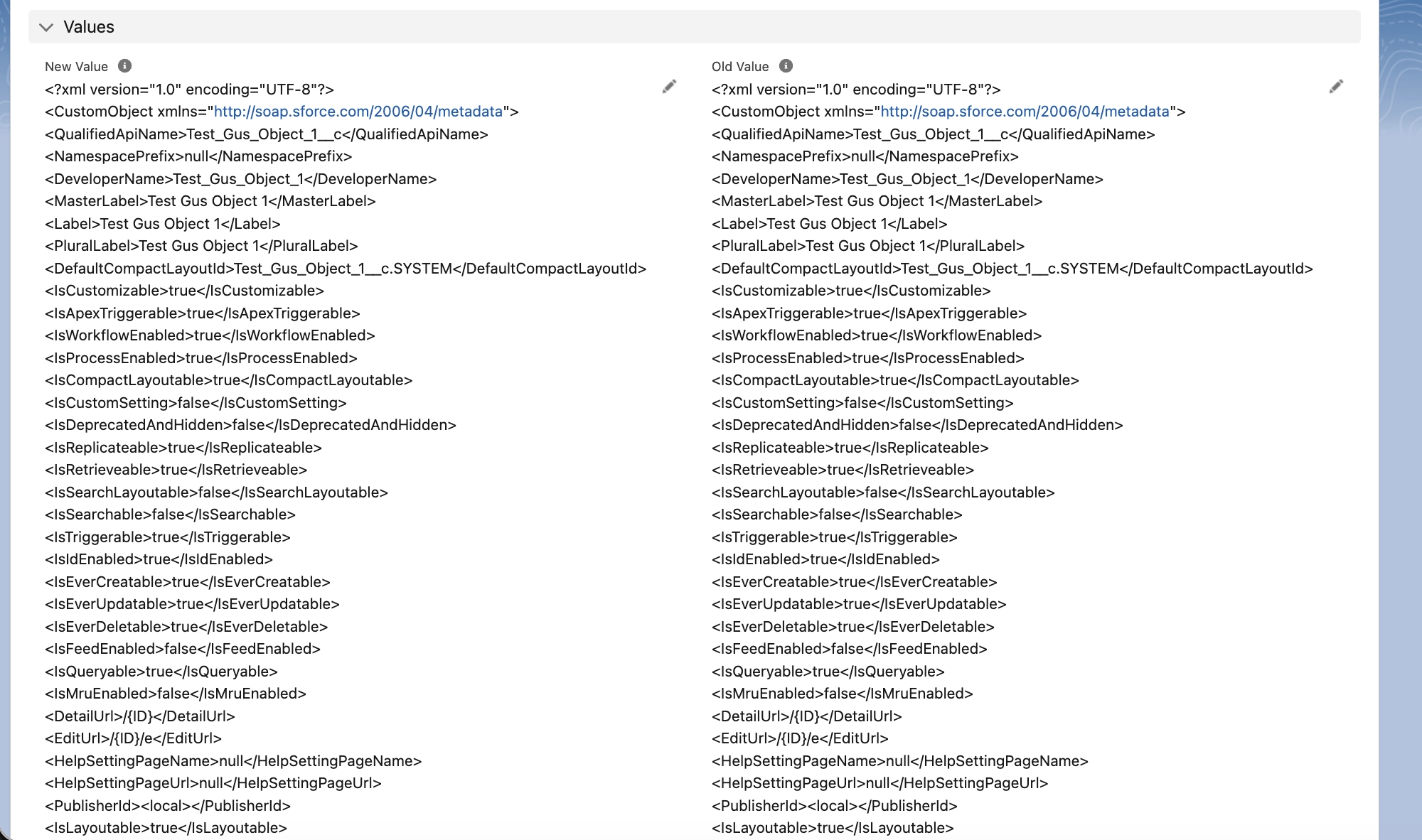
The Created By and Last Modified By users and dates appear at the end of the list.
Audit
The Audit section displays all fields related to an audit. Click the edit icon to edit the record.
- Sampled For Audit: Select None, Internal, or External.
- Audited By: Auditor selects their user name from the list.
- Internal Audit Comments: Internal notes added by the Auditor.
- Internal Audit Status: Select None, Approved, Rejected, or Under Investigation.
- Last Internal Audit: User who made the last change in the Internal Audit fields.
- External Audit Comments: External notes added by the Auditor.
- External Audit Status: Select None, Approved, Rejected, or Under Investigation.
- Last External Audit: User who made the last change in the External Audit fields.
Related Tab
Change Log History
Change Log History displays the latest history entries by Date. The changed Field, User making the change, Original Value and New Value appear. If there is a + sign by the number in Change Log History header, click View All to see the complete history.
Notes & Attachments
Notes & Attachments contains uploaded files. Click a file name to open it. Click Upload Files to add additional files. If there is a + sign by the number in the Notes & Attachments header, click View All to see the complete file list.