Set Up Policies
Change / Approval Policies have two tabs: Details and Related.
You can create a New Policy, or edit an existing one:
- Expand the Change / Approval Policies tab.
- Change the Recently Viewed pinned list to All Policies to see a list of existing policies.
- Click New to create a new policy or select an existing policy and click Edit.
Details
- Information general information about the policy.
- Code and Data Model Changes change control level for code and data model changes.
- Automation Changes change control level for approval process, business process, flow, workflow, and process builder changes.
- Sharing and Visibility Changes change control level for role, profile, permission set, data security, sharing non material and indirect changes to profile changes.
- Integration Changes change control level for external site, identity, and access changes.
- Configuration Changes change control level for data quality and general settings changes.
- Display and UI Changes change control level for application, label, translation, layout, and template changes.
- Analytics Changes change control level for reports, dashboards, list view, and Einstein changes.
- Control Changes change control level for control changes.
- Application Configuration Changes (Data)
- Health Check Changes change control level for health check changes.
- IT Policies preliminary and final approvers.
- Customization Policies impacted customization approval.
- Management Policies executive approver and approval settings.
- Change Enablement Defaults merge approval list, non conforming alerts, and sequential approval requests.
- System Information, Created By and Last Modified By dates. Informational only. You can't edit these fields.
After you save the policy, the System Information section displays the Created By and Last Modified By user and timestamp. The Details tab shows the information you entered on the form. The Related tab lets you add Customizations and view additional information and history.
Information
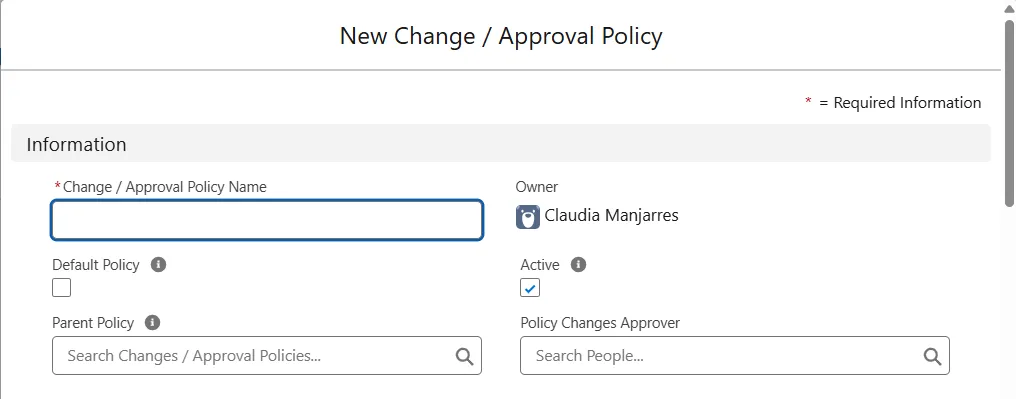
- Change/Approval Policy Name
- Default Policy: Check if this is the default change/approval policy.
- Parent Policy: Search and add a parent policy (if applicable).
- Active: Check if the policy is active.
- Policy Changes Approver: Search and select the person who must approve changes to this policy.
You can now control whether changes to the Policy require approval. If you enter an approver in the Policy Changes Approver field, the policy requires an approved Change Request for any changes. If the field is blank, the policy doesn't require an approved Change Request.
Set the required Change Level for each Metadata Type. The form shows the default.
| Change Level | Description |
|---|---|
| Log Changes Only | Because the scanner automatically logs all changes, this change level requires no actions for compliance. The scanner automatically marks any changes to these components as compliant. |
| Change Request | Any changes to these components require an Approved Change Request. |
| Sandbox Development & Testing | Any changes to these components require an Approved Change Request in the Stage Development Project. It also requires that you attach a parent Change Request to the Development Project. |
| Full Software Development Lifecycle | Any changes to these components require an Approved Change Request in the Stage Deployment Record or Rollback Record. |
Code and Data Model Changes

Automation Changes

Sharing and Visibility Changes

Integration Changes

Configuration Changes

Display and UI Changes

Analytics Changes

Control Changes

Controls the change level required for different types of changes.
Application Configuration Changes (Data)

Set objects and fields that are Tracked Non-blocking or Tracked Blocking to be part of the policy and require a Ticket and an approval.
See Set Up Data Tracking for instructions on activating and validating tracked fields.
Health Check Changes
Health Check Changes affect how Platform Governance handles changes for the customization records for each Salesforce Health Check group (session settings, file upload and security settings), so you can track and report on current settings. The customization record has a Health Settings tab for these specific records.

IT Policies

Specify the Preliminary Approver. Enter part of the name to see a matching list. For critical changes, you can also set a Final Approver. This person must approve all changes the rule affects.
Uncategorized Changes

This change control level applies to any components that don't fall into the other categories.
Management Policies

Executive Approver: a business executive who must approve the change.
Maximum number of Approvals Required: Platform Governance grants approval when the specified number of approvers have approved. If this field is blank, all approvers must approve.
No Order Required: select this option to allow approvals in any order. If you don't select it, approvals occur in the specified order.
Related
The Related tab is available after you save the policy. You can add and view Customizations, Change Logs, Change Requests and view status and history associated with the Policy. Links are available for easy navigation to each item.
The scanner creates Change Logs when you add or remove customizations.
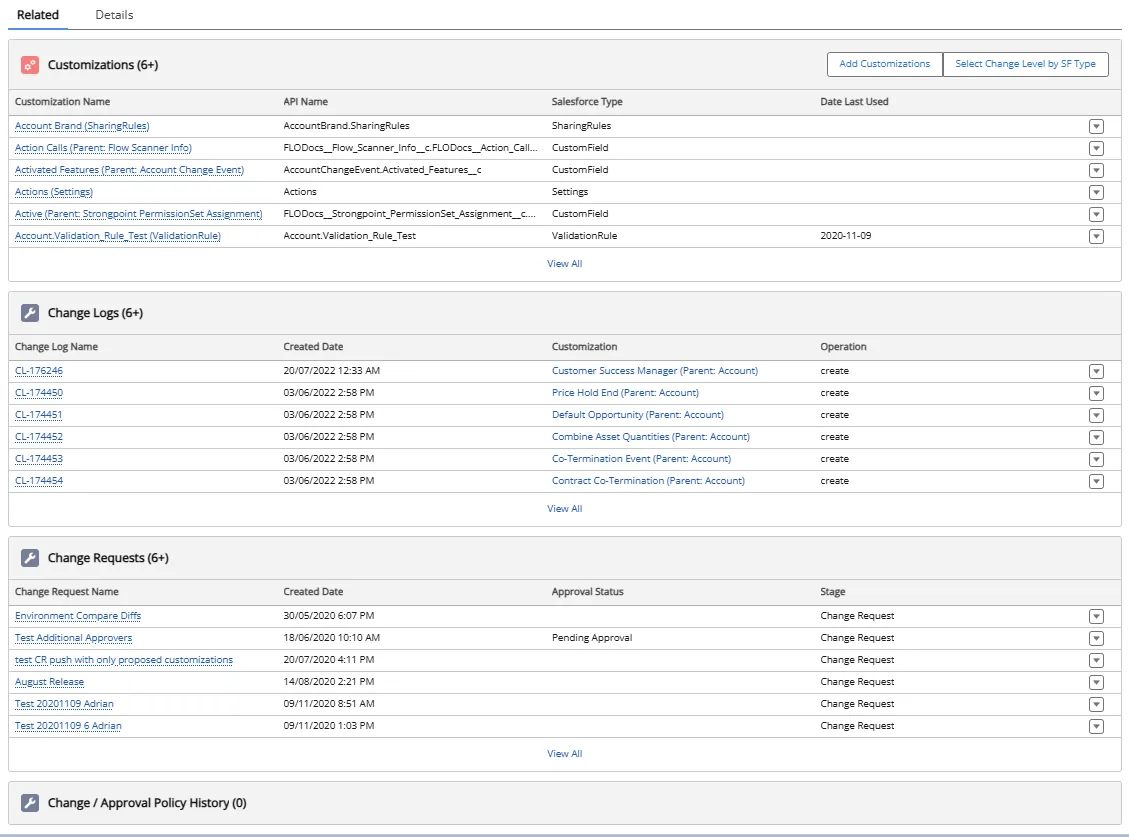
Add or Remove Customizations
You can add or remove customizations from the Related tab on the policy. Custom Fields inherit the CustomObject Policy when you add them. See Policy Inheritance for how this works for new and existing fields.
- Platform Governance automatically adds new Custom Fields to the parent CustomObject Policy if it exists.
- Platform Governance adds existing Custom Fields to the parent CustomObject Policy from the Custom Object customization record.
- The scanner generates Change Logs for customization changes.
- Platform Governance reports changes under Reports > Change Enablement > Change/Approval Policy Changes.
-
Open the policy and click the Related tab.
-
Click Add Customizations.
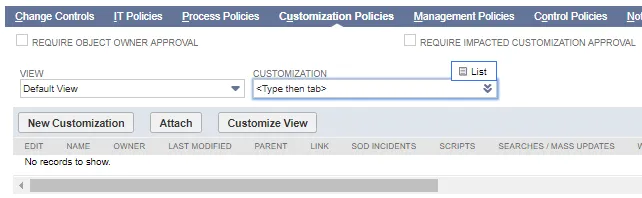
-
Select a Metadata Type to filter the list.
-
Enter a search term or scroll through the list to locate customizations.
-
Click to select a customization. Use Shift-click or click and drag to select multiple contiguous items or Ctrl-click to select multiple customizations.
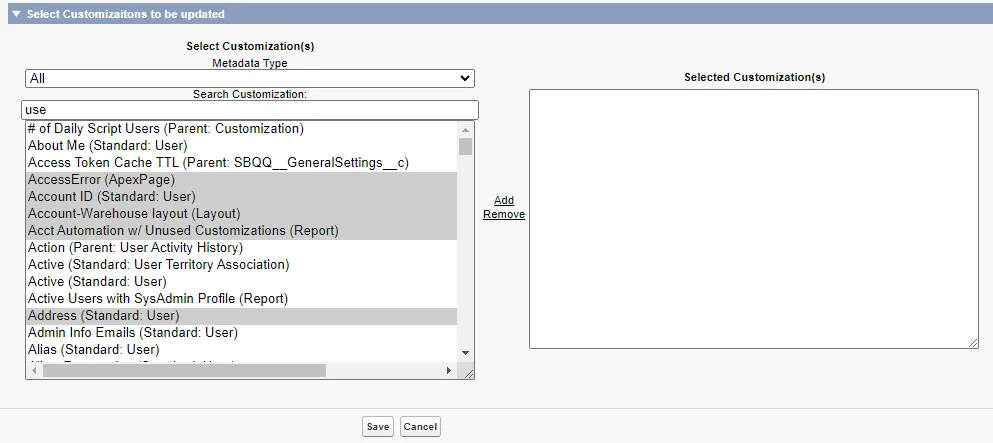
-
Click Add to add the customizations to the Selected Customizations list. For existing customizations, select them in the Selected Customizations and click Remove to take them out of the list.
-
Click Save when complete.
Select Change Level by Salesforce Type
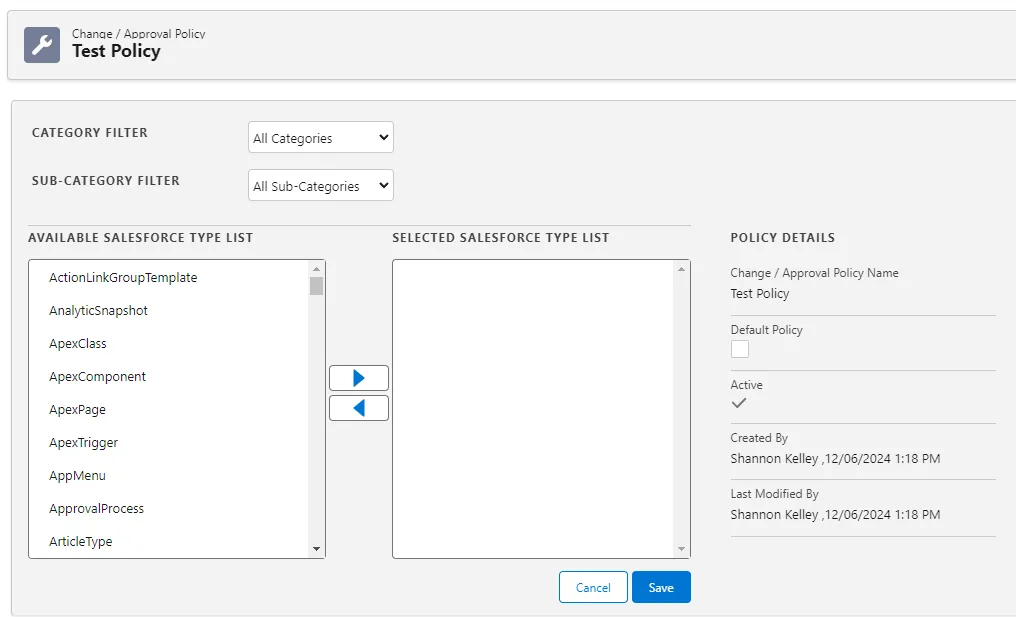
Use this feature to add customizations to the policy based on Salesforce type. It is available on the Related tab on the policy.
-
Open the policy and click the Related tab.
-
Click Select Change Level by SF Type. You can set the policy as the Default and toggle it as Active in the Policy Details.
-
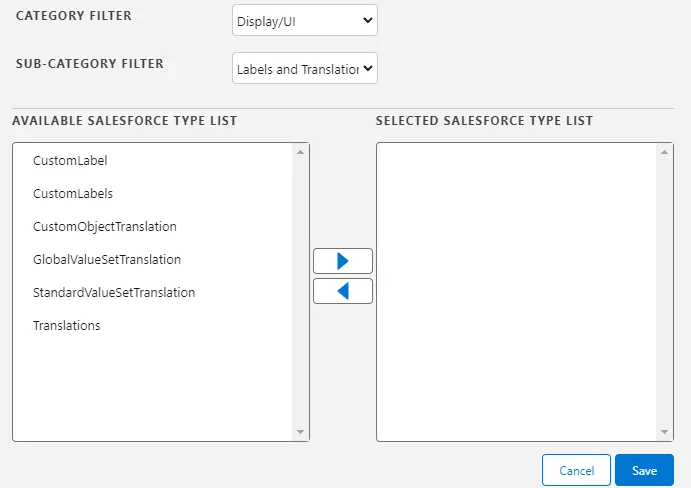
Set Category and Sub-Category filters to narrow the list. Not all categories have sub-categories.
-
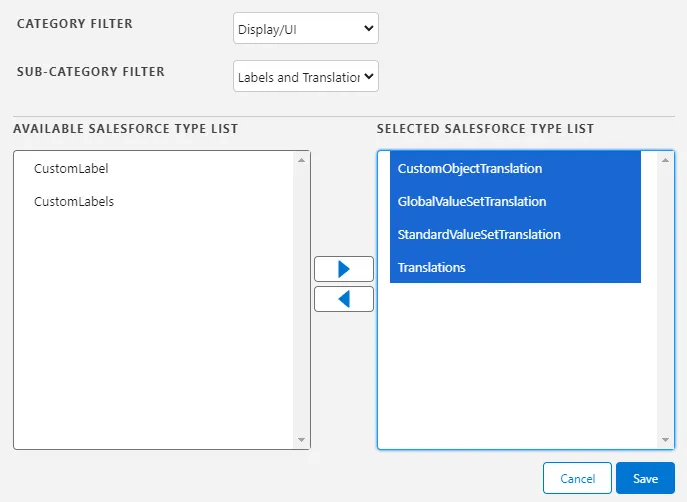
Click to select a Salesforce Type from the Available Salesforce Type List. Use Shift-click or click and drag to select multiple contiguous items or Ctrl-click to select multiple types.
-
Click the right arrow to add selections to the Selected Salesforce Type List. Click the left arrow to remove items from the selected list.
-
Click Save when complete. A confirmation dialog appears. Click OK to confirm you want to add all the customizations from the selected Salesforce types.