Jira Forge Walkthrough
This walkthrough is one example based on a test account. Before you start, complete all prerequisites on the Jira Forge Setup page, then install and configure the Jira integration, and set up the Jira Statuses.
The walkthrough covers these steps:
- Create a Jira Ticket
- Log In and Connect to a NetSuite Account
- Add or Remove Customizations
- Import Customizations
- Perform Risk Assessment
- View Entity Relation Diagram
- Ready for Development
- Deploy Changes and Complete the Ticket
- Change Request Status Bar Transitions
- Other Notable Features
Create a Jira Ticket
- Log in to your Jira account.
- Open a project.
- Click Create (+).
- Fill in the necessary fields and click Create.
Log In and Connect to a NetSuite Account
Before you start this step, confirm that you have already created a Token-based Authentication (TBA) record. If not, see Set up Jira TBA Credentials on the Setup page.
-
In your issue ticket, click the Netwrix NetSuite Forge tab. One of two pages appears:
-
If you haven't completed Set up Jira Project Keys on the Setup page, this message appears: "Only projects defined in the Netwrix Settings page can use this integration." Complete the Set up Jira Project Keys step first.

-
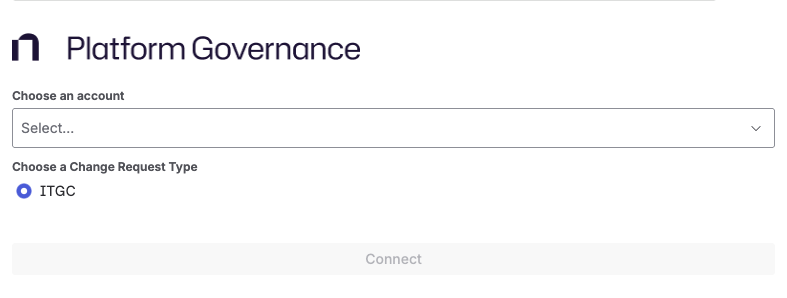
If you have completed that step, the connect page appears, where you can connect or log in to a NetSuite account that you defined in Set up Jira TBA Credentials on the Setup page.
-
-
Select a NetSuite account to connect to.
-
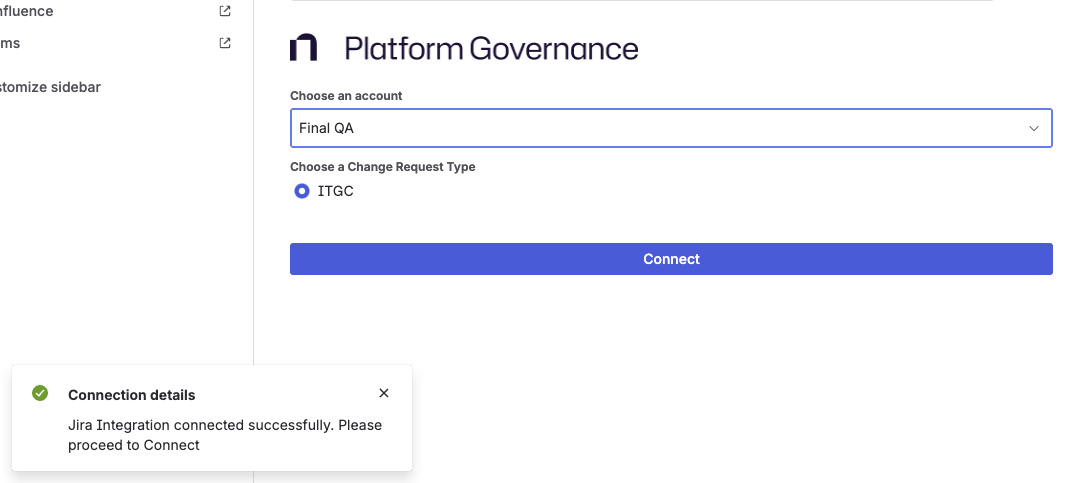
After you select an account, the app loads and establishes the initial connection. When it succeeds, the Connect button becomes enabled. If it doesn't, verify the TBA credentials in Set up Jira TBA Credentials on the Setup page.
-
Click Connect.
-
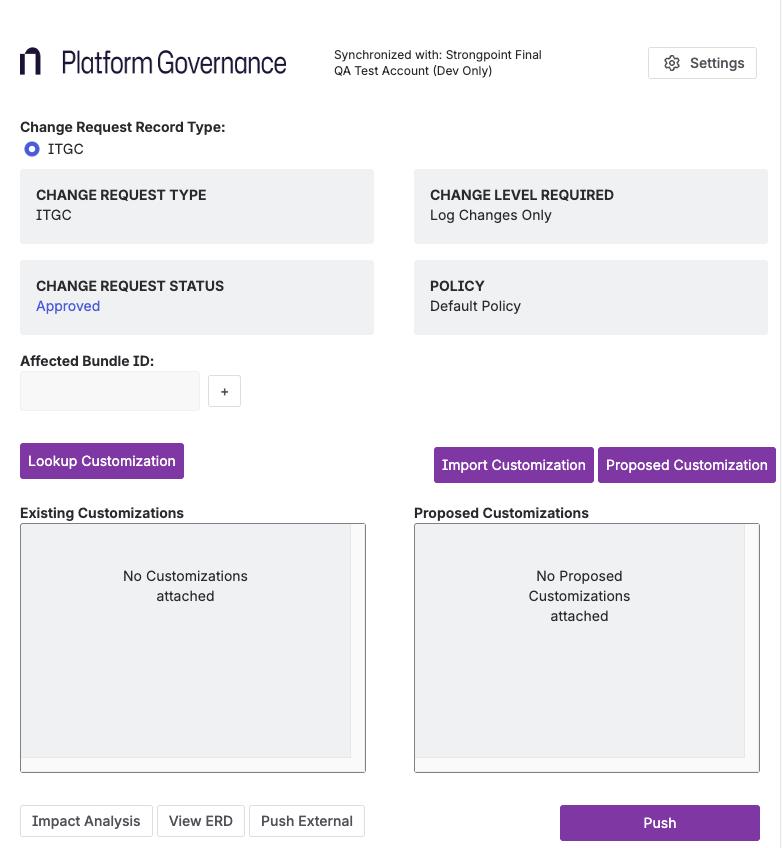
The ITGC Form for the Jira app appears. It loads the Change Request data and shows the account the app connects to.
Add or Remove Customizations
This section shows you how to add and remove customizations in the Forge app.
-
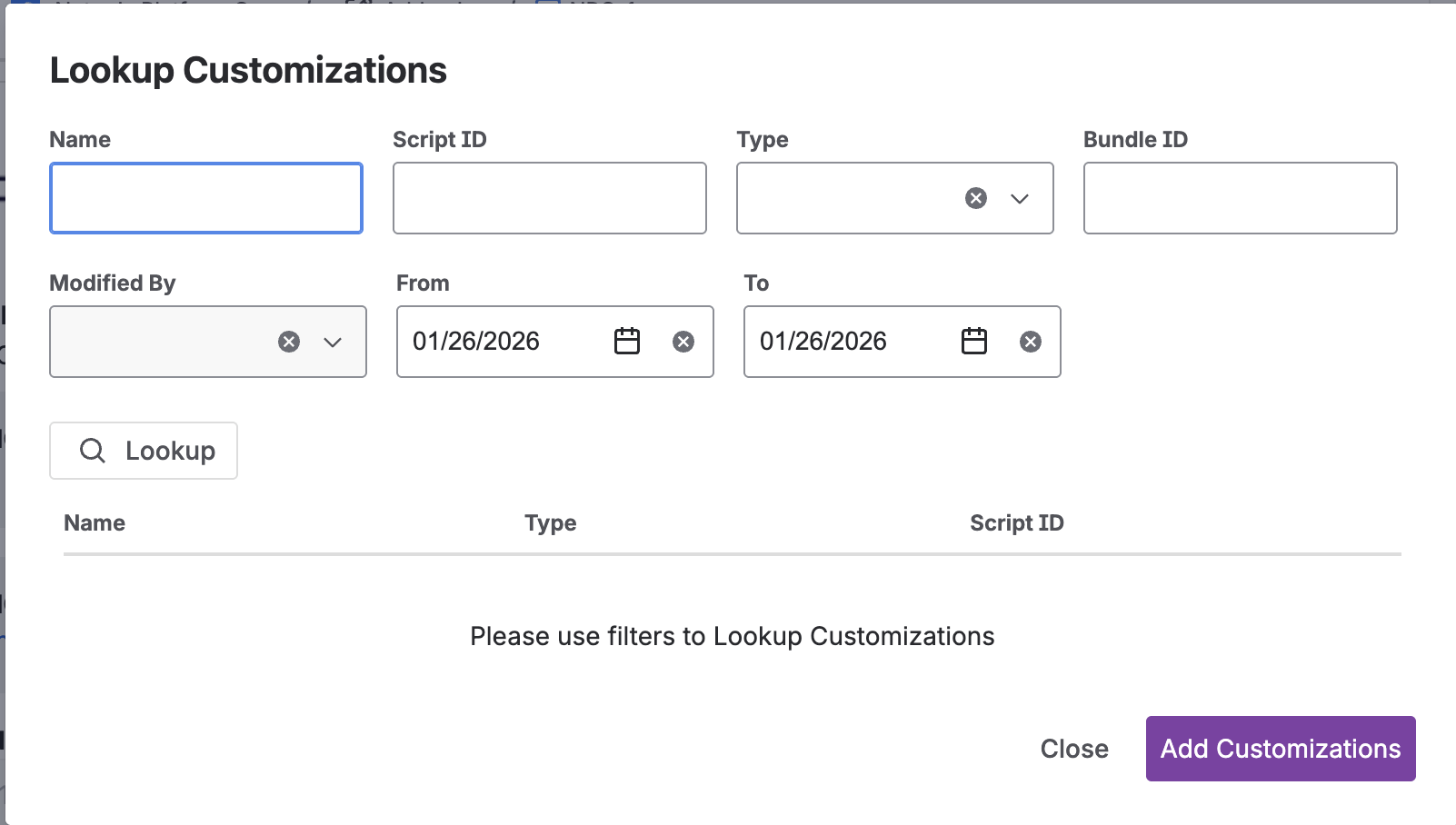
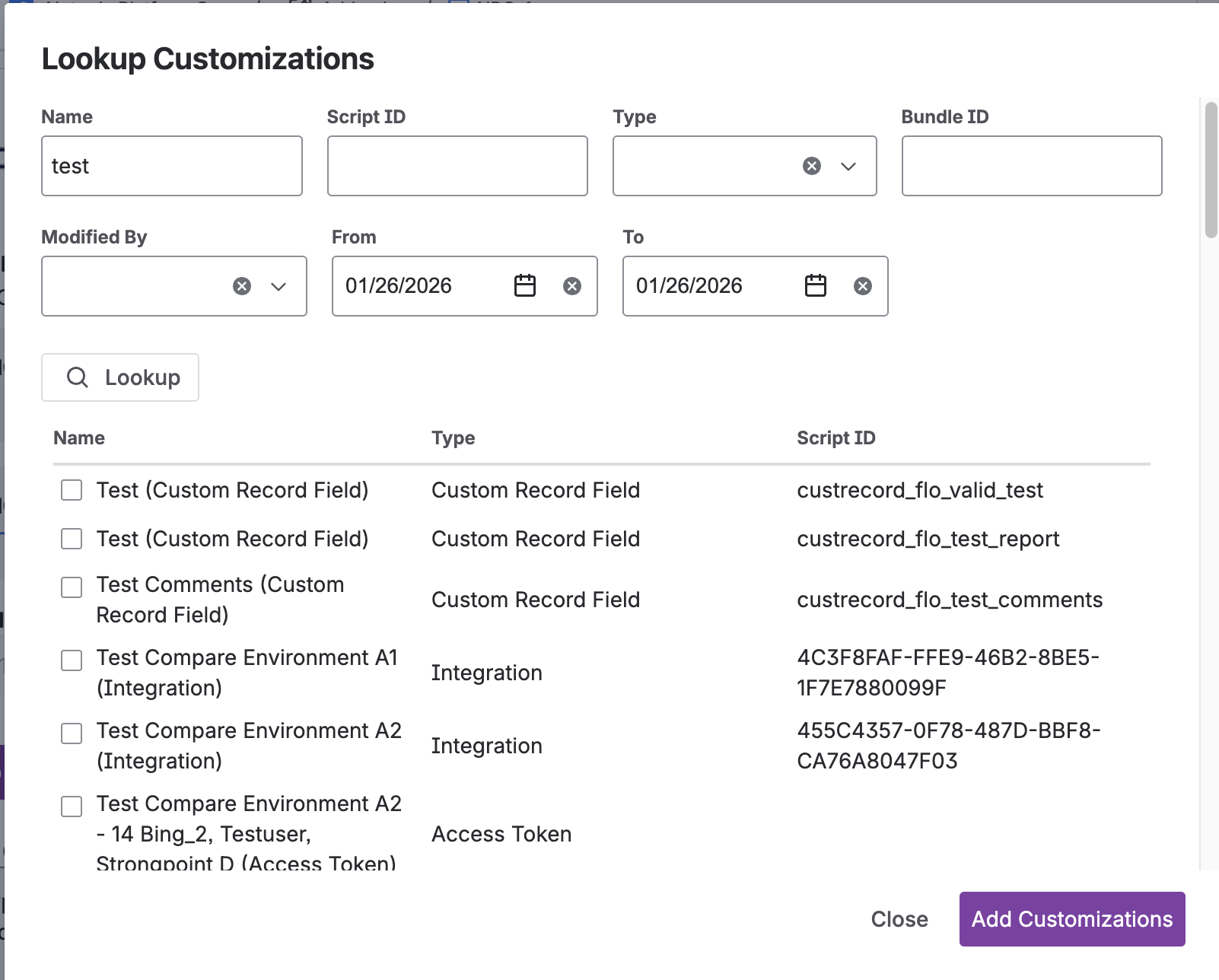
Click the Lookup Customization button to add existing customizations to the Jira ticket. A modal opens, letting you filter and select a customization to attach to the change request. You can filter by:
- Name
- Script ID
- Type
- Bundle ID
- Modified By
- From
- To
-
Choose a filter to narrow the selection of customizations. This example uses the Name filter. Click Lookup.
-
To attach a customization, select the checkbox beside its name, then click Add Customizations at the bottom of the modal.
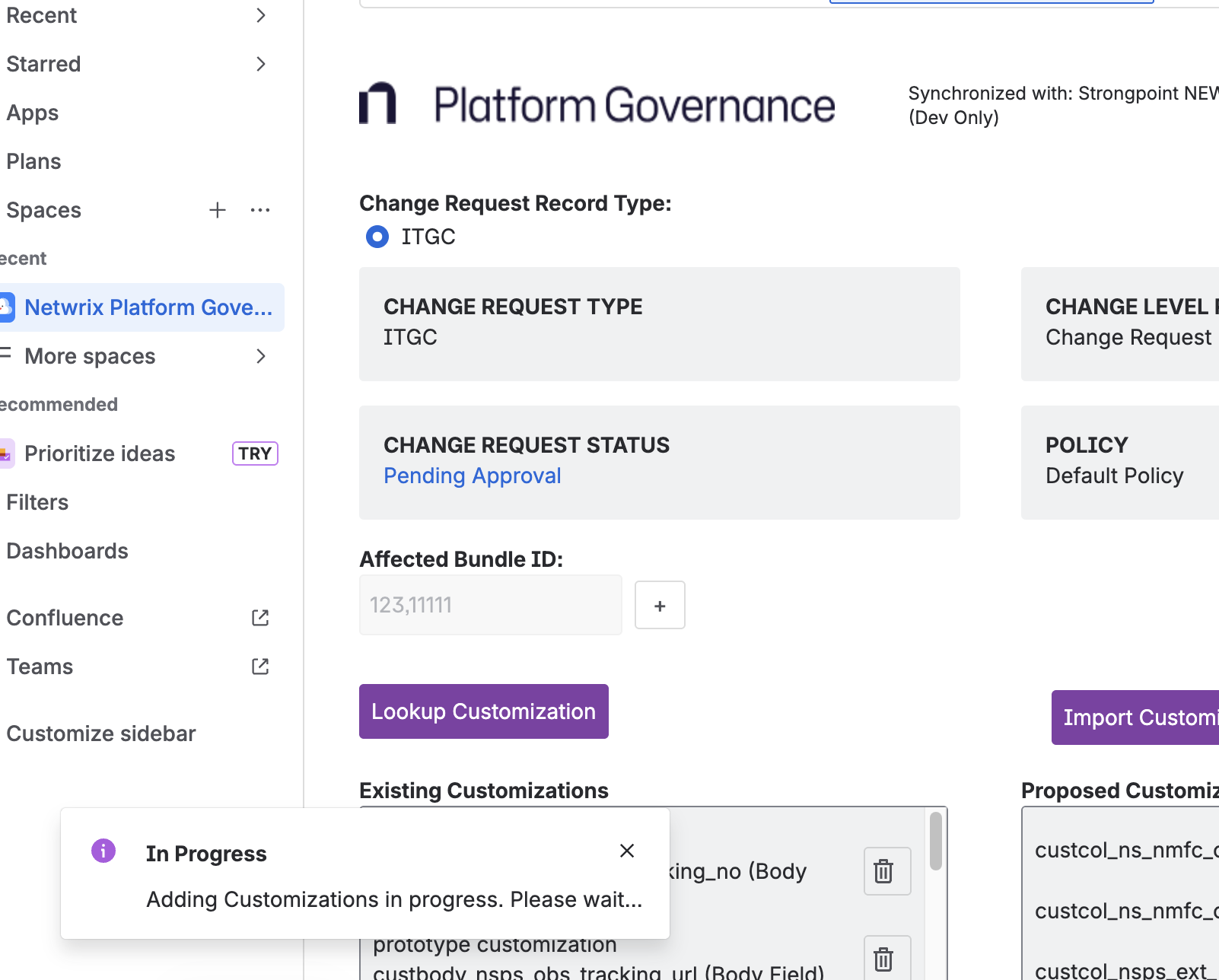
A flag shows that the action is in progress:
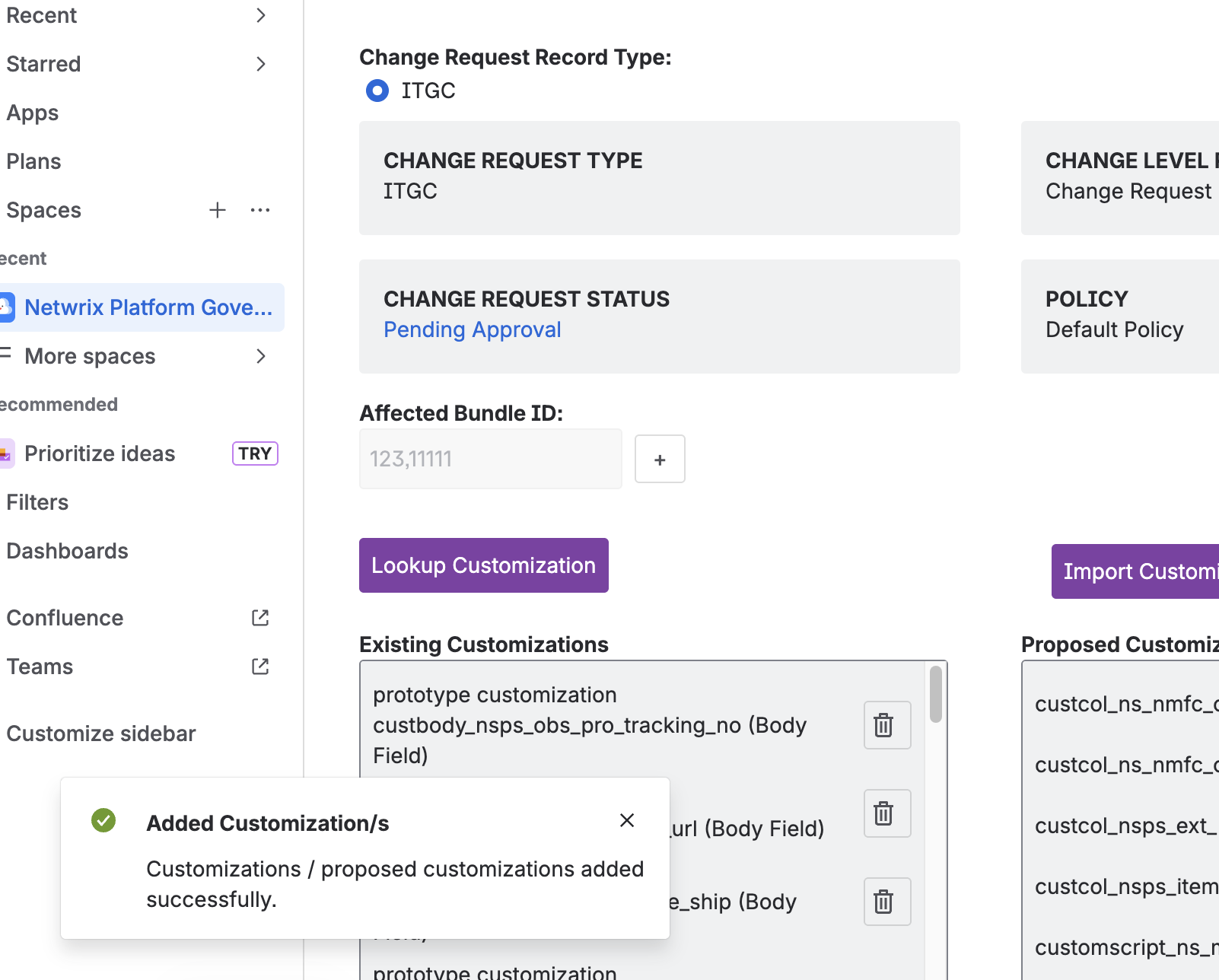
A second flag shows that the action succeeded:
-
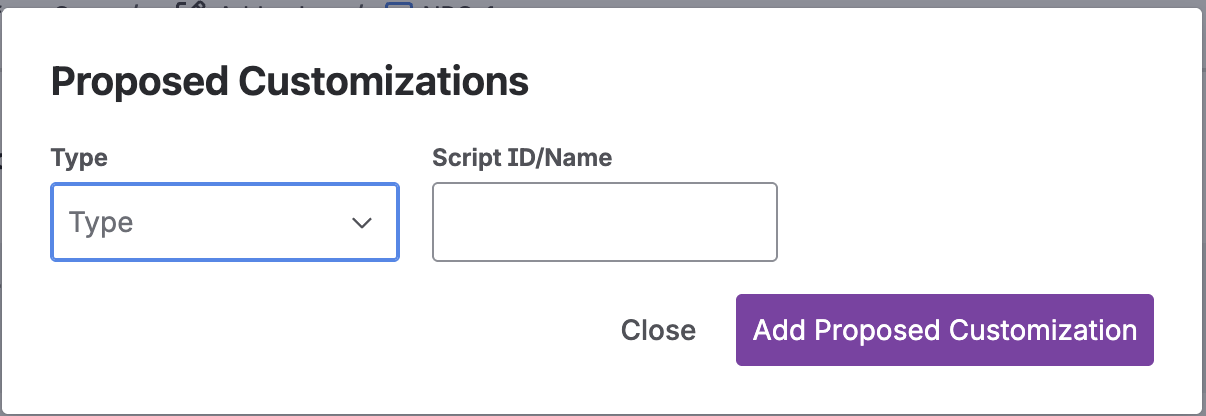
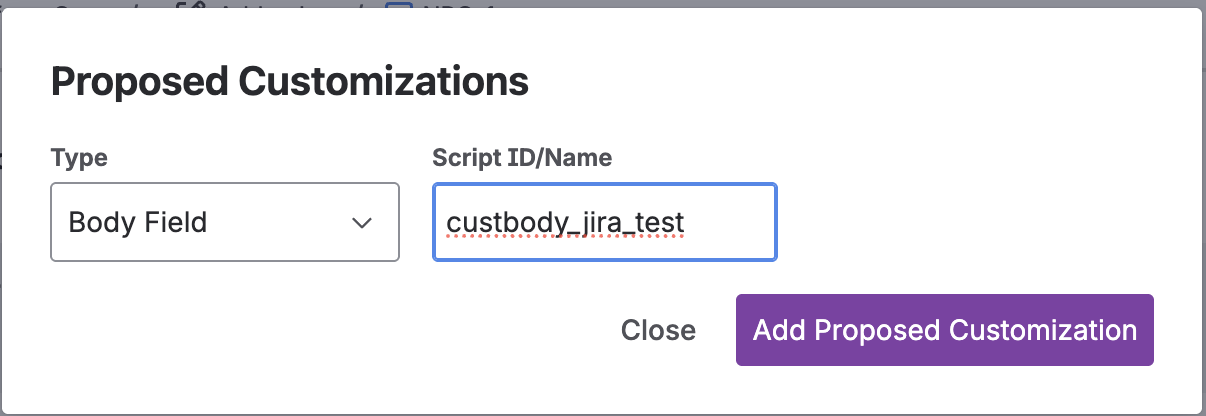
You can also add a customization that doesn't exist yet. Click Proposed Customization. A modal opens with these fields:
- Type
- ScriptID/Name
-
Select the Type for your proposed customization. This example uses the Body Field type. The Script ID/Name field already contains the script ID prefix, which prevents you from entering the wrong prefix for the type. Enter the script ID of your choice.
-
Click Add Proposed Customization to attach it to the Jira ticket change request.
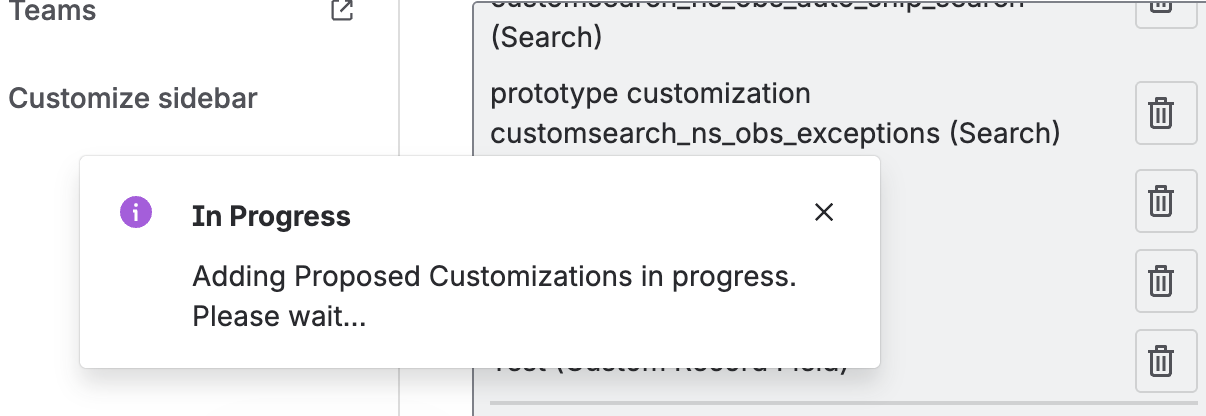
A flag shows that the action is in progress:
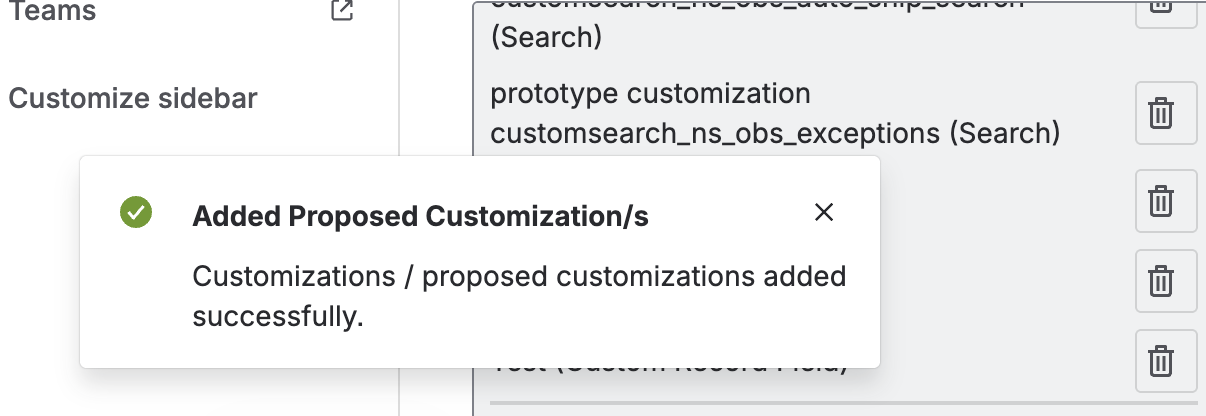
A second flag shows that the action succeeded:
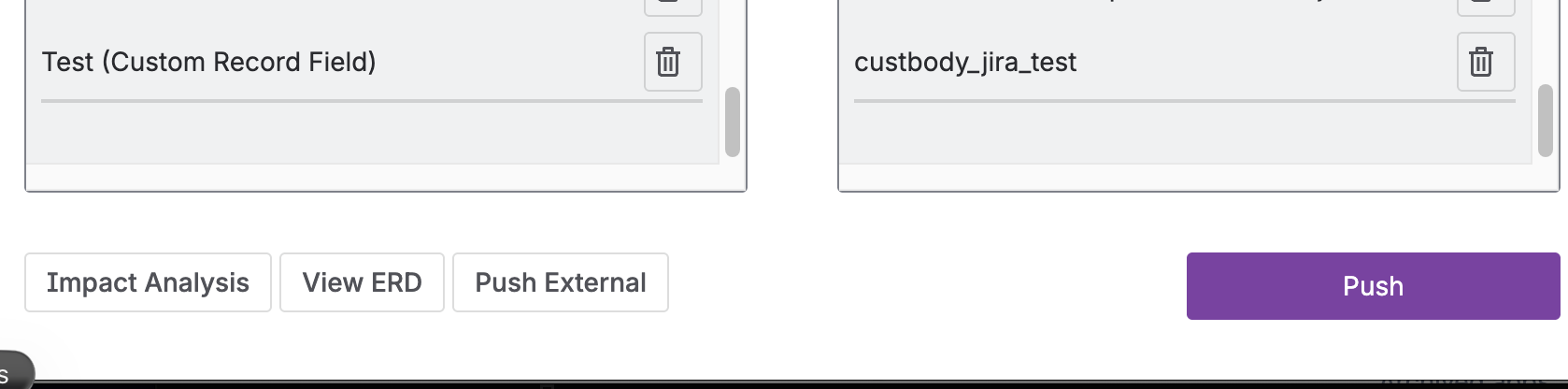
Steps 1 through 6 attach both existing and proposed customizations to the change request:
-
To remove an existing or proposed customization from the Jira ticket change request, click the trash icon at the right side of the customization's name.

A flag shows that the action is in progress:
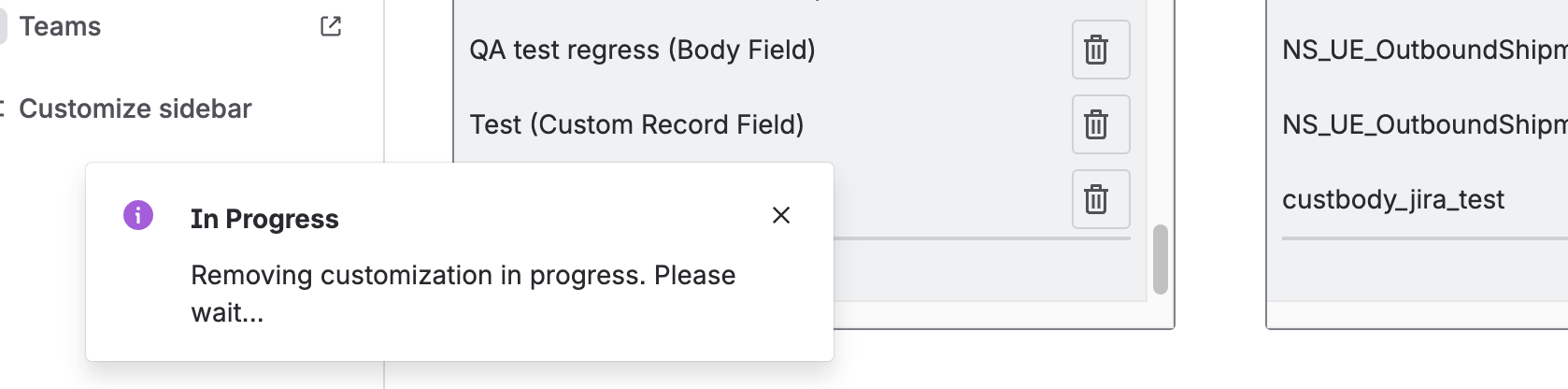
A second flag shows that the action succeeded:
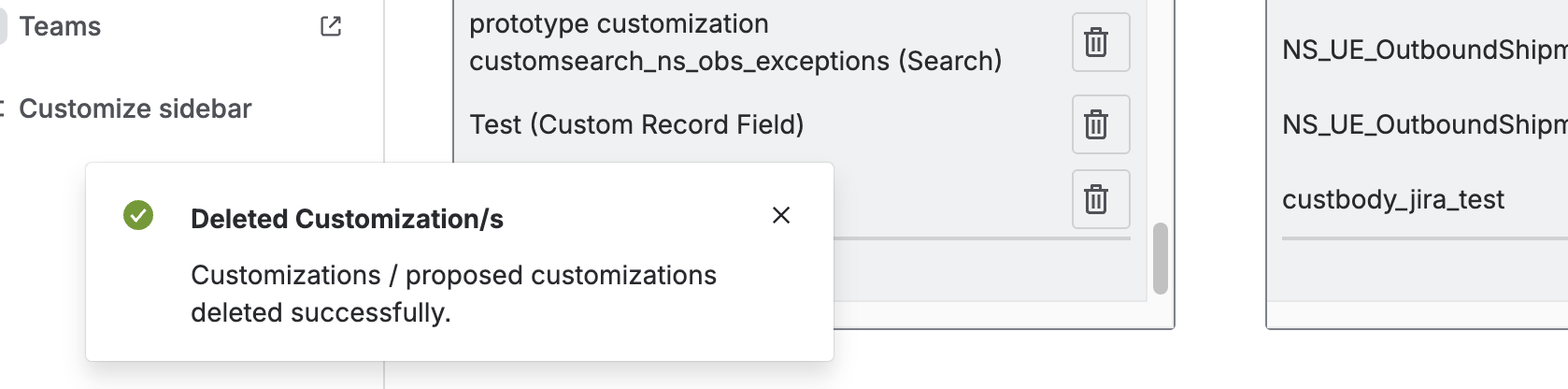
After completing this section, you can:
- Use the Lookup Customization filters
- Add existing and proposed customizations
- Remove a customization
Import Customizations
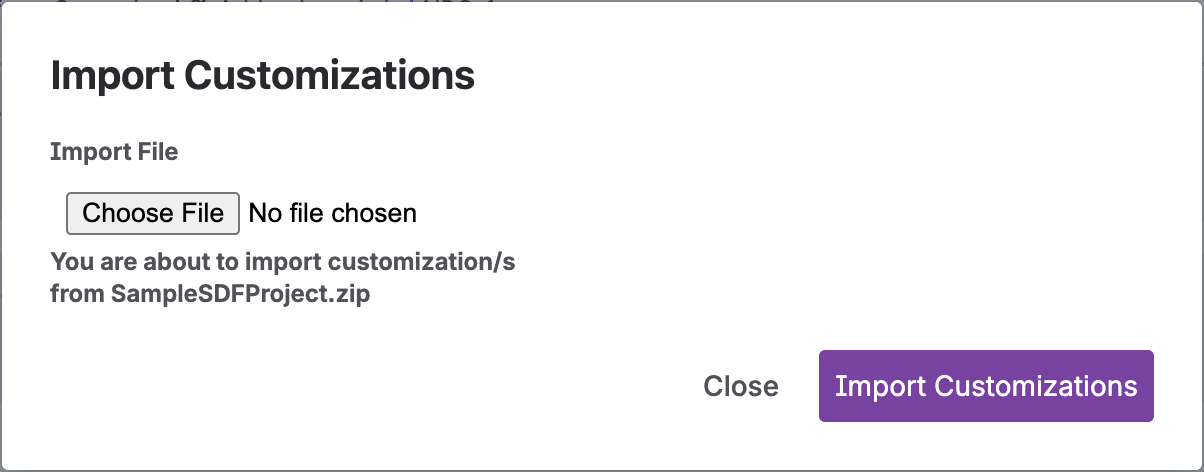
This feature works like the add customization process, except that you can add customizations in bulk. Import Customization accepts only XML files and a SuiteCloud Development Framework (SDF) project in ZIP format. Contact your company's NetSuite administrator for sample files.
-
Click the Import Customization button in the form. A modal appears with the option to upload a file. The modal accepts only an SDF project in ZIP format or an XML file.
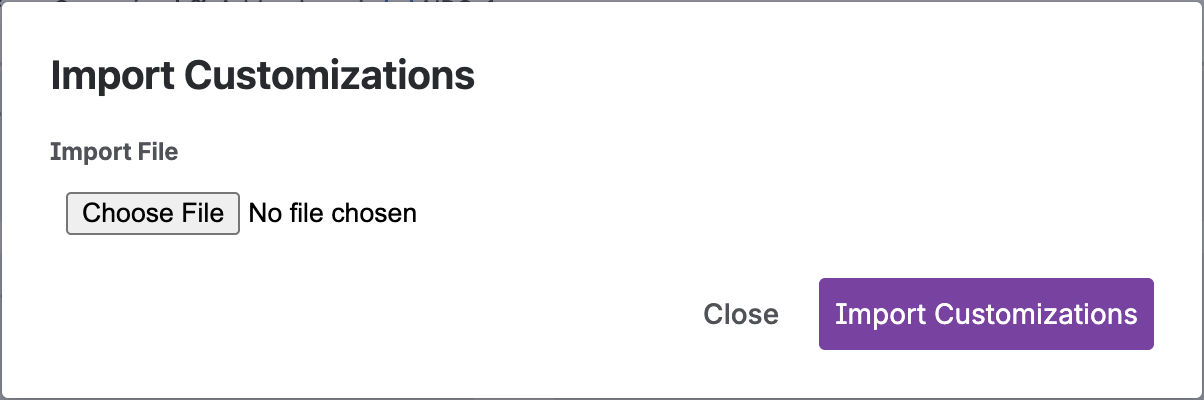
-
Select a file to import.
XML file format:
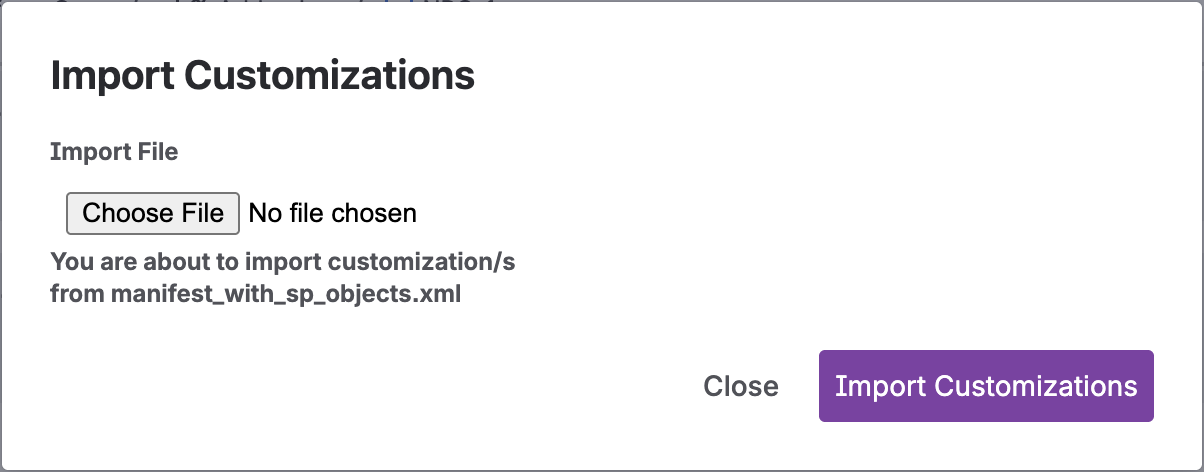
SDF ZIP file format:
-
Click the Import Customizations button. A flag message at the lower left of your screen indicates that the import is in progress.
-
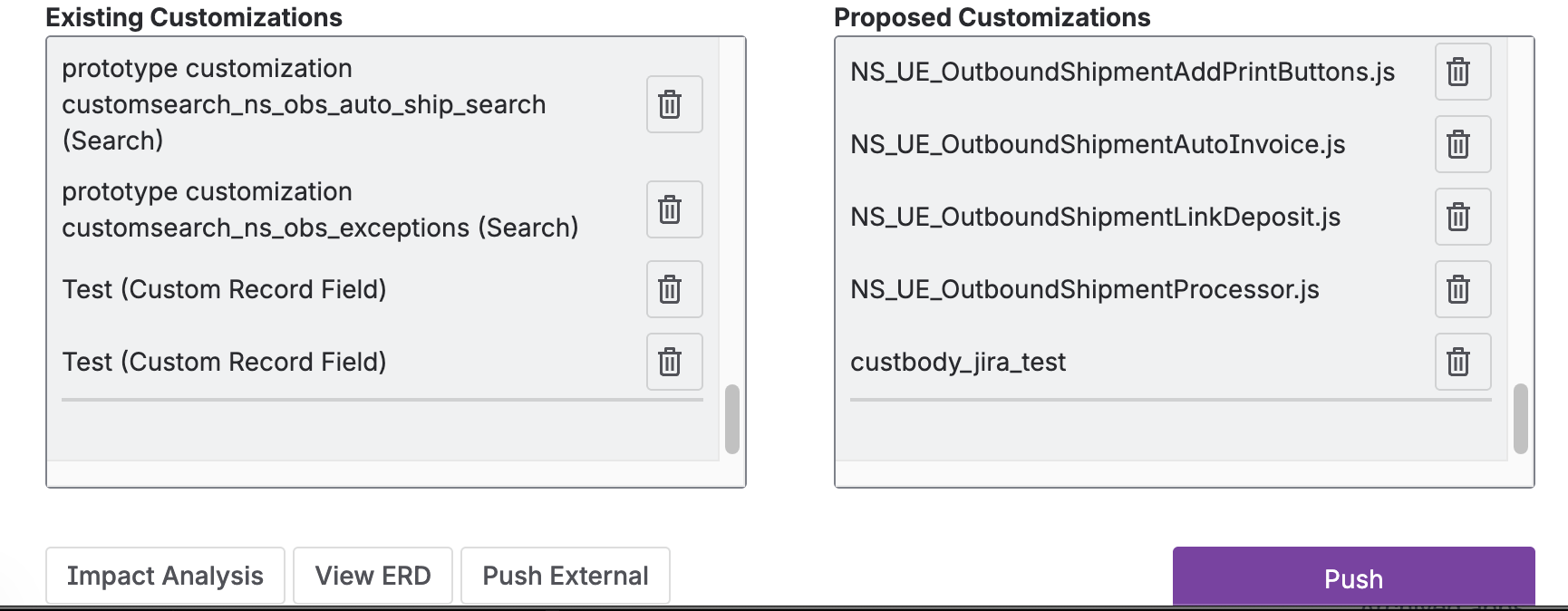
After the import succeeds, all valid objects populate the Customization and Proposed Customization tables. A flag message confirms that the import succeeded.
After completing this section, you can:
- Use the Import Customization feature to add customizations in bulk.
Perform Risk Assessment
This feature uses Platform Governance's Impact Analysis tool to review your customizations for dependencies or risks.
-
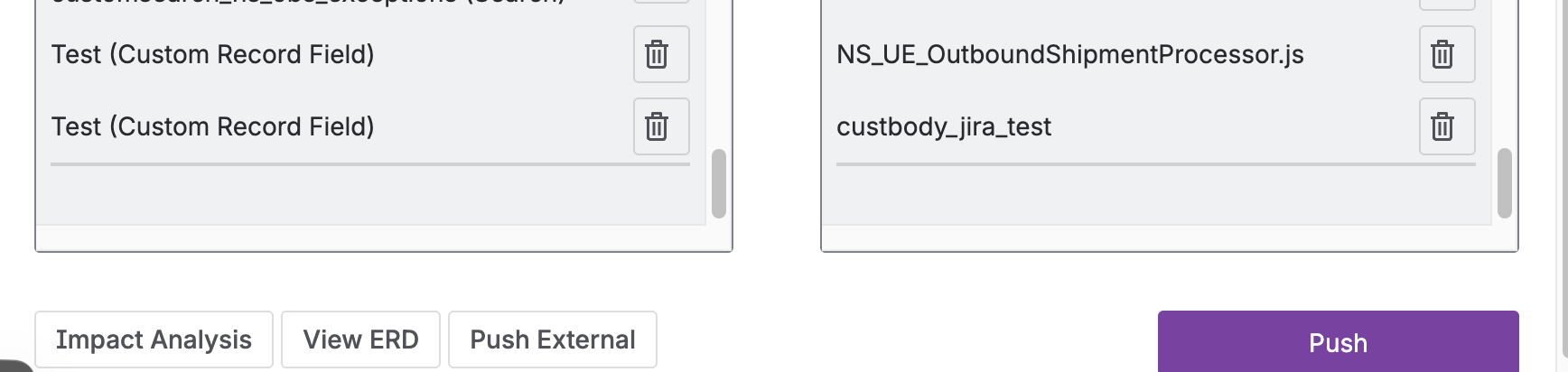
Click the Impact Analysis button at the bottom left of the form.
-
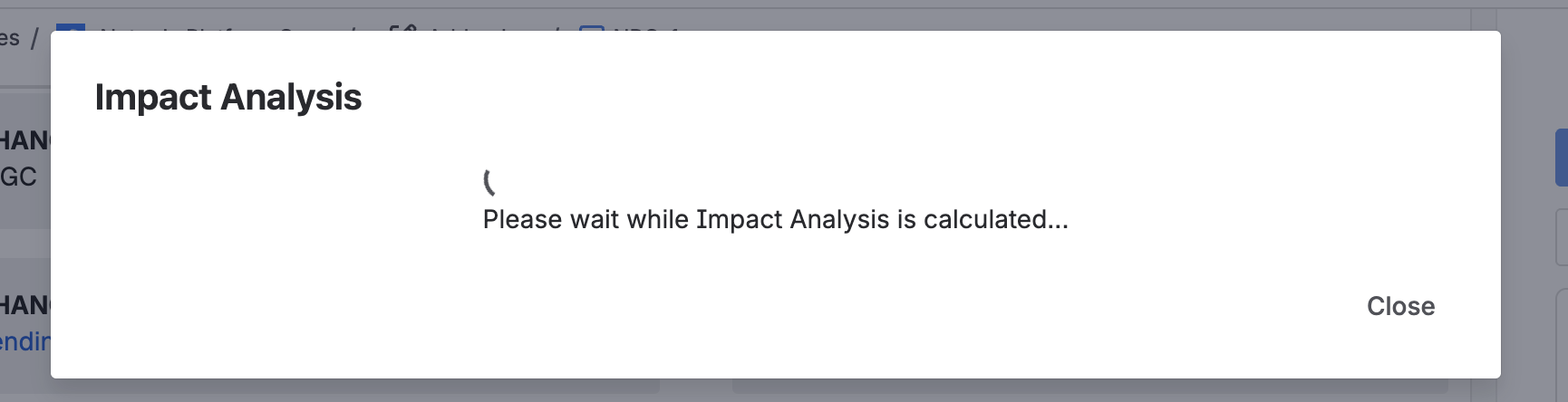
A modal appears and starts the risk assessment.
-
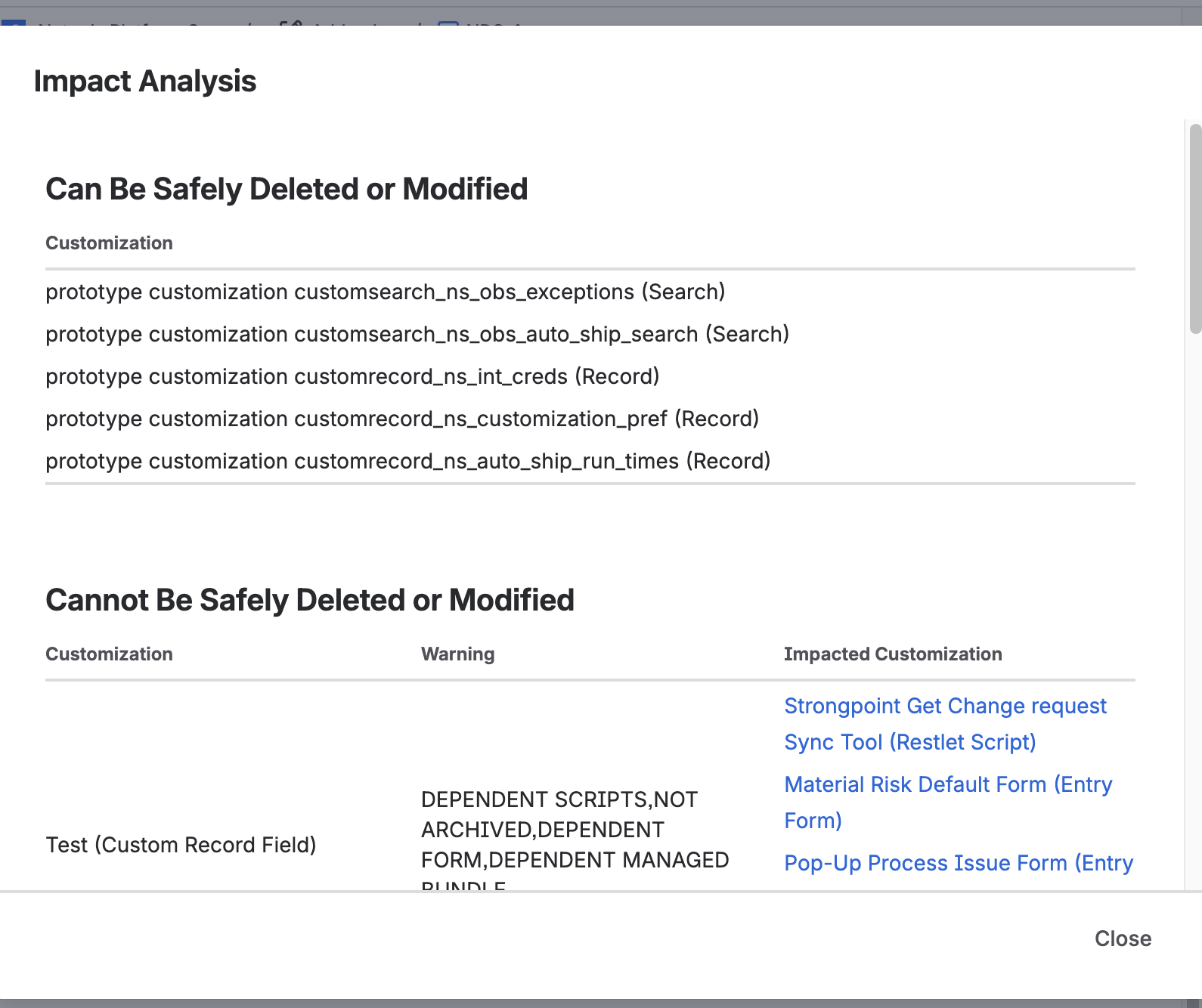
The modal populates with the impacted objects. The modal categorizes them as Can Be Safely Deleted or Modified, Can't Be Safely Deleted or Modified, and Inactive Customizations (Already Deleted). Objects under Can't Be Safely Deleted or Modified also show the Impacted Customizations.
After completing this section, you can:
- Perform an impact analysis on the customizations attached to the Jira ticket change request.
View Entity Relation Diagram
The Entity Relationship Diagram (ERD) tool graphically displays your customizations and all their dependencies.
-
Click the View ERD button at the bottom left of the form, beside the Impact Analysis button.
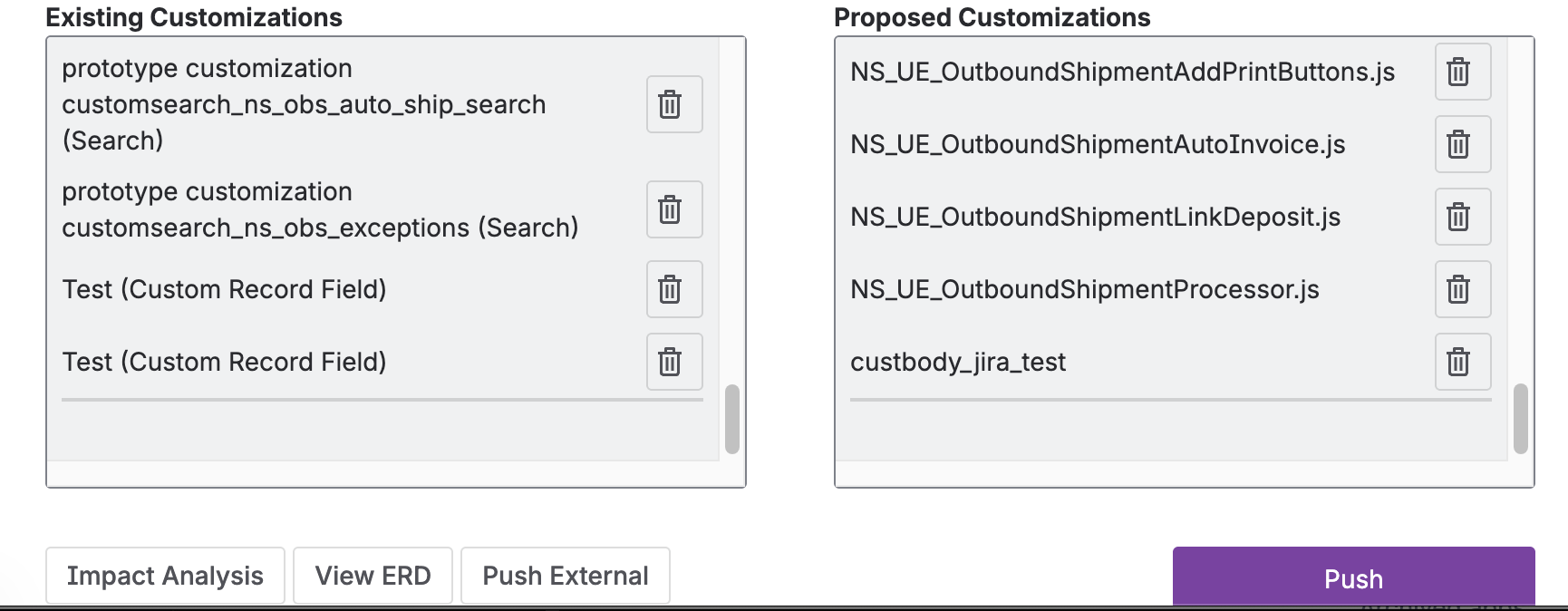
-
A modal appears and starts pulling ERD data.
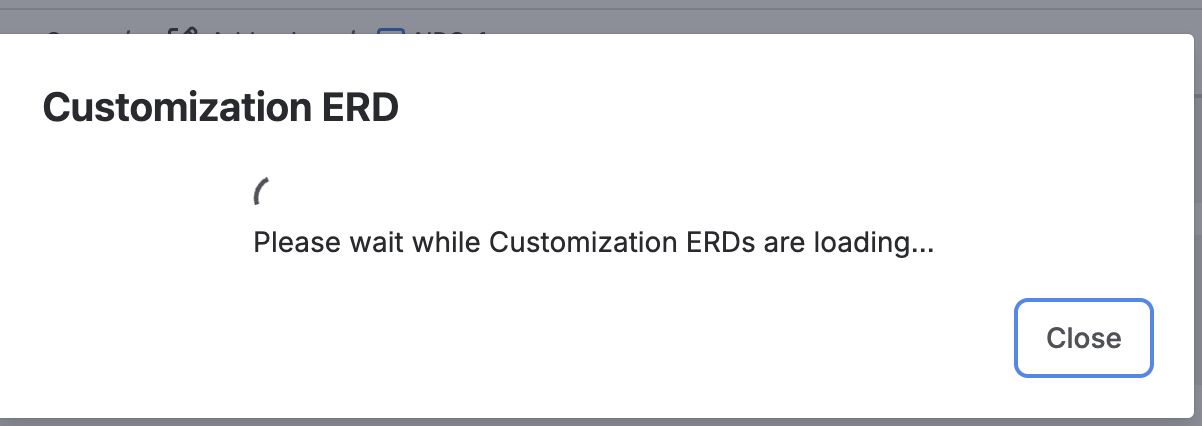
-
The modal populates with the customization and its corresponding hyperlink to the ERD.
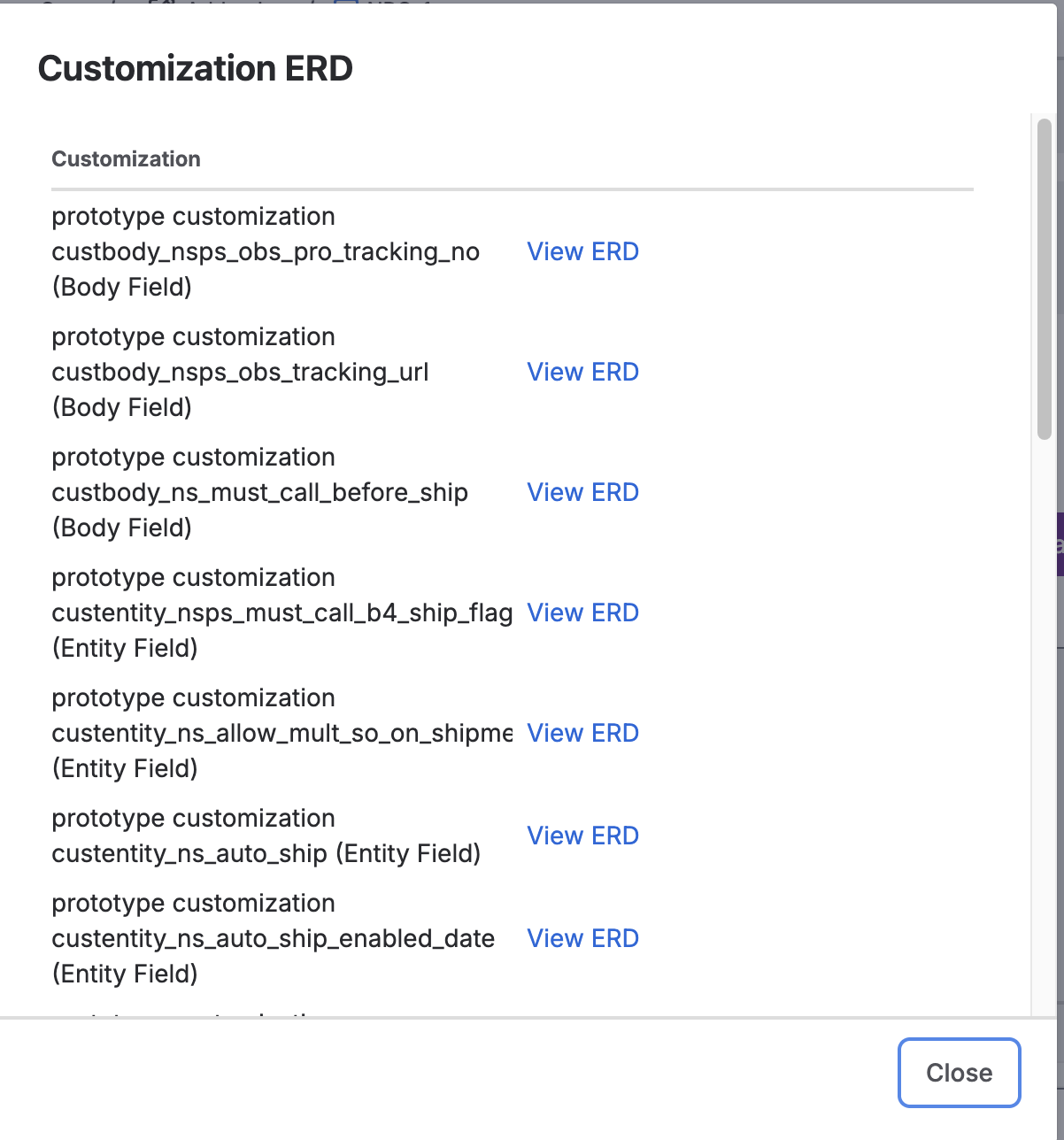
-
Click View ERD to open the customization ERD in a new browser tab.
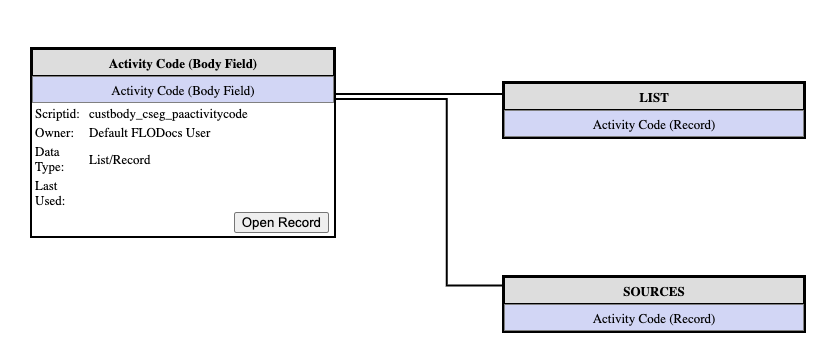
After completing this section, you can:
- View the entity relationship diagram of the customization attached to the Jira ticket change request.
Ready for Development
After you resolve any risks or conflicts, your changes are ready for development:
-
Change the Jira status of your ticket to match the status you set up in Jira Statuses for the Pending Approval status. For example, Selected for Development.
-
If you aren't using Automatic Synchronization to push status changes, click Push. A confirmation appears that your Change Request was Created/Updated.
A flag shows that the action is in progress:

A second flag shows that the action succeeded:

-
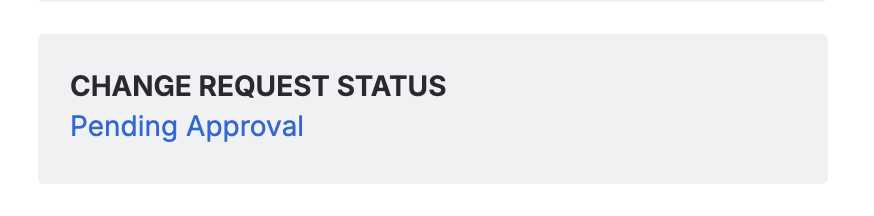
The Change Request Status field on the form shows the change request status in NetSuite. The status is now Pending Approval, with a link to open the Change Request in NetSuite.
After completing this section, you can:
- Push a change request from a Jira ticket.
- View the change request status from Jira.
Deploy Changes and Complete the Ticket
When development is done and the Change Request reaches Approved status under your policy, you can update the Jira ticket.
-
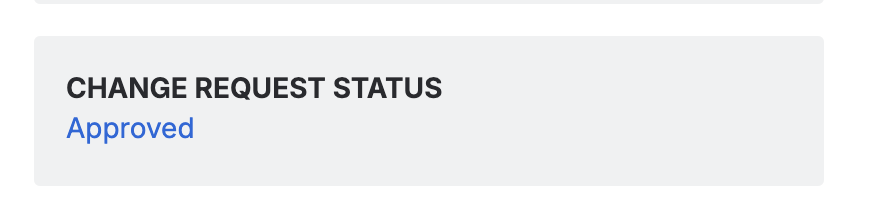
The Change Request Status field on the form shows the change request status in NetSuite. The status is now Approved.
-
Change the Jira status of your ticket to match the status you set up in Jira Statuses for the Approved status. This example has two possible statuses: Ready for Deployment and Done. Two statuses let you split the deployment and the ticket closure if you want to monitor the deployment task separately. Both statuses are valid for Deployment, but only Done closes the Jira ticket and updates the Change Request to Completed.
-
If you aren't using Automatic Synchronization to push status changes, click Push. A confirmation appears that your Change Request was Created/Updated.
A flag shows that the action is in progress:
A second flag shows that the action succeeded:
-
If you used Ready for Deployment, update your Jira status to Done after you complete deployment and verification.
Review the Change Request in NetSuite
When you open the Change Request in NetSuite, you see:
- All Customizations added from Jira.
- The Affected Bundle ID, if used.
- Change Overview set to the Jira ticket description.
- The Change Request marked Approved and ready for deployment.
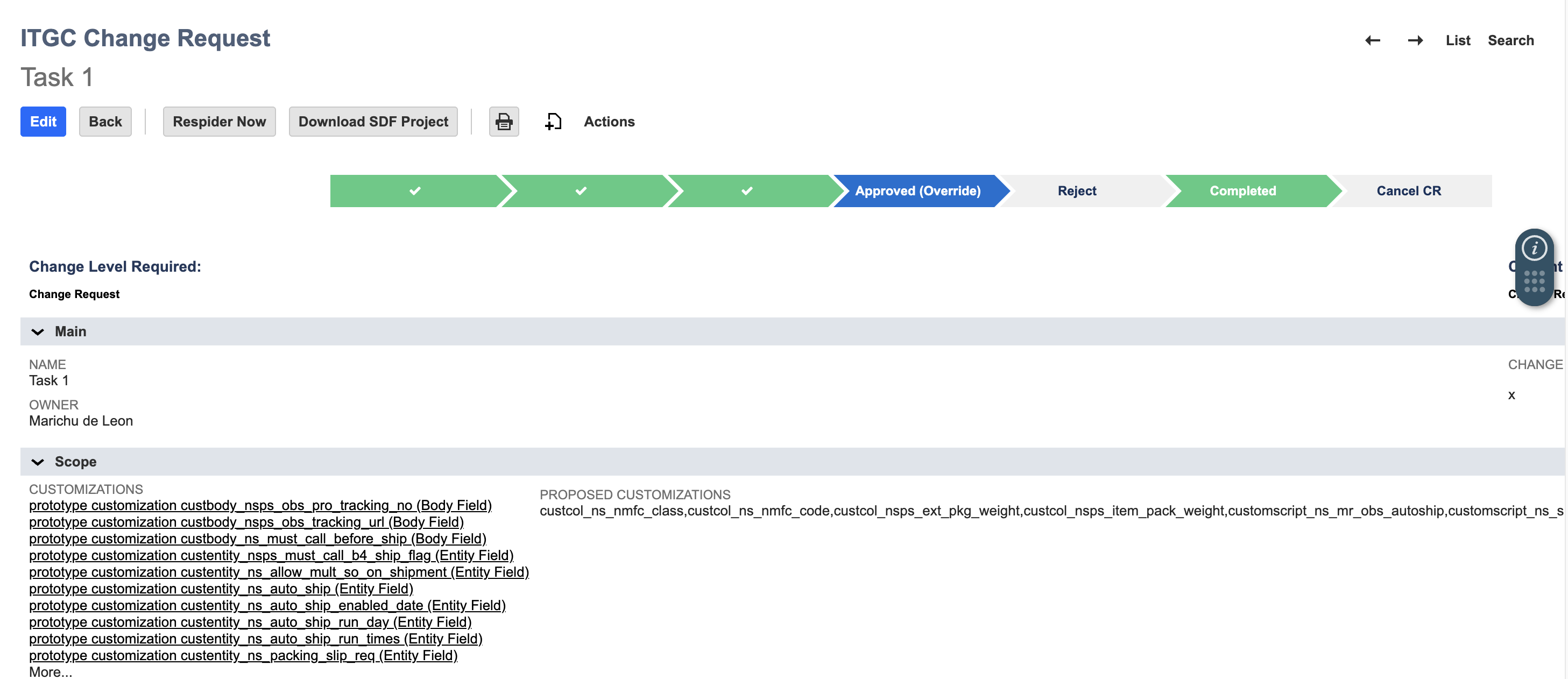
The Related Change Records tab shows Originated System, External Change Request Number, and External Link to the Jira ticket.

If the Jira status is Done, the Change Request shows as Completed.
After completing this section, you can:
- Push a change request from a Jira ticket.
- View the Approved change request status from Jira.
Change Request Status Bar Transitions
The Change Request Status field on the form shows the status of the Change Request record in NetSuite. On that record, the status bar controls which status the Change Request moves to next, and the statuses it can move to depend on its current status. For a description of each status, see Status Bar States.
The following table lists the transitions each status allows.
| Current status | Can transition to |
|---|---|
| Not Started | In Progress, Pending Approval, Completed, Cancelled |
| In Progress | Not Started, Pending Approval, Completed, Cancelled |
| Pending Approval | Not Started, In Progress, Approved, Rejected, Completed, Cancelled |
| Approved | Not Started, In Progress, Pending Approval, Completed, Cancelled |
| Rejected | Not Started, In Progress, Pending Approval, Completed, Cancelled |
| Completed | Not Started, In Progress, Pending Approval, Approved, Cancelled |
| Cancelled | Not Started, In Progress, Pending Approval, Completed |
| Approved (Override) | Not Started, In Progress, Pending Approval, Completed, Cancelled |
A Change Request reaches Approved (Override) when an administrator approves it directly instead of through the standard approval workflow, so no other status transitions to it. See Approving a Change Request.
If you haven't mapped a status in the table as described in Set up Jira Status Mapping, the transition can't proceed. Review your status mapping before you change a Change Request status.
After completing this section, you can:
- Identify which statuses a Change Request can transition to from its current status.
Other Notable Features
The integration app also includes the following less common features.
-
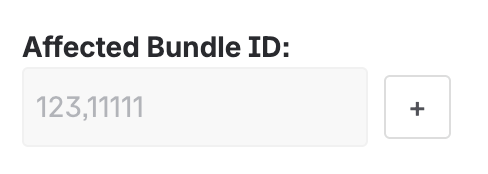
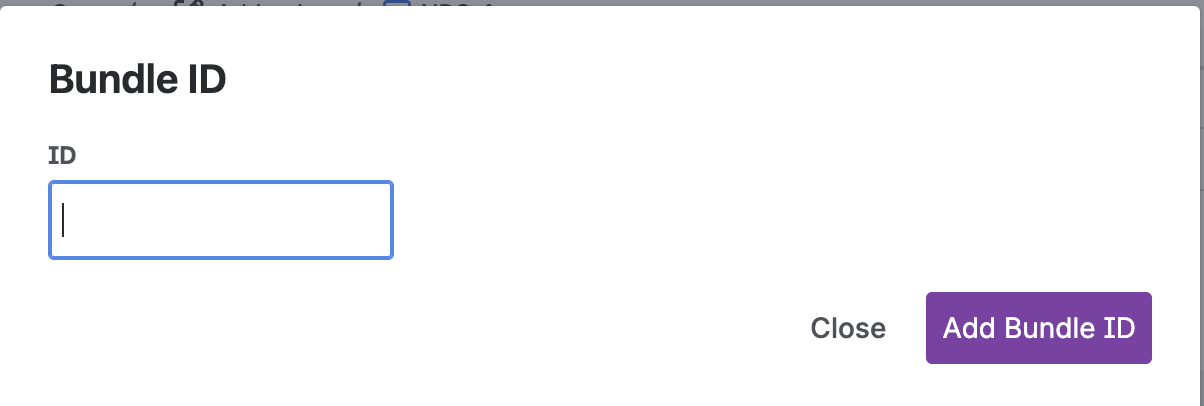
Add Bundle ID — The + button beside the Affected Bundle ID field. Use it to add NetSuite bundle IDs to the change request. You can add one bundle ID at a time. To remove a bundle ID from the change request, contact a NetSuite Administrator.
-
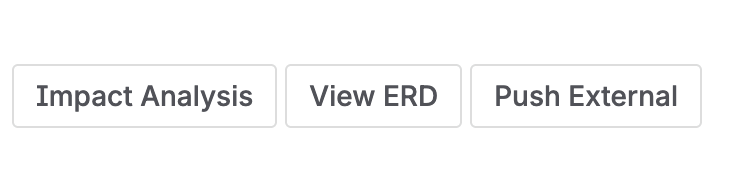
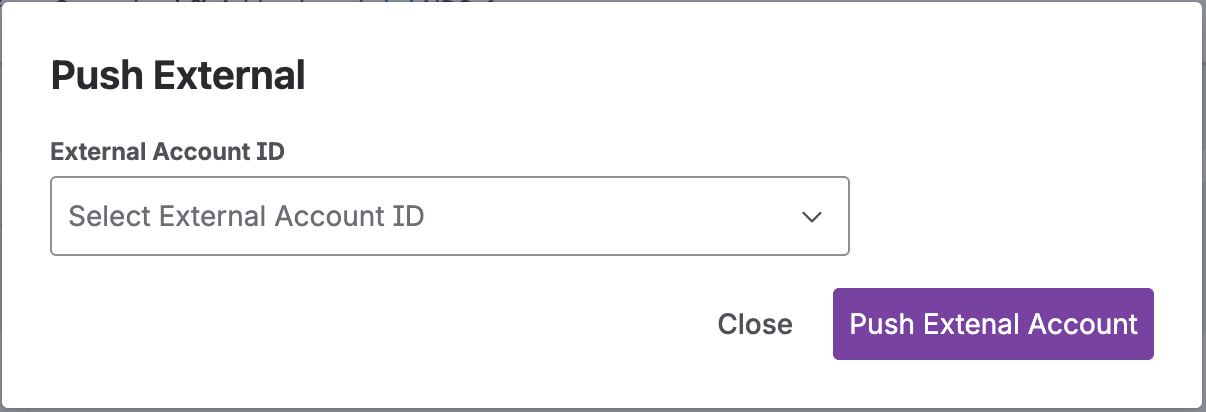
Push External — Use this feature to push the Jira ticket change request and its objects to an external NetSuite account. Pushing to an external NetSuite account saves time when you create a change request with the same objects in another NetSuite account. To use Push External, click the Push External button. A modal appears where you select the NetSuite account to push to. The modal lists the same accounts you defined on the Netwrix NetSuite TBA Credentials page.
-
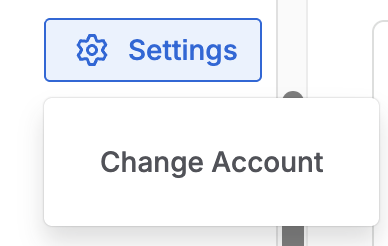
Settings — The Settings dropdown button lets you switch the NetSuite account to connect to. When you click Settings, a Change Account option appears. When you click Change Account, the app disconnects the session from the NetSuite account. The connection form then appears so you can connect to another NetSuite account.
You have completed the Jira Forge Walkthrough.
Next Step: Jira Forge FAQs