Assigning an Employee Role with a Pre-Approved Change Request
Create a pre-approved Change Request
-
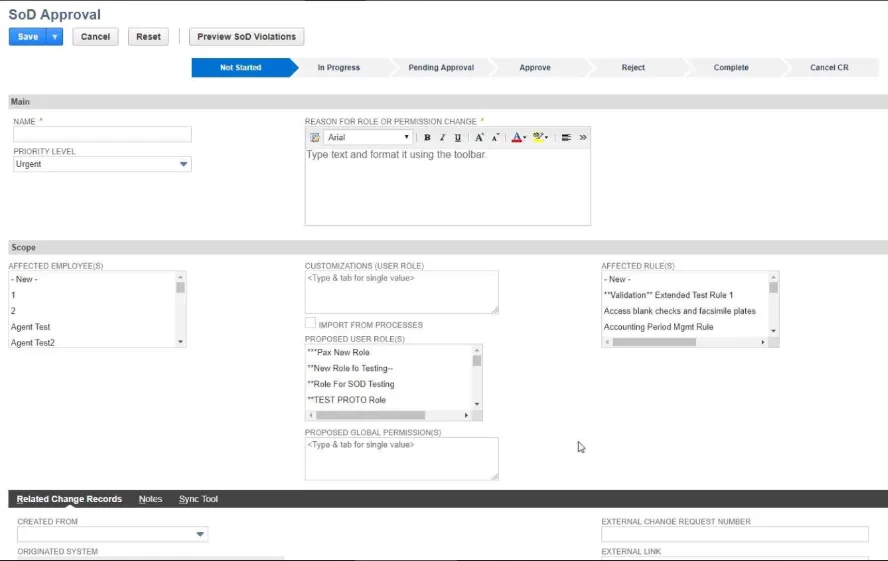
Open SoD > SoD Change Management > New SoD Approval
-
Enter information in the following fields:
- Name: Enter a name for the request.
- Priority Level: Select the priority level for the request. Select New to add a custom level.
- Reason for Role or Permission Change Enter the information supporting the approval request.
- Select one or more of the Affected Employees, Customization (User Role), Proposed User Roles, Proposed Global Permissions, and Affected Rules.
-
Click In Progress in the status bar to indicate you are working on the request.
-
Click Preview SoD Violations to see what violations may occur.
-
Save the Change Request.
-
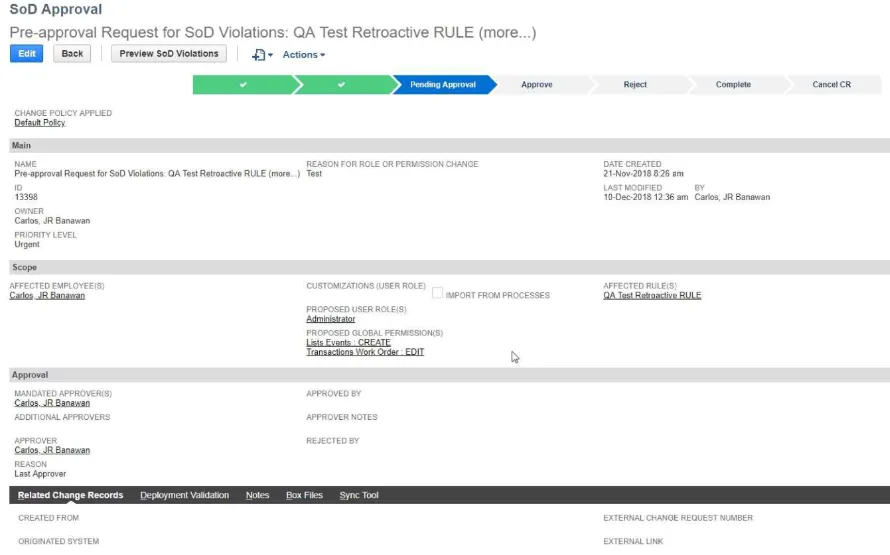
The Approval section is now available. Click Edit to add Additional Approvers or Approver Notes. Click Save if you make changes. Refer to Create a Change Request for more details about the status bar.
-
Click Pending Approval on the status bar.
Assign a Non-Compliant Role to an Employee
- Open Lists > Employees > Employees
- Select Edit by the Affected Employee Name.
- Open the Access tab.
- Check Give Access.
- On the Roles tab, select the Role.
- Click Add.
- Click Save.