Backup management
Introduction
Regular backups of the data should always be part of every security concept. When you create backups directly on the SQL server, include the Netwrix Password Secure databases. If you don't perform central backups at the SQL level, you can create backup profiles using the Server Manager instead. The SQL Server then generates the backups.
Backup management is only available for Microsoft SQL Server (MSSQL) databases. If you use Azure SQL or PostgreSQL, set up an external backup strategy for your databases instead.
Difference between an incremental and full backup
A complete backup always saves all data in a database. An incremental backup also creates a complete image of the database as the first step, but each subsequent run saves only the changes since that initial backup. This approach saves both time and memory capacity.
Backup concept
Netwrix recommends running an incremental backup every hour. In addition, run a full backup once a week.
Managing the backup schedule
Creating a backup schedule
You can create a new schedule via the ribbon. A wizard guides you through this process. By default, Netwrix Password Secure uses all the information you entered under Backup settings.
First, enter a profile name. Then select the databases you want to back up. You also need to specify the directory for the backups.
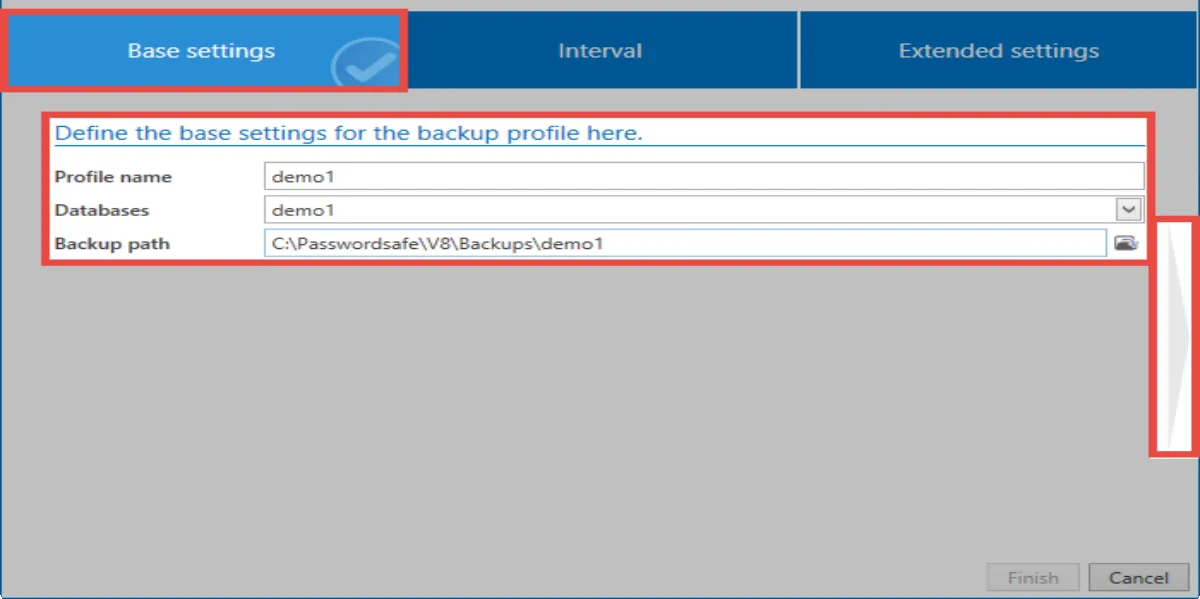
It must be a directory on the SQL server.
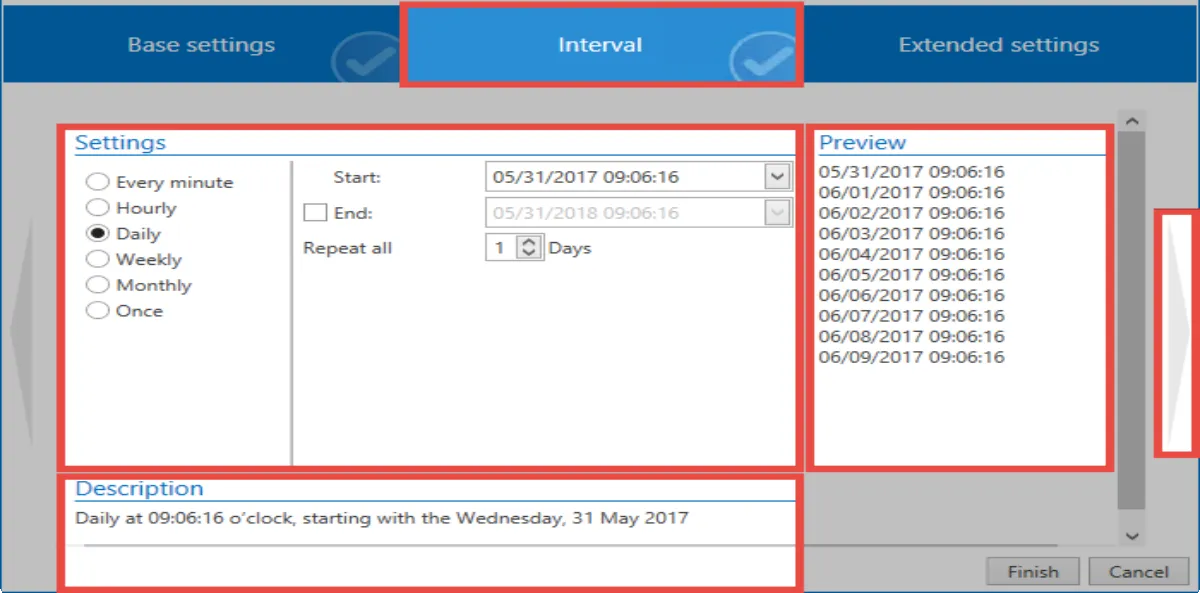
Now set the time interval for creating the backups. A preview on the right shows when the backups run. You can optionally enter an end date.
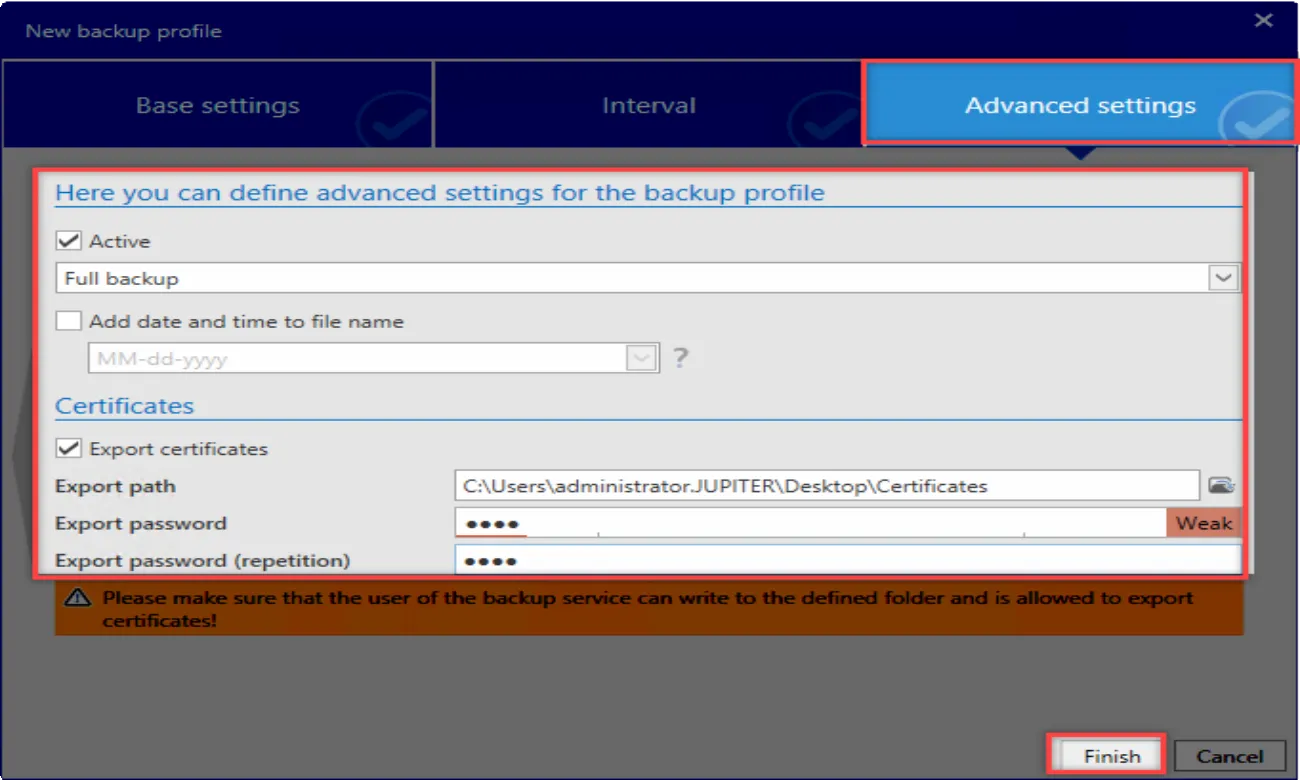
In the advanced settings, you can configure whether to activate the backup directly. You can also specify whether to create incremental backups. If you add the date and time to the file name, Netwrix Password Secure creates a new backup with each run. Otherwise, it always overwrites the last backup. Use the service user to create the backup, or specify a service user with a corresponding name and password.
You can also specify whether to save the required certificates using a backup task. For more information, see Certificates.
Backup run
The SQL server executes the backups in the background. If an error occurs, the backup list shows it in orange. For each backup, the list also shows any error information from the SQL server. If a backup doesn't run five times in a row, Netwrix Password Secure automatically deactivates it and marks it in red in the list. You can't reactivate the schedule directly — open it and amend it instead.
Other backup actions
You can delete a selected schedule via the ribbon. To make changes, double-click the schedule to open its wizard. You can also start a backup directly via the ribbon at any time; the backup service must be running for this. You can also view this in the history.
Restoring data from a backup
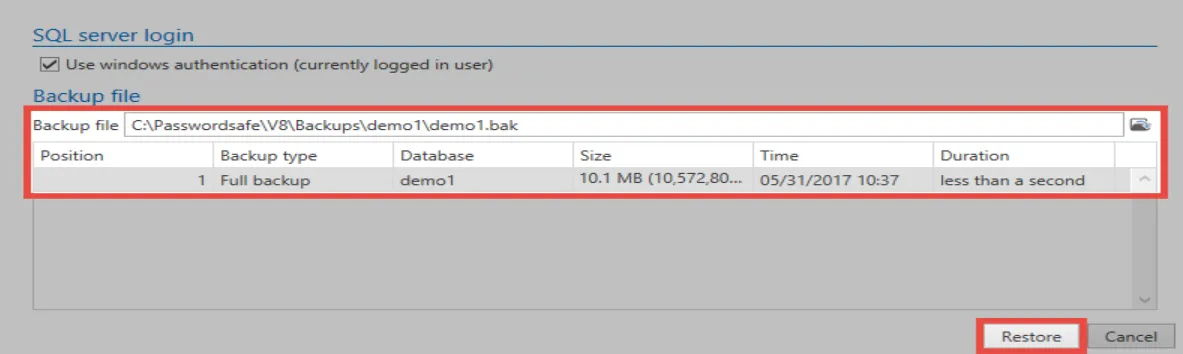
Use the database module to restore data from backups. You can only restore data to existing databases. First, select the database you want to restore. You can now select Insert in the ribbon.
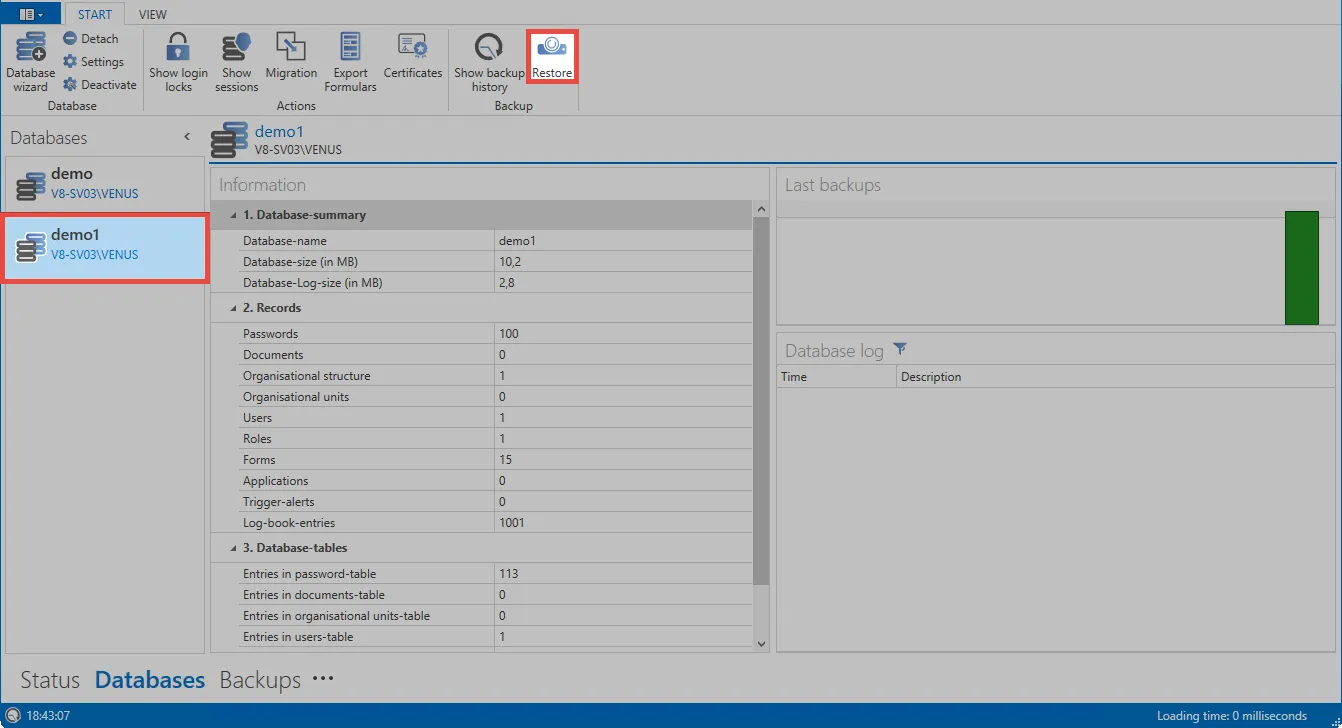
If necessary, first enter the login data for the user that logs in to the SQL server. Netwrix Password Secure generally uses the service user here instead. Now select the backup file. Netwrix Password Secure then displays all backups in the file. Now click Restore to restore the backup to the existing database.