Tabs
After you have successfully logged in, you'll find yourself in the view where all the user's passwords are located.
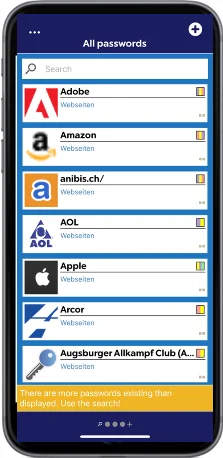
Here you have the following options:
Action menu
With a click
 the action menu is opened.

The following actions are offered:
- Open settings (more information can be found in the Settings chapter).
- Close tab (the option is offered only if you're in one of the organizational units tabs. The default ones are excluded)
- Logout (you'll be logged out from the database)
- Cancel (closes the action menu and returns to the tab view)
Tabs
Below the passwords there's a bar for managing tabs.
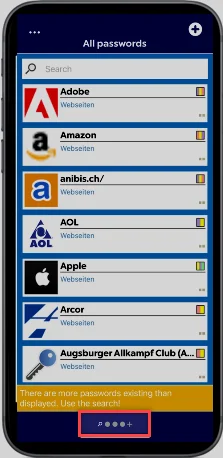
By clicking on the plus sign there's a possibility to add more tabs.

These tabs are organizational units that the user can see. By default, the tabs "All passwords" and "Personal" are stored.