Verification Tab
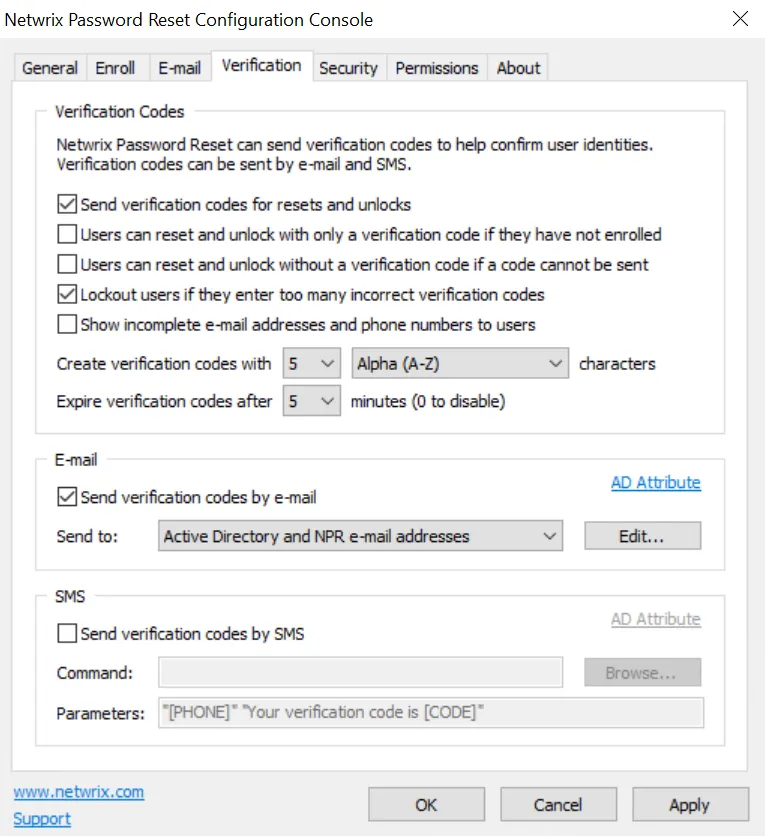
Use the Verification tab to enable verification codes for resets and unlocks. Verification codes provide two-factor authentication and authenticate users that have not manually enrolled. Password Reset sends a verification code to the user's mobile phone by e-mail and/or SMS, and the user enters the verification code to continue.
 7
7
Verification Codes
Select the Send verification codes for resets and unlocks check box to enable verification codes.
Select the Users can reset and unlock with only a verification code if they have not enrolled check box to enable automatic enrollment. Automatic enrollment allows users to reset their password and unlock their account even if they have not previously enrolled. Password Reset enrolls the users when they request a reset or unlock, and sends them a verification code for authentication. Users that are automatically enrolled can also manually enroll with questions later. Users that are only automatically enrolled cannot continue to reset their password and unlock their account if this option is subsequently disabled. Automatic enrollment should only be used with secure devices connected to a secure network, otherwise a stolen or lost device could allow an attacker to reset a user's password.
Automatically enrolled users:
- Do not have a Password Reset e-mail address, so Password Reset only sends verification codes to the user's Active Directory e-mail address and/or phone number.
- Must be authenticated with a verification code, so Password Reset denies their reset or unlock request even if the Users can reset and unlock without a verification code if a code cannot be sent check box is selected.
- Need to manually enroll if the sending of verification codes, or automatic enrollments are disabled after they are automatically enrolled.
- Can manually enroll at any time. Authenticating users with questions and verification codes is more secure than using only verification codes.
- Do not receive the After Enroll e-mail alert.
Select the Users can reset and unlock without a verification code if a code cannot be sent check box if users should be allowed to continue when a verification code cannot be sent. Password Reset can only send verification codes to users that have a mobile phone number or e-mail address in Active Directory, or an e-mail address in Password Reset's database. Even if this information is present, an error could stop the verification code from being sent. If this check box is not selected, then users must contact the help desk if a verification code cannot be sent.
Select the Lockout users if they enter too many incorrect verification codes check box if Password Reset should increment the incorrect answer count when users submit an incorrect verification code. Password Reset can lock out a user's record if the user enters too many incorrect answers or verification codes. The lockout threshold is set on the Security tab.
Select the Show incomplete e-mail addresses and phone numbers to users check box if NPR should hide parts of the e-mail address and phone number when requesting a verification code. This is especially important if automatic enrollment is enabled, as it stops an attacker from discovering information about the user.

Verification codes are of a specified length, and may contain both alpha and numeric characters. Select the desired options from the Create verification codes with... drop-down lists. Longer, more complex (alphanumeric) verification codes are harder to guess, but also harder to enter. Verification codes do not need to be very long or complex if the verification code lockout and expiry features are enabled.
Select a value from the Expire verification codes after... drop-down list to limit how long users have to enter their verification code. Set it to 0 minutes if the verification code should not expire. Password Reset sends a new verification code for every reset and unlock. This setting limits how long a user has to enter their verification code, it does not allow old verification codes to be reused.
E-mail
Select the Send verification codes by e-mail check box to send verification codes to users via e-mail. You must configure the E-mail delivery options in the E-mail tab to send verification codes by e-mail. See the Verification Tab topic for additional information.
Password Reset can send verification codes to the Active Directory e-mail address and/or the Password Reset e-mail address. Select the desired option from the Send to drop-down list.
Click Edit... to edit the e-mail template for verification codes. Password Reset replaces the [CODE] macro with the verification code, so include the [CODE] macro in the e-mail subject or body.
Password Reset reads the user's Active Directory e-mail address from the mail attribute by default. Click AD Attribute if you want to use an e-mail address from a different attribute. Type the name of the attribute, and then click OK.
SMS
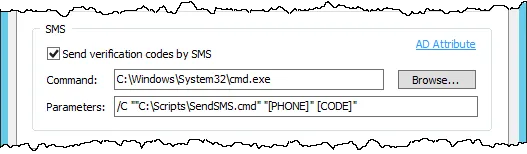
Select the Send verification codes by SMS check box to send verification codes to users via SMS. You can use any SMS provider with a Windows command-line interface (CLI).
Click Browse... to select the executable that sends the SMS. The executable is supplied by your SMS provider.
Type the command-line parameters in the Parameters text box. Refer to your SMS provider's documentation for the expected parameters. You can also use the macros in the following table. Use quotes around parameters and macros that may contain space characters.
| Macro | Replaced with |
|---|---|
| [CODE] | Verification code |
| [PHONE] | User's Active Directory phone number |
| [USERNAME] | User's Active Directory user login name |
| [DOMAIN] | User's Active Directory domain name |
| [LANG] | Current Web Interface language code |
Password Reset reads the user's Active Directory mobile phone number from the mobile attribute by default. Click AD Attribute if you want to use a phone number from a different attribute. Type the name of the attribute, and then click OK.
Use a script to perform additional processing before sending the SMS. For example, a script could read the user's phone number from a database, or send a language-specific SMS based on the value of the [LANG] macro. Put the path of the scripting engine executable in the Command text box, and the path to the script file and other parameters in the Parameters text box.