Deploy with Group Policy
You can use Group Policy to deploy the Password Policy Enforcer server components or the Password Policy Client (PPC). You can also use Microsoft Endpoint Configuration Manager (MECM) and other software deployment tools.
Create a distribution point
A distribution point can be a UNC path to a server share, or a Distributed File System (DFS) path. To create a distribution point:
- Log on to a server as an administrator.
- Create a shared network folder to distribute the files from.
- Give the security group for your target computers (for example, Domain Controllers for domain controllers or Domain Computers for workstations) read access to the share, and limit write access to authorized personnel only.
- Copy the .msi installers to the distribution folder.
Create a Group Policy Object
-
Start the Group Policy Management Console (gpmc.msc).
-
Expand the Forest and Domains items, then expand your domain in the left pane.
-
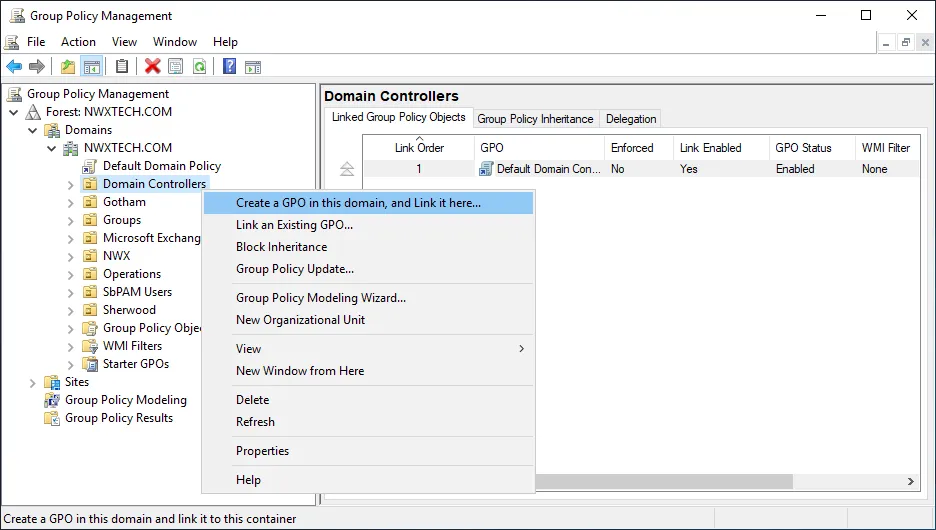
Right-click the target OU in the left pane, then click Create a GPO in this domain, and Link it here.... Target the Domain Controllers OU to install a package only on the domain controllers (typical for the Password Policy Server). Target the OU containing your workstations to install a package on those computers (typical for the Password Policy Client), or target the domain root to deploy to all computers in the domain.
-
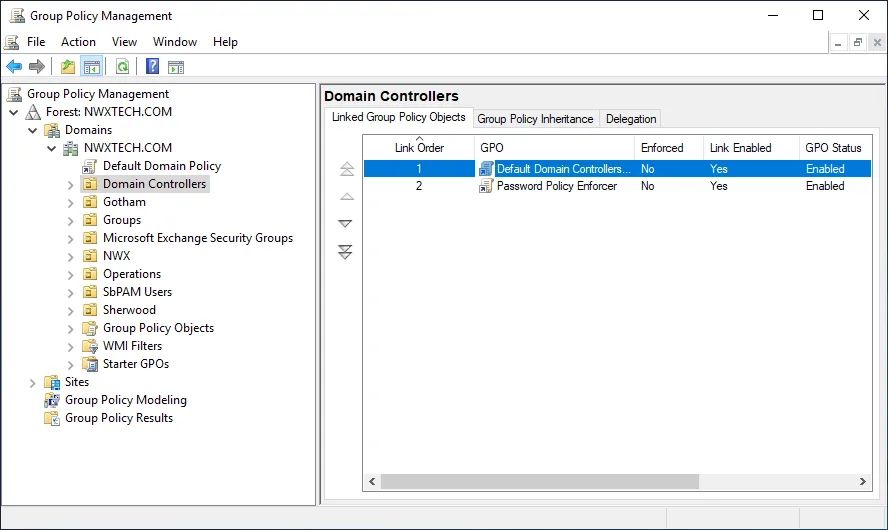
Enter a descriptive name for the GPO (for example, Password Policy Enforcer) in the name field, then press Enter.
Edit the Group Policy Object
-
Right-click the GPO you just created, then click Edit.
-
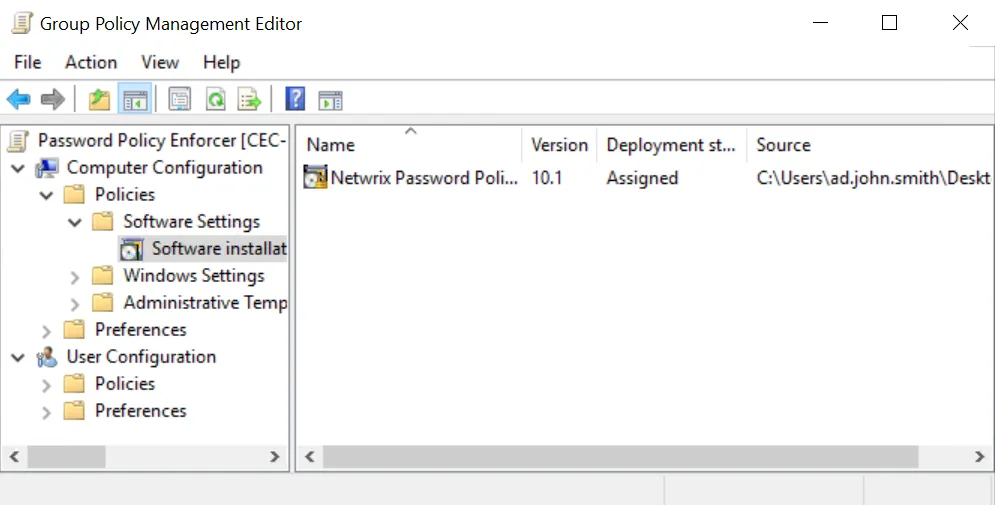
Expand Computer Configuration, Policies, and Software Settings.
-
Right-click Software installation, then select New > Package...
-
Enter the full UNC path to the .msi file in the distribution point.
noteYou must enter a UNC path so that other computers can access the file over the network. For example:
\\<server>\<share>\Netwrix_PPE_<version>.msi -
Click Open.
-
Select Assigned as the deployment method.
-
Click OK.
-
Close the Group Policy Management Editor.
Complete the installation
Allow time for the GPO to replicate to all domain controllers before proceeding, then restart each target computer to complete the installation. Windows installs the component during startup, then restarts the computer a second time if necessary.
The Password Policy Server won't start enforcing a password policy until you configure it. Users can still change their passwords during this time, and must comply with the Windows password policy rules (if enabled).