Entra ID Page
The Entra ID page lists the Entra tenants that Identity Recovery backs up. It displays the backup schedule settings for each added Entra tenant. You can also add and configure a new Entra tenant.
Click Configuration in the left pane. Then click the Entra ID tab on the Configuration page to open the Entra tenants page.
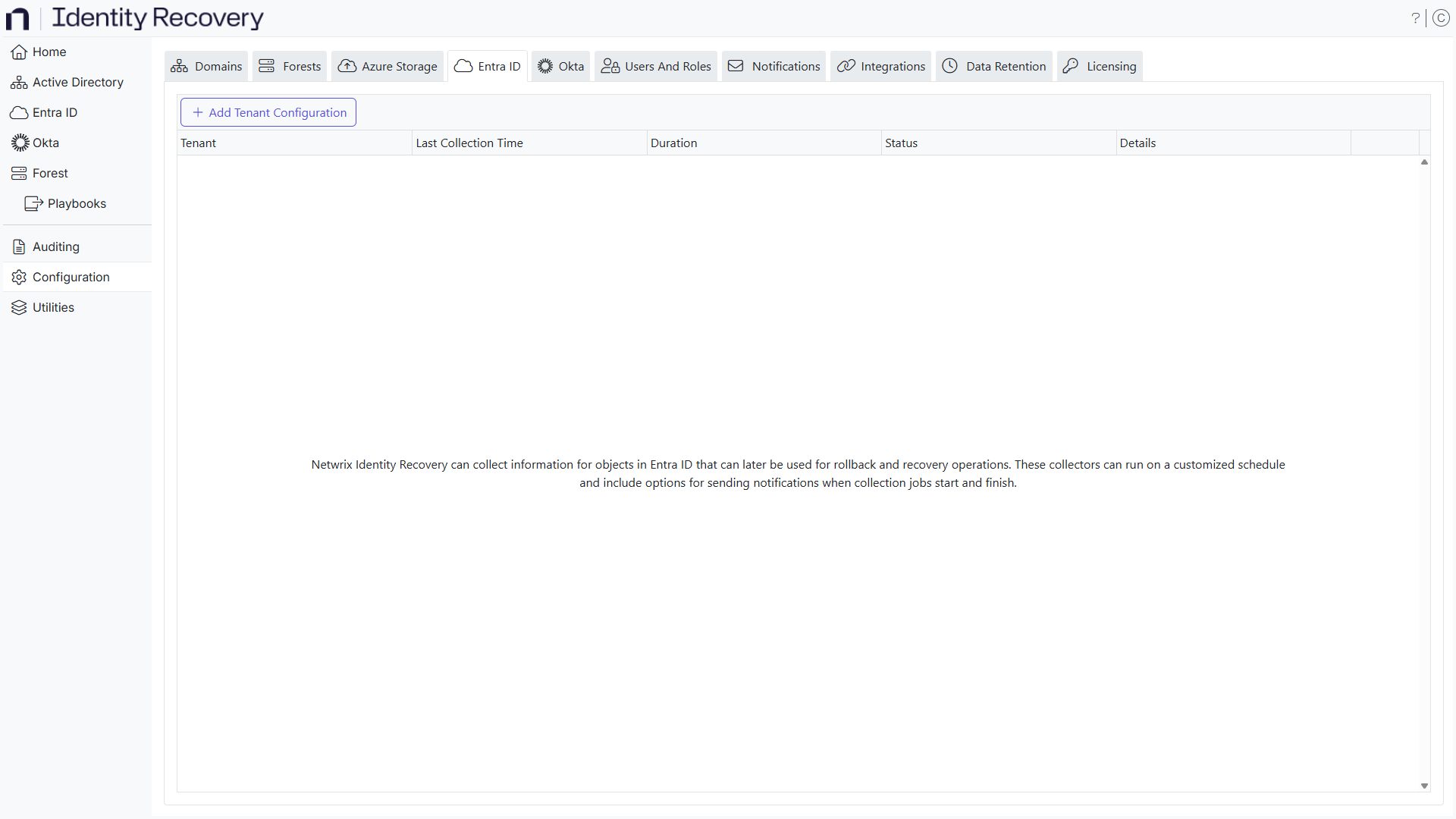
The table displays the following information:
-
Tenant – Fully-qualified name of the tenant
-
Last Collection Time – The most recent time the collection (backup) occurred
-
Duration – The time the collection took to complete
-
Status – Collection state as idle, waiting, error, or success
-
Details – Information about any errors that occurred during the last backup
-
Actions – Displays the icons for collecting, editing, and deleting the respective tenant configuration
- Run backup – Click the Play icon to start a new collection (backup) on the respective tenant if you need a collection outside the configured schedule
- Edit configuration – Edit the settings of the tenant. Click the Edit icon for a tenant to open the Edit Tenant Configuration wizard and edit the tenant's settings. See the Edit Tenant Configuration topic for additional information.
- Delete configuration – Click the Delete icon for a tenant to delete it
To add a tenant, click the Add tenant configuration button. See the Add a Tenant topic for additional information.
Add a Tenant
To add a tenant, provide tenant details and configure the backup schedule.
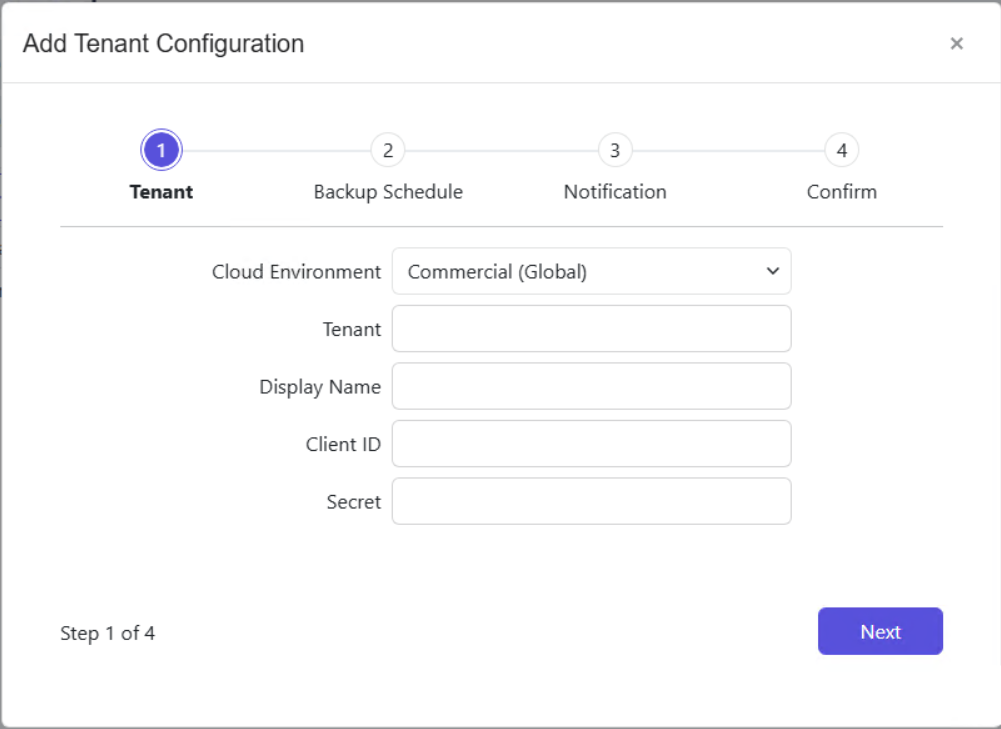
Step 1 – Click the Add tenant configuration button on the Entra Id page to launch the Add Tenant Configuration wizard.
Step 2 – Select the Microsoft cloud environment for this tenant from the Cloud Environment dropdown. The following options are available:
- Commercial (Global) – Standard Microsoft cloud. This is the default for most organizations.
- United States Government (GCC High / L4) – Microsoft Azure Government cloud for United States government agencies and contractors at Impact Level 4.
- United States Government DoD (L5) – Microsoft Azure Government DoD cloud for United States Department of Defense environments at Impact Level 5.
- China (21Vianet) – Microsoft Azure operated by 21Vianet for organizations in China.
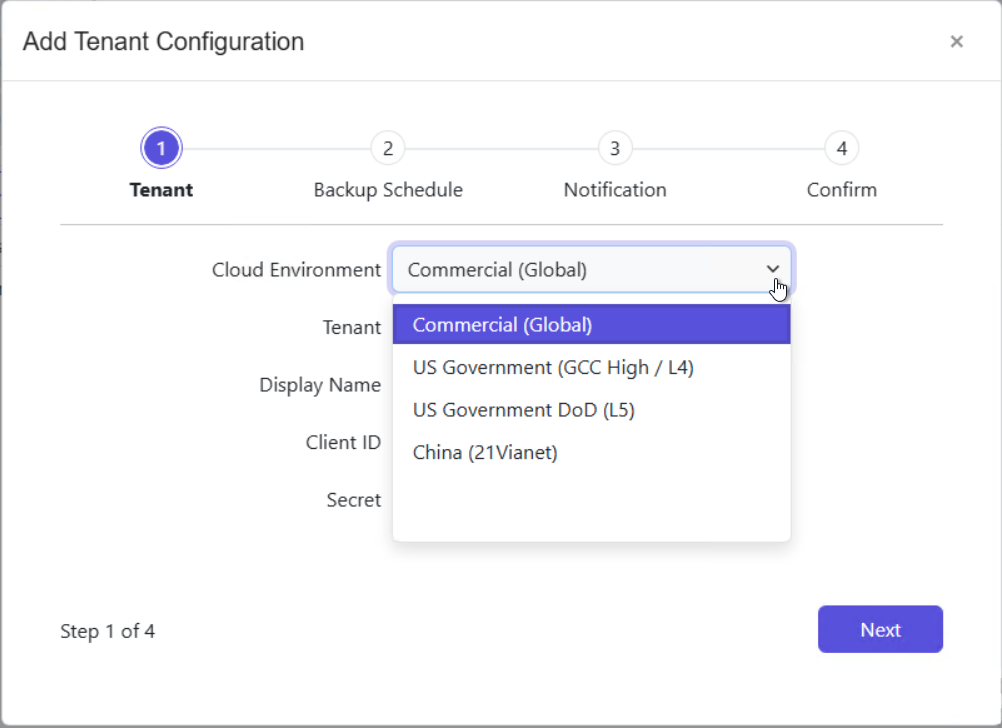
The cloud environment determines which authentication and Microsoft Graph endpoints Identity Recovery uses for this tenant's backup, rollback, and recovery operations. Select the environment where your Entra tenant resides before you enter credentials.
Step 3 – Enter a tenant [example.tenant.com] in the Tenant field.
Step 4 – In the Client ID field, enter the Client Id [CLIENTID] for backups, rollbacks, and recoveries.
Step 5 – Enter the secret for the application registration in the Secret field.
The application registration must have the following Microsoft Graph access:
| API / Permissions name | Type | Description | Admin consent required | Status |
|---|---|---|---|---|
| AccessReview.ReadWrite.All | Application Manage all access reviews | Yes | Granted | |
| AdministrativeUnit.ReadWrite.All | Application Read and write all administrative units | Yes | Granted | |
| Agreement.ReadWrite.All | Application Read and write all terms of use agreements | Yes | Granted | |
| Application.ReadWrite.All | Application Read and write all applications | Yes | Granted | |
| Application.ReadWrite.OwnedBy | Application Manage apps that this app creates or owns | Yes | Granted | |
| CrossTenantInformation.ReadBasic.All | Application Read cross-tenant basic information | Yes | Granted | |
| Device.ReadWrite.All | Application Read and write devices | Yes | Granted | |
| Directory.ReadWrite.All | Application Read and write directory data | Yes | Granted | |
| Domain.ReadWrite.All | Application Read and write domains | Yes | Granted | |
| Group.ReadWrite.All | Application Read and write all groups | Yes | Granted | |
| IdentityProvider.ReadWrite.All | Application Read and write identity providers | Yes | Granted | |
| Policy.Read.All | Application Read your organization's policies | Yes | Granted | |
| Policy.ReadWrite.ConditionalAccess Application | Read and write your organization's conditional access policies | Yes | Granted | |
| PrivilegedAccess.ReadWrite.AzureAD Application | Read and write privileged access to Azure AD roles | Yes | Granted | |
| PrivilegedAccess.ReadWrite.AzureADGroup | Application Read and write privileged access to Azure AD groups | Yes | Granted | |
| PrivilegedAccess.ReadWrite.AzureResources | Application Read and write privileged access to Azure resources | Yes | Granted | |
| RoleManagement.ReadWrite.Directory | Application Read and write all directory RBAC settings | Yes | Granted | |
| User.DeleteRestore.All | Application Delete and restore all users | Yes | Granted | |
| User.ReadWrite.All | Application Read and write all users' full profiles | Yes | Granted |
Step 6 – Click Next.
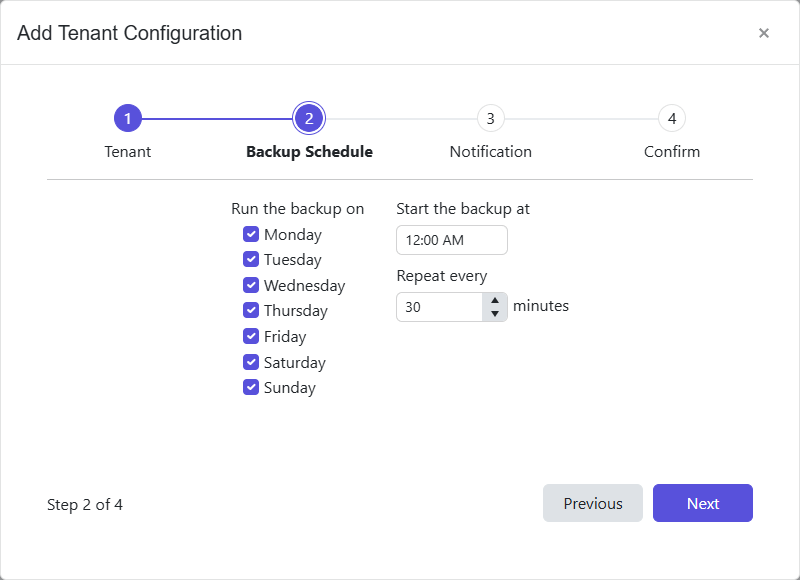
Step 7 – Select the days of the week in the Run the backup on section to indicate when to run backups.
Step 8 – Select a start time (UTC) in the Start the backup at field to begin the backup. The default time is 12:00 AM.
Step 9 – In the Repeat every field, enter a frequency, in minutes, to set the time between the start of each domain backup. Consider the size of the environment when configuring this option. Click Next.
If you change the start time from the default and select a frequency (in minutes), the backups run at the configured frequency but skip from midnight until the selected start time.
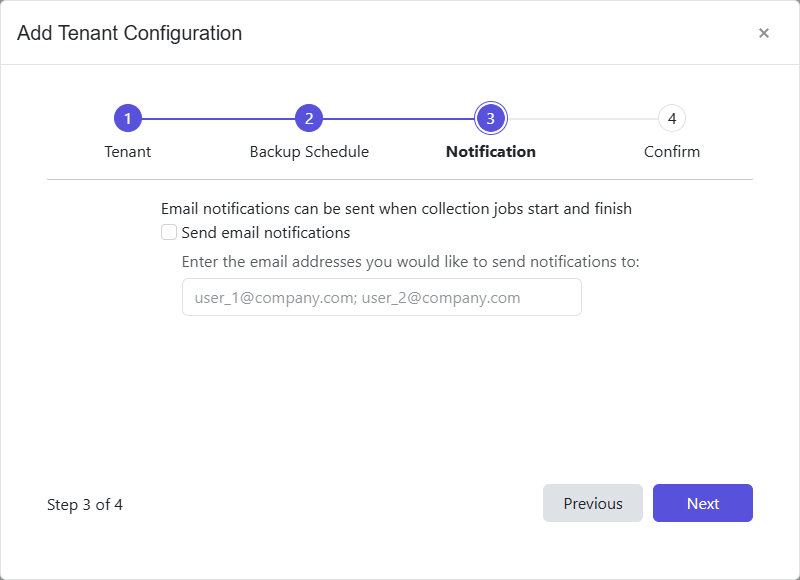
Step 10 – To set notifications, select the Send email notifications checkbox and enter the email address of one or more users and/or groups to receive the job start and end notifications. Use a semicolon (;) to separate multiple recipients. See the Notifications Page topic for additional information.
If you don't want notifications, skip this step.
Step 11 – Click Next.
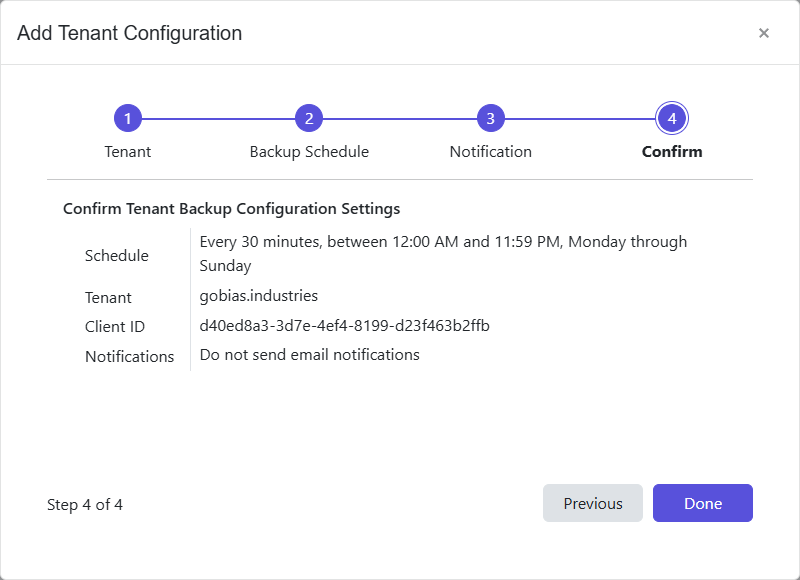
Step 12 – The Confirm page displays a summary of the settings you provided in the wizard. Use the Back button to return to a previous page and change any setting. Click Done to finish the wizard.
The new tenant appears on the Entra Id page.
Backups begin as scheduled. On the first scheduled instance, Identity Recovery performs a complete backup of the tenant. Subsequent backups only include the incremental changes that occurred since the previous backup.
Edit Tenant Configuration
Step 1 – On the Entra Id page, click the Edit configuration icon for a tenant. The Edit Tenant Configuration wizard opens.
Step 2 – Modify the settings you want to change for the tenant configuration.
Step 3 – The Confirm page displays a summary of the settings you provided in the wizard. Use the Back button to return to a previous page and change any setting. Click Done to finish the wizard.
Identity Recovery updates the tenant configuration and backups resume as scheduled.