Install IIS via Server Manager
This guide shows how to configure the local server to install IIS via Server Manager.
Overview
When running on Windows Server, Server Manager makes available parameters to configure the local server at will. See Microsoft's Server Manager documentation for details.
This page describes the optimal configuration of the local server to install IIS to prepare the production agent's installation.
Install IIS via Server Manager
Install IIS via Server Manager by proceeding as follows:
-
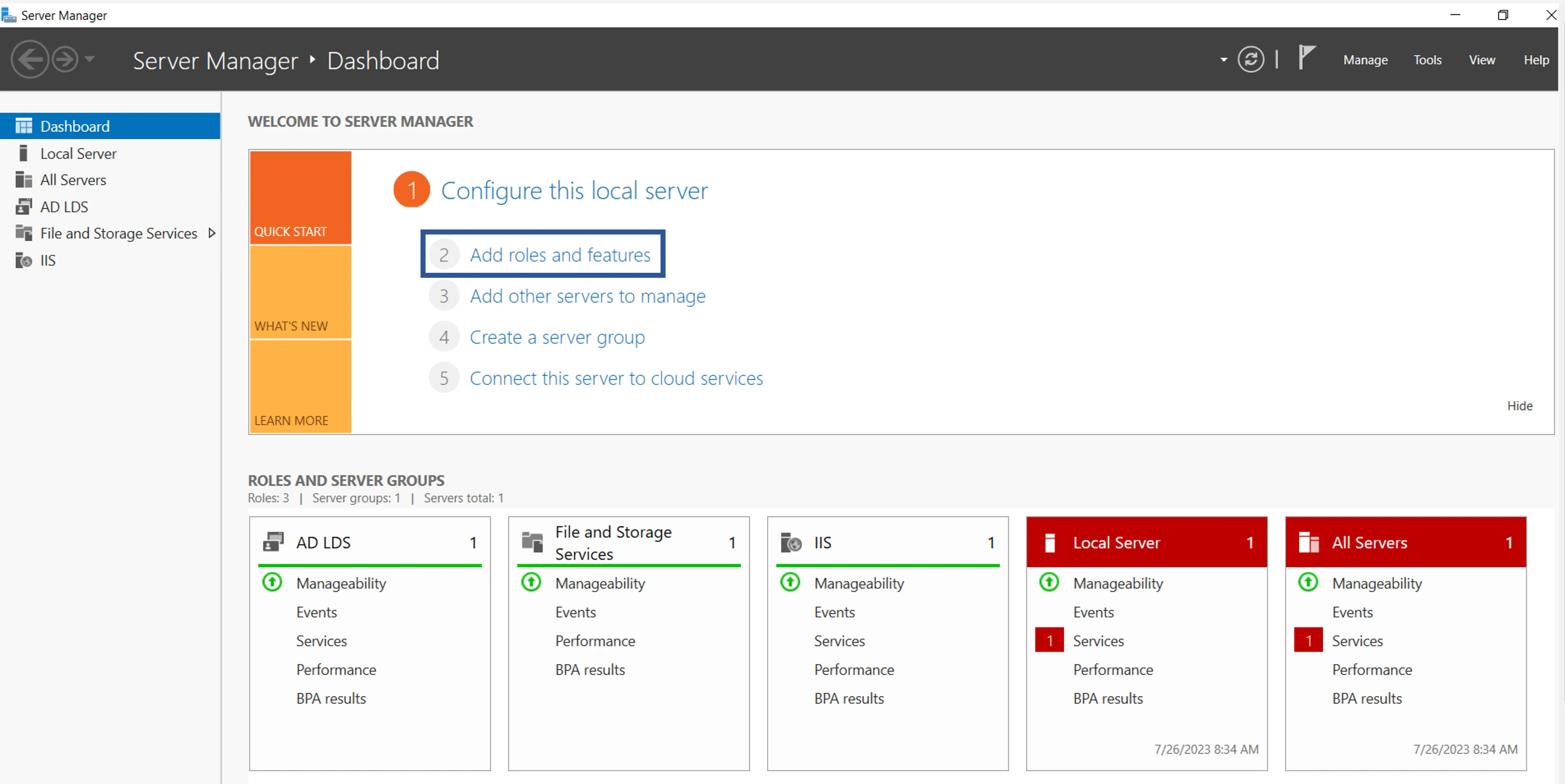
Open the Server Manager program and click Add roles and features.
-
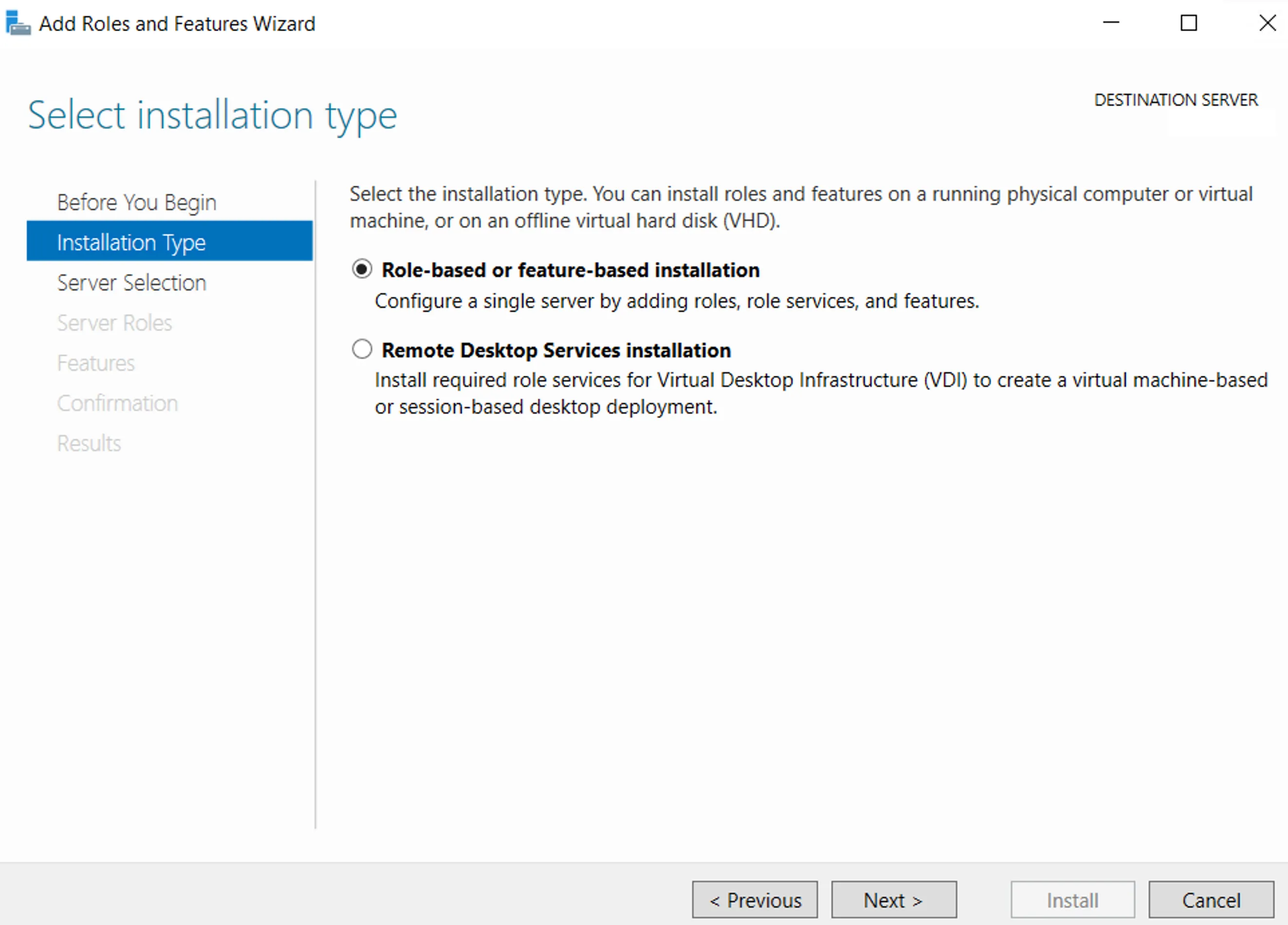
Click Next, then in Installation Type ensure that Role-based or feature-based installation is selected and click Next.
-
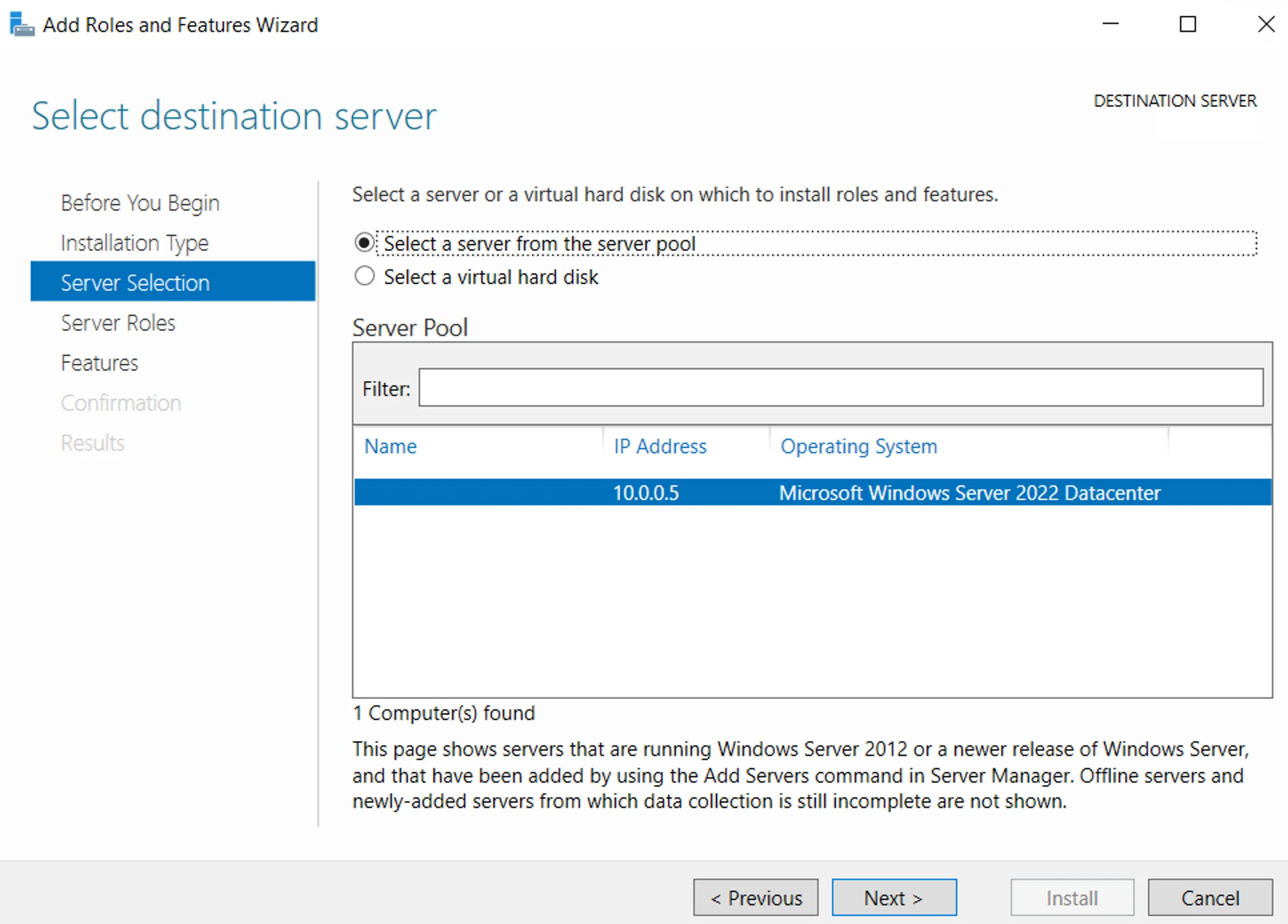
In Server Selection tick Select a server from the server pool and click Next.
-
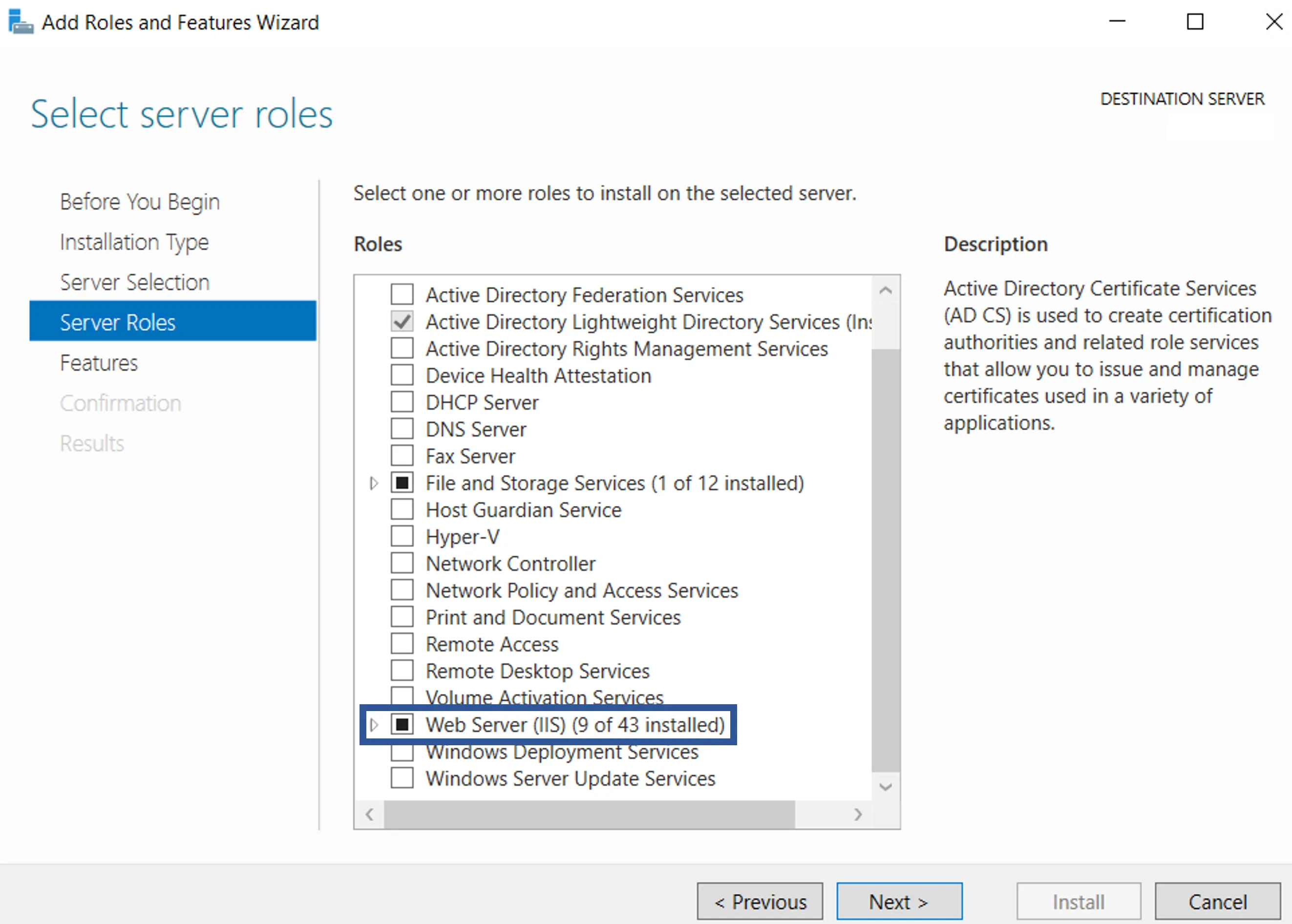
In Server Roles tick Web Server (IIS).
-
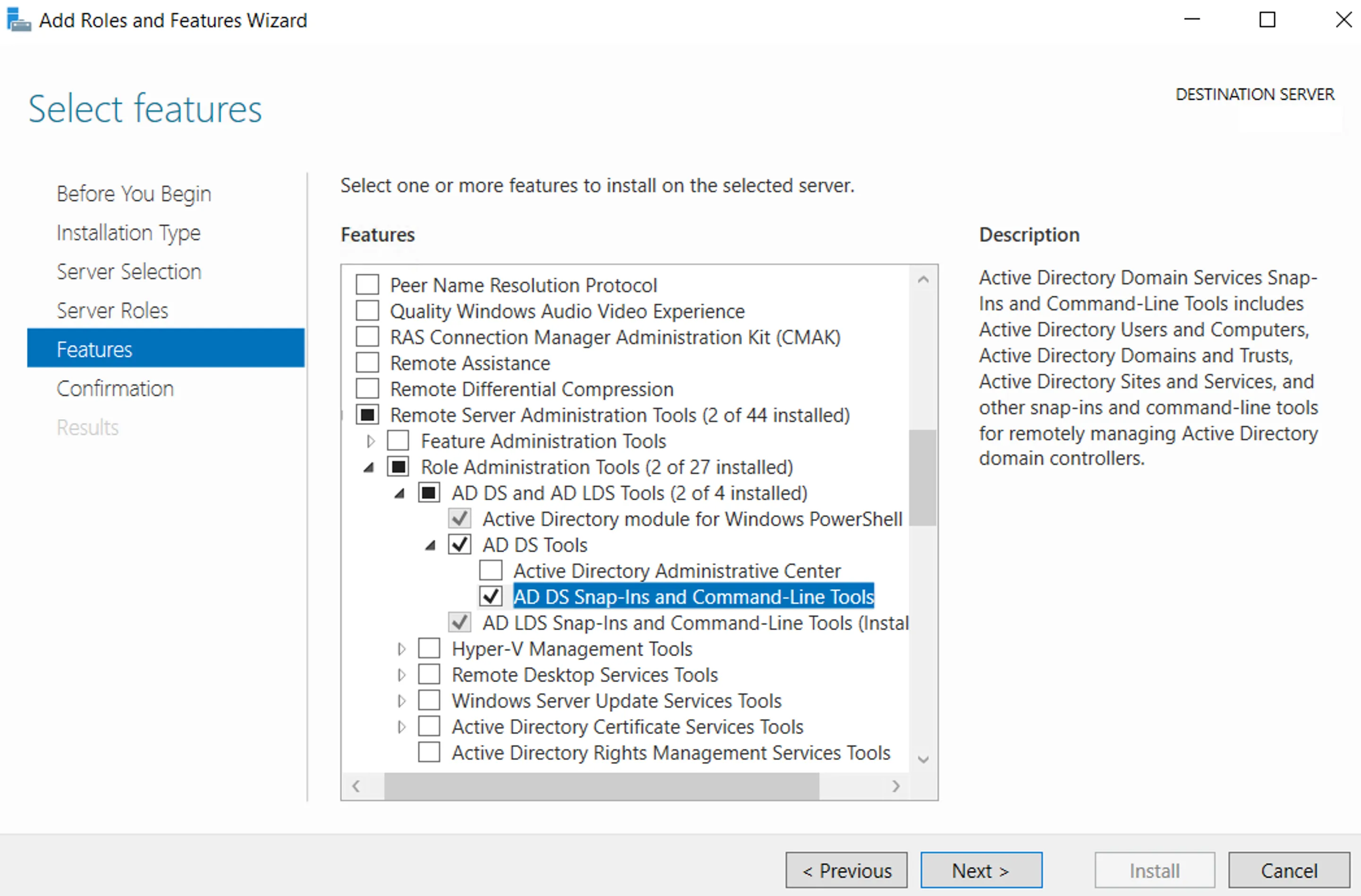
In Features select Remote Server Administration Tools > Role Administration Tools > AD DA and AD LDS Tools > AD DS Tools > AD DS Snap-Ins and Command-Line Tools.
-
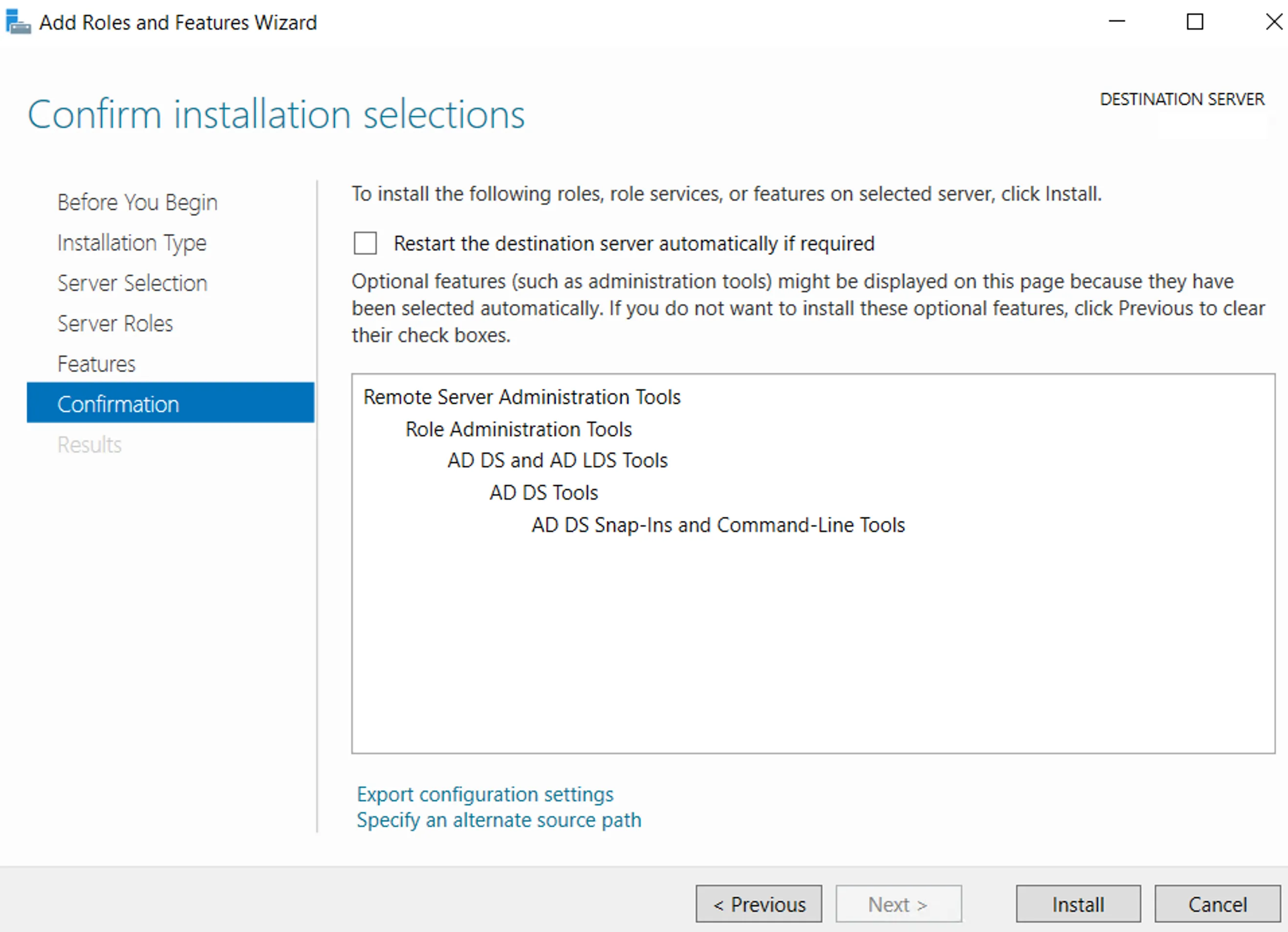
In Confirmation click Install.
Next Steps
To continue,Configure the Pool and Siteand website via IIS.