Customize Display Tables
This part shows how to define a custom way to display entity types' data.
Table
This display table with DisplayTableDesignElement set to table will display the list of resources as a simple table filled with several columns.
Replace code attributes enclosed with <> with a custom value before entering the script in the command line.
<DisplayTable Identifier="Referentiel_Guest" DisplayTableDesignElement="table" EntityType="Referentiel_Guest" IsEntityTypeDefault="true"> <Column CanBeFiltered="true" DisplayBinding="Referentiel_Guest:Login" IsDisplayInSummaryView="true" IsResizable="true" IsSortable="true" /> <Column CanBeFiltered="true" DefaultSortPriority="0" DisplayBinding="Referentiel_Guest:LastName" IsDisplayInSummaryView="true" IsResizable="true" IsSortable="true" /> <Column CanBeFiltered="true" DisplayBinding="Referentiel_Guest:FirstName" IsDisplayInSummaryView="true" IsResizable="true" IsSortable="true" /> <Column CanBeFiltered="false" DisplayBinding="Referentiel_Guest:PhoneNumber" DisplayName_L1="Telephone" IsDisplayInSummaryView="true" IsResizable="true" IsSortable="true" /> </DisplayTable>
Here is the visualization of this display table on the interface:
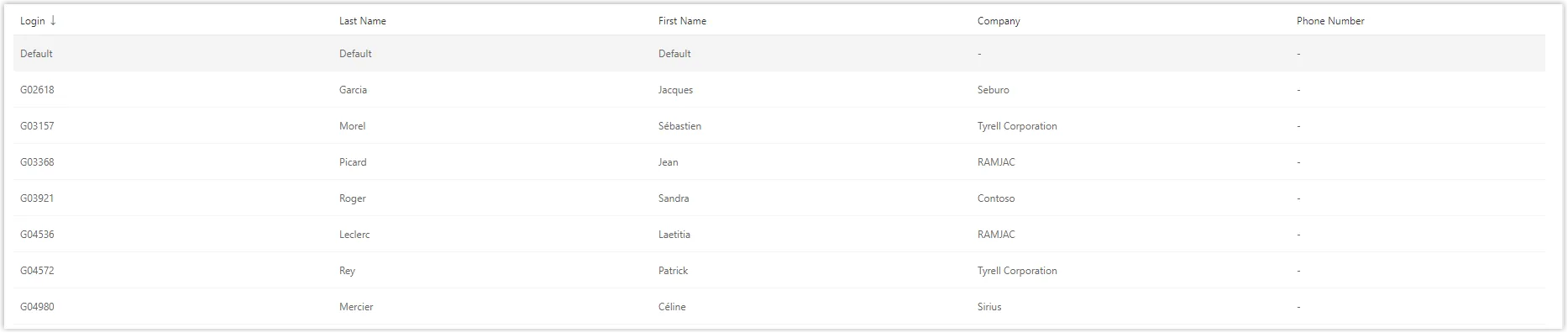
Ergonomically, it is recommended to hide the search symbol in a column header (in a list displayed like a table) if a criterion linked to this column is already displayed in a search bar. This avoids filter duplication. Thus, the <CanBeFiltered> property can be deleted in the <Column> argument.
Resource Table
Set DisplayTableDesignElement to resourcetable to create a table similar to the display table with DisplayTableDesignElement set to table and add a column containing the owner of the resource.
Replace code attributes enclosed with <> with a custom value before entering the script in the command line.
<DisplayTable Identifier="AD_Entry" EntityType="AD_Entry" DisplayTableDesignElement="resourcetable" IsEntityTypeDefault="true"> <Column DefaultSortPriority="1" DisplayBinding="dn" IsDisplayInSummaryView="true" IsResizable="true" IsSortable="true" CanBeFiltered="true" ColumnSize="4" /> <Column DisplayBinding="userPrincipalName" IsDisplayInSummaryView="true" IsResizable="true" IsSortable="true" CanBeFiltered="true" ColumnSize="2" /> <Column DisplayBinding="userAccountControl" IsDisplayInSummaryView="true" IsResizable="true" IsSortable="true" CanBeFiltered="true" ColumnSize="1" /> <Column DisplayBinding="rdn" IsDisplayInSummaryView="true" IsResizable="true" IsSortable="true" CanBeFiltered="true" ColumnSize="2" /> <Column DisplayBinding="displayName" IsDisplayInSummaryView="true" IsResizable="true" IsSortable="true" CanBeFiltered="true" ColumnSize="2" /> <Column DisplayBinding="objectCategory" IsDisplayInSummaryView="true" IsResizable="true" IsSortable="true" CanBeFiltered="true" ColumnSize="2" /> </DisplayTable>
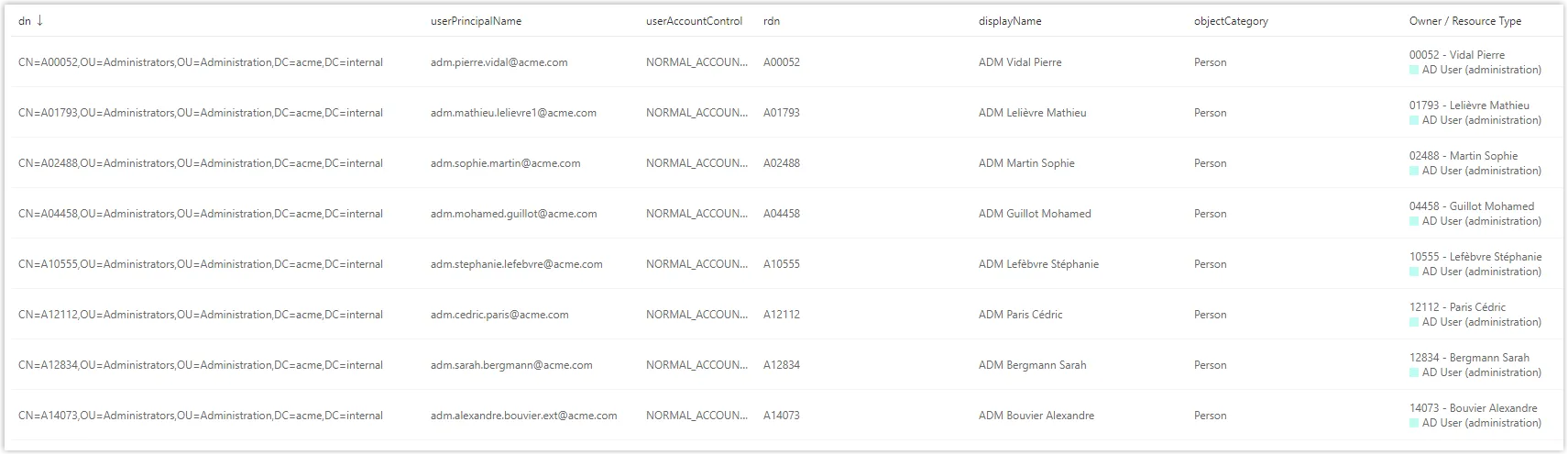
Here is the visualization of this resource table on the interface:
Display Table with Tiles
.
Instead of creating a table, you can create tiles to give another rendering of the user interface. Create the different tiles first, then import them into the display table with <DisplayTableDesignElement> set to <list>. Display tables with other values of <DisplayTableDesignElement> can't display tiles.
See theTile topic for additional information.
Remember, if the display table uses tiles, then you can't use bindings.
Replace code attributes enclosed with <> with a custom value before entering the script in the command line.
<Tile Identifier="Directory_User_Tile1" DisplayName_L1="User: first/last name" DisplayName_L2="Collaborateur : nom, prenom" EntityType="Directory_User" TileDesignElement="picture-text"> <Item Binding="MainRecord.FirstName" LineDisplayOrderIndicator="1" LineNumber="2" /> <Item Binding="MainRecord.LastName" LineDisplayOrderIndicator="2" LineNumber="2" /> <Item Binding="MainRecord.Title.DisplayName" LineNumber="3" /> <Item Binding="Id" LineNumber="5" /> <Item Binding="PhotoTag" LineNumber="6" /> </Tile> <Tile Identifier="Directory_User_Tile2" DisplayName_L1="User: dep/loc" DisplayName_L2="Collaborateur : orga/site" EntityType="Directory_User" TileDesignElement="inline data-icon"> <Item Binding="MainRecord.Organization.DisplayName" LineNumber="1" /> <Item Binding="MainRecord.Location.DisplayName" LineNumber="2" /> </Tile> <Tile Identifier="Directory_User_Tile3" DisplayName_L1="User: contact" DisplayName_L2="Collaborateur : contact" EntityType="Directory_User" TileDesignElement="inline data-icon"> <Item Binding="MainRecord.PhoneNumber" LineNumber="1" /> <Item Binding="MainRecord.MobileNumber" LineNumber="2" /> </Tile> <DisplayTable Identifier="Directory_User" EntityType="Directory_User" DisplayTableDesignElement="list" IsEntityTypeDefault="true"> <Column DefaultSortPriority="1" ColumnSize="6" IsDisplayInSummaryView="true" SortBinding="MainRecord.LastName" Tile="Directory_User_Tile1" /> <Column ColumnSize="3" IsDisplayInSummaryView="true" Tile="Directory_User_Tile2" /> <Column ColumnSize="3" Tile="Directory_User_Tile3" /> </DisplayTable>
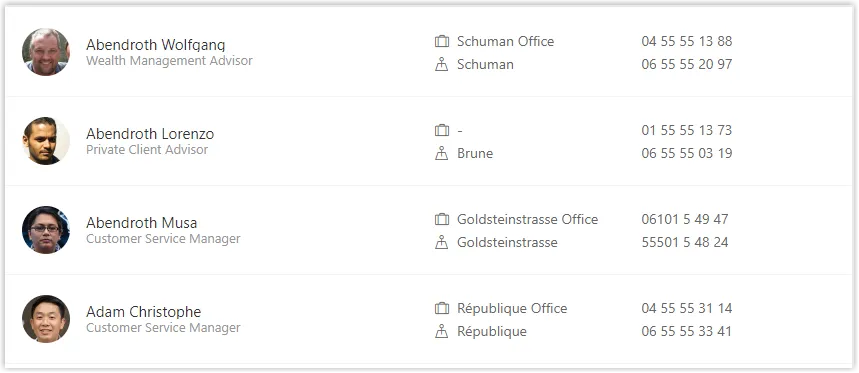
Here is the visualization of this display table on the interface:
See the Display Table topic for additional information.