Setup Wizard
The Endpoint Protector Appliance requires the firewall to allow inbound traffic on port 443. The appliance uses this port for:
- Endpoint Protector Server and Client communication: 443 inbound
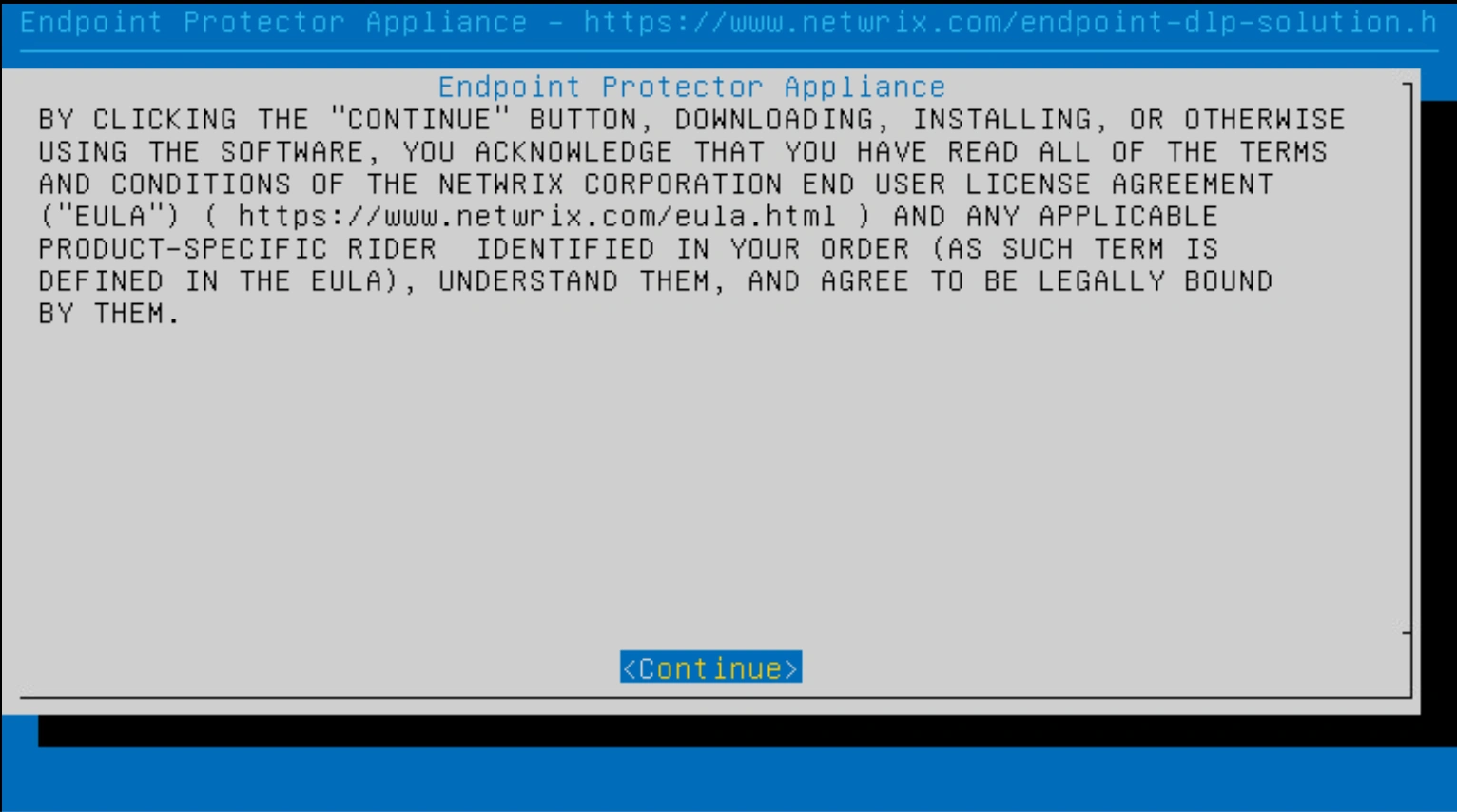
Step 1 – Select Continue when finished reading the End User License Agreement.
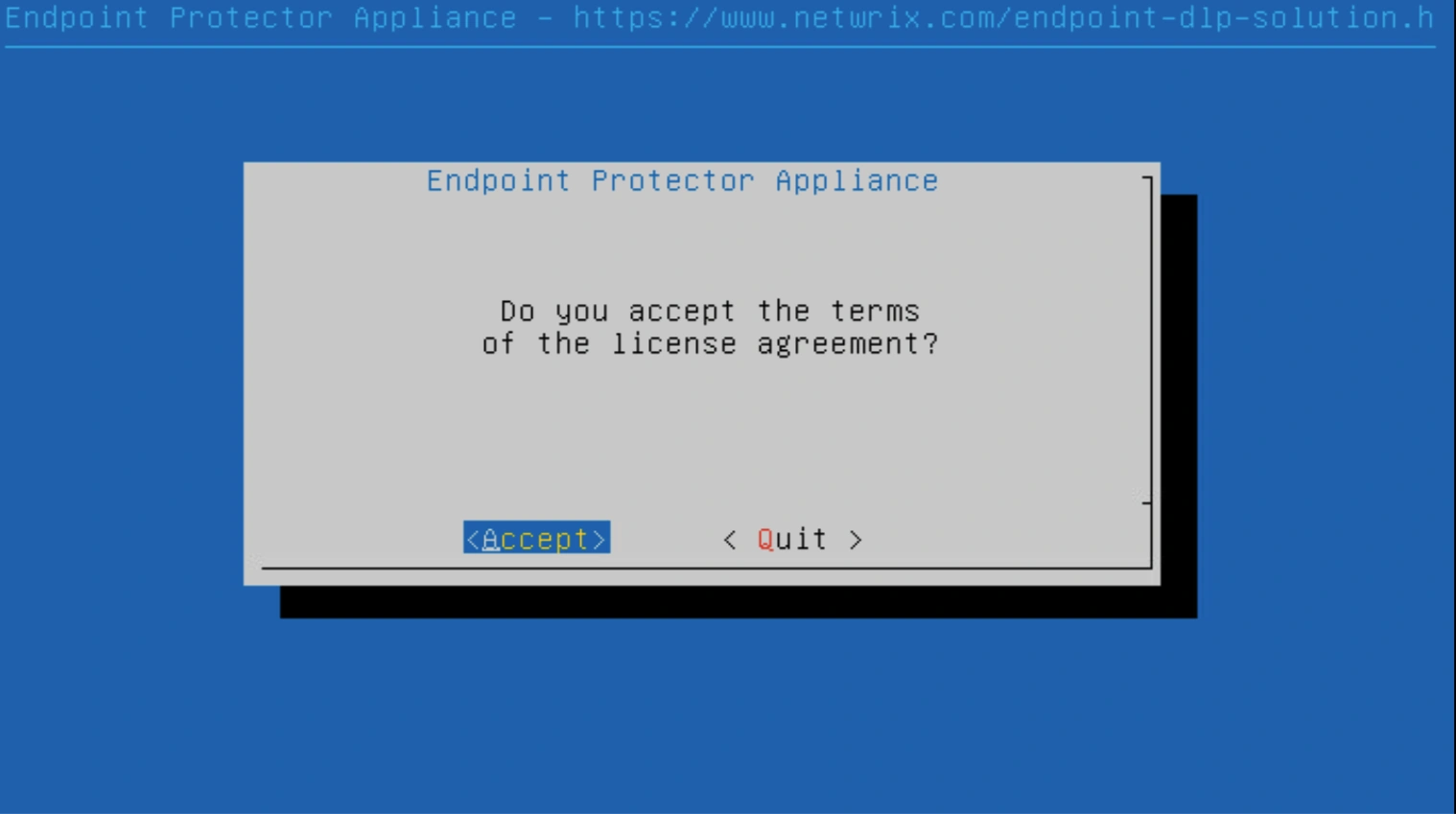
Step 2 – Select Accept.
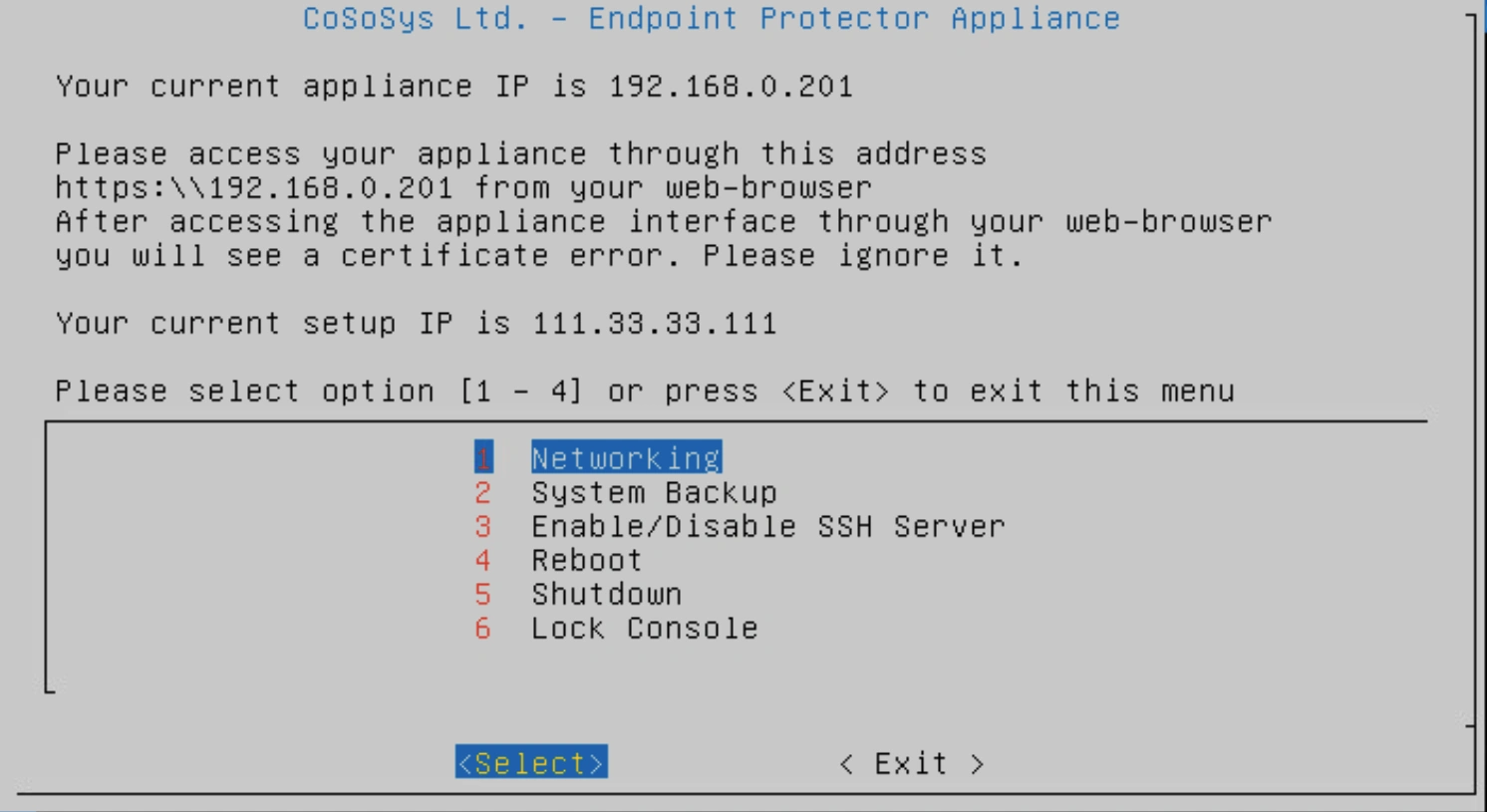
Step 3 – Select Networking.
Step 4 – Two configuration methods are available. Starting with version 2509, only the manual configuration option is available. Also, starting with version 2512, networking configuration includes options for both IPv4 and IPv6. You must select only one option.
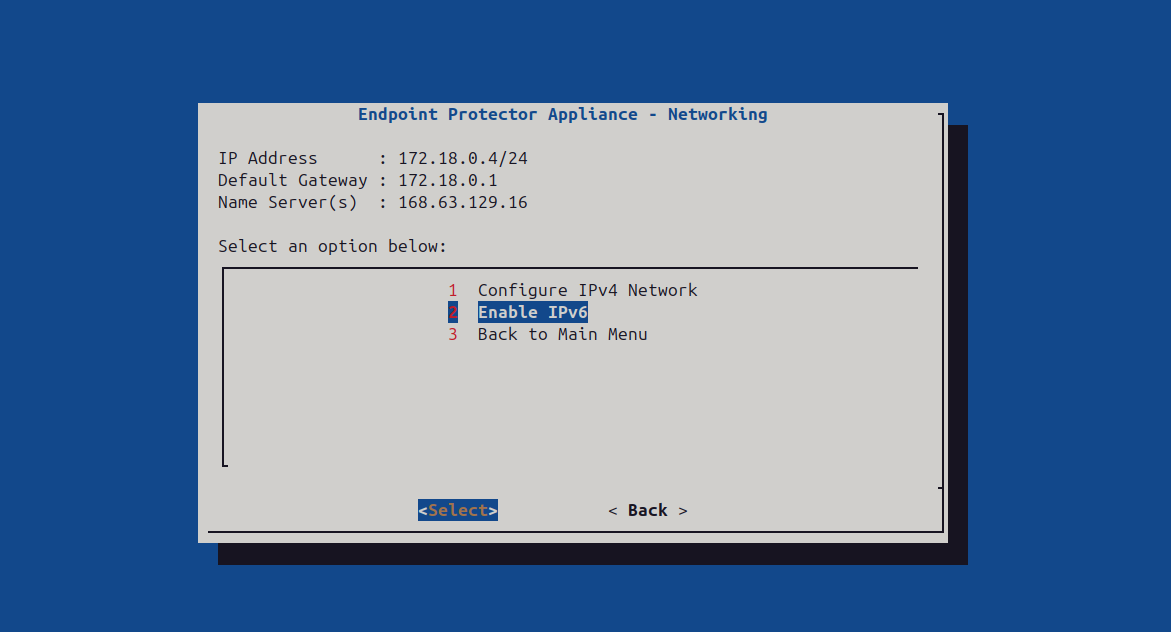
Modifying the network configuration triggers a certificate regeneration, which temporarily stops communication between the server and client. When you change from one IP version to another, always press the Apply button to save and apply the configuration.
Manual Configuration
Starting with version 2509, only the manual configuration option is available. For older versions, use manual configuration for precise control to set the IP address and default gateway, ensuring the appliance is correctly set up and accessible.
Step 1 – Select Configure Network manually (IPV4 example).
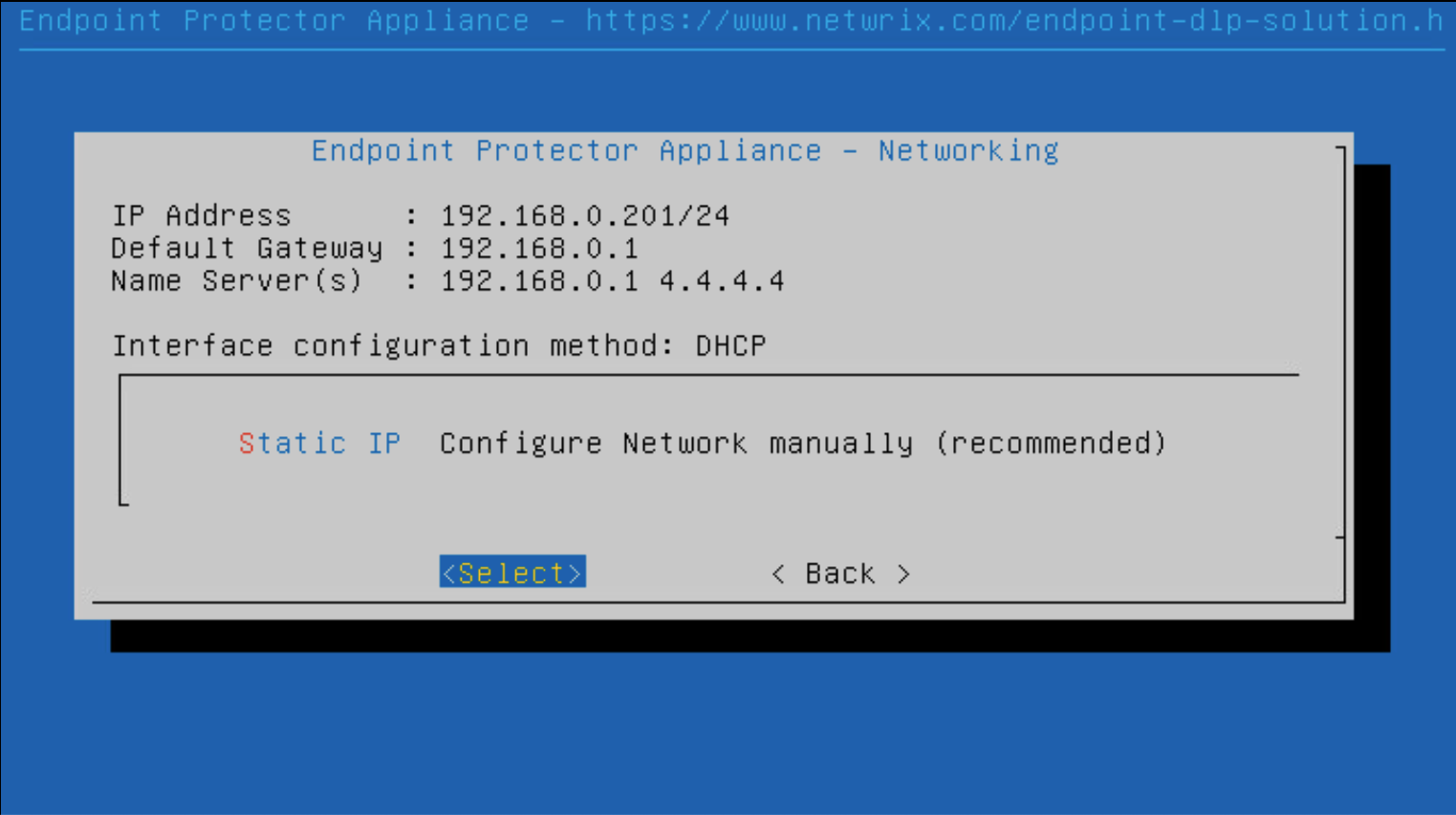
Step 2 – Set the IP Address and Default Gateway. For example, set the IP Address as 192.168.7.94 and the Default Gateway as 192.168.7.1.
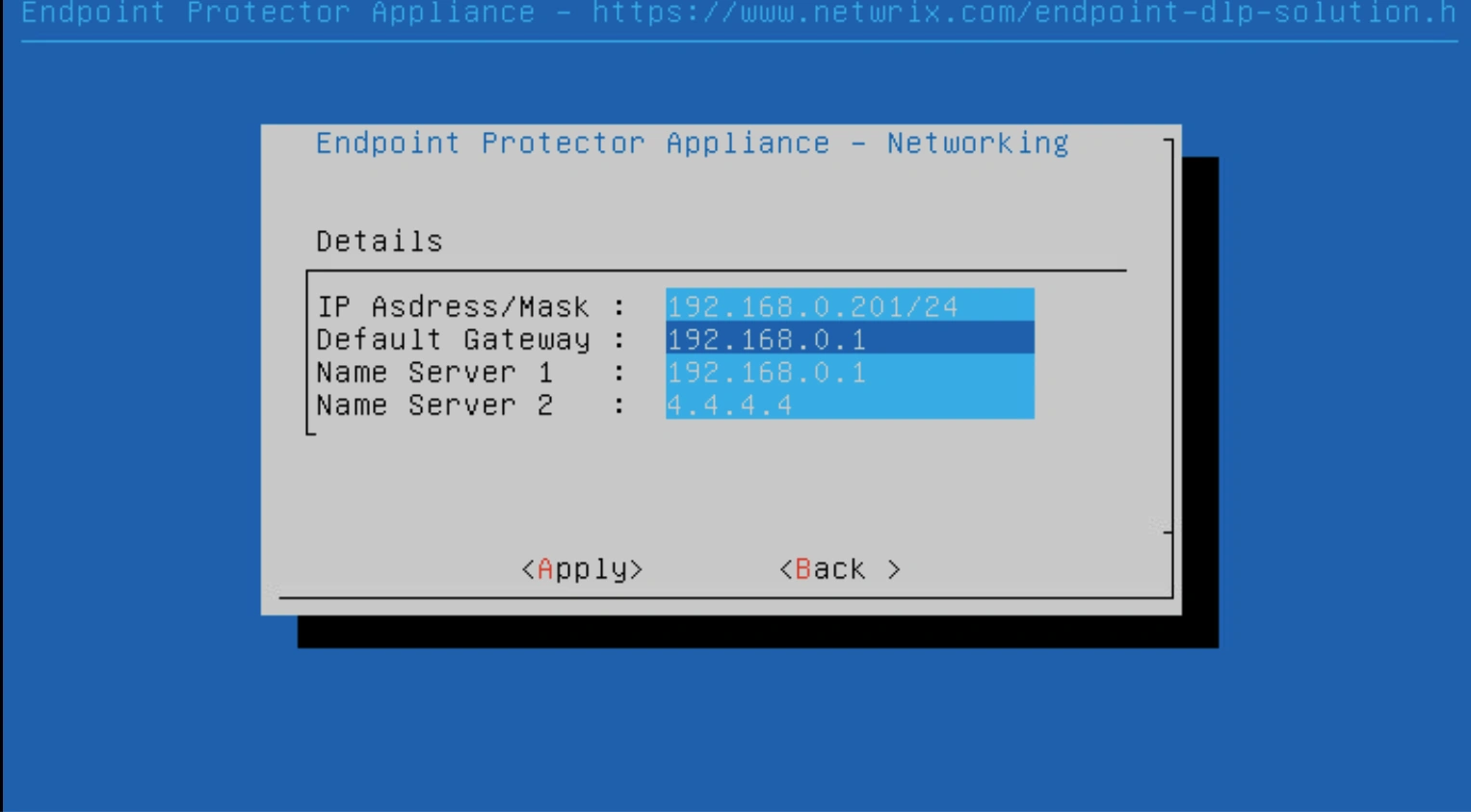
Step 3 – Press Tab.
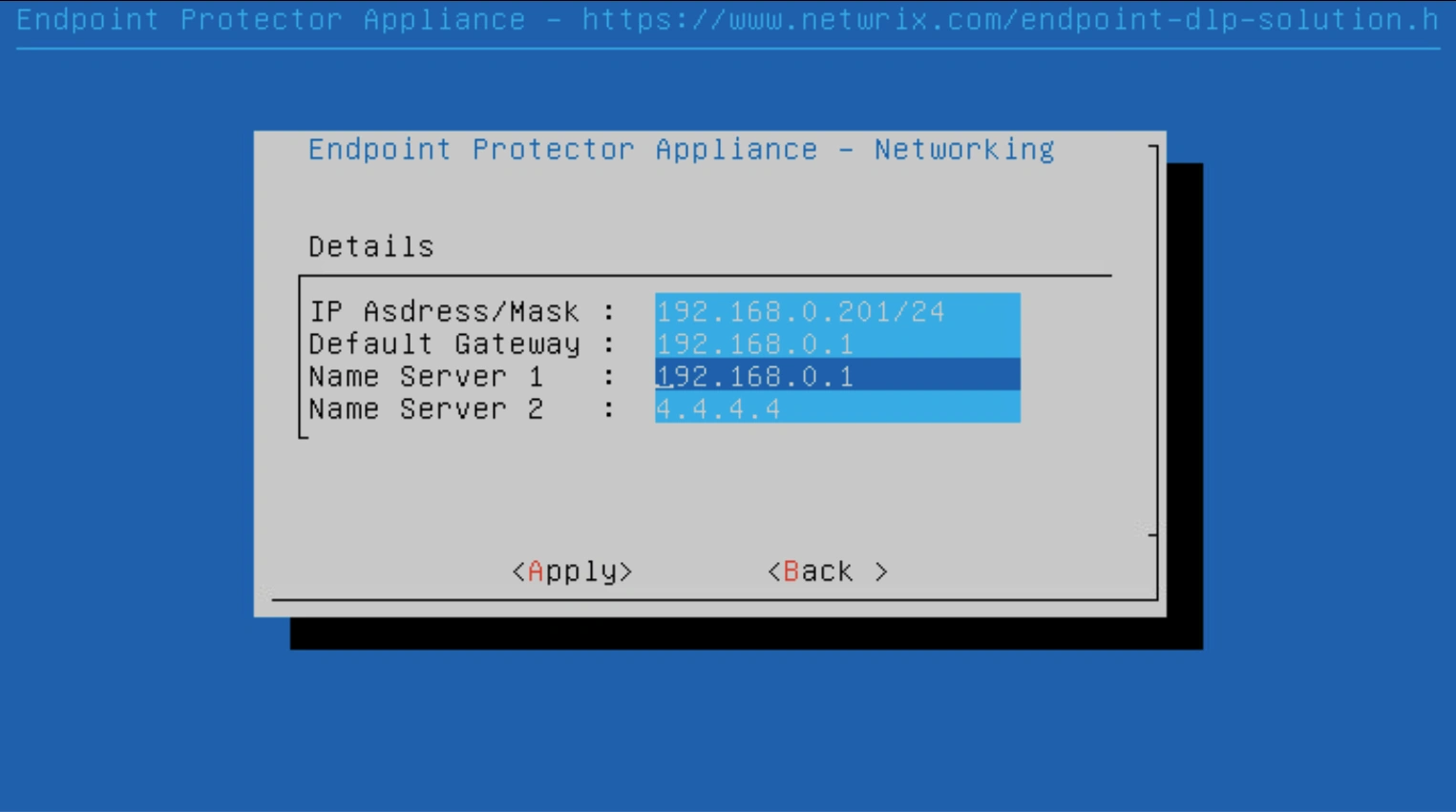
Step 4 – Select Apply. The virtual appliance is now accessible from the configured IP Address. (e.g., https:// 192.168.7.94).
Create a DNS record for the appliance's fully qualified domain name (FQDN), for example epp.example.com, that points to this IP address. Use the FQDN to access the server and to configure clients and integrations. See Use an FQDN Instead of an IP Address.
The setup wizard no longer includes E-mail Server Settings. To configure email server settings and authentication, go to System Configuration > Mail Settings after completing the initial setup.