Uploading the Script and Package
To deploy the Endpoint Protector Client, upload the EndpointProtectorClient2608.2.1.3.pkg package along with the
epp_change_ip.sh script.
EndpointProtectorClient2608.2.1.3.pkg is an example filename. Always download and deploy the
latest available EPP Client version.
To obtain the epp_change_ip.sh script, customers should submit a support ticket
through the Netwrix Customer Portal.
To upload the script and package, follow these steps:
Step 1 – In your Jamf account, from the main navigation bar, click Settings, and then select Computer Management, then Scripts.
Step 2 – From the Scripts section, in the upper right, click + New.
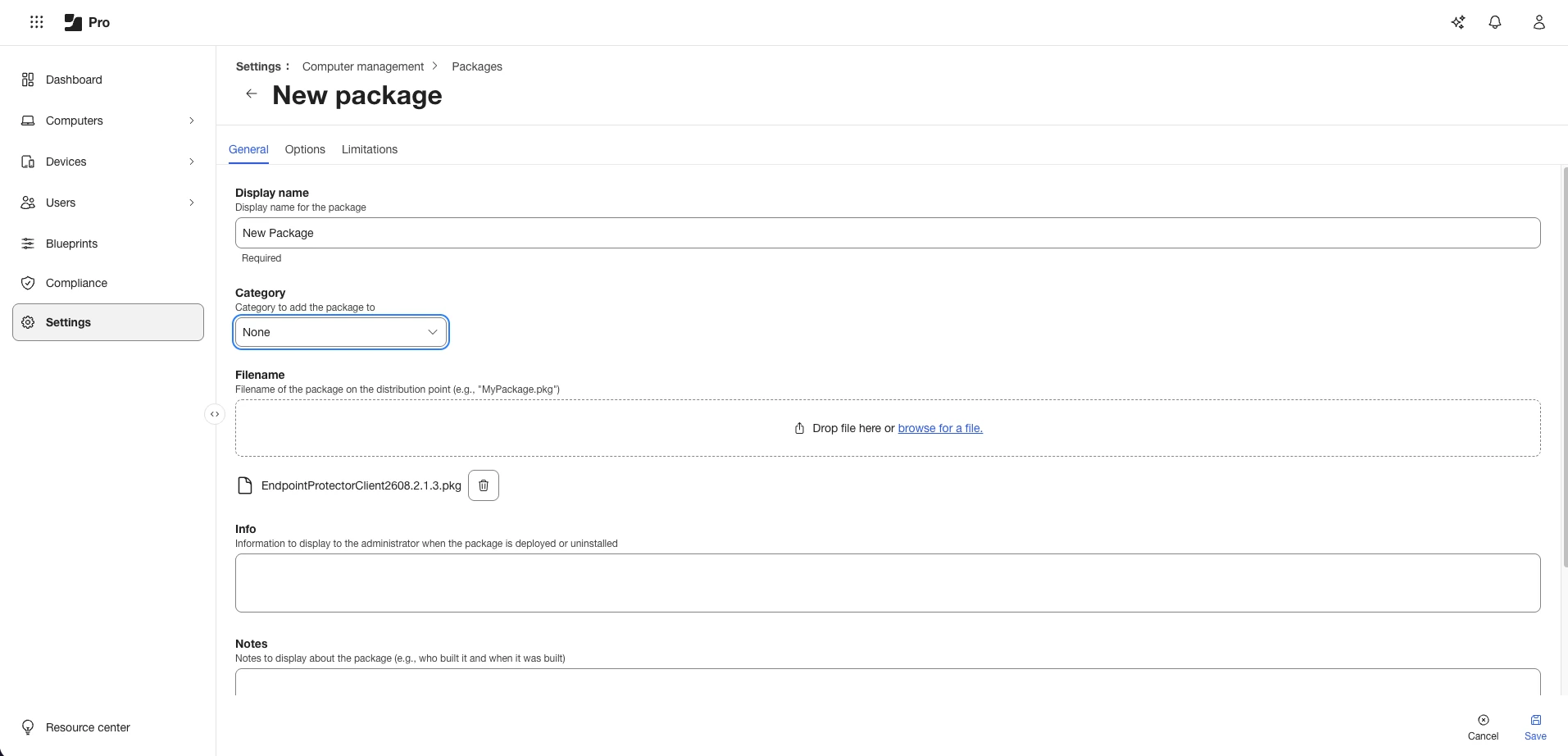
Step 3 – On the General section, add a name for the profile, and then select the Script tab
and paste the content of the epp_change_ip.sh script.
Step 4 – Add your server's fully qualified domain name (FQDN) to the EPP_SERVER_ADDRESS field. Netwrix recommends an FQDN over an IP address, so clients keep working when the server address changes. See Use an FQDN Instead of an IP Address.
You can edit the EPP_DEPARTMET CODE and EPP_SERVER_PORT fields to deploy the Endpoint Protector Client on specific departments or custom ports.
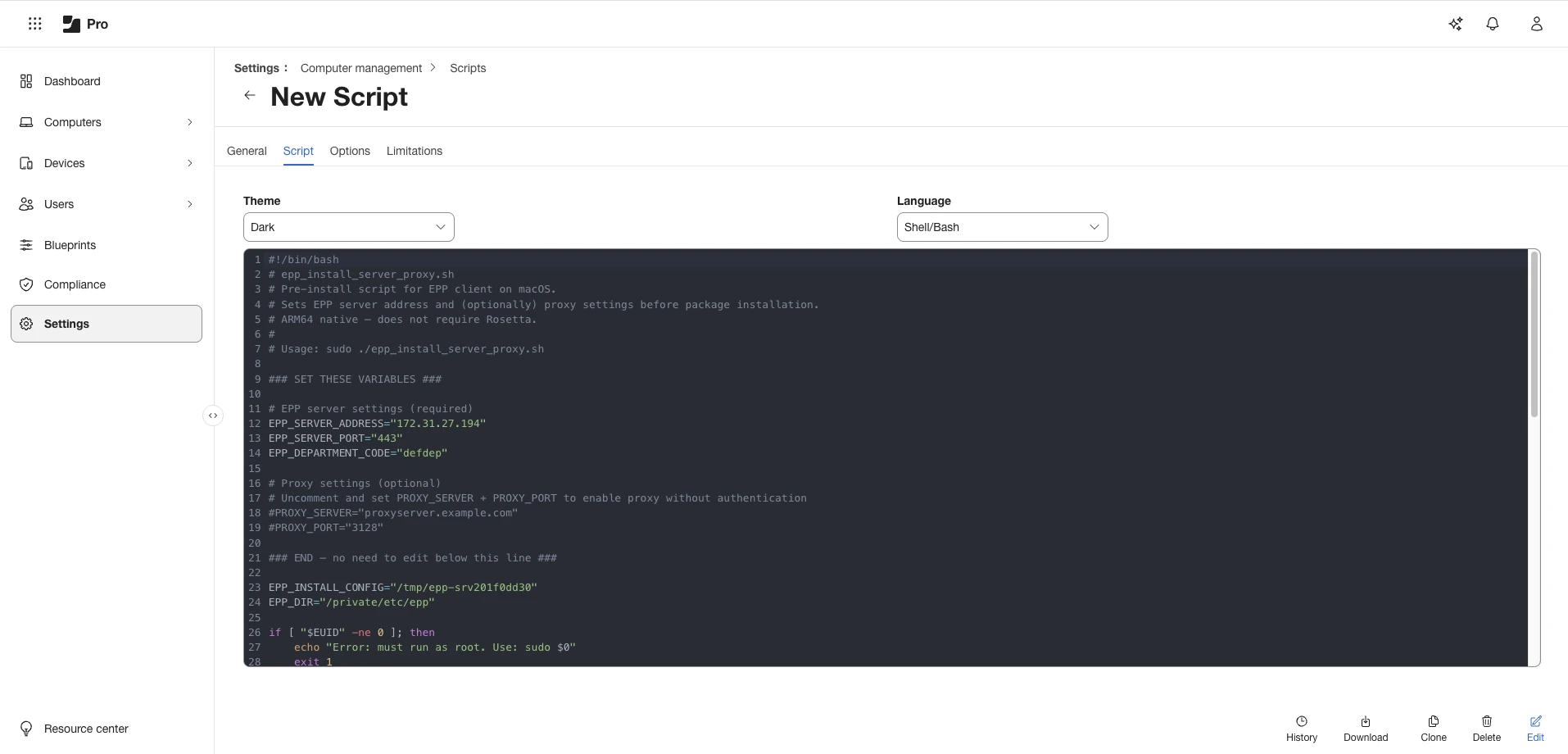
Step 5 – From the Computer Management section, select Package and then, in the upper right, click + New.
Step 6 – On the General tab, add a name and then upload the package EndpointProtectorClient2608.2.1.3.pkg.