macOS Deployment
To deploy the Endpoint Protector package for macOS using Intune, follow these steps:
Step 1 – Open and log in to Endpoint Protector.
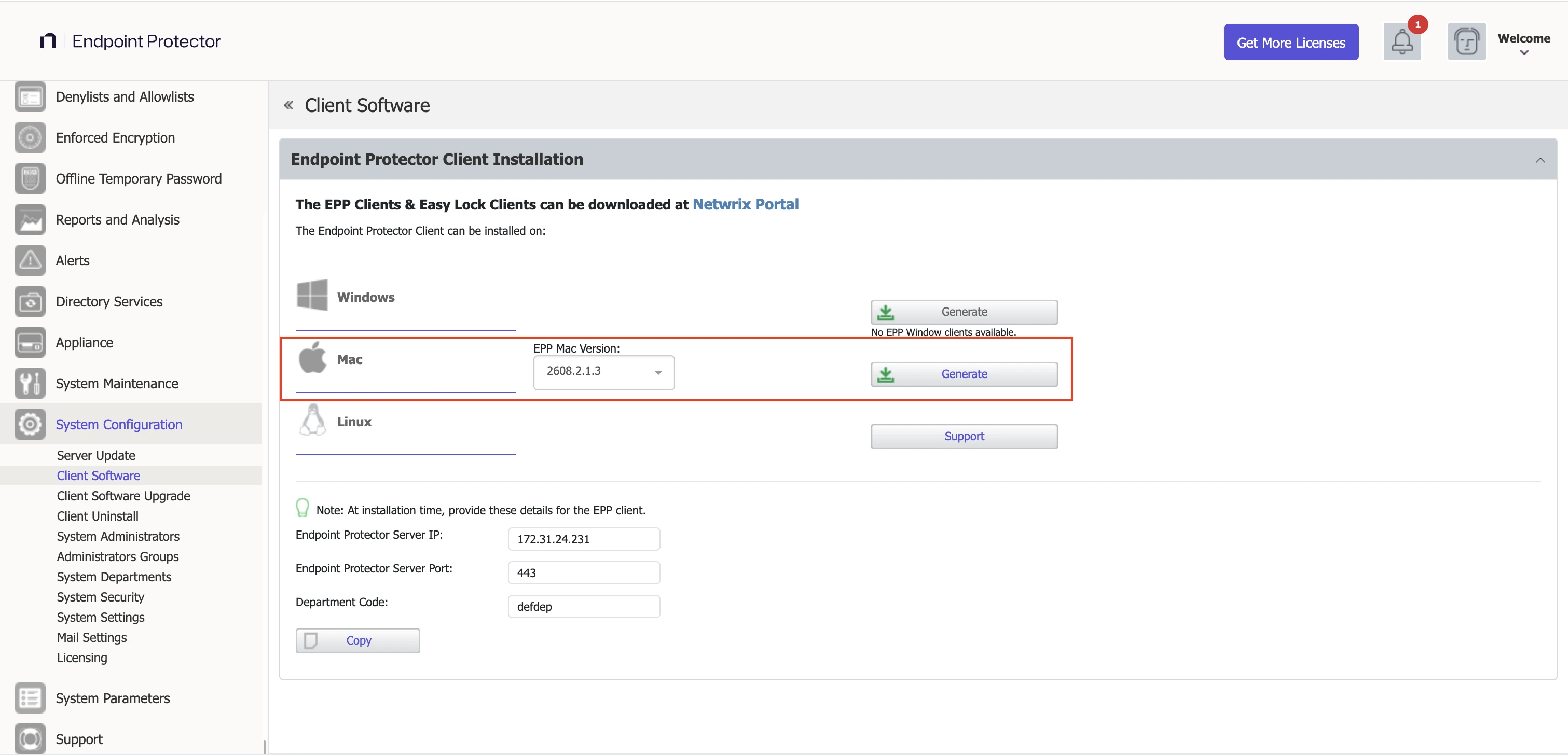
Step 2 – Go to System Configuration > Client Software, select the macOS client version from the EPP Mac Version dropdown, and click Generate to download the macOS Endpoint Protector package.
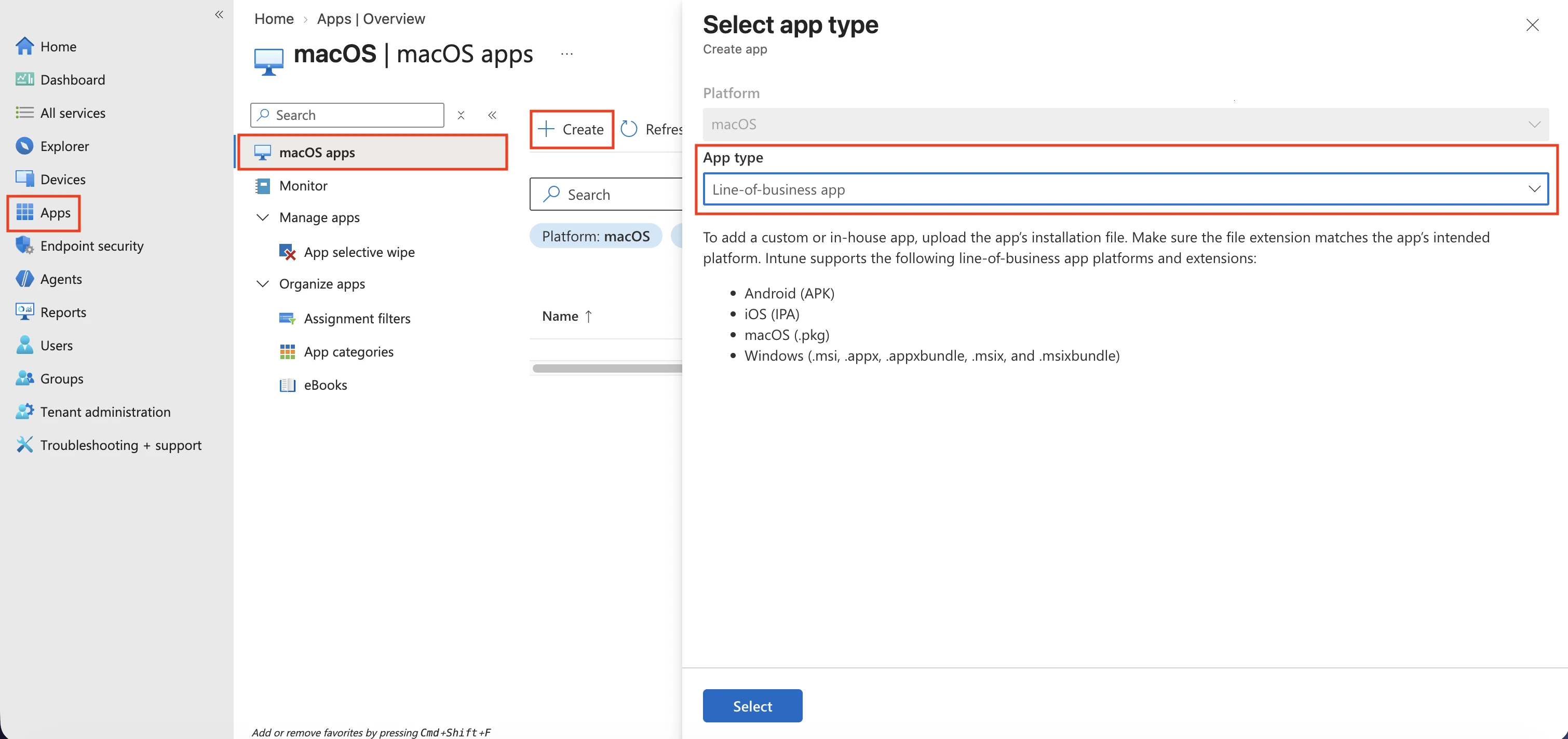
Step 3 – Go to the Microsoft Intune admin center (also known as Microsoft Endpoint Manager) and sign in.
Step 4 – Go to Apps from the left-hand side menu, and on the Apps | Overview page, select the macOS platform.
Step 5 – On the macOS apps page, click Create, select Line-of-business app as the app type, and then click Select.
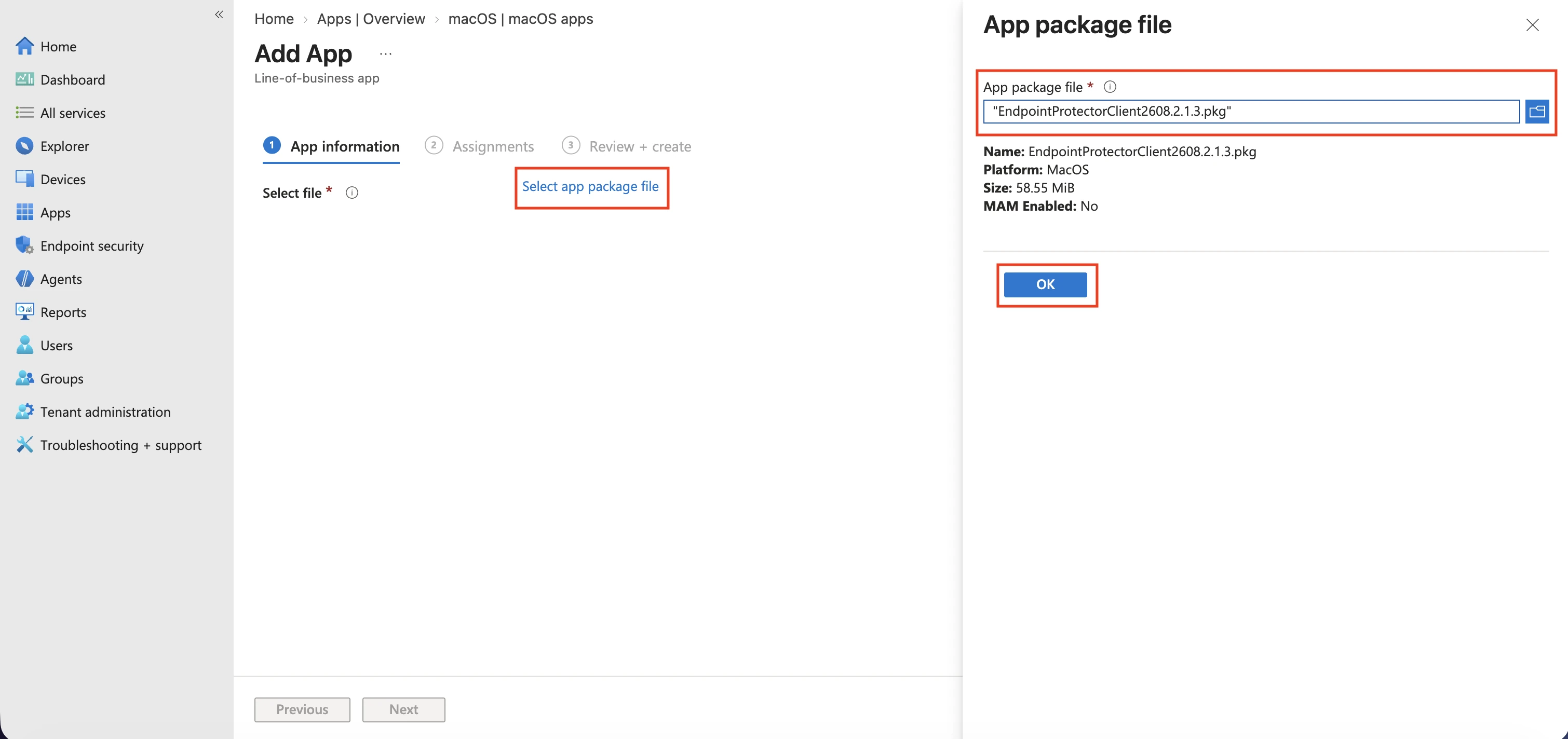
Step 6 – Click Select app package file and, from the right-hand side, select the Endpoint
Protector .pkg file (for example, EndpointProtectorClient2608.2.1.3.pkg), upload it, and click
OK.
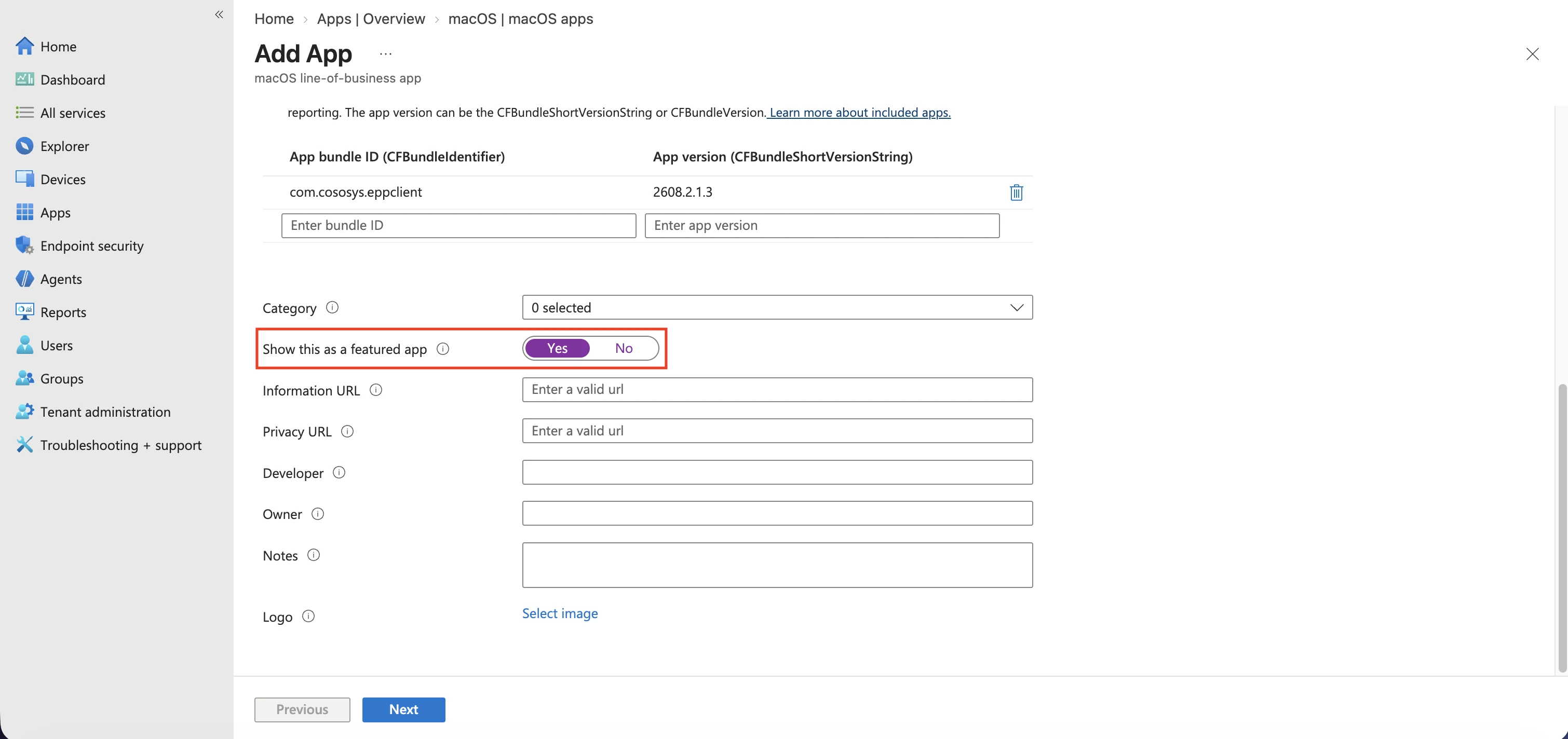
Step 7 – On the App information page, fill in the mandatory fields and then click Next:
- Name – add Endpoint Protector Client
- Description – add Endpoint Protector Client
- Publisher – add Netwrix Ltd.
The App bundle ID and App version fields populate automatically from the uploaded package. Optionally, set Show this as a featured app to Yes to surface the app in the Company Portal, and configure Category, Information URL, Privacy URL, Developer, Owner, Notes, and Logo as needed.
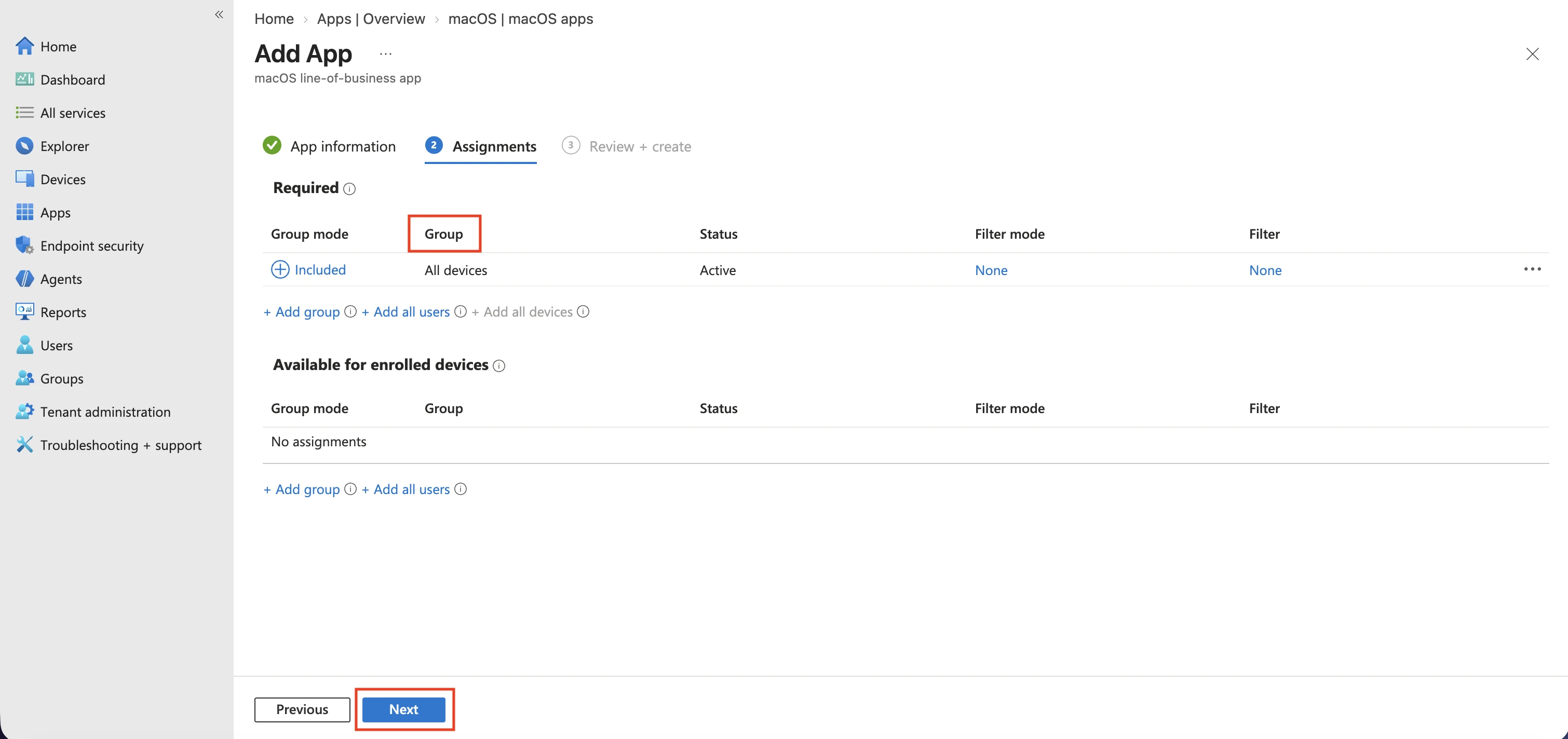
Step 8 – On the Assignments page, in the Required section, select the group to deploy the Endpoint Protector client to, and then click Next.
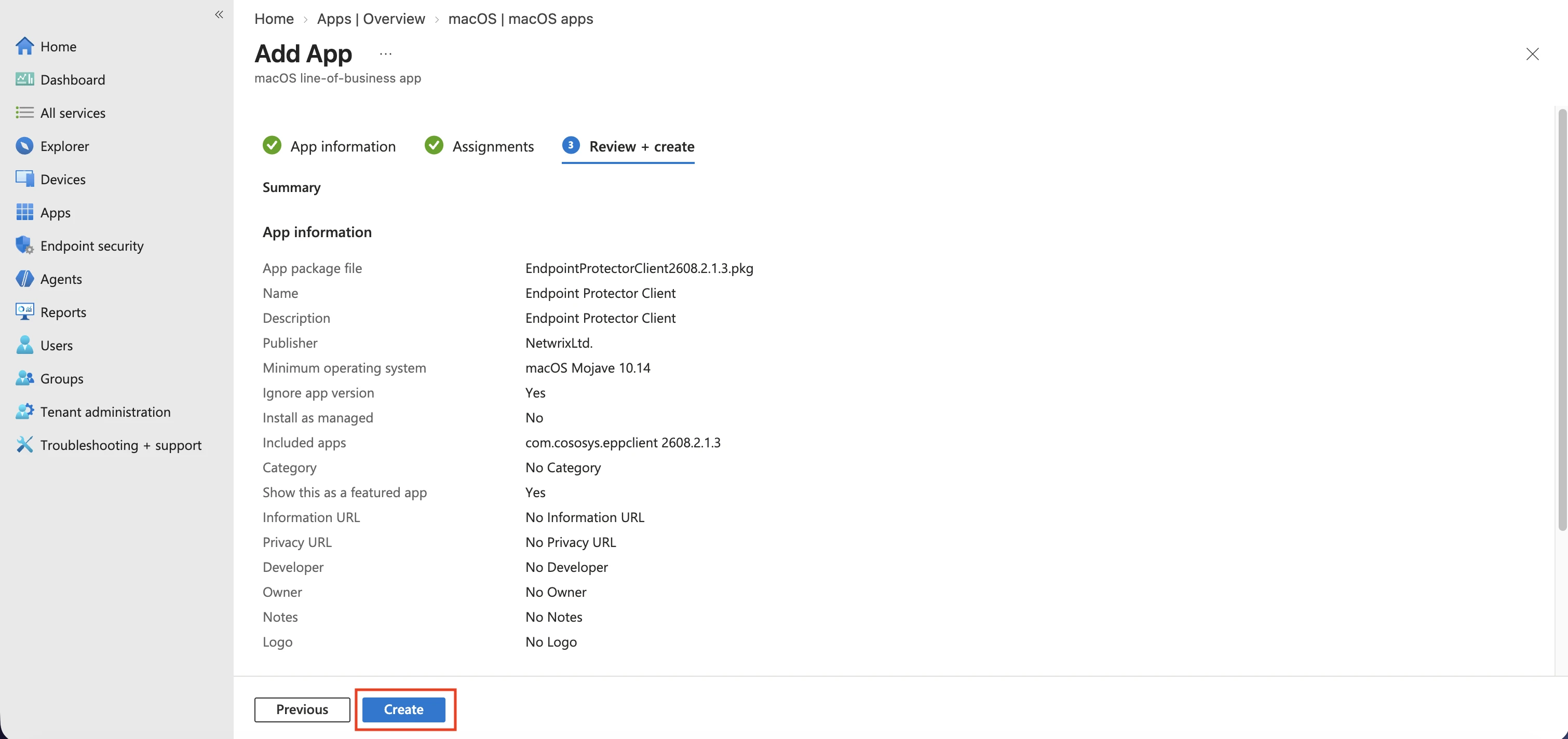
Step 9 – On the Review + create page, review the summary and click Create – this starts the Endpoint Protector package upload.
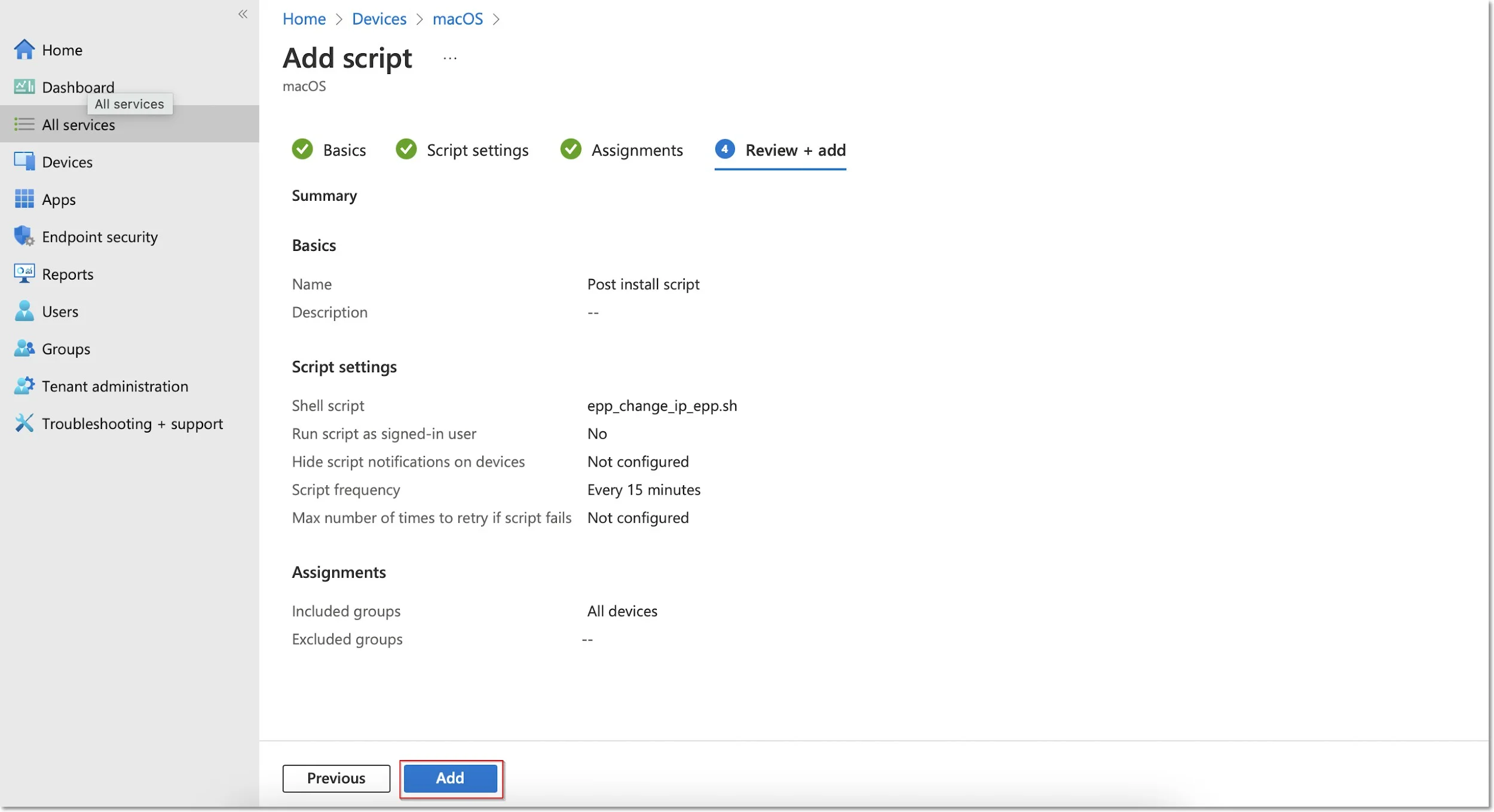
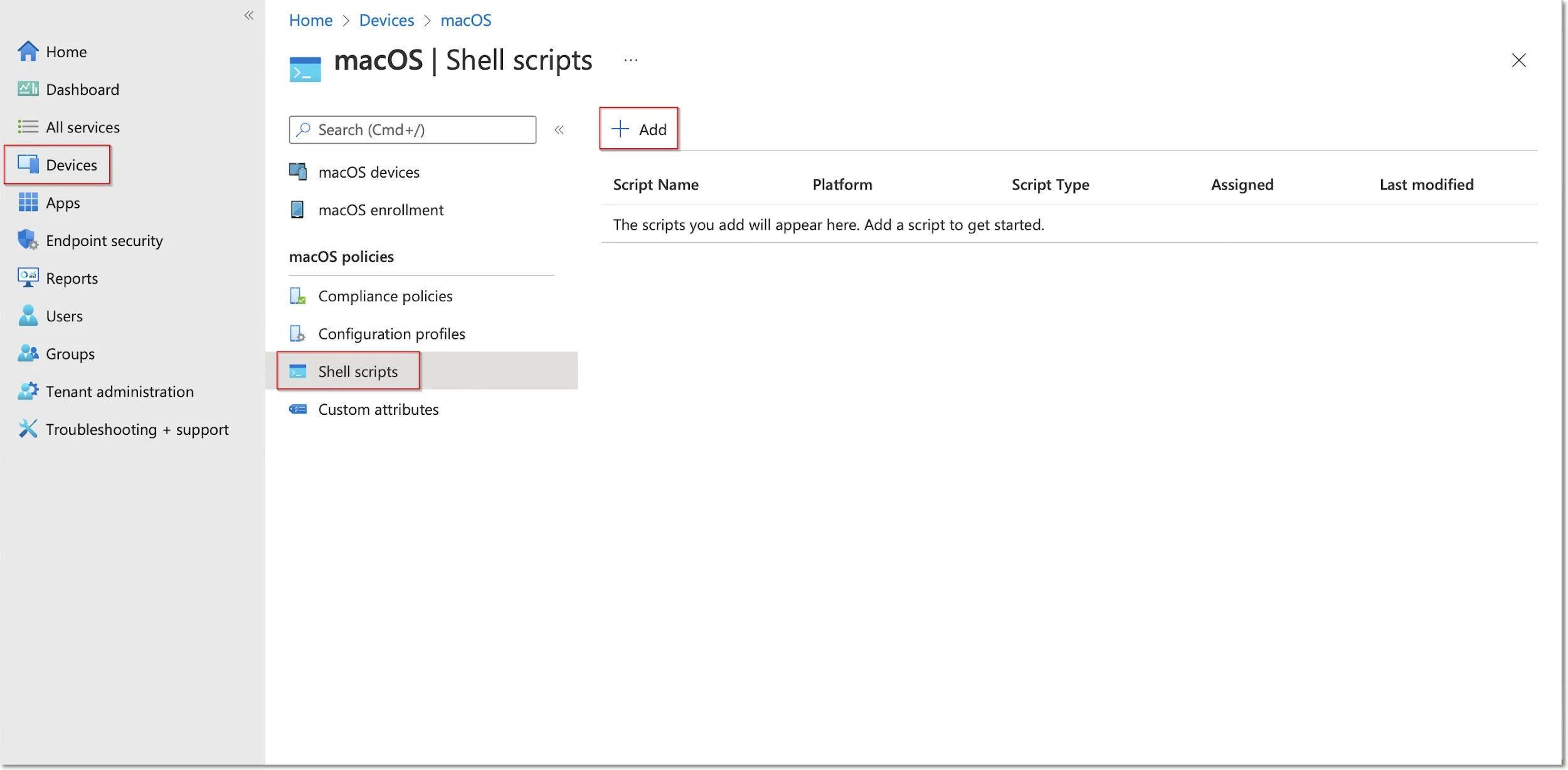
Step 10 – Go to Devices from the left-hand menu, select macOS, Shell scripts and then click Add.
Contact Customer Support to get the script.
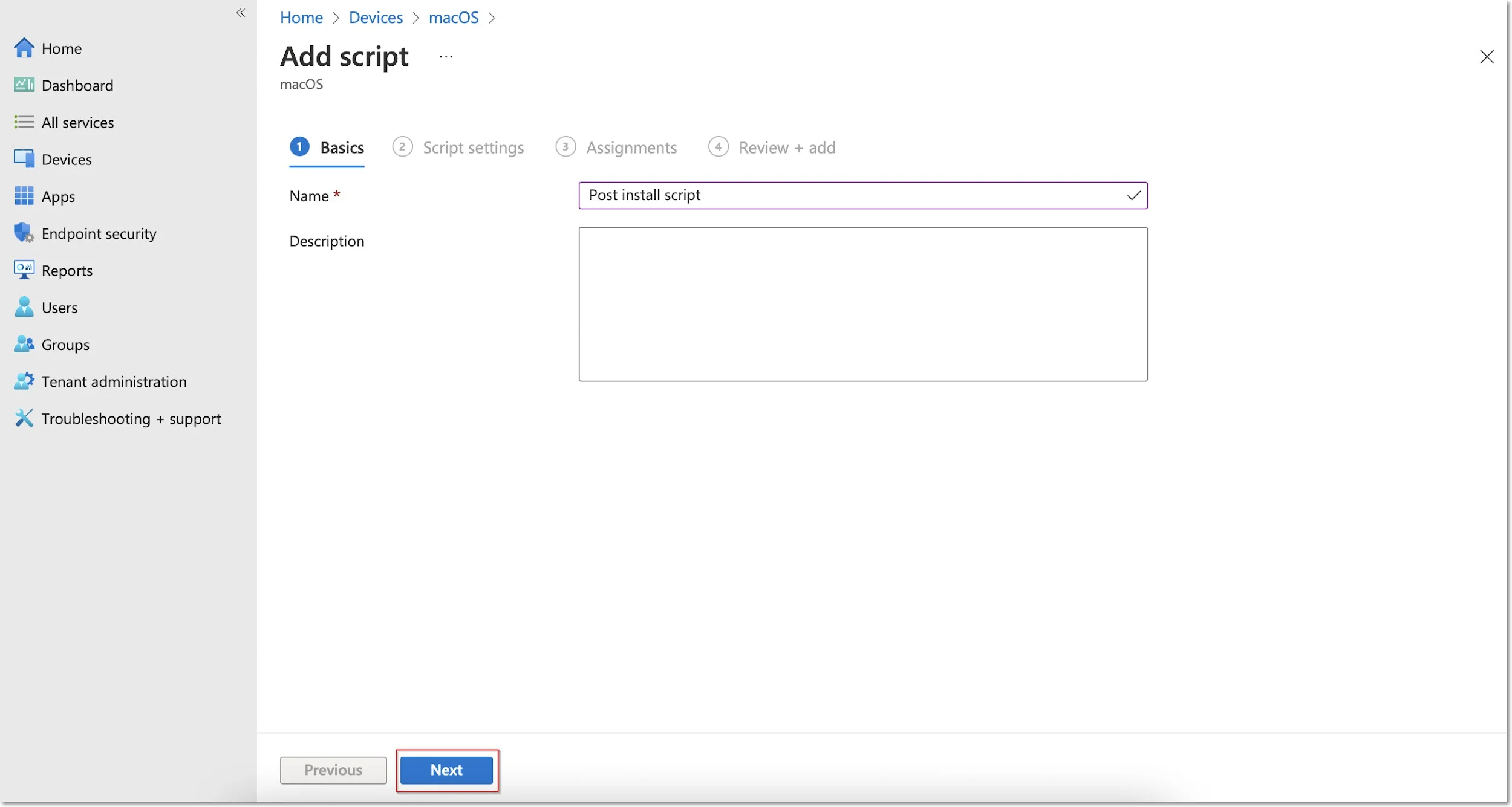
Step 11 – On the Add script page, fill in the mandatory information and then click Next.
- Name (mandatory) – add a name for the script (Post install script)
- Description – add a description for the script
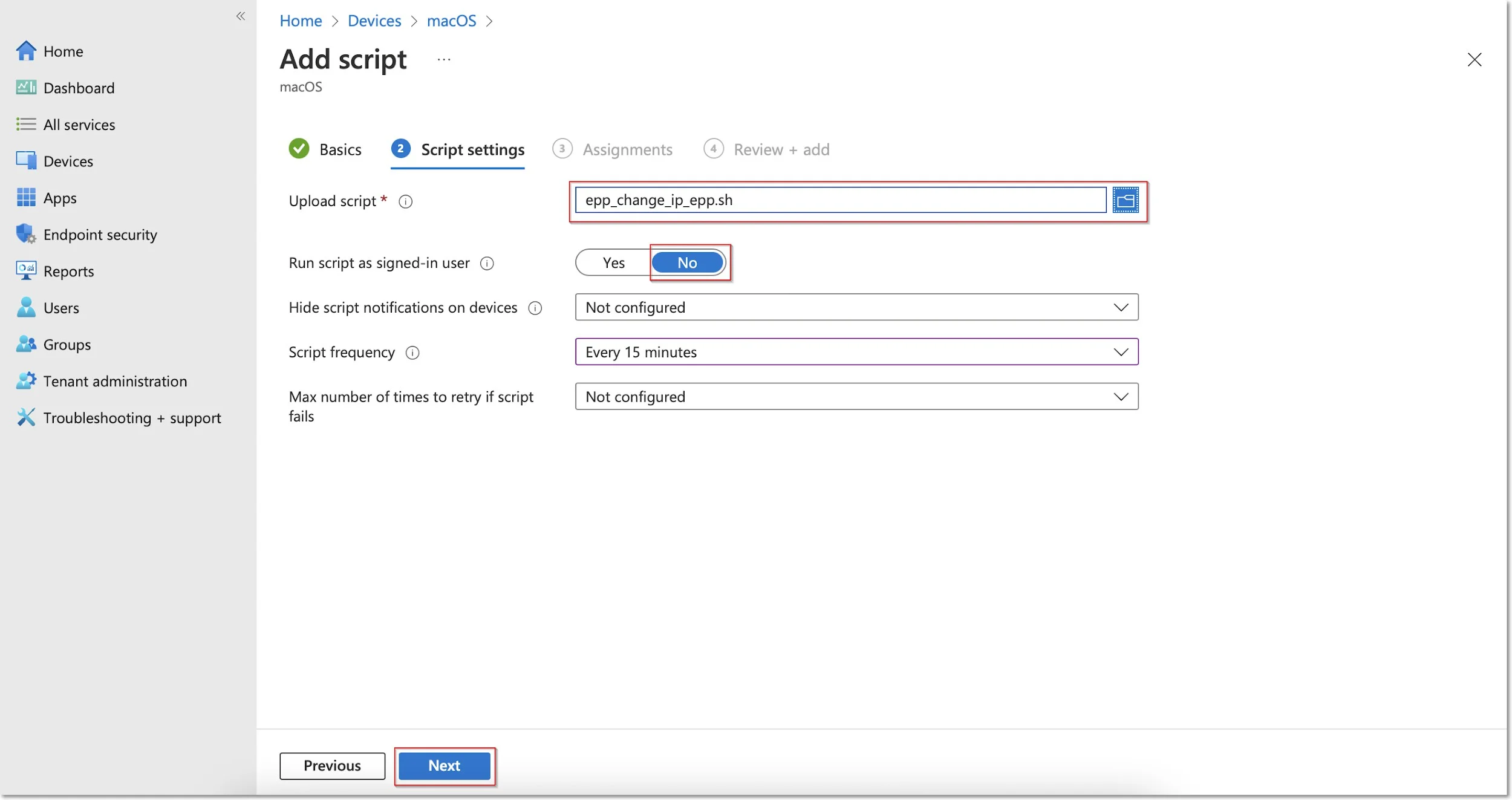
Step 12 – On the Script settings tab, add the following information and then click Next:
- Upload and select the New Jamf PostInstall script from your computer
- Set the Run script as sign-in user setting to No
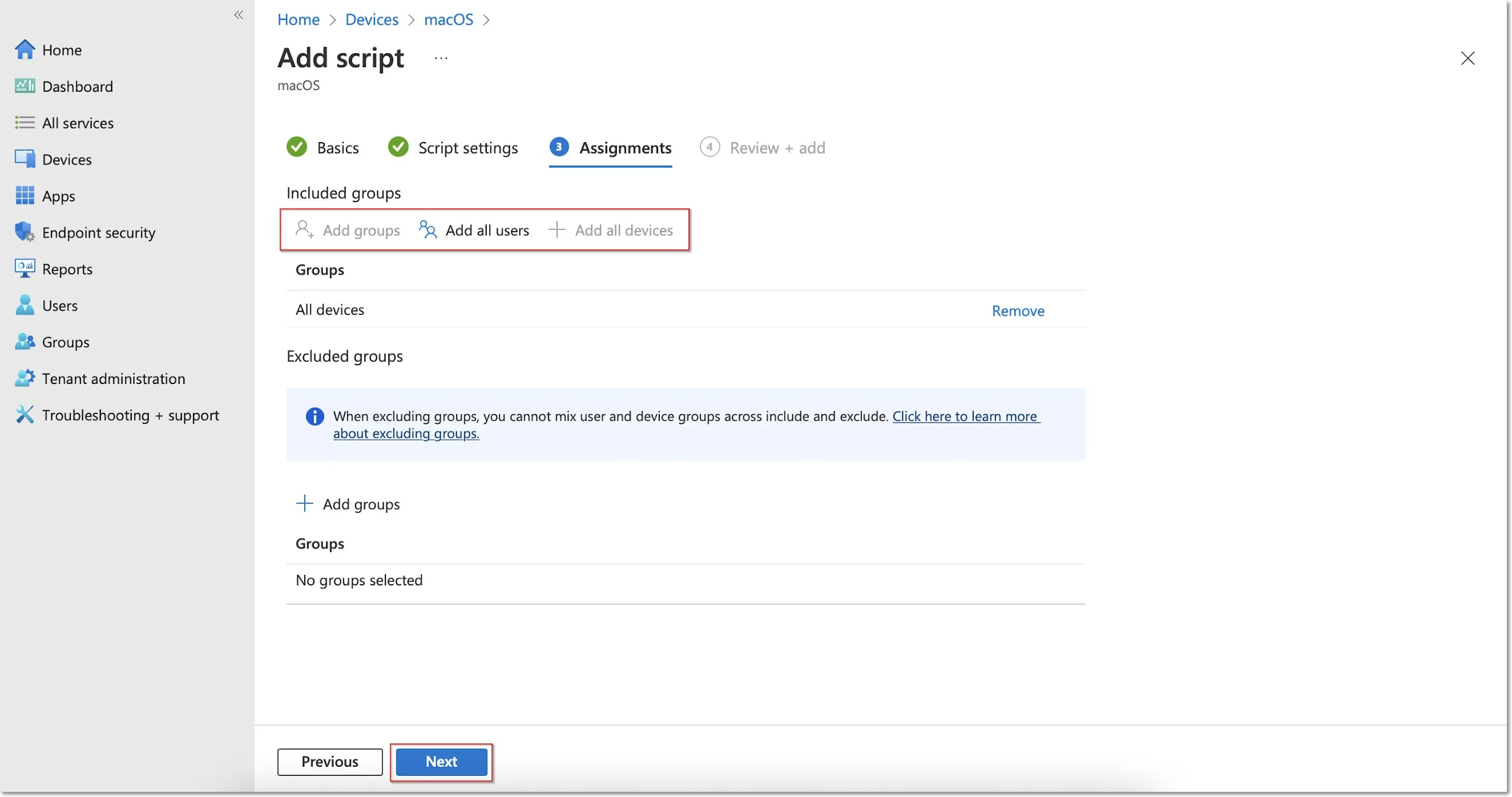
Step 13 – On the Assignments tab, include the groups you prefer (Add groups, all users, or all devices) and then click Next.
Step 14 – On the Review + add tab, review the script information and click Add.