Launching on Google Cloud Platform
After the Endpoint Protector Image appears in the Google Cloud Platform images list, create a new Virtual Machine Instance:
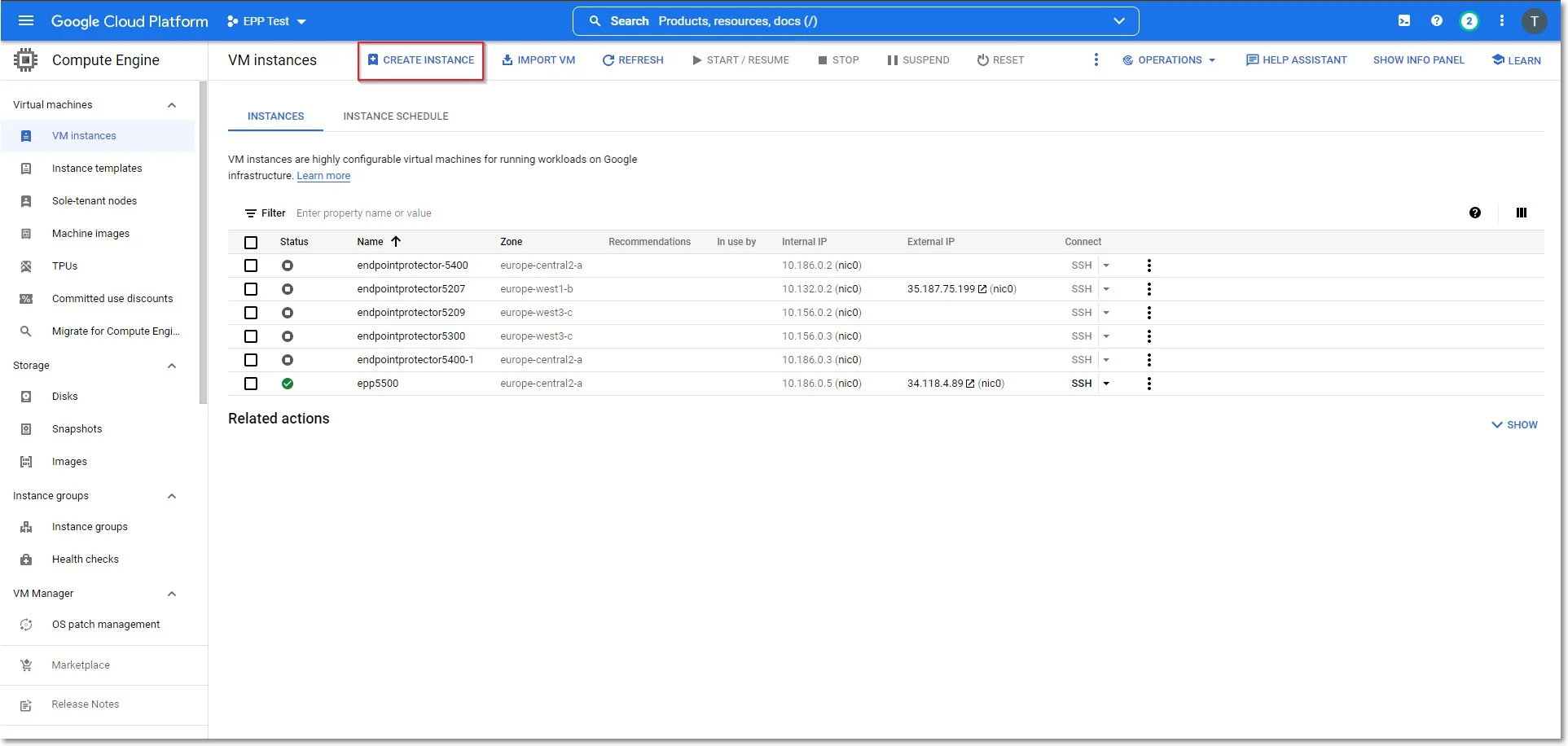
Step 1 – In the Google Cloud Platform Console, go to the VM Instances page and click Create instance.
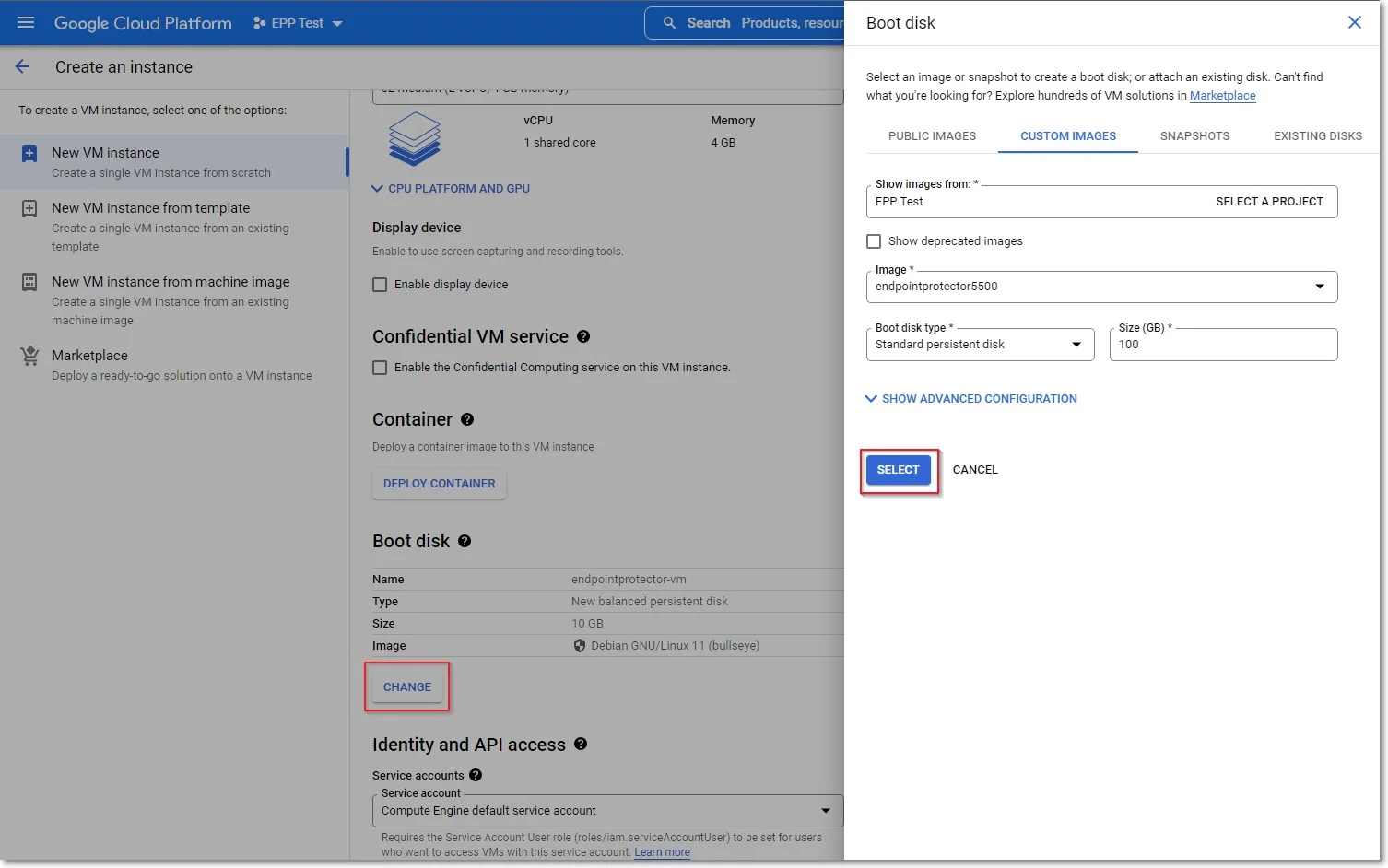
Step 2 – In the Boot disk section, click Change to begin configuring your boot disk and on the Custom Images tab, fill in the following:
- Image - select the image you imported
- Boot disk type - select Standard persistent disk
- Size – add a size larger than the Endpoint Protector image size received
- Click Select to confirm the boot disk configuration.
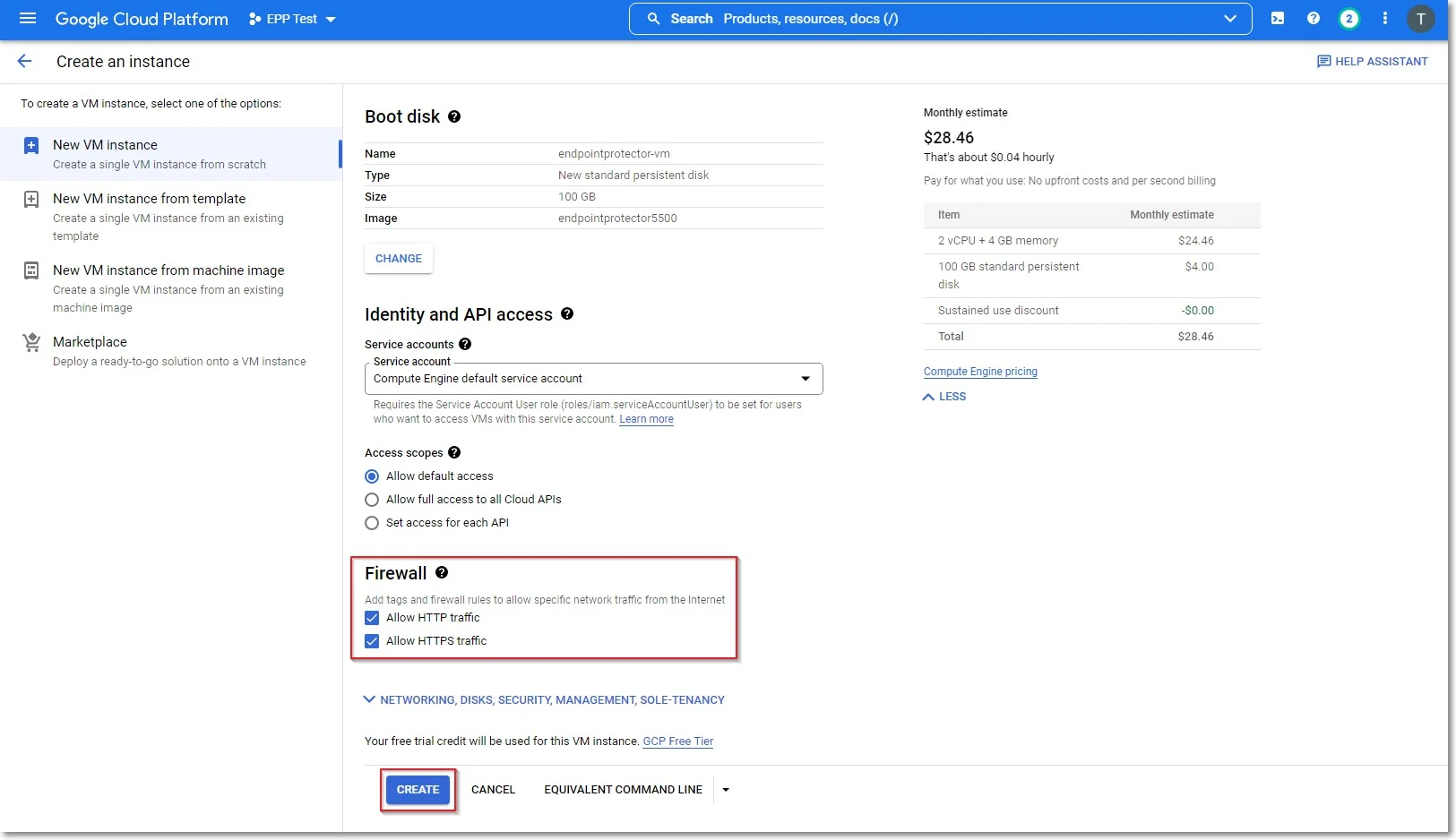
Step 3 – On the Firewall section, select Allow HTTP traffic and Allow HTTPS traffic, and then click Create.
Requesting a Static IP
Request a static IP so the Endpoint Protector Clients can communicate with the same IP Address in case of an instance restart.
Without a Static IP (Elastic IP), the instance will assign a new IP address every time it restarts, and you must reinstall the Endpoint Protector Clients.
A static IP keeps the address stable when the instance restarts, but not when you migrate to a new instance. Create a DNS record for a fully qualified domain name (FQDN) that points to the static IP, and configure clients and integrations with the FQDN. See Use an FQDN Instead of an IP Address.
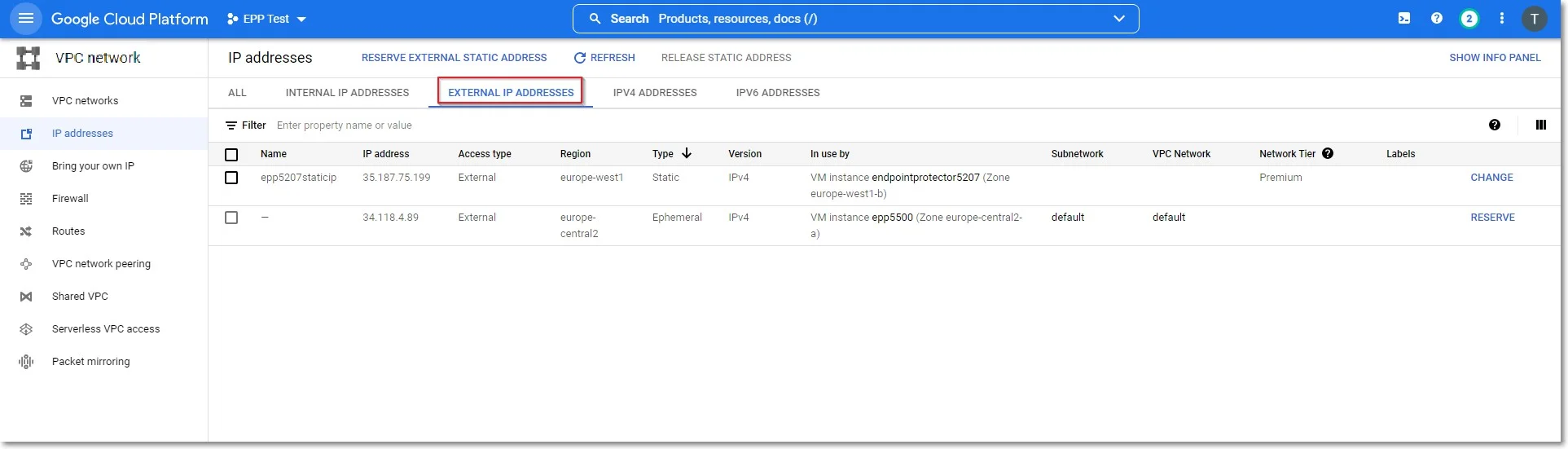
To request a Static IP, go to IP addresses and select the External IP addresses tab.
Create Firewall Rules
To create a Firewall rule, on the Google Cloud Platform Console, follow these steps:
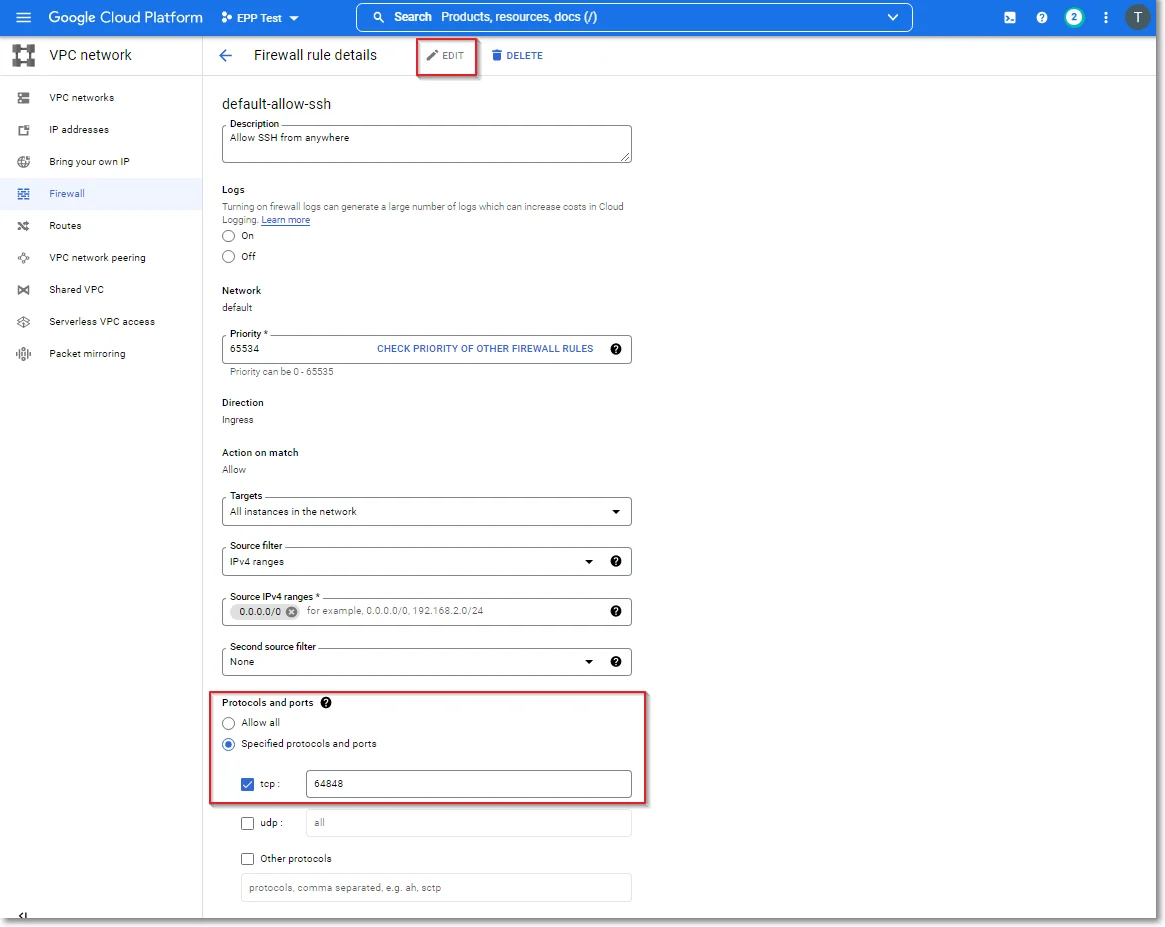
Step 4 – Go to the Firewall page and select default-allow-ssh;
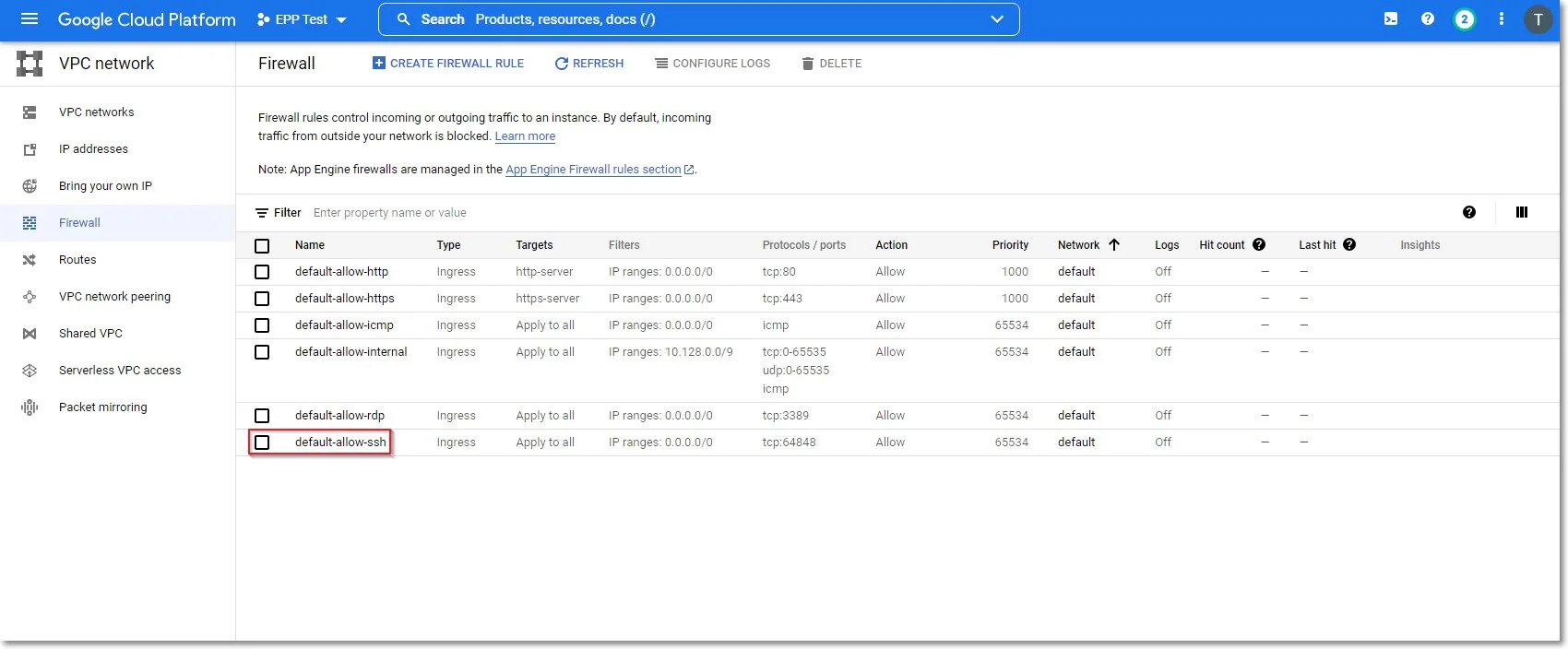
Step 5 – Click Edit and on the Protocols and ports section provide the following information:
- select Specified protocols and ports
- check the tcp box and enter 64848