Server Functionality
After the Endpoint Protector Hardware or Virtual Appliance setup is complete, access the User Interface from the assigned IP address. For more information, refer to the dedicated chapter Configuring EPP Server IP.
Always use the IP address with HTTPS (Hypertext Transfer Protocol Secure).
Use the default login credentials for the root account. To obtain the password, submit a support ticket through the Netwrix Customer Portal.
For detailed information on settings change or creating additional administrators, refer to the System Configuration topic.
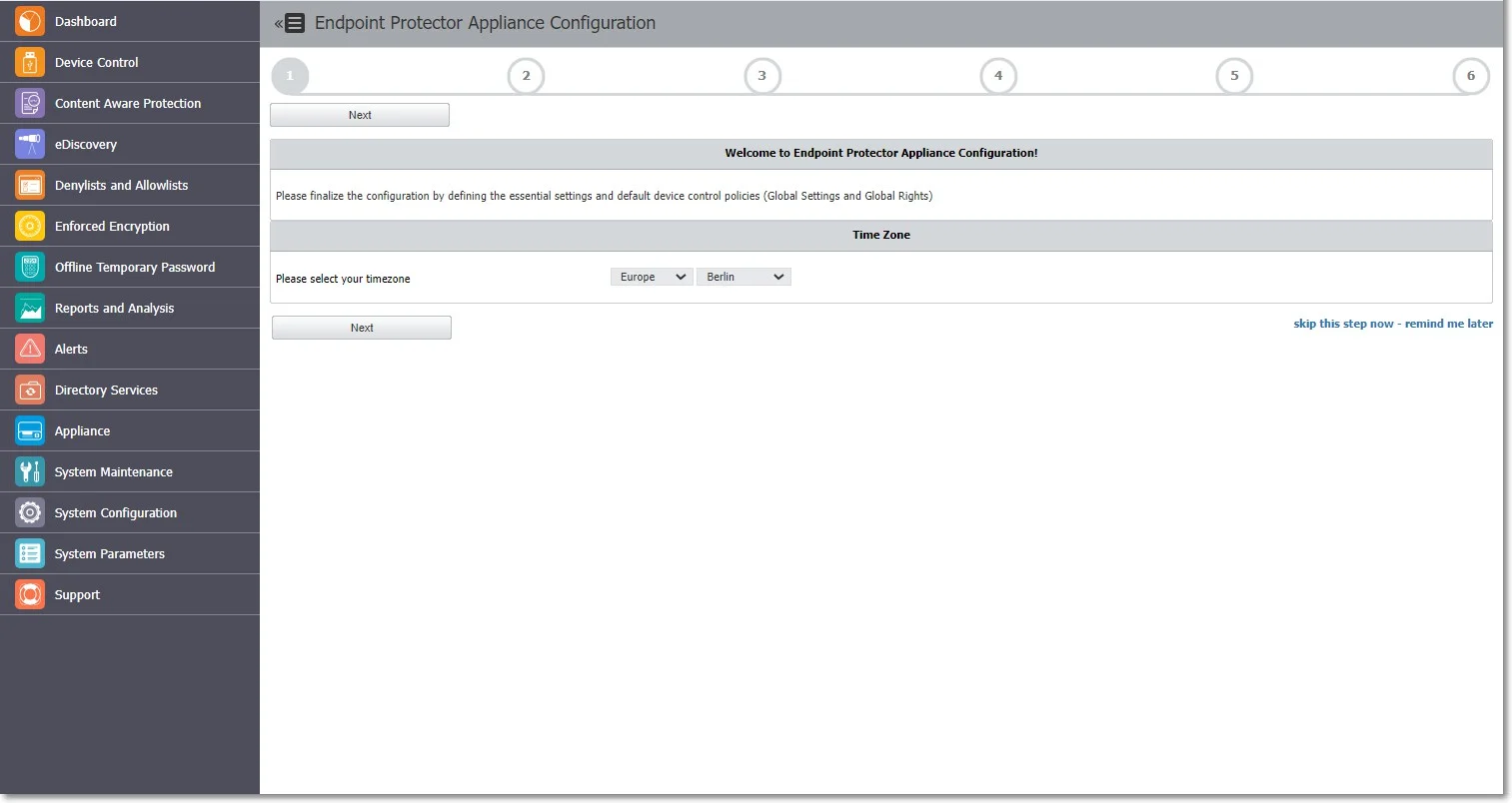
Configuration Wizard
The Configuration Wizard has several steps to define basic settings. These include setting up the Server Time Zone, importing Licenses, Server Update or uploading Offline Patches, Global device rights, E-mail Server settings, Main Administrator details, etc. You can change these settings at any time.
The Configuration Wizard is available only if no one has configured the basic settings for Endpoint Protector yet.
As an additional security measure, Endpoint Protector ends the session after 300 seconds (5 minutes) of inactivity. If you aren't active for this amount of time, Endpoint Protector notifies you that the session will expire and logs you out unless you select to continue the session.
You can customize the session timeout and timeout counter from the System Configuration topic.
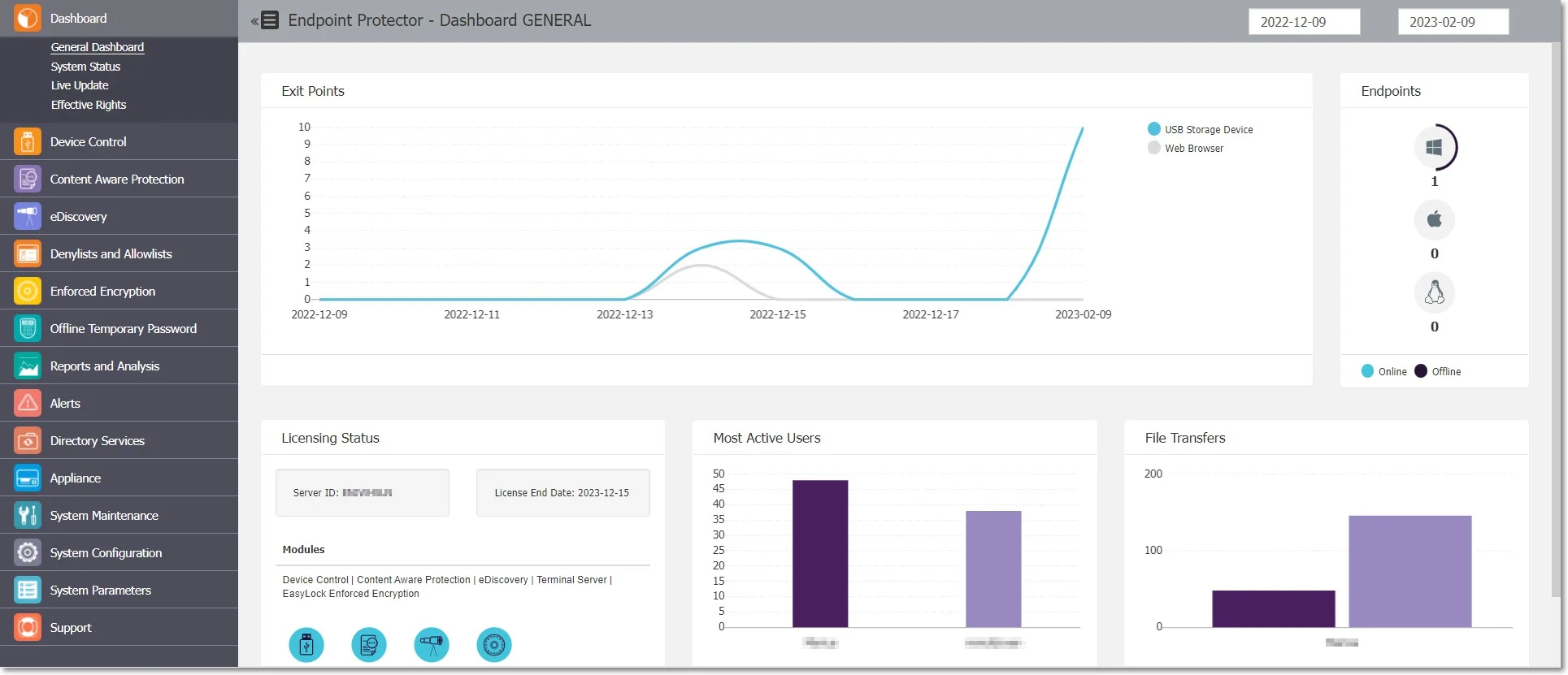
General Dashboard
In this section, you can view general information as graphics and charts related to the most important activities logged by Endpoint Protector.
The Device Control, Content Aware Protection, and eDiscovery sections have more specific dashboards.
System Status
In this section you can view general information of the system’s functionality, alerts, and backup status.
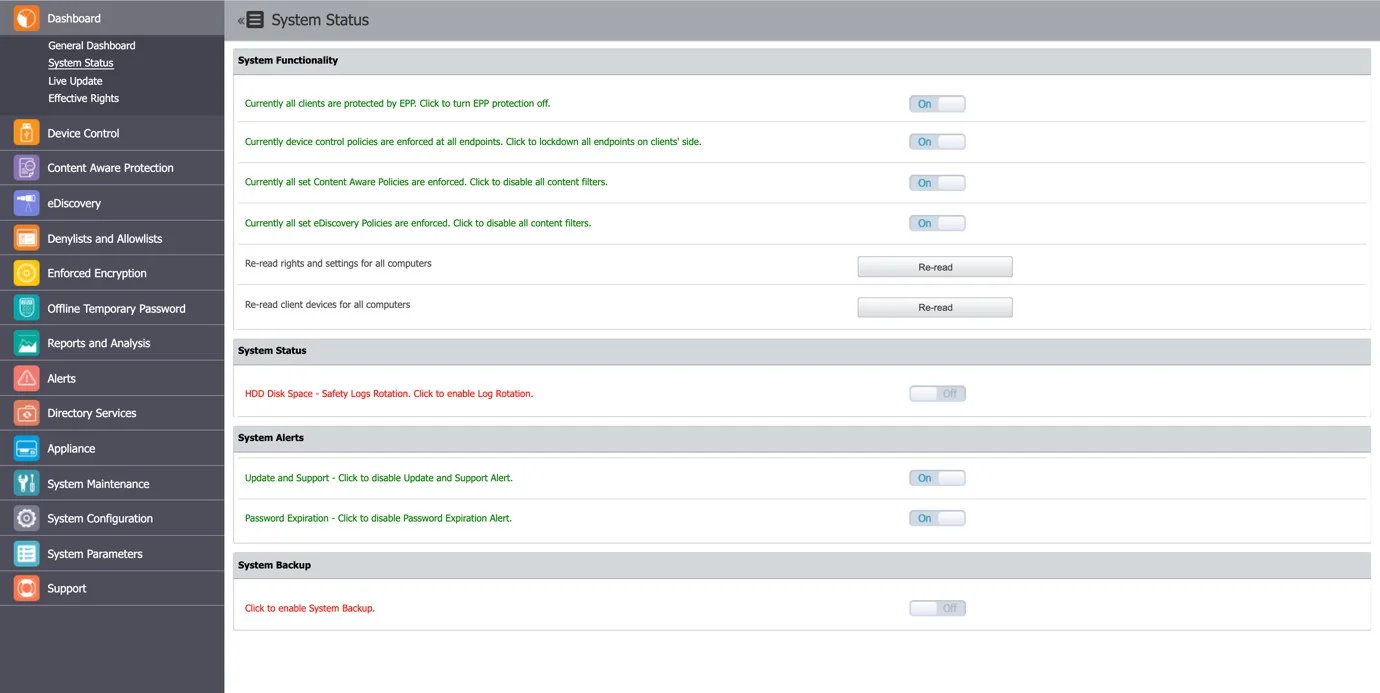
From the System Functionality section, you can enable Endpoint Protector, as well as specific modules (Device Control, Content Aware Protection, or eDiscovery).
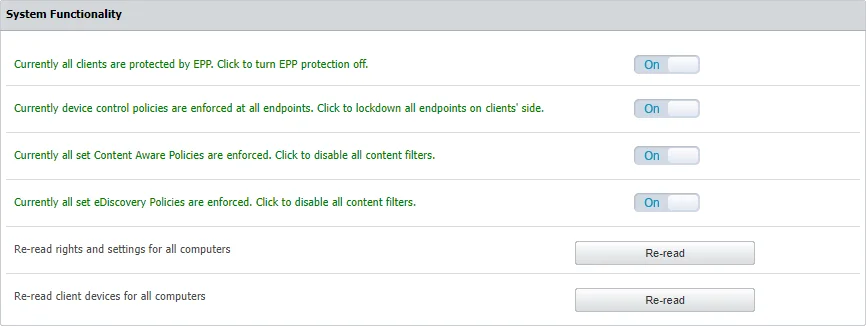
From the System Status subsection, you can enable the HDD Disk Space and Log Rotation.
If you enable this setting, when the Server’s disk space reaches a certain percentage (starting from 50% up to 90%), new logs automatically overwrite the old ones.

From the System Alerts subsection, you can enable important alerts notifying the expiration of the APNS Certificate, Updates, and Support or Passwords.
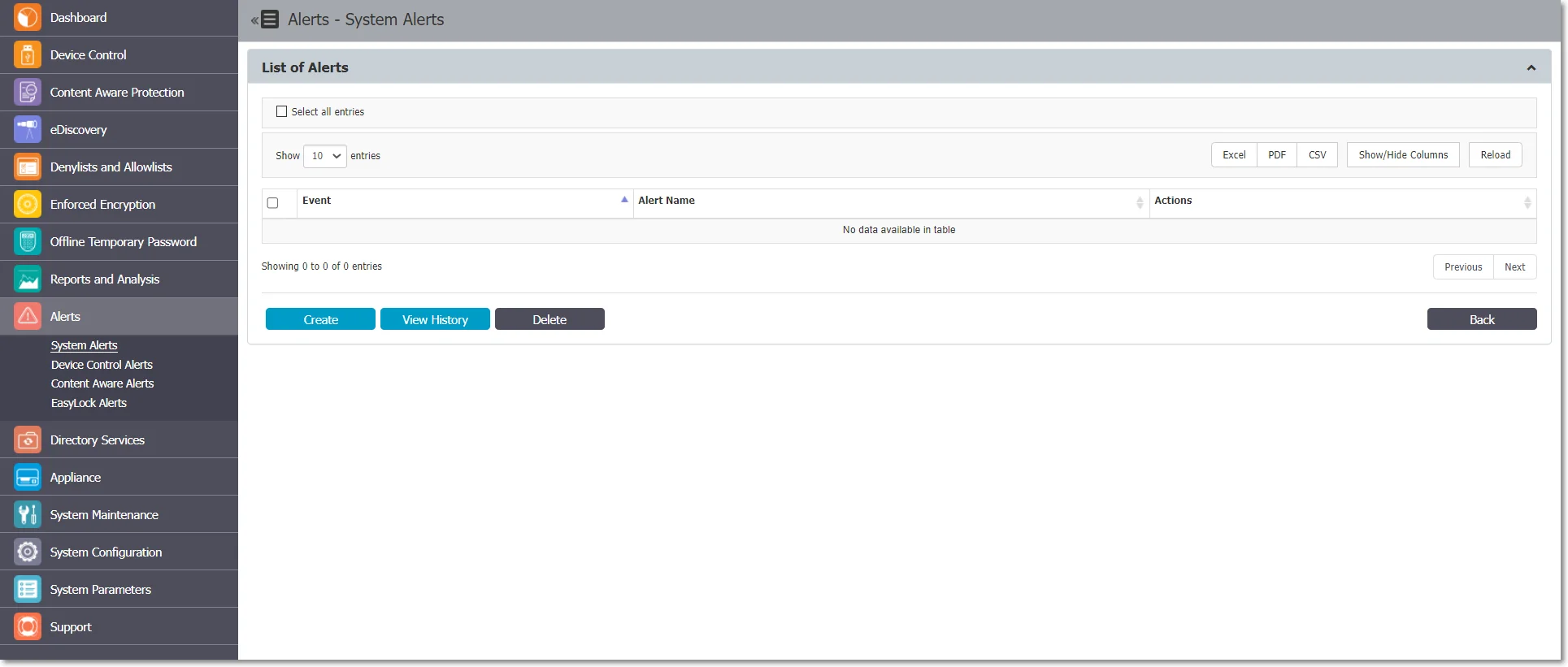
From the System Backup subsection, you can enable the System Backup.

Server Update
From this section, you can apply the latest security and Endpoint Protector Server offline updates. Starting with version 2509, Endpoint Protector no longer offers the Live Update feature.
This feature communicates through port 80. Whitelist the liveupdate.endpointprotector.com (IP: 178.63.3.86) domain.
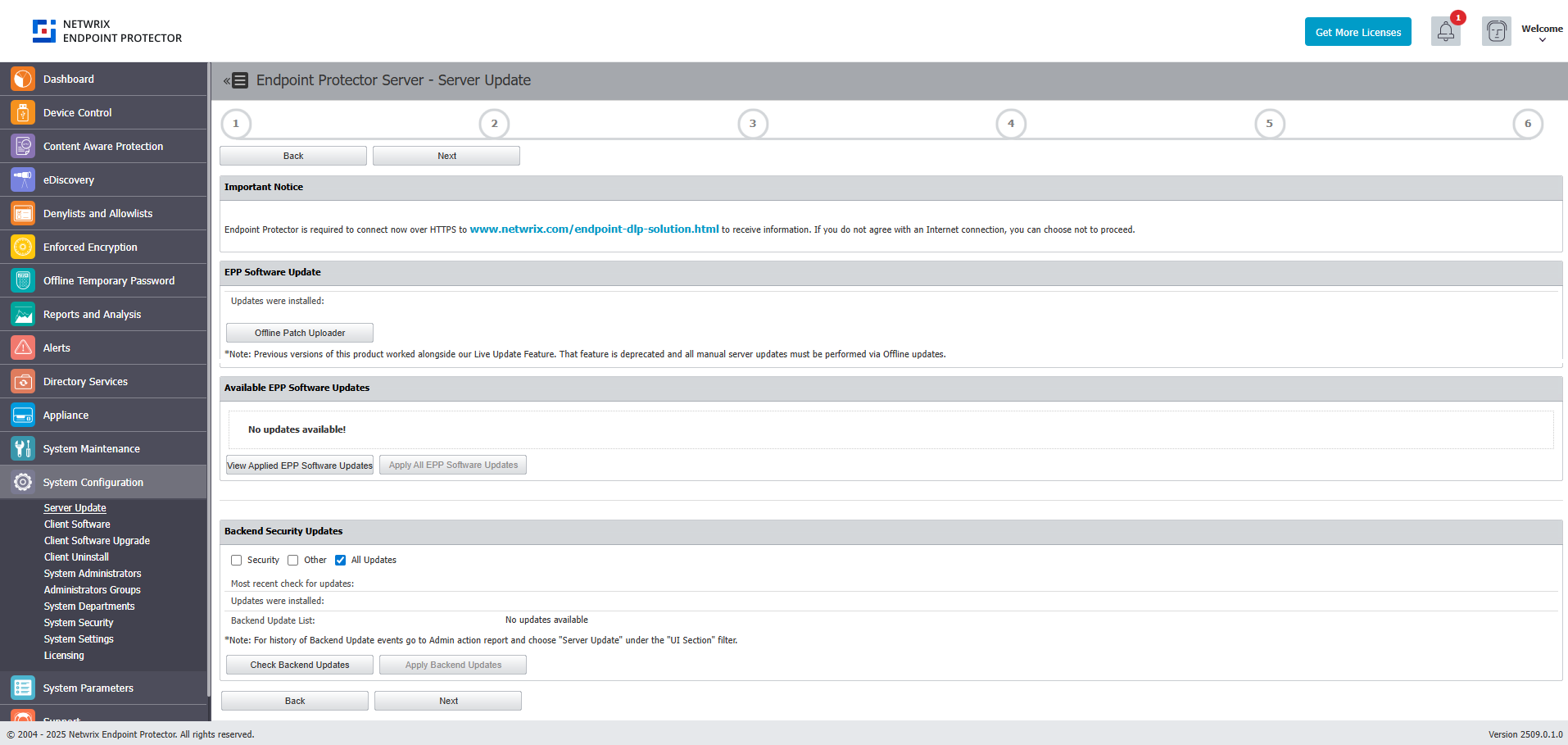
Software Update
Use the Offline Patch upload option to select the offline patches from your computer and successively install them to the latest Endpoint Protector version.
To request the Offline Patch, submit a support ticket through the Netwrix Customer Portal.

Before upgrading your Endpoint Protector server to the 5.7.0.0 server version from a pre-5206 version and adjacent OS image, you need to enable database partitions. For assistance, submit a support ticket through the Netwrix Customer Portal.
Security Updates
You can use this section to check and apply different types of security updates, view information on recent updates checked or installed, and a list of updates available.
The security update options will only be available for customer-hosted instances (e.g. AWS, Goggle, etc.) with the exception for Operating System and Kernel upgrades.
Netwrix doesn't test these updates beforehand; Endpoint Protector pulls them from the official Linux repository.
To ensure the updates will not harm the system, follow these actions:
- test the updates in a test environment first
- make a VM snapshot
- make a system backup from the System Maintenance, the System Backup v2 section
Select one of the security updates type available and then click Check Updates:
- Security – this will update all security-related updates of installed packages (Critical and High)
- Other – this will download and apply any update available to 3rd party libraries, kernel, OS packages and MySQL database
- All Updates – this will download and apply Informational and Optional/Unclassified updates
If there are updates available, click Apply Updates.
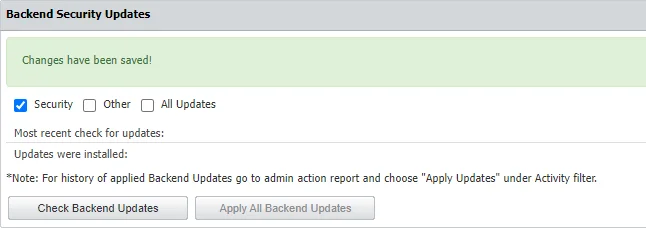
For history of applied Backend Updates go to admin action report and choose Apply Updates under Activity filter.
Due to patching nature, some updates may automatically restart the Endpoint Protector server or other sub-services in the background
Effective Rights
In this section you can view applied Device Control or Content Aware Protection policies. Based on the options you select from the Effective Rights Criteria form, you can view information based on rights, users, computers, device types, specific devices, report type (PDF or XLS), including Outside Hours and Outside Network Policies, and more.
After Endpoint Protector generates the report, you can download or delete it from the Actions column.