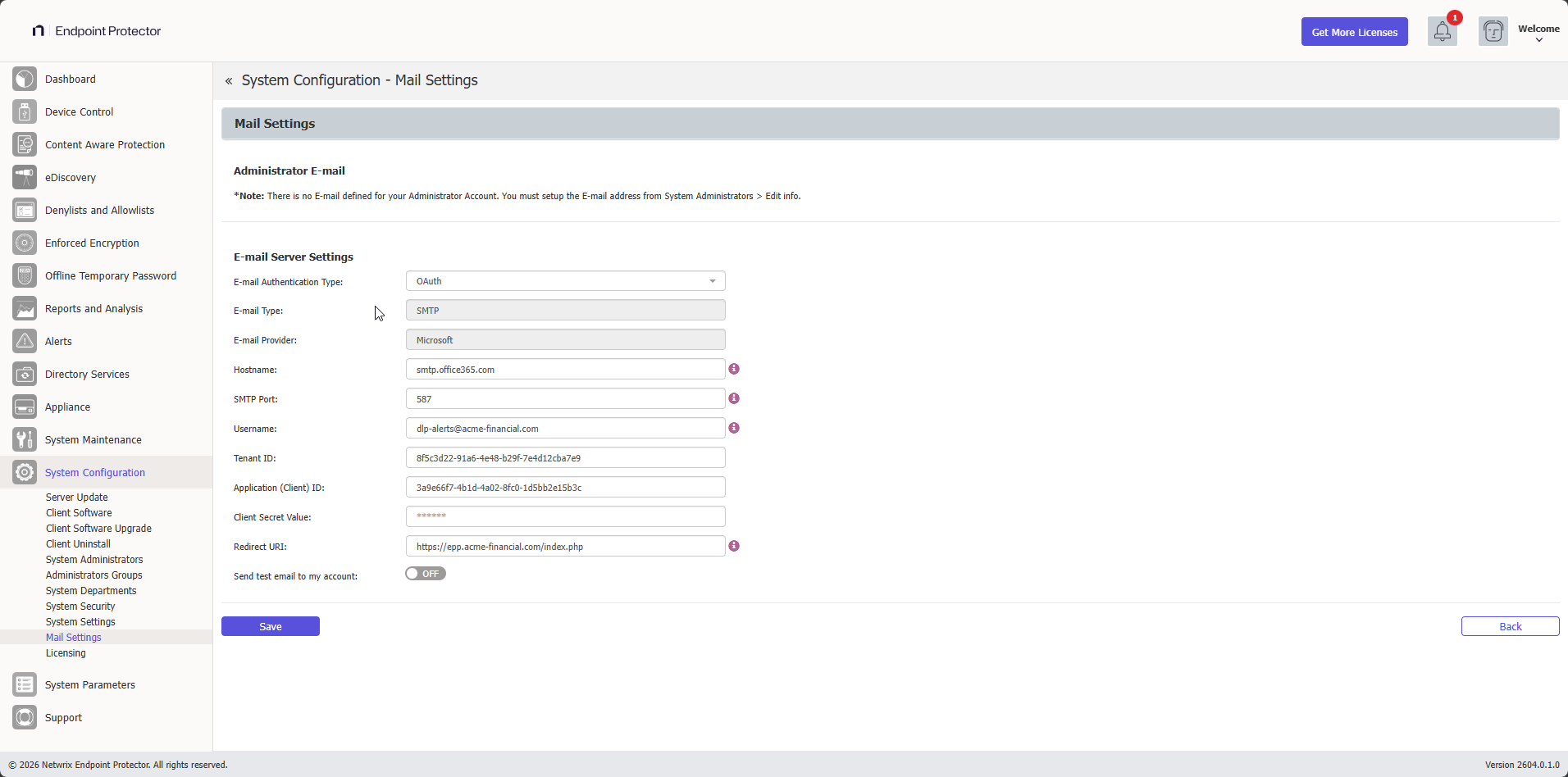
Mail Settings
From this section, you can configure the email server settings that Endpoint Protector uses to send notifications, alerts, and test emails.
E-mail Authorization Required
When you select OAuth as the E-mail Authentication Type, you must authorize Endpoint Protector to complete the email setup. Click Sign In to grant Endpoint Protector access to send emails on your behalf.
Administrator E-mail
Endpoint Protector sends the test email to the address configured for your administrator account. If no email address is set, you see the message: "There is no e-mail defined for your Administrator Account. You must set up the e-mail address from System Administrators > Edit info".
To set an email address, go to System Configuration > System Administrators and select Edit info.
E-mail Server Settings
Configure the email server that Endpoint Protector uses to send notifications and alerts.
This feature requires an active Internet connection.
E-mail Authentication Type
Use the E-mail Authentication Type dropdown to select how Endpoint Protector authenticates with the email server:
- Basic — standard username and password authentication. Supports native and SMTP email types. Endpoint Protector negotiates TLS automatically, using TLS 1.3 where available and falling back to TLS 1.2 otherwise.
- OAuth — OAuth 2.0 authentication for Microsoft Exchange Online. Use this option to comply with Microsoft's deprecation of Basic Auth for SMTP AUTH.
Basic authentication
When you select Basic, configure the following fields:
- E-mail Type — select Native or SMTP
- Hostname
- SMTP Port
- Require SMTP Authentication
- Username
- Password
- Encryption Type
- No-reply email address — select Default or Custom. See No-reply email address.
- Custom no-reply e-mail address — the sender address Endpoint Protector uses when No-reply email address is set to Custom
No-reply email address
The No-reply email address setting controls the sender (From) address on the emails Endpoint Protector sends. Some email providers, including Microsoft 365, reject messages whose From address isn't valid for the account, and the test email fails.
To set a valid sender address:
- Set No-reply email address to Custom.
- In Custom no-reply e-mail address, enter a valid address that your provider accepts as the sender, for example the mailbox you use to authenticate.
- Save the settings and check that Endpoint Protector sends the test email.
OAuth authentication
When you select OAuth, configure the following fields:
- E-mail Type — SMTP (read-only)
- E-mail Provider — Microsoft (read-only)
- Hostname — recommended:
smtp.office365.com - SMTP Port — recommended:
587 - Username
- Tenant ID
- Application (Client) ID
- Client Secret Value
- Redirect URI — must match the redirect URI registered in your Microsoft Azure application
After filling in all fields, click Sign In to complete OAuth authorization.
The redirect URI saved in Mail Settings must exactly match the redirect URI registered in your Microsoft Azure application.
Microsoft Azure prerequisites
Endpoint Protector supports OAuth for Microsoft Exchange Online. Your subscription must be one of the following:
- Microsoft 365 Business Basic, Standard, or Premium
- Office 365 E1, E3, or E5
- Microsoft 365 E3 or E5
- Exchange Online Plan 1 or 2
Step 1 – In the Microsoft Admin Center, go to Users > Active Users, select the user, and then go to Mail > Manage email apps. Enable Authenticated SMTP.
Step 2 – In Microsoft Azure, go to your app Overview > Manage > Redirect URIs. Click Add a platform, select Web, and enter the redirect URI (for example, https://192.168.0.2/index.php).
Step 3 – Go to Client Credentials > Client Secrets. Create a new client secret and copy the value.
Step 4 – Go to API Permissions > Add a permission > Microsoft Graph > Delegated Permissions. Select SMTP.Send and offline_access, then click Grant admin consent for the selected permissions.
Mail Server Logs
From the Mail Server Logs tab you can review the errors captured when Endpoint Protector tries to send a message through the configured email server. Use this view to troubleshoot delivery failures directly from the UI instead of opening a shell on the appliance.
Access the logs from System Configuration > Mail Settings > Mail Server Logs tab.
Log columns
| Column | Description |
|---|---|
| Authentication Type | Whether the send attempt used Basic or OAuth authentication |
| Status | Status of the captured event (error for all entries) |
| Log Message | Human-readable error, including the SMTP return code or OAuth error code reported by the server |
| Registered at | Server timestamp when Endpoint Protector captured the error |
| Mail Settings | Click the row to expand and review the mail server configuration in effect at the time of the error |
What gets logged
The tab captures the following error categories when they occur during a send attempt:
- DNS / hostname resolution failures — for example, Couldn't resolve hostname
smtp.office365.com - Connection timeouts — for example, Connection timed out after 30 seconds while connecting to
smtp.office365.com:587 - TLS/SSL handshake failures — for example, TLS handshake failed - peer certificate validation error
- SMTP server return codes — including authentication failures (
535), invalid recipients (550), service throttling (421), and policy rejections (554) - OAuth errors — Microsoft Azure error codes such as
AADSTS50011(redirect URI mismatch),AADSTS700082(refresh token expired), andAADSTS7000215(invalid client secret)
Row details
Click any row to expand it and review the Mail Settings snapshot that was active at the time of the error. The snapshot includes:
- Basic entries — Hostname, SMTP Port, Username, Encryption Type
- OAuth entries — Hostname, SMTP Port, Username, Tenant ID, Application (Client) ID, Redirect URI
Endpoint Protector never writes the Client Secret or the OAuth access and refresh tokens to the logs.
Supplemental log files
Endpoint Protector also writes errors to log files on the appliance for additional context and for cases that the UI doesn't capture:
| Scenario | Log file |
|---|---|
| OAuth errors and SMTP errors over SSL/TLS | /var/eppfiles/epp_logger/epp_mail.log |
| Basic authentication using SMTP with TLS 1.3 | /var/log/mail.log |
Endpoint Protector writes Basic authentication errors that occur over SMTP with TLS 1.3 only to /var/log/mail.log and doesn't show them in the Mail Server Logs tab. To review those errors, open the file directly on the appliance.
Troubleshooting
Test email fails with "SMTP Error: data not accepted"
If the test email fails and the mail logs show "SMTP Error: data not accepted", the email provider rejected the sender (From) address. This can happen with Basic authentication and providers such as Microsoft 365, for example smtp.office365.com on port 587 with TLS. Set No-reply email address to Custom and enter a valid address in Custom no-reply e-mail address. See No-reply email address.
UI messages
Endpoint Protector displays the following messages during email configuration and testing:
| Situation | Message |
|---|---|
| Test email sent successfully | A test e-mail was sent to <address> |
| No administrator email configured | There is no e-mail defined for your Administrator Account. You must set up the e-mail address from System Administrators > Edit info |
| Test email failed to send | Failed to send the test e-mail! verify if the E-mail Server Settings are correct! |
| OAuth authorization failed | Email authorization failed! check the provided credentials and try again! |
| Settings saved successfully | Changes have been saved! |
| OAuth authorization completed | Your email has been verified. Authorization complete! |
| Error saving settings | Can't execute command! An error occurred! |