EPP Clients Migration
This section provides a complete overview of the EPP Clients Migration settings. From this page, you can set new global migration settings by specifying the details of the new EPP Server FQDN/IP and port. You can then trigger migration for individual computers from the computer management page, where you can assign individual computers or groups of computers to the new server. After you trigger the migration, EPP Clients begin the migration process to the target server. If the migration attempt fails, EPP activates the existing failover procedure. EPP logs all transactions for tracking and auditing.
Only EPP Client 2511.x.x.x and higher are available for the migration operation. Netwrix plans to add support for the Enforced Encryption (EE) Client in a future release.
This feature requires EPP Server 2601 or later. You can't use it to migrate clients between EPP Server 5.9.4.2 and image-based releases earlier than 2601, such as 2510.
Migrate clients to an FQDN instead of an IP address. Clients bound to an FQDN keep working when the server later moves to a new IP address, so you don't need to run another client migration.
Configuring the EPP Clients Migration page
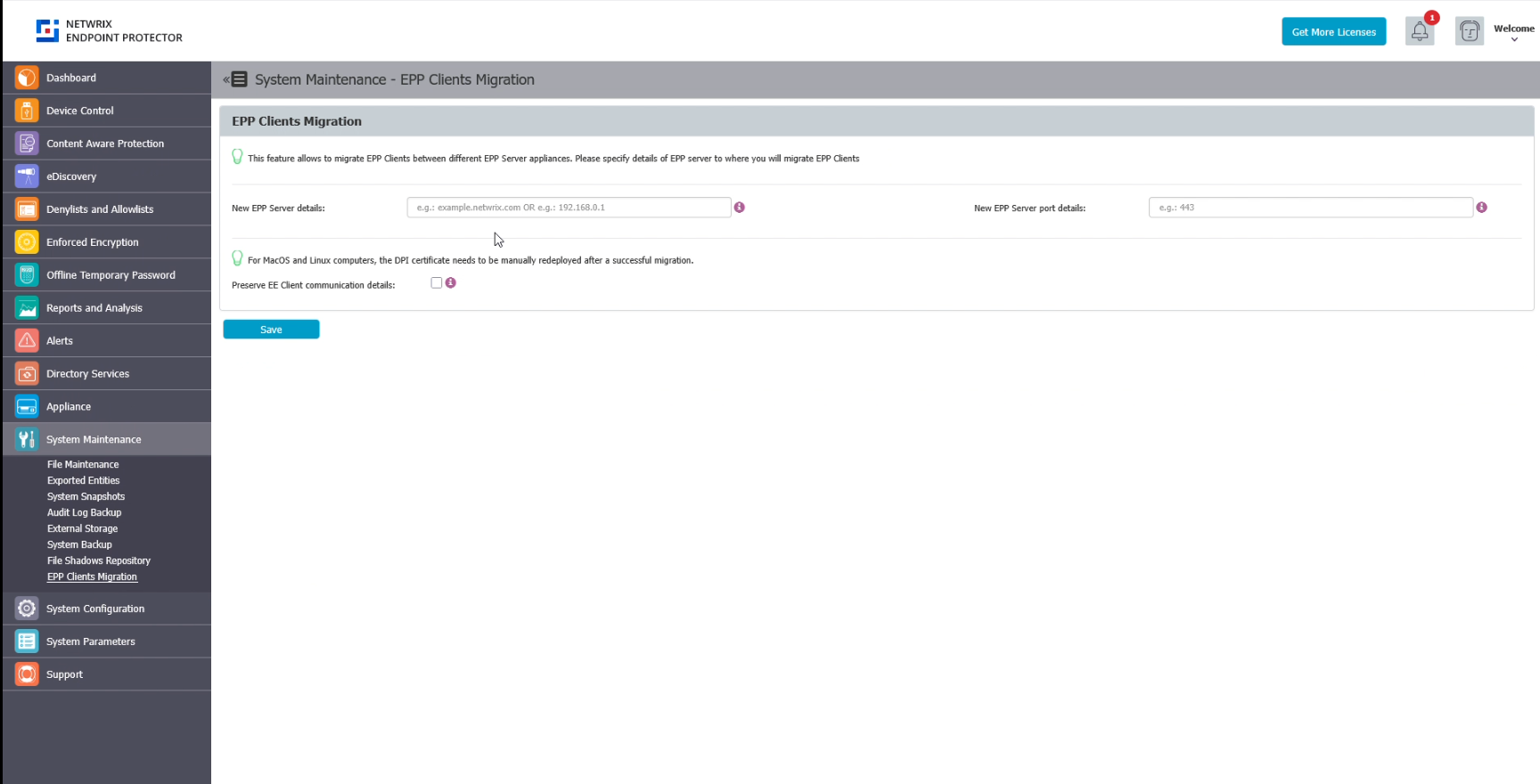
- Go to System Maintenance ->EPP Clients migration page
- Add New EPP Server details. Specify the fully qualified domain name (FQDN) of the new target EPP Server, for example example.netwrix.com. You can also specify an IP address, for example 192.168.0.2, but Netwrix recommends an FQDN.
- Add the New EPP Port details. Specify the Server - Client communication port (eg. 443) of the new target EPP server
Optionally, preserve EE Client communication details. When enabled, this option preserves existing EE communication details and doesn't migrate the EE client to the new EPP server. This is useful for complex migration plans and edge cases.
For MacOS and Linux computers, you must manually redeploy the DPI certificate after a successful migration.
- Save the configuration
Migrating Computers to the New EPP Server
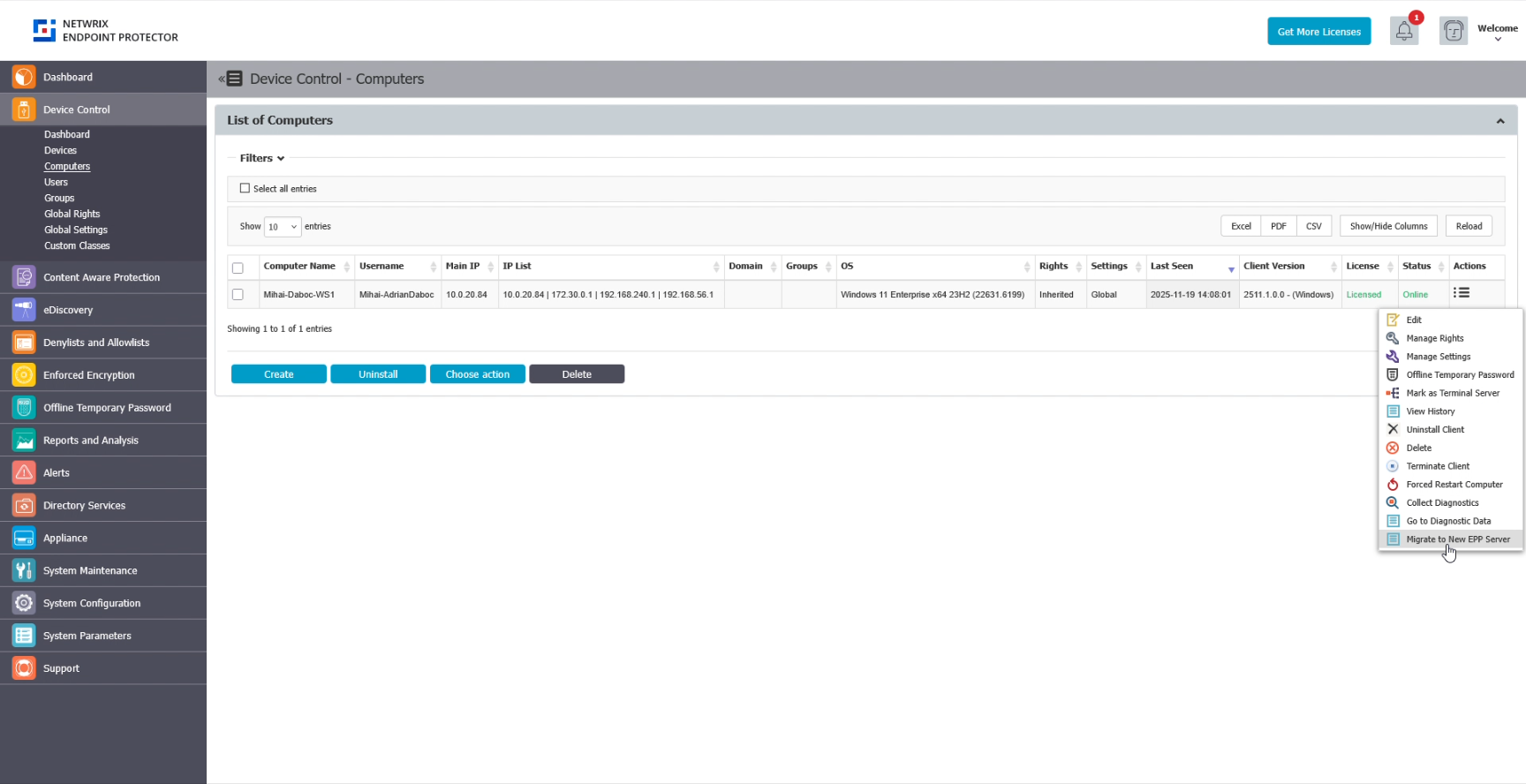
- Go to Device Control -> Computers
- For the computers you want to migrate, go to Actions/Migrate to New EPP Server. This sends the selected computers instructions to re-register with the new EPP Server.
- After the EPP Client receives instructions in the next server communication cycle, migration begins.
On the EPP Client side, when the EPP Client receives new EPP Server details, the registration procedure starts.
If the migration process is successful, EPP drops the previous server connection and creates a successful log entry on the client side and a server admin action log report. Migration for the EE client can also begin as a second step, if the settings indicate that operation.
If the migration process fails, EPP keeps the previous server connection and creates a failure log entry on the client side and a server admin action log report. Migration for the EE client will not begin and the process stops.