Configure a new Directory Manager server to add it to an existing Directory Manager 11 cluster with an existing database
While installing Directory Manager, you can choose to create a Directory Managerserver with load balancing support, where load will be balanced in real time with multiple Data Services, portals, and Elasticsearch instances.
This option also configures the Directory Manager Elasticsearch Service as a slave node to the master node for the Elasticsearch Service cluster configured on the Directory Manager server.
Before You Begin
All Directory Manager servers in a multi-instance deployment share the same GroupID password, passphrase, and signing key. Before you configure the new server, export all three from the primary server. Import the GroupID password and passphrase on the new server before you run the Configuration Tool. Import the signing key while you run the Configuration Tool.
Step 1 – On the primary server, export the GroupID password with the GroupIDPasswordTransfer utility. You don't need to generate a new password first. See the Export/Import the New Password section of the Security Utility topic.
Step 2 – On the primary server, export the passphrase. See the Passphrase Utility topic.
Step 3 – On the primary server, export the signing key. See the Export a Signing Key section of the Signing Key Utility topic.
Step 4 – Copy the exported files to the new server.
Step 5 – On the new server, import the GroupID password and the passphrase.
Configure the Server
To configure a Directory Manager server with existing database:
Step 1 – On the Select to create new server or use existing server page of the Configuration Tool, select Configure a New Directory Manager Server with a New or an Existing Database option. See Step 3 on the Configuration Tool topic.
Step 2 – Click Next.
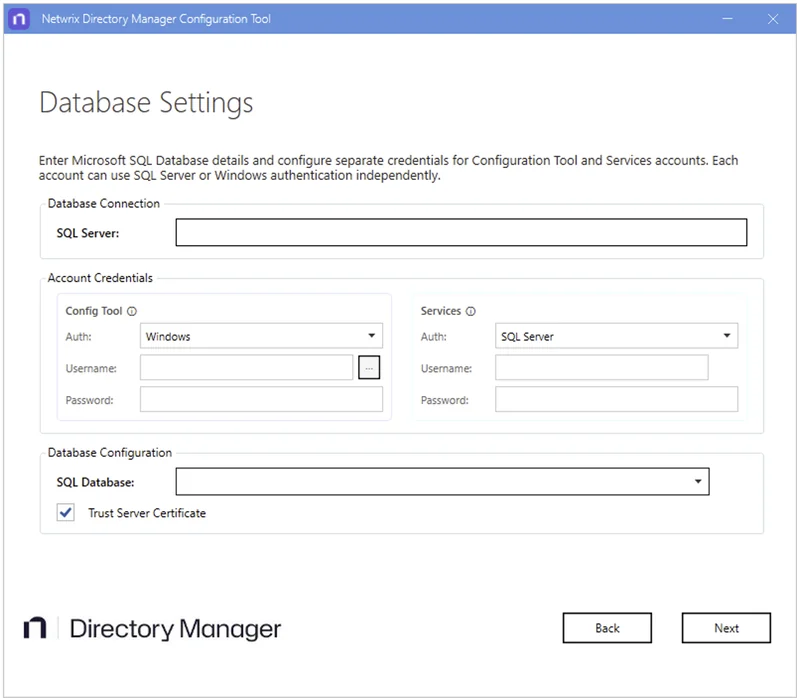
Step 3 – In the SQL Server box, enter the name of the SQL Server to use with this new Directory Manager server. The SQL Server must be the same used with the master node of Directory Manager.
Step 4 – Under Account Credentials, set the credentials that the Config Tool and Services accounts use to connect to SQL Server. Each account can use SQL Server or Windows authentication independently. For each account, select the authentication mode in the Auth list. Modes are:
- SQL Server - To connect using an SQL Server account. See the Authentication Modes topic for additional information.
- Windows - To connect using a Windows user account. See the Authentication Modes topic for additional details.
Step 5 – Depending on the authentication mode selected, do the following:
- For SQL Server: enter the user name and password of the SQL Server account in the Username and Password boxes.
- For Windows: enter the user name and password of a domain account or a Windows local account that the account will use to connect with SQL Server, or click the ellipsis button next to Username to select the account.
Step 6 – In the SQL Database box, specify the name of the SQL database being used by the master Directory Manager node. This new Directory Manager instance will use the same database. The Trust Server Certificate check box is selected by default. See the SQL Certificate for Windows Authentication topic for details on the SQL certificate.
Step 7 – Click Next.
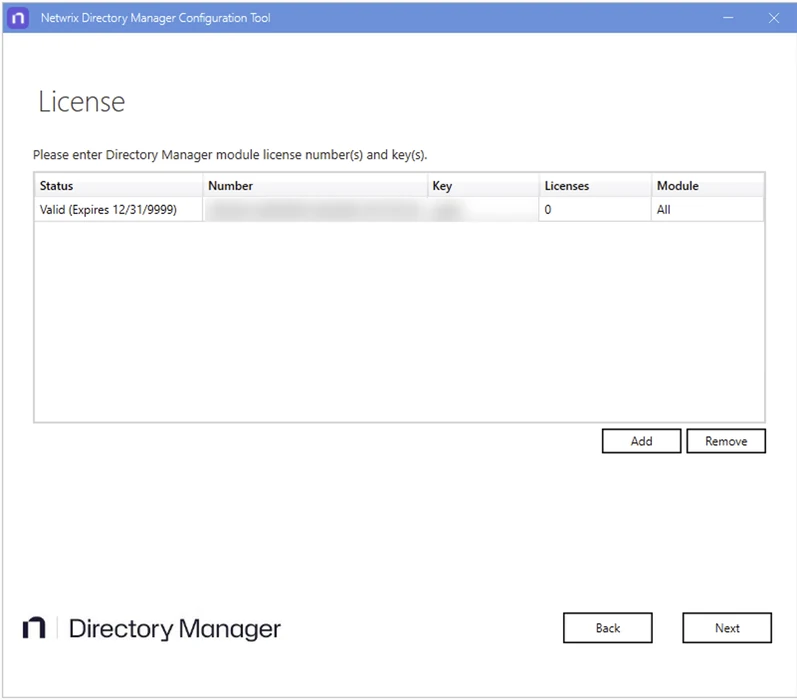
Step 8 – On the License page, license information of Directory Manager installed on the master node is displayed. A valid license and key enable the Next button. If the Next button remains disabled, check your entries for errors.
Step 9 – Click Next.
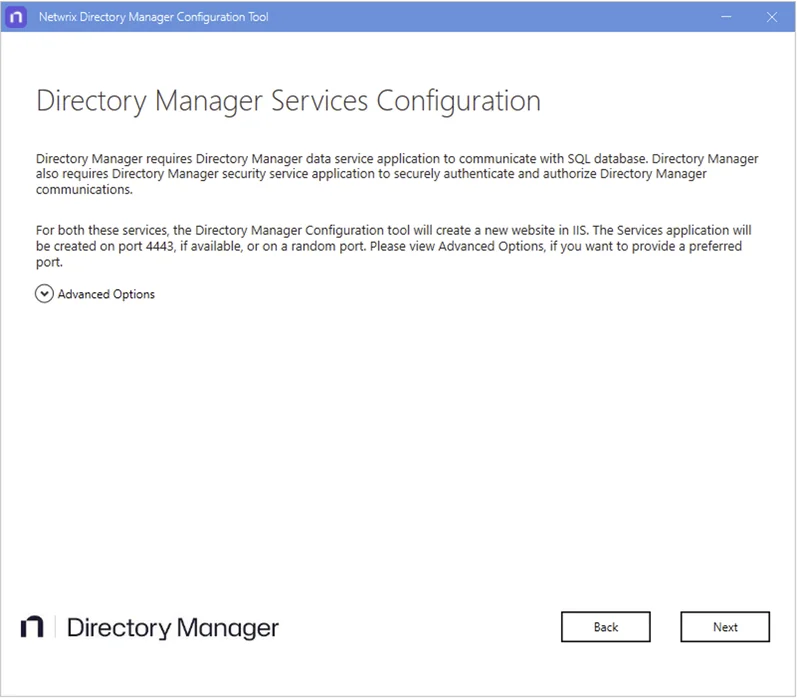
Step 10 – Directory Manager requires two services:
-
Directory Manager Data Service: This is a web-based service that Directory Manager uses to communicate with Microsoft SQL Server for storing and fetching data in the database.
-
Directory Manager Security Service: This is also a web-based service that Directory Manager uses to:
- Authenticate and authorize users on different Directory Manager functionalities in accordance with their roles.
- Encrypt and decrypt data that Directory Manager Data Service stores and fetches from the SQL database.
To deploy these services, the Configuration Tool creates and configures a new website in IIS with the name GroupIDSite11. By default, it uses port 4443 if available, or a random port. However, if you have a different preference, you can change the port.
Click Advanced Options and enter the port in the Port Number box.
-
Replication service: This service replicates object attributes from the provider (such as Active Directory) to Elasticsearch.
-
Admin Center: Admin Center is a web-based application that can be accessed over the Internet and Intranet.
This Directory Manager instance will use Email and Scheduler services of the selected cluster.
Step 11 – Click Next.
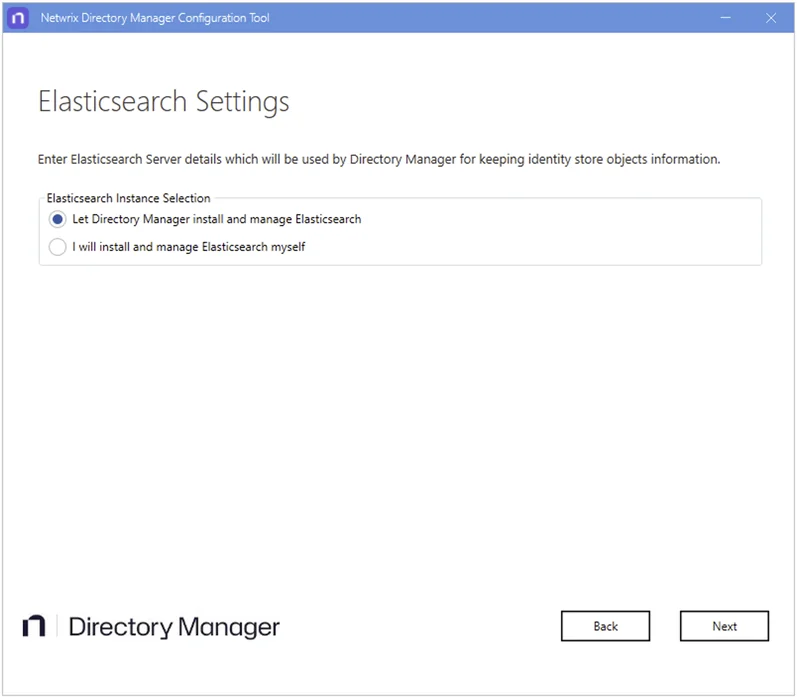
Step 12 – Directory Manager provides the following two options for Elasticsearch configuration. Select the relevant option:
-
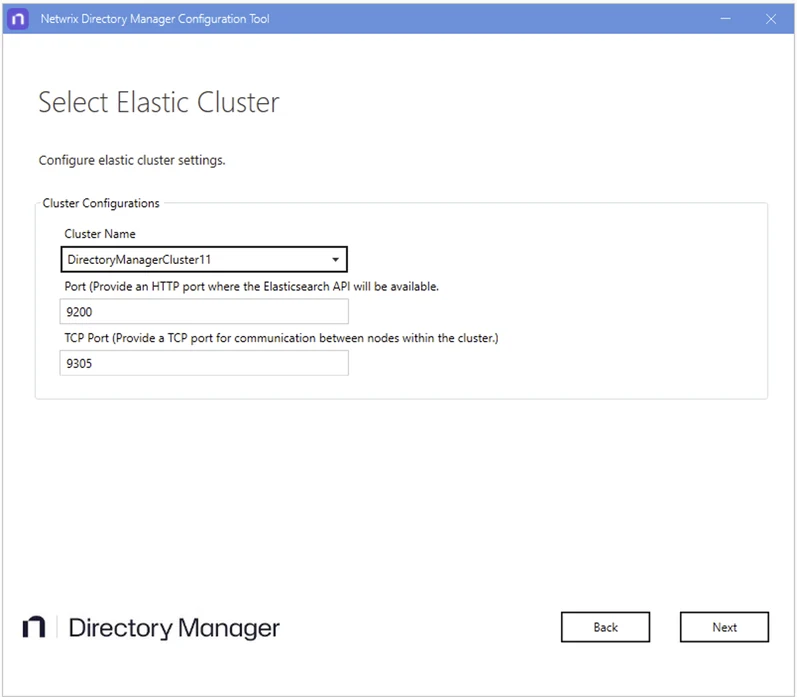
Let Directory Manager install and manage Elasticsearch: If you select this option, Directory Manager Configuration Tool will install Elasticsearch. It presents you default configuration of Elasticsearch cluster it will create:
-
Cluster Name: lists all the clusters defined so far. Select one to create an Elasticsearch node within the selected cluster.
-
Port: the default port for Elasticsearch API communication. Modify the port number if the mentioned default port isn't available.
-
TCP Port: the default port for communication between nodes within the cluster. Modify the port number if the mentioned default port isn't available.
noteVerify that the specified ports are available and unblocked.
I will install and manage Elasticsearch myself: If you select this option, the following page is displayed:
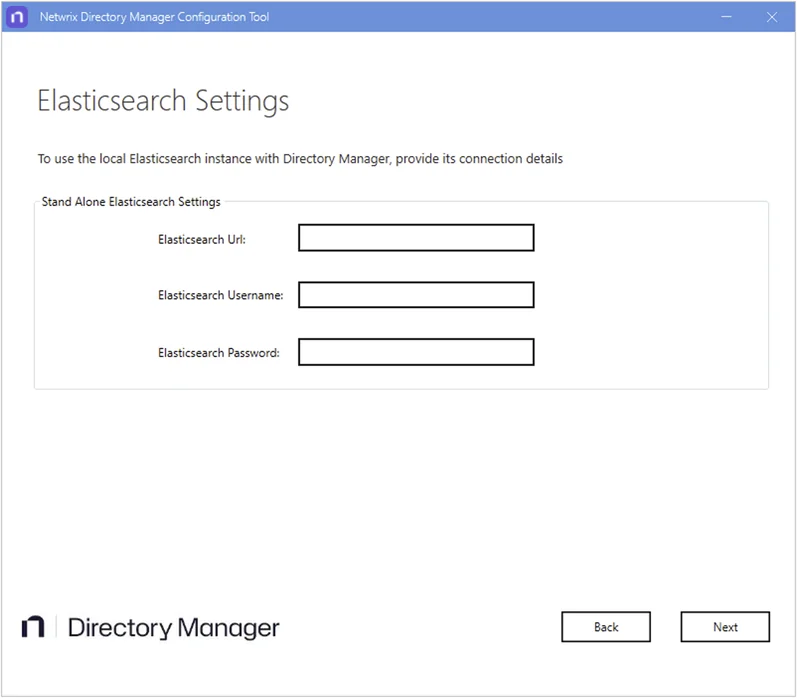
Provide configurations of Elasticsearch you want to use with Directory Manager:
- Elasticsearch Url: URL for accessing the Elasticsearch.
- Elasticsearch Username: service account for Elasticsearch.
- Elasticsearch Password: password of the Elasticsearch service account.
-
Step 13 – Click Next.
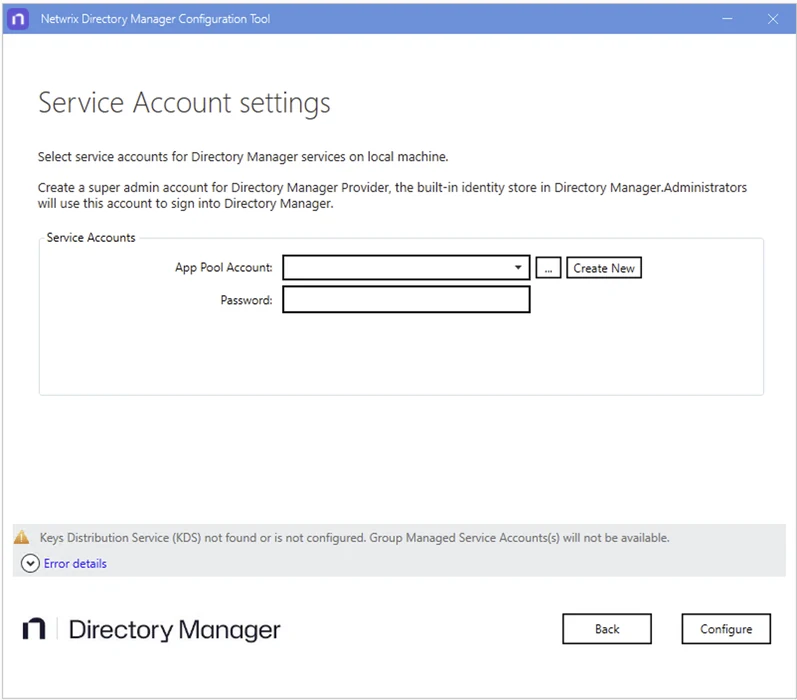
If you configure a Group Managed Service Account (gMSA) as an App Pool service account then the Directory ManagerConfiguration tool will add this account in the local administrators and IIS_IUSRS groups.
If you configure a normal user account as an App Pool service account and an AD identity store is created with a gMSA service account, then the App Pool service account must have the PrincipalsAllowedToRetrieveManagedPassword property. The App Pool service account also must be a member of Backup Operators and IIS_IUSRS groups.
Step 14 – On the Service Account Settings page, specify the service account to use for the Directory Manager app pool in IIS and Windows services.
-
Use a domain account or a Group Managed Service Account (gMSA).
-
The account must be a member of the Administrators group or both the Backup Operators and IIS_IUSRS groups.
-
The account you specify will be used to manage the Directory Manager app pool in IIS. Directory Manager Data Service, Security Service, and the portals run under the app pool.
-
By default, a local account, GroupIDSSuser, is set for the Directory Manager app pool, but you can't proceed unless you change it to a domain account or gMSA.
-
You can specify a local account (with local administrator rights) in app pool for a machine that isn't joined to any domain (this applies to an Microsoft Entra ID identity store only).
noteUse a domain account for Directory Manager App Pool on a machine joined to a domain.
noteBefore you use a Group Managed Service Account, ensure that:
- Key Distribution Service (KDS) is enabled on the Directory Manager machine.
- Microsoft AD module for PowerShell is installed on the machine.
Step 15 – You can specify a service accounts for the app pool in any of the following ways:
-
Use an existing account: Click Browse.
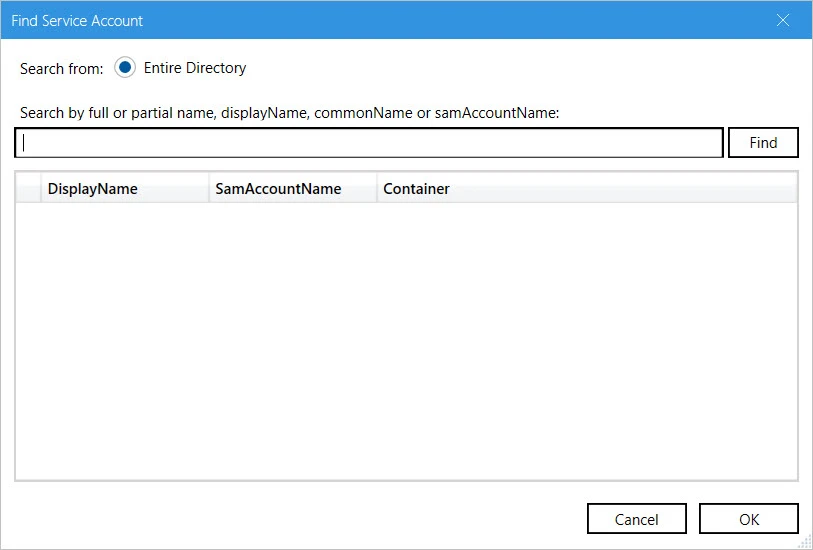
On the Find Service Account dialog box, search, select the required account, and click OK.
-
Create a new service account: Click the Create New button on the Service Account Setting page.
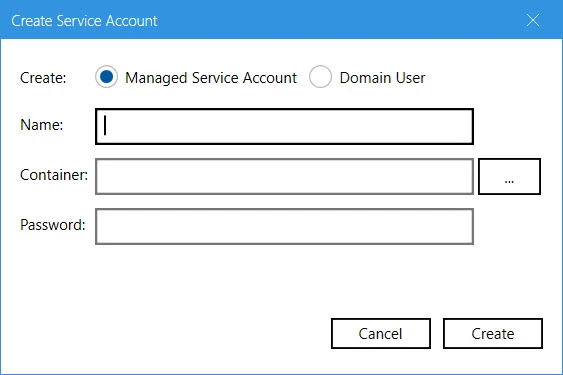
On the Create Service Account dialog box, select the kind of account you want to create. Enter a name, container, and password for the account. Click Create.
noteThe logged-in user must have appropriate rights to create a new account.
noteIf Key Distribution Service (KDS) isn't configured in the environment, a warning will be displayed that you can't use a Group Managed Service Account.
Step 16 – Provide password for the App Pool service account (except for a Group Managed Service Account) in the Password box.
Step 17 – Click Configure.
Step 18 – If the Configuration Tool displays the Import Signing Key page, click Browse next to the Select file box, select the signing key file that you exported from the primary server, enter its password in the Password box, and click Next.
The next page displays the progress while a Directory Manager server is configured on the machine. While configuring the machine, the Configuration Tool checks the application’s signing key status and update it according to your Directory Manager environment. See the Update Signing Key topic for information how Configuration Tool will update Directory Manager's Signing Key.
Step 19 – This completes the configuration of Directory Manager as a slave node on your machine. Click Launch Directory Manager to start using Directory Manager. The Sign In page opens:
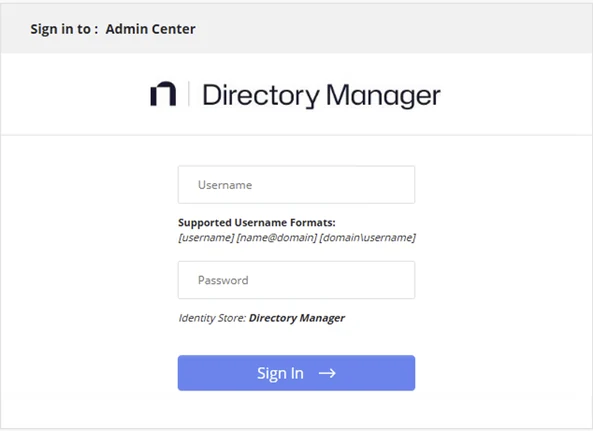
To login in to Directory Manager Admin Center for the first time, provide Directory Manager Administrator user name and password.
or
click Next to launch the Upgrade wizard for upgrading Directory Manager.
Resolve Elasticsearch Replication Issues
If the nodes use a Directory Manager-managed Elasticsearch cluster, replication can fail because the Elasticsearch state on the nodes has drifted apart. To resolve this, complete the following steps on each node:
Step 1 – Edit elasticsearch.yml:
cluster.name– Must match the value on the primary node.discovery.seed_hosts– Must include the primary node and list it first.cluster.initial_master_nodes– Must include the primary node and list it first, or you can omit the setting.
Step 2 – Delete the contents of the existing Elasticsearch data directory.
Step 3 – Restart the Elasticsearch service.