Reports
Use Directory Manager Reports to generate web-based reports for an identity store. It offers a wizard-guided report generation process.
Directory Manager reports are organized into four categories:
A Microsoft Entra ID based identity store doesn't support the computer and contact object types.
You can view, edit, and delete the created reports. You can also download them in Excel and PDF formats.
The user interface of Reports Dashboard is as follows:
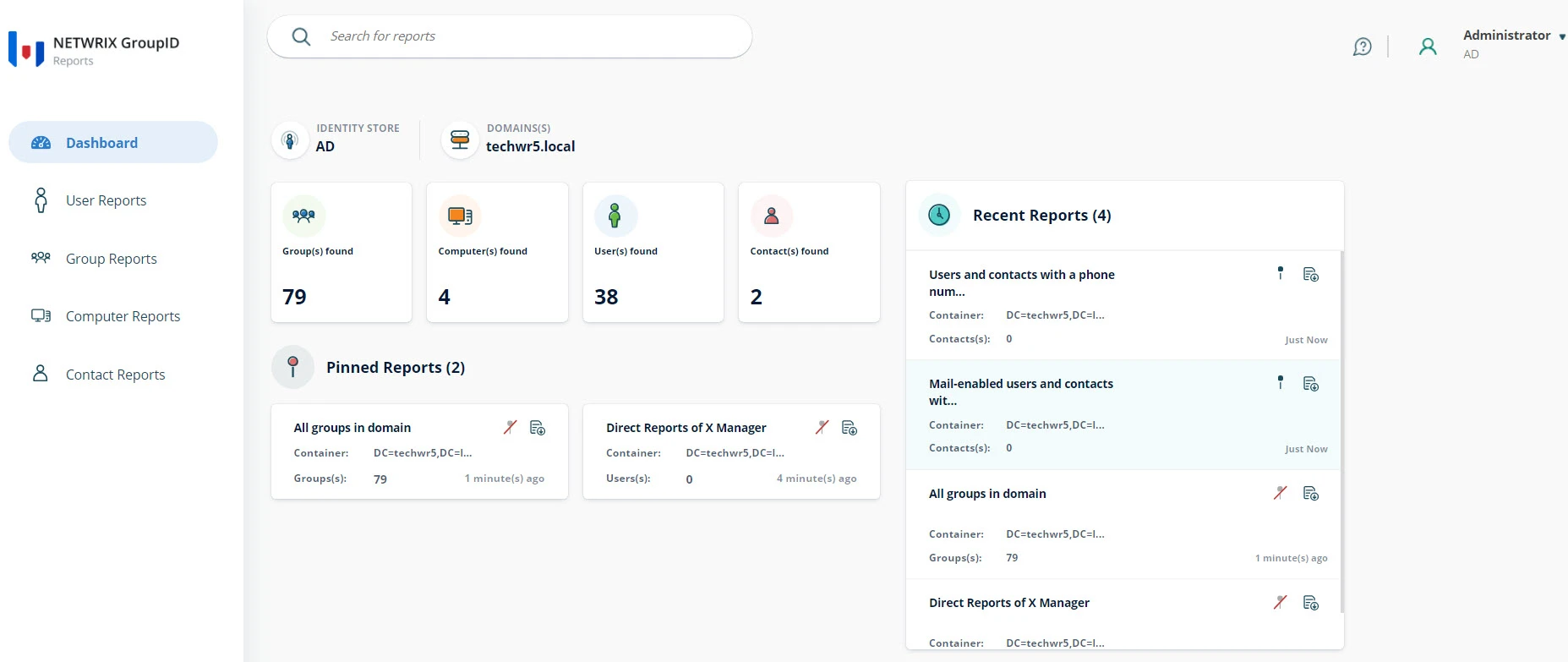
The following list describes the different elements of the Dashboard:
-
Look on the top of the page for Reports Search. Use it to locate and display information for reports.
-
In the top right corner, you will find the following icons:
-
Click the Help icon to launch the portal help.
-
Your name also appears as an icon. On clicking it, you are presented with the following options:
-
Connected identity store.
-
Directory Manager version
-
See full profile.
-
My Applications
Displays Directory Manager and third party applications that the user is connected to. Click Add Apps to add new applications.
-
Enroll your account.
-
Change Password.
-
Switch account
-
Sign Out of the portal.
-
-
-
The Dashboard displays general information about the Reports portal such as:
- Name of the identity store the Reports portal is connected to.
- Name of the domain.
- Number of each type directory objects in the directory.
-
In the Pinned Reports section, you can pin the reports you most frequently will use.
You can unpin the pinned reports from the dashboard by clicking the unpin icon on the top right corner of the card.
-
In the Recent Reports section, you can view the most recent reports you have created or used.
You can pin the recent reports by clicking pin icon on the top right corner of the card.
-
Look on the left side of the page for the navigation pane, which lists links to the following: