MonitoredContent
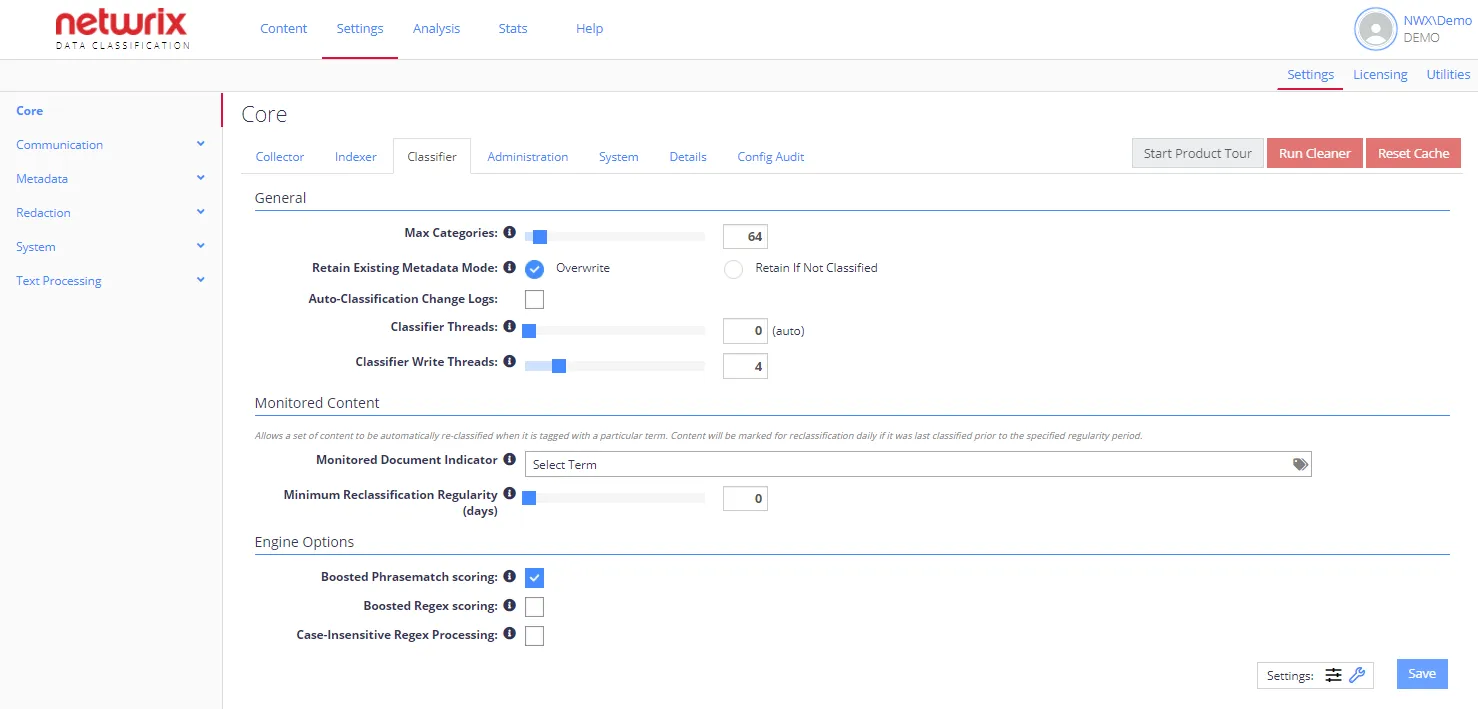
You can decrease the Classifier load, targeting it at monitored content only. This means that you can schedule automatic re-classification of content only when a specific condition or set of conditions match, or with a minimum time period between runs.
note
Each option has an associated information popup (the “i” symbol next to the option name) which describes what the setting does and how it works.
| Option | Description | Comment |
|---|---|---|
| Monitored Document Indicator | The product marks content for automatic re-classification if it carries a particular term. | Click the tag icon to select the term to use for identifying monitored content. |
| Minimum Reclassification Regularity (days) | Defines the minimum period to use when re-classifying monitored content: from 1 to 180 days, default is 1 day. | The product marks content for reclassification if it was last classified before the specified regularity period. |
To re-classify content that meets specific conditions:
- Use tagging. The product marks content for automatic re-classification if it carries a particular term.
- In the Monitored Content section of System Configuration > Core > Classifier locate Monitored Document Indicator.
- Click the tag icon, and in the Select Term dialog specify the term to use for identifying
monitored content:
 4.
When finished, click Select, then in the Classifier settings window click Save,
4.
When finished, click Select, then in the Classifier settings window click Save,
To re-classify content with a minimum time period between runs:
- In the Monitored Content section of System Configuration > Core > Classifier settings window locate Minimum Reclassification Regularity.
- Default reclassification period is 1 day. Use the slider to adjust the value. The product marks content for reclassification if it was last classified before the specified period.
- Click Save.