Administration
This configuration tab contains general options, as well as those that apply to taxonomies area and to Concept Classifier app. By default, only basic options display. To view advanced options, click the "wrench" icon at Settings in the bottom-right corner.
Most options have an associated information popup (the “i” symbol next to the option name) which describes what the setting does and how it works.
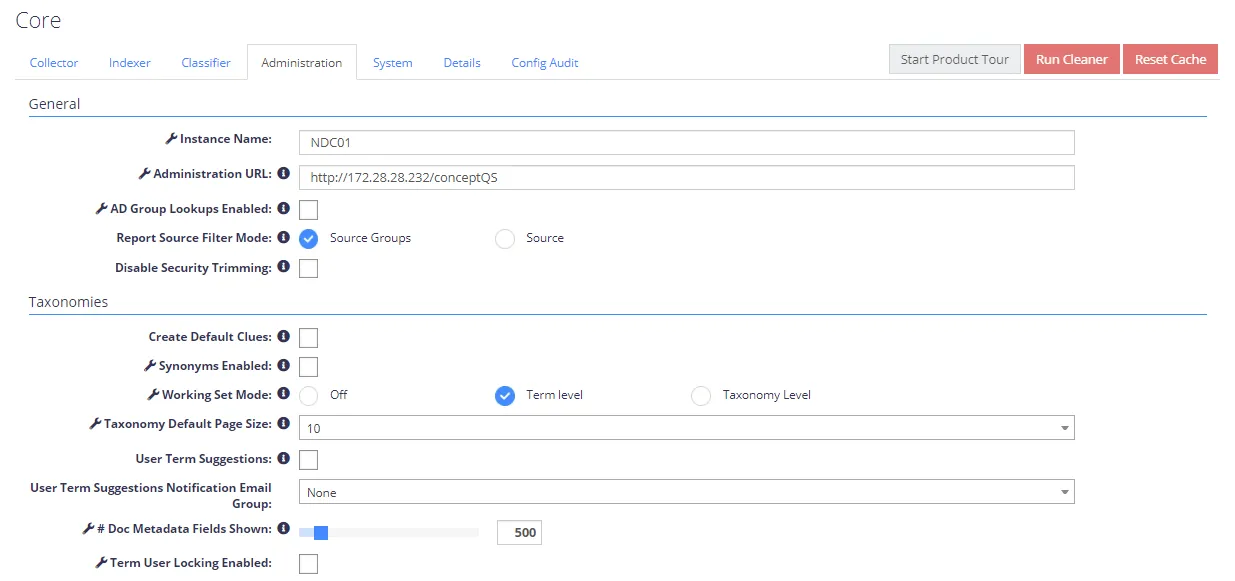
General Options
| Option | Description | Comment |
|---|---|---|
| General settings | ||
| Report Source Filter Mode | Use to add an additional filter for either Source Groups (default) or Sources | |
| Disable Security Trimming | Select this option if you want to ensure that search results retrieved by API or the Taxonomies area are unfiltered (ignoring the user name of the administrative user). | Disables the application of security trimming from search results (taxonomy browse/search). |
| Auto-Expunge Deleted Documents | When enabled, the system automatically expunges documents marked as deleted 7 days after the last collection attempt. | The system may expunge documents marked as deleted manually (i.e. via the NDC UI) or by the source file watchers in fewer than 7 days after marking, as these processes don't update the last collection date. |
| Advanced settings | ||
| Instance name | Name of the NDC Server instance | |
| Administration URL | URL of the web-based management console. The default URL is http://localhost/NDC. | If necessary, specify another Netwrix standalone server or cluster server instead of local host. You can use server name or IP address. |
| AD Groups Lookup Enabled | Use to enable/disable the use of AD groups in User Manager. This option is disabled by default. | Keep this option disabled unless AD group support is specifically required. For details on User Manager in Netwrix Data Classification, see User Management |
Taxonomies
Use these settings to customize configuration of classification taxonomies.
| Option | Description | Comment |
|---|---|---|
| General settings | ||
| Create Default Clues | Automatically create a Standard clue when you create a new term, using the term name as the clue text and default threshold value as the score. | |
| User Term Suggestions | Enables/Disables a custom form that lets end users suggest new terms for administrators. | |
| User Term Suggestions Notification Email Group | Enables an automatic notification to a pre-configured email group when a term suggestion is created. | |
| Advanced settings | ||
| Synonyms Enabled | Controls whether you can configure synonyms (for each standard clue) for taxonomies residing in the local SQL database. | |
| Working Set Mode | Configures the Working Set functionality under 'Taxonomies'. Possible options:
| Changing this option removes all documents from the current working set. |
| Taxonomy Default Page Size | Number of documents returned by default from Taxonomy Manager searches. | |
| # Doc Metadata Fields Shown | Number of hint fields to show in Taxonomy Manager. | |
| Term User Locking Enabled | Enables/Disables the ability to "lock" terms when performing taxonomy management, preventing other users from editing the locked terms. | |
| Enable Regex Browse Highlighting | When enabled, the Browse UI highlights any matched regular expressions in search results (based on the selected terms clues). | |
| Enable Page Info Regex Highlighting | When enabled, the page info dialog highlights any matched regular expressions in the text. | |
| Highlight Compound Term Parts | When using the Browse interface, the interface automatically highlights any detected clues in the document text. Enabling this mode highlights both the overall term (such as 'Triple heart bypass') and the individual words (in this case: 'Triple', 'heart', and 'bypass'). | |
| Disable Doc Counts (Clues) | Doc Counts represents an untrimmed count of documents matching a particular clue or set of clues. This option disables/enables the selection of Doc Counts from the Clues edit screen. |
Concept Classifier App
Use these settings to customize configuration of Concept Classifier app.
| Option | Description | Comment |
|---|---|---|
| General settings | ||
| Enable Near Duplicate Detection | The relevance threshold for duplicate detection matching (when using the Duplicates link from the SharePoint ribbon). When set to 100%, this option uses an exact match (matching checksum). When set to a lower threshold, the system attempts a fuzzy match to locate near duplicates. | Applies only to the deployment with the SharePoint add-in. |
| Duplicate Detection Scope | Enables/disables scoping of duplicates detected via the SharePoint add-in interface. When disabled, the system identifies duplicates anywhere in the index. When enabled, the system scopes duplicates to their source group (or if no source group available
| Applies only to the deployment with the SharePoint add-in. |
| Advanced settings | ||
| Duplicate Detection Archive Indicator | Identifies documents within the View Duplicates display that are tagged with the archive indicator. You can optionally filter these identified documents from the display. |