Dropbox
This section contains information on how to exclude Dropbox files or folders from crawling.
Configure Exclusions
You can define the list of file locations that the product ignores when indexing files in Dropbox, that is, excludes from processing. All Dropbox documents start with https://www.dropbox.com/home/ followed by the full path to the file. So, to exclude specific document, enter the full document URL. You can exclude all pages within a folder - for that, use a wildcard indicator (e.g. “https://www.dropbox.com/home/Test Folder/*”).
To configure exclusions, do the following:
-
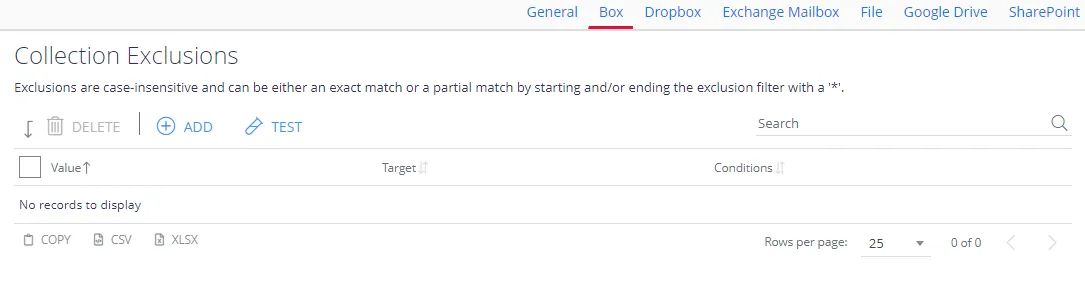
In the management console, click Content Configuration → Sources → Dropbox, then in the left pane click Collection Exclusions.
-
Click Add.
-
Click Filter and in the Filter field specify the objects (files or folders) to exclude:
To exclude a certain file, enter
https://www.dropbox.com/home/<full_path_to_file>. For example: https://www.dropbox.com/home/Reports__/Test Document.docxYou can use wildcards anywhere in the exclusion pattern definition as follows:
- The asterisk character (*) matching any sequence of characters
- The question mark character (?) matching any single character
For example:
- _https://www.dropbox.com/home/_Test Folder/* will exclude all documents in the folder
- */Restricted Folder/* will exclude specific folder in any Dropbox source
Exclusions are case-insensitive.
-
Optionally, enter a test path to verify the settings and click Test.
If needed, you can use metadata conditions to restrict when the product applies an exclusion filter. For that, click Condition tab and click Add. Then select how the exclusion conditions work: they can check whether the document's metadata field has any value, has no value, or matches a specific metadata value.
Criteria Condition Comparison Compare a value in the document metadata field with the value the condition sets. When you select this criteria, specify: - Field name — document metadata field to check - Comparison — operator to use (for example, "doesn't contain") - Value — value to compare against For example, to exclude documents tagged with year 2018, set the condition as follows: - Field Name — DocYear - Comparison — equals - Value — 2018 Has any value Exclude the document if its metadata field has any value. When you select this criteria, specify Field Name. Has no values Exclude the document if the metadata field has no value. When you select this criteria, specify Field Name. When finished, click Add.
-
Finally, click Save and close the window.