Box
This section contains information on how to exclude Box files or folders from crawling, and how to configure writing classification attributes back to the content files (i.e. "tagging").
Configure Exclusions
You can define which file locations to exclude from Box indexing. For that, do the following:
- In the management console, click Sources → Box, then in the left pane click Collection Exclusions.
- Click Add.
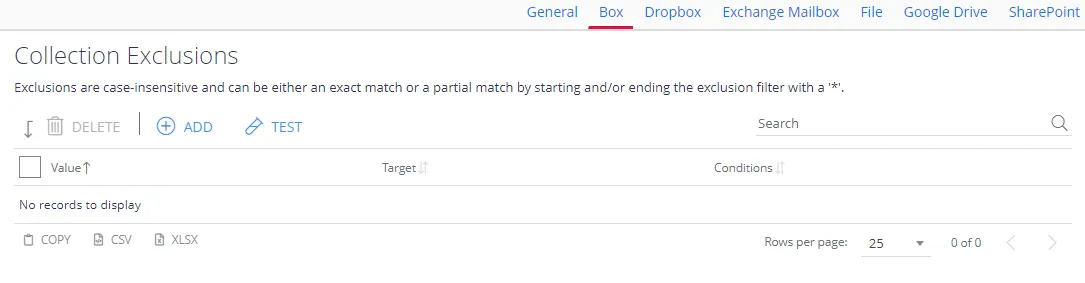
-
Click Filter and in the Filter field specify the objects (files or folders) to exclude:
To exclude a certain file, enter box://
<your_box_enterprise_ID>/<full_path>. For example: box://26298724/Test Folder/Test Document.docxYou can use wildcards anywhere in the exclusion pattern definition as follows:
- The asterisk character (*) matching any sequence of characters
- The question mark character (?) matching any single character
For example:
- box://26298724/Test Folder/* will exclude all documents in the folder
- */Restricted Folder/* will exclude specific folder in any Box source
Exclusions are case-insensitive.
-
To verify exclusion location, enter its path in the Test Path field and click Test.
-
If needed, you can use metadata conditions to restrict when the product applies an exclusion filter. For that, click Condition tab and click Add. Then select how the exclusion conditions work: they can check whether the document's metadata field has any value, has no value, or matches a specific metadata value.
Criteria Condition Comparison Compare a value in the document metadata field with the value the condition sets. When you select this criteria, specify: - Field name — document metadata field to check - Comparison — operator to use (for example, "doesn't contain") - Value — value to compare against For example, to exclude documents tagged with year 2018, set the condition as follows: - Field Name — DocYear - Comparison — equals - Value — 2018 Has any value Exclude the document if its metadata field has any value. When you select this criteria, specify Field Name. Has no values Exclude the document if the metadata field has no value. When you select this criteria, specify Field Name. 
When finished, click Add.
-
To verify the settings, click Test.
-
Finally, click Save and close the window.
Configure Tagging
To enable the management of metadata for any document type, Box lets you configure Metadata Templates with collections of attributes (see this article for details) ).
In addition to metadata, Box supports the concept of “Tags” to enhance the search experience (see this article for details).
Netwrix Data Classification supports both of these mechanisms: you can map each registered taxonomy to a metadata property. You can configure related settings at a global level (default), or at a source level, as described in the following sections. Consider the following:
- To write tags, the program will use the crawling user account, so ensure that this account has permissions to create tags.
- To create missing Metadata Templates and attributes, ensure that the crawling user account has permissions to create and manage Metadata Templates.
Refer to Box documentation for information on user account permissions.
To configure tagging
- In the management console, click Sources →Box, then in the left pane click Write Configuration.
- Select the taxonomy you need and click the Edit link for it.
- In the taxonomy properties, enable writing classification attributes (tags) and specify other settings:
| Setting | Description | Note |
|---|---|---|
| Enabled | Use to enable / disables the writing of classifications for the selected taxonomy. | Cleared by default |
| Field Name | Defines the attribute name to use when persisting the classifications (metadata property name). | By default, the product uses Classification fields. To use the Metadata Template as well, enter its name and attribute name in the following format: MetadataTemplateName!!AttributeName |
| Single Value Field | If selected, this option writes only the highest scoring classification to the field. | |
| Format | How to format the classifications. | You can create a custom delimited combination of the labels / GUIDs. |
| Name/ID or Class | Depending on the format, take the term labels, IDs, or a combination of both | The corresponding Delimiter must be a string or array type with a maximum length of 3. |
| Prefix/ Suffix | The product appends this to the formatted string of classifications. |

Finally, click Save.