Manage Sources and Control Data Processing
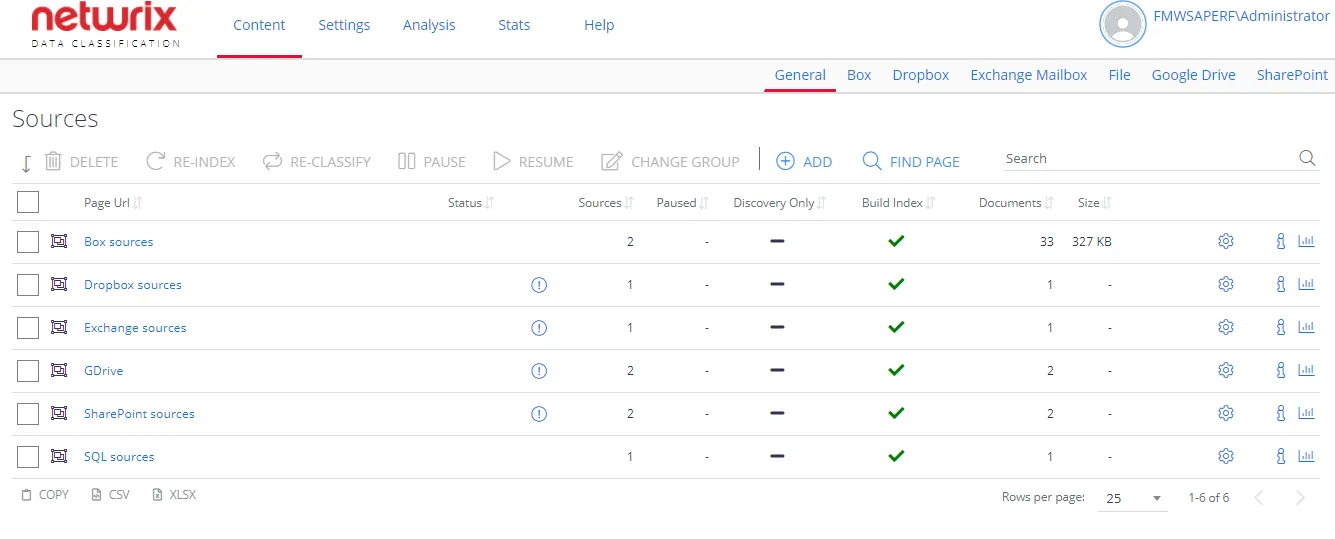
The following commands are available on the General tab of the Sources section:
- Delete—Removes the source from processing. Its content will not appear in the search results.
This doesn't delete content from the external system
-
Re-Collect—Queues the source for re-processing. The system deletes crawled items and re-crawls the entire source.
-
Re-Index—Queues a source or item for re-indexing regardless of whether the documents changed. You can select Re-Index scope:
- Selected Items and All Descendants — select to Re-Index an item and all of its descendant elements.
- Selected Items and Children — select to Re-Index an Item and its direct child elements.
- Selected Items Only — select to Re-Index only current item and ignore its child elements.
-
Re-Classify—Queues a source or item for re-classification against the latest configured classification rules
See Index Maintenance for more information on these operations.
- Pause—Temporarily pauses source content processing
- Resume—Resumes a source from a temporary pause
- Add To Group—Adds a source to a logical container (Source Group), either an existing or a newly created one.
In the source list on the General tab you can also do the following for selected sources:
- View Results
- Edit the source details by clicking on the "gear" icon
- View source-specific statistics by clicking on the "chart" icon
- View detailed information by clicking on the “i” icon
- Navigate to the source by clicking on the “link” icon
When adding a source or managing source configuration, the console displays the most commonly used source settings by default. However, some source types have additional configuration options that appear when you click the Advanced Settings ("wrench" icon). You can always show these advanced settings to authorized users. See Users and Security Settings for more information.
Modify Source Settings
To edit configuration settings for the certain source, select the source and go to the corresponding tab, e.g. Box or SharePoint. Then you can, in particular, specify Write configuration (i.e. "tagging") settings and apply source-specific parameters. See Use Tagging for more information.
See also: