Apply Additional Classification
You can instruct the program to apply one or more additional classifications to the processed document. This workflow action is called Manual Classification and can be configured via the Advanced UI window.
Alternatively, you can configure a workflow action that permanently removes all existing classifications on a document and disables future auto-classification for it.
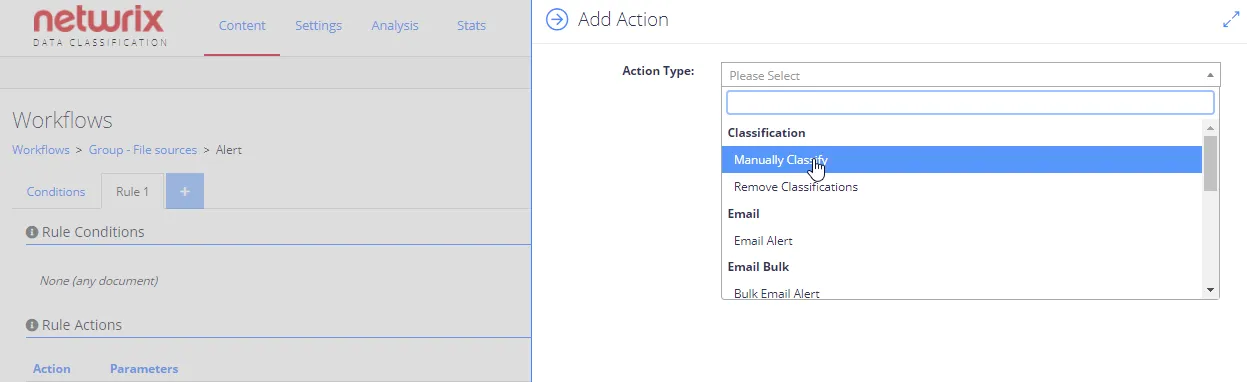
To apply additional classification:
In the Add Action dialog, from the Action Type list select Manually Classify under Classification, then configure the necessary terms as described in the following steps.
The terms you select must belong to a single taxonomy / termset.
To remove all classifications:
In the Add Action dialog, from the Action Type list select Remove Classifications under Classification.
To configure terms
-
In the Select Term field, click the tag icon.
-
In the Details dialog, specify filter settings to use when filtering out the documents:
- Taxonomy - select what classification taxonomy from the existing ones should be used.
- All Terms - select this option if you want to filter by all terms in the taxonomy. If you don't select this option, the system displays the list of terms after you select the taxonomy. Select the one you plan to use for filtering.
noteMultiple selection isn't supported: to configure several filter values, you should repeat this procedure for each filter value you need.
- Include Children - select this option if needed.
-
Finally, click OK to save the settings and close the dialog.
The additional classification will not trigger other workflows or affect the source itemSee Classifications for more information.