Enable Write Classifications
In NDC, tagging means writing classification attributes back to the content files. Tagging enables other systems and applications to use the classifications generated by Netwrix Data Classification for a variety of business purposes, such as:
- Enriching the search experience;
- Improving data loss prevention (DLP);
- Enabling external applications workflow;
- Applying IT policies to classified data;
Tagging is designed to work as natively as possible with each source type. Therefore, the ways that classifications can be written varies by source type, with some overlaps.
You can instruct the program to write classification attributes back to processed files. This operation is also called "tagging". Tagging is supported for the following file types:
- DOC/DOCX;
- PPT/PPTX;
- XLS/XLSX;
- PDF;
For Microsoft Office documents, the system maps each classification taxonomy to an advanced (custom) property in the document’s metadata.
For Adobe PDF documents, the system maps each taxonomy to custom properties in the document’s metadata.
You can configure related content source settings at a global level (default) or at a source level.
You can also write to the default keywords field.
To configure tagging on a global level:
-
In the management console, click Sources → Files, then in the left pane click Write Configuration.
-
Select the taxonomy you need and click the Edit link for it.
-
Select Enabled.
-
In the taxonomy properties, enable writing classification attributes (tags) and specify other settings:
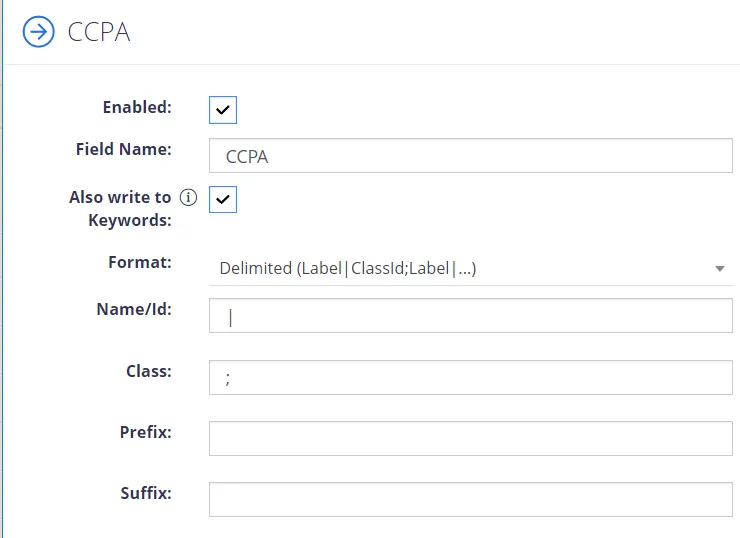
| Setting | Description | Note |
| Enabled | Use this option to enable / disable tagging with attributes included in this taxonomy. | Cleared by default. |
| Also write to keywords | Enables writing of classifications to "Keywords" field on PDF and Office documents automatically. This helps you when running DLP (data loss prevention) system. For example, if you have a property "PII", then the system won't let email such documents. Some DLP systems don't recognize custom properties. In that case, you can also write the tags into the standard "Keywords" field. | Cleared by default. |
| Field Name | Define the attribute name to be used when persisting the classifications (metadata property name). | N/A |
| Format | How the classifications should be formatted. | You can create a custom delimited combination of the labels / GUIDs. |
| Name/ID or Class | Depending on the format, take the term labels, IDs, or a combination of both | The corresponding Delimiter must be a string or array type, with a maximum length of 3. |
| Prefix/Suffix | Will be appended to the formatted string of classifications. | N/A |
- Select Save.
Example
Assume you selected the Agriculture taxonomy; it has Farming (ClassID: 11) and Produce (ClassID: 32) properties.
If you configure tagging as in the screenshot above, the program will write the following classifications attributes to the classified documents:
- Property Name: Agriculture
- Property Value: [Farming|11;Produce|32]
To configure tagging on a source level:
- Go to Sources → General, highlight the source you need and click the "pencil" symbol on the right.
- The list of global taxonomy configurations will be displayed. To apply these global settings, select Use Global Configuration checkbox on top. To configure source-specific settings, clear this checkbox.
- Select the taxonomy you need and click Edit.
- In the taxonomy properties, select the Enabled checkbox and specify the settings described in the table above.
You can enable writing to the keywords field for multiple taxonomies. The system writes all classifications to the keywords field in the format described in the user story.