Browse
To view the documents classified for each term, click the Browse tab. This will display a list of documents achieving the minimum score set for classification in the term. See Classification Rules (Clues) for details on how clues control classification scoring.
This list shows the current classification status of each document. The system doesn't account for changes you made to the classification clues since it last classified each document.
To see how the classification of each document would change based on the current term configuration, tick the Show Movements checkbox. When selected, the results will display any change in document scoring between the current stored document score and the score it would receive against the current classification clues.
The system highlights the document text based on the clues configured for the term. Highlighting includes regular expression matches when configured (Config→Query Server→Enable Regex Browse Highlighting (Advanced)).
If you select a new class in the treeview menu, the view remains in "Browse" mode and shows the documents for that class.
You can use the Browse function to:
- Identify documents that are receiving a score, but are "missing" being classified because they do
not quite reach the terms threshold. For example, changing the mode to "Near Misses
<20%" for a term with a threshold of 50, will find any documents that scored 40 or more, but didn't reach the threshold. - Identify low scoring documents that are only just reaching the classification threshold. For
example, changing the mode to "Low Scoring Documents
<20%" for a term with a threshold of 50 will find any documents that scored between 50 and 60.
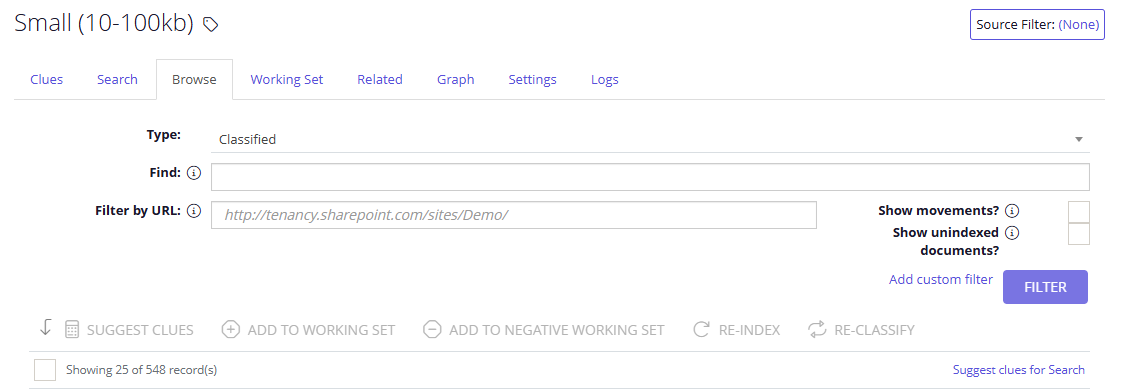
By default, the Browse results don't include sources that haven't been indexed yet or that aren't configured for indexing. To include results from these sources, tick the Show Unindexed Documents checkbox.
To restrict the browsing scope, you can either add a URL filter, or add a custom filter, as well as select to show document movements and include unindexed documents. These options are configured in the same way as for Search Documents by Clue.