Upgrade to the Latest Version
Netwrix recommends that you upgrade from the older versions of Netwrix Data Classification to the latest version available to take advantage of the new features.
Preparatory Steps
Before upgrading, take the following steps:
-
Ensure you have .NET Framework 4.7.2 installed on the computer where Netwrix Data Classification resides. If not, download it from Microsoft website: Download .NET Framework 4.7.2.
-
Back up NDC SQL database. For that:
- Start Microsoft SQL Server Management Studio and connect to SQL Server instance hosting this database.
- In Object Explorer, right-click the database and select Tasks → Back Up.
- Wait for the process to complete.
-
Back up the Index files by completing the following:
- On the computer where Netwrix Data Classification is installed, start Netwrix Data Classification Service Viewer tool. Select Stop next to each service.
- Locate the folder containing index files (default location is C:\Program Files\ConceptSearching\ConceptDB) and back it up.
NOTE: Consider that after the upgrade indexing mode will be set to the Compound Term.
Upgrade Process
Seamless upgrade to Netwrix Data Classification 5.6.2 is supported for versions 5.5.4 and 5.5.3.
To upgrade your deployment, after taking the preceding preparatory steps, run the product setup and follow the wizard steps. When finished, all solution components will be operational.
If you need to upgrade from an earlier version, you should perform a staged upgrade, e.g., 5.5.0 → 5.5.1 → 5.5.6.
After the Upgrade
During the seamless upgrade from previous versions, Netwrix Data Classification preserves its configuration, so you will be able to classify your data right after finishing the upgrade. However, there are several steps you may need to take after upgrading:
-
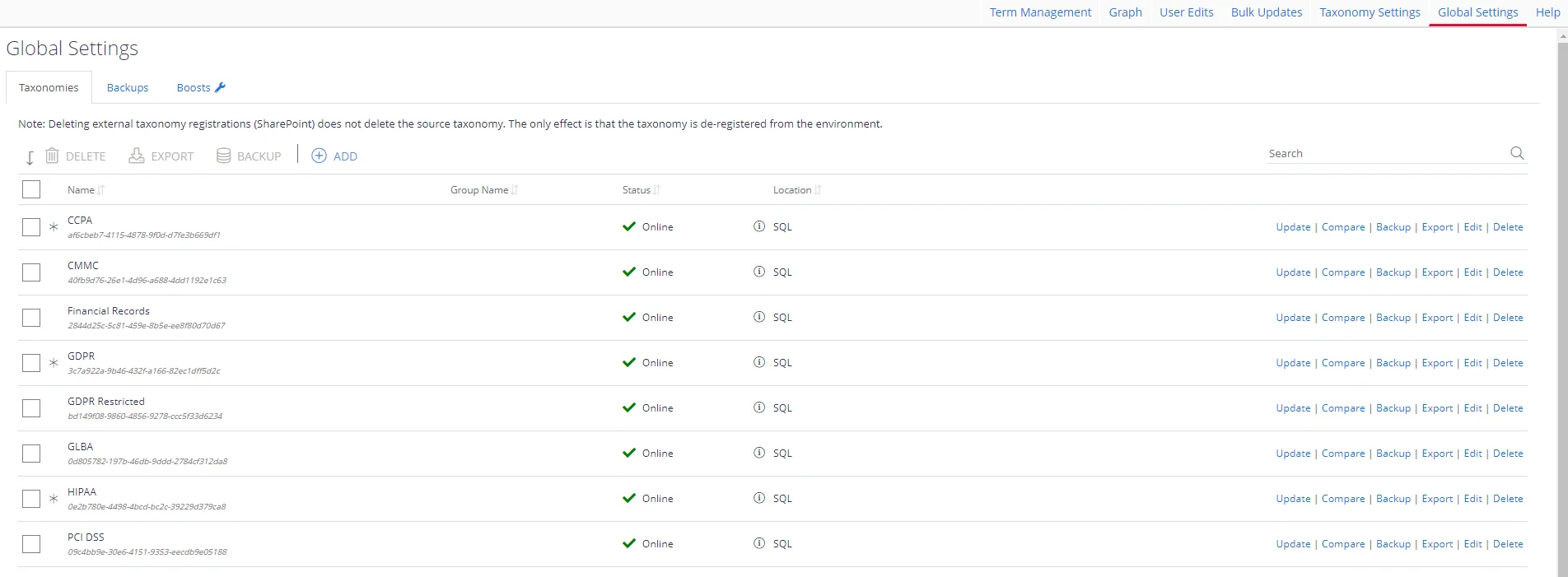
Update taxonomies manually. For that:
- In administrative web console, navigate to Taxonomies → Global Settings.
- Click Update in the right corner next to each taxonomy
-
After the upgrade, indexing mode will be set to Compound Term mode. See How to modify Index Processing Mode for instructions on how to modify default Index Processing Mode.