View Search Query Results
Depending on assigned DSAR role, a user can view their searches or searches that other users submitted even when the search status is "queued" or "in progress". To view a search query results, do the following:
-
In administrative web console , navigate to Data Analysis → DSAR.
-
Locate the Searches tab.
-
Locate the search request you need and click View on the right.
The following window appears:
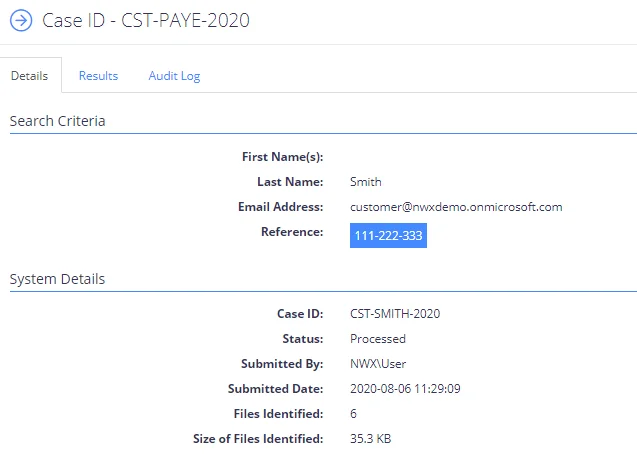
Review the following for additional information:
Tab Description Details Here you can review search criteria and system details (search status, submitted date etc.) Results This tab contains all records that meet search criteria with the ability to filter by: - Page ID - File location - Modification date - File size In addition, you can export your results to .CSV and XLSX format and copy records to a clipboard. Audit Log On this tab you can see all events related to this search request: when the search was run, who, and when reviewed search request results and log. -
After reviewing the request, user can complete it clicking Close Request on the Results tab or export the results.
See also: