Exchange Server
Use the Exchange Server source configuration screen to enable crawling and classification of multiple Exchange mailboxes from the same Exchange server.
IMPORTANT! Automatic detection, crawling, and classification of multiple Exchange mailboxes from the same Exchange server (and, respectively, Exchange Server content source configuration) is only supported for Exchange Server 2013 or later due to limitations in the Microsoft APIs. For earlier versions, consider using Exchange Mailbox content source.
You can use Match Rules to include and exclude the certain mailboxes.
To configure an Exchange Server source:
- In Netwrix Data Classification management console, open the Sources view and click Add.
- Select Exchange source type and in the properties window specify the necessary settings.
- Remember to click the "wrench" icon next to Settings in the bottom-left corner to display all settings.
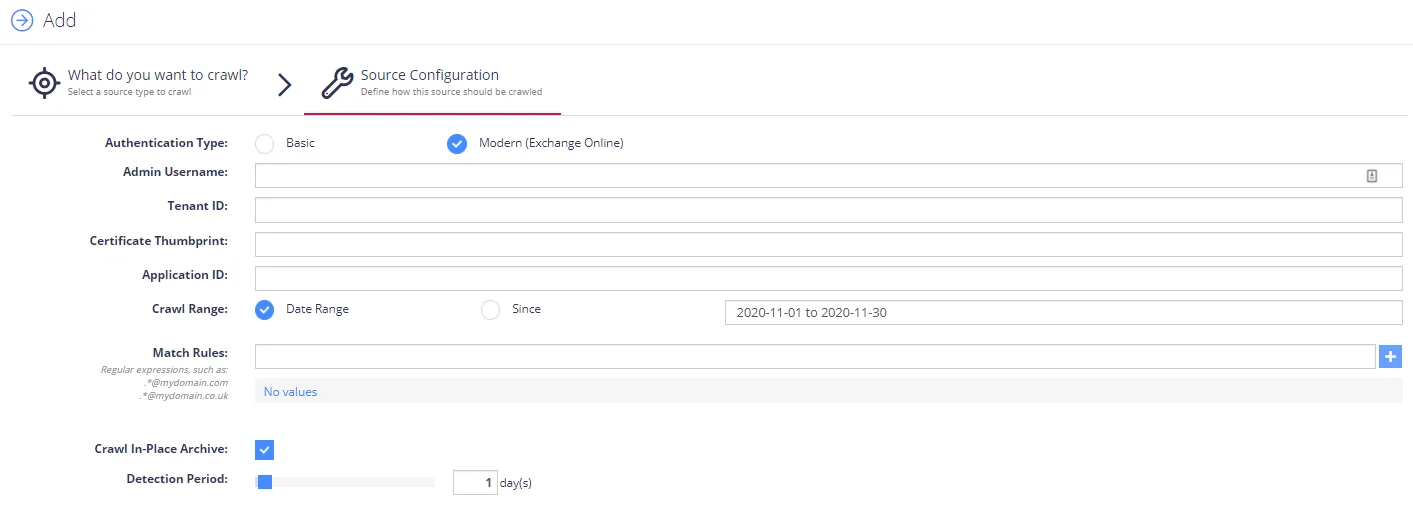
Authentication type: Modern authentication
NOTE: For Email Address / Password, use an Administrator account with the Discovery Management role and the Mailbox Search and MailboxSearchApplication permissions.
If you plan to use this authentication type, specify the following:
| Option | Description |
|---|---|
| Authentication type | Select Modern (Exchange Online) |
| Admin Username | Specify the administrative account for the required Exchange Online organization. |
| Tenant ID | Enter the Tenant ID you obtained at Step 5: Obtain Tenant ID. |
| Certificate thumbprint | Enter the certificate thumbprint you prepared at Step 4: Configure Certificates & secrets. |
| Application ID | Enter the app ID you got at application registration at Step 2: Create and Register a new app in Azure AD (you can find it in the Azure AD app properties >Overview). |
Authentication type: Basic
If you plan to use this authentication type, you will need to specify the following:
| Option | Description |
|---|---|
| Email Address / Password | Administrator account that has been assigned the right of Impersonation as well as the Discovery Management role. See Configure Microsoft Exchange for Crawling and Classification for details on the rights assignment. |
Other configuration settings
The following settings are also required in both cases:
| Option | Description |
|---|---|
| Exchange API URL | By default, the crawling engine locates the Exchange Web Services API URL using the Exchange AutoDiscover functionality, so you can typically leave this field blank. If Exchange AutoDiscover is unavailable, specify the Exchange API URL explicitly: https://<servername>/EWS/Exchange.asmx. |
| Crawl Range | Define what portions of data should be retrieved from the Exchange server: - Select Date Range to crawl a static set of data within the required interval. - Select Since if you want to periodically re-crawl content from the specified date, taking into account the last crawl date for each artifact. |
| Match Rules | Define which mailboxes will be crawled as part of an Exchange Server source. Examples: 1. .*@netwrix.com— enter the wildcard (*) and the domain (here netwrix.com) to restrict crawling to a set of domain mailboxes 2. .*—enter if you want all mailboxes to be crawled |
| Detection Period | Specify how often the source should be checked for changes. Default period is 1 day. |
Having specified all the necessary settings, click the Save button.