Dropbox
Use the Dropbox source configuration screen to enable crawling and classification of content stored in Dropbox cloud storage.
IMPORTANT! Ensure you've created an app for Dropbox crawling before adding the source. See Configure Dropbox for Crawling for more information.
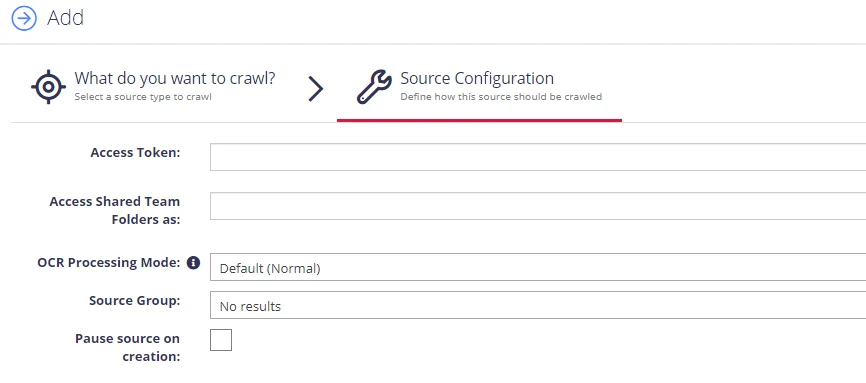
Complete the following fields:
| Option | Description |
|---|---|
| Access Token | Provide the token you generated when authorizing your App. See To authorize your app for more information. |
| Access Shared Team Folder as: | If you have team folders in your Dropbox namespace and you want to crawl one or more of these folders with Netwrix Data Classification, provide the email address of an account that has access to the team folders you want. For personal folders, this option isn't required. For more information, refer to Dropbox Namespace guide. |
| OCR Processing mode | Select documents' images processing mode: - Disabled – documents' images will not be processed. - Default – defaults to the source settings if configuring a path or the global setting if configured on a source. - Normal – images are processed with normal quality settings. - Enhanced – upscale images for more accurate results (longer processing time). |
| Advanced Settings | Click the "wrench" icon in the Settings area ( ) at the bottom of the screen to expand the following advanced settings: - Re-Index Period — specifies how often the source should be checked for changes. The number specifies the period in days. - Priority — specifies the priority of content source processing in the service queues. - Document Type — specify a value to restrict queries when using the core search index. ) at the bottom of the screen to expand the following advanced settings: - Re-Index Period — specifies how often the source should be checked for changes. The number specifies the period in days. - Priority — specifies the priority of content source processing in the service queues. - Document Type — specify a value to restrict queries when using the core search index. |
| Source Group | Netwrix recommends creating a dedicated source group for Dropbox. |
| Pause source on creation | Select if you want to make other configuration changes before collection of the source occurs. |