Agentless CIS Windows Server & Desktop Compliance Reports
Removing the requirement for agents to be present on target devices has several advantages when it comes to administration, especially in a Managed Service Environment (MSP) where access to and control of target devices may be limited.
This reduction in administration comes at the cost of reduced functionality and potentially a requirement for higher levels of privileges on the target machine.
The Hub doesn't communicate directly to target devices, so an agent is still required, but this agent can reside on the same device that hosts the Hub. This agent (the master proxy) remotely communicates with devices and relays the data back to the hub. For this reason, Netwrix Change Tracker uses the term proxied device instead of agentless device.
Functionality and Scope
The only functionality for proxied Windows devices is the execution of the following Center for Internet Security (CIS) compliance reports:
- CIS Microsoft Windows Server 2022, 2019
- CIS Microsoft Windows Desktop 11, 10
These CIS compliance reports perform all their checks via remote registry queries or security settings.
Requirements and Permissions
The credential used to run the agent service on the master proxy device and the credential used to connect to the proxied Windows devices require domain admin privileges.
Remote Registry Service
The master proxy and target Windows devices require the remote registry service to be running and have remote administration enabled. You can enable this on each device individually or across all devices at once using a Group Policy Object.
The remote registry service requires port 445 to be open on the target device.
Proxied Windows Device and CIS Windows Server
These sections demonstrate the creation of a proxied Windows device and the execution of a CIS Windows Server report against it. This requires the existence of a device group named RemoteTest, but the steps to create it are out of scope for this guide.
Windows Logon Credentials
Add Windows logon credentials in the SSH/Telnet Credentials section of the Credentials Administration page.
Step 1 – Click the Add Shell Credential (SSH/Telnet/Windows) button to open the credential creation form.
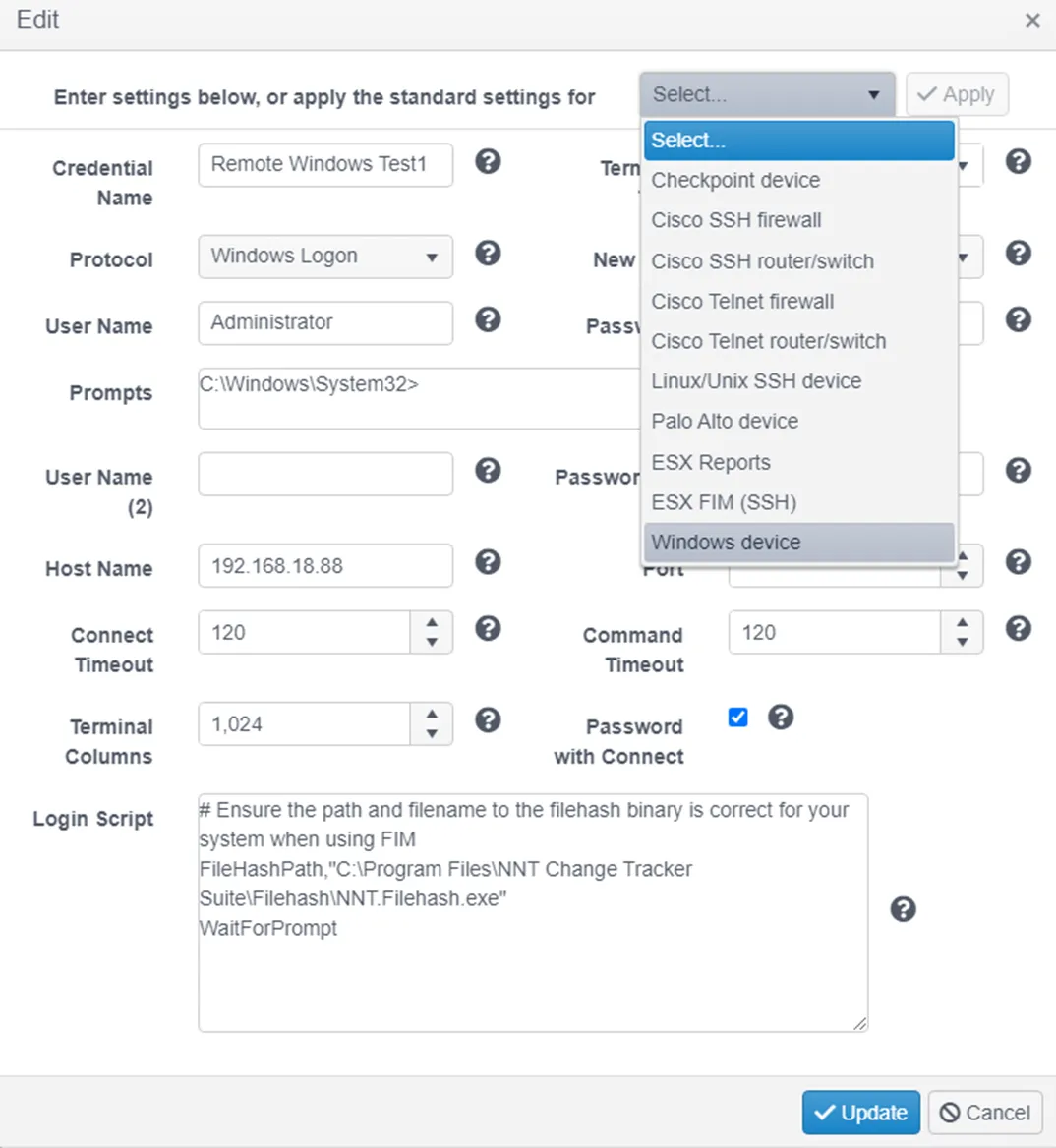
Step 2 – Name the credential. This example uses Remote Windows Test1.
Step 3 – Select Windows device from the top dropdown menu to populate the settings with defaults for proxied devices.
The credential now appears in the grid.

Configure the Proxied Windows Device
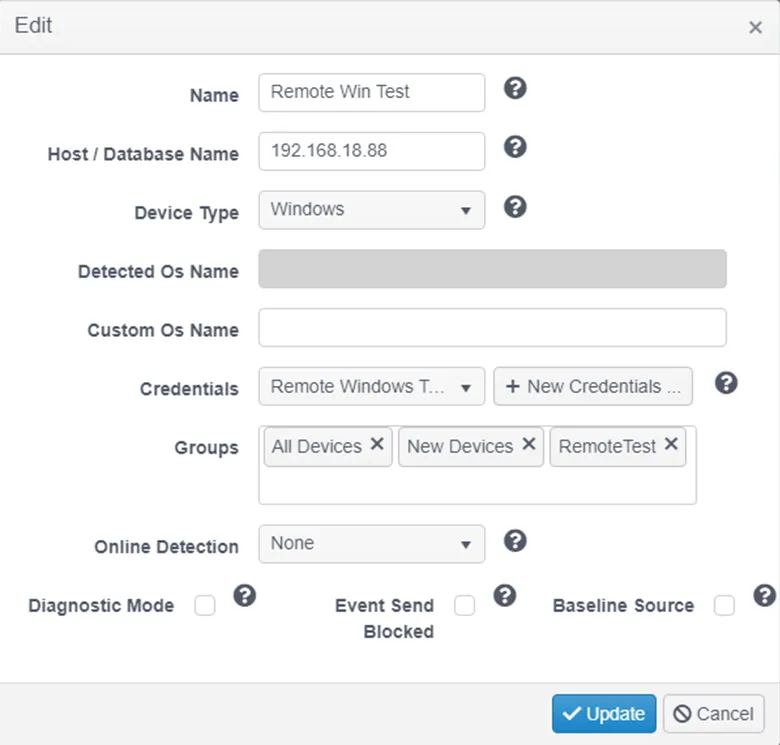
On the Agent and Device Administration page, click Add Proxied Device on the device that acts as the master proxy. The agent on this master proxy device makes the remote calls to the proxied devices.
Step 1 – Name the proxied device.
Step 2 – Enter the host name or IP address of the proxied device.
Step 3 – Select Windows as the device type.
Step 4 – Select the credential created in the previous step.
Step 5 – Add the RemoteTest group to the group list.
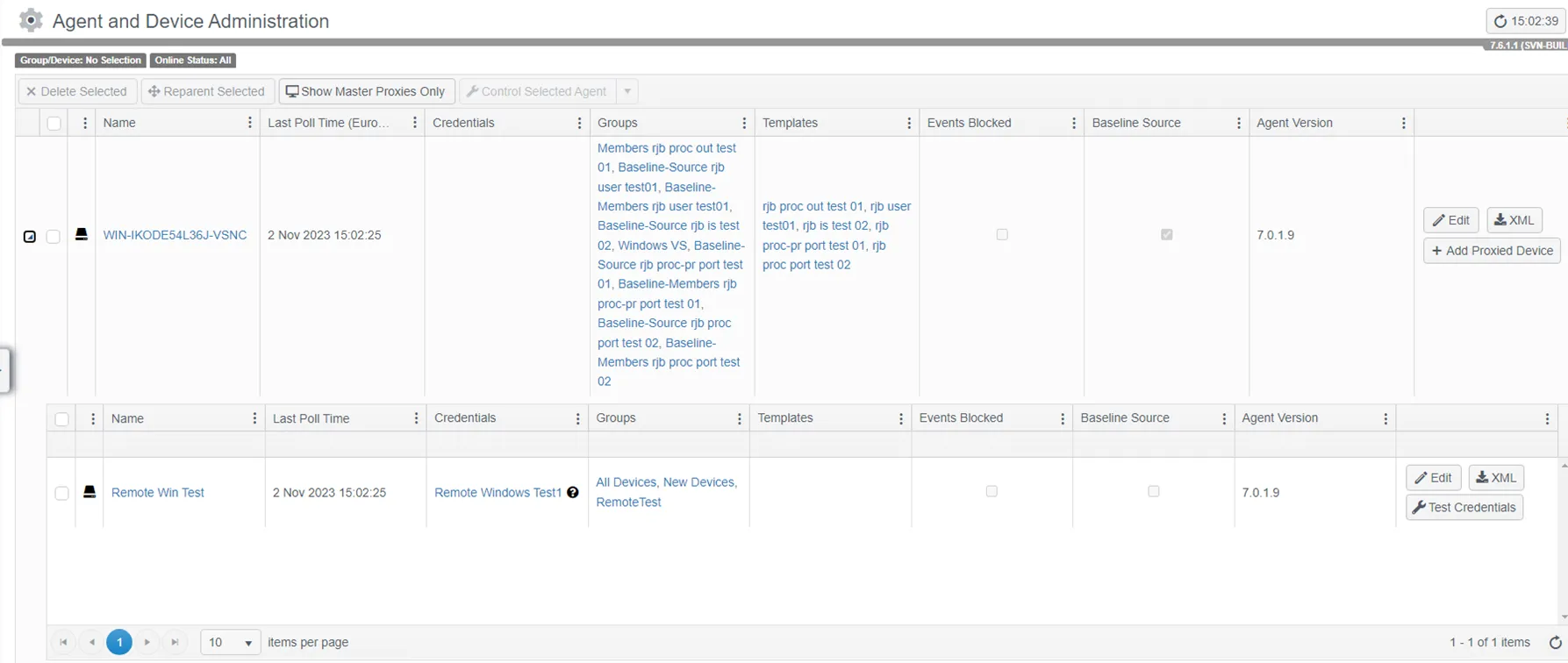
The proxied Windows device now appears in the detail grid of the master proxy device.
Windows Compliance Reports
The steps to create or configure a compliance report are out of scope for this guide, but you must configure the report to run against the RemoteTest group to ensure it includes the proxied device you created in the previous step.
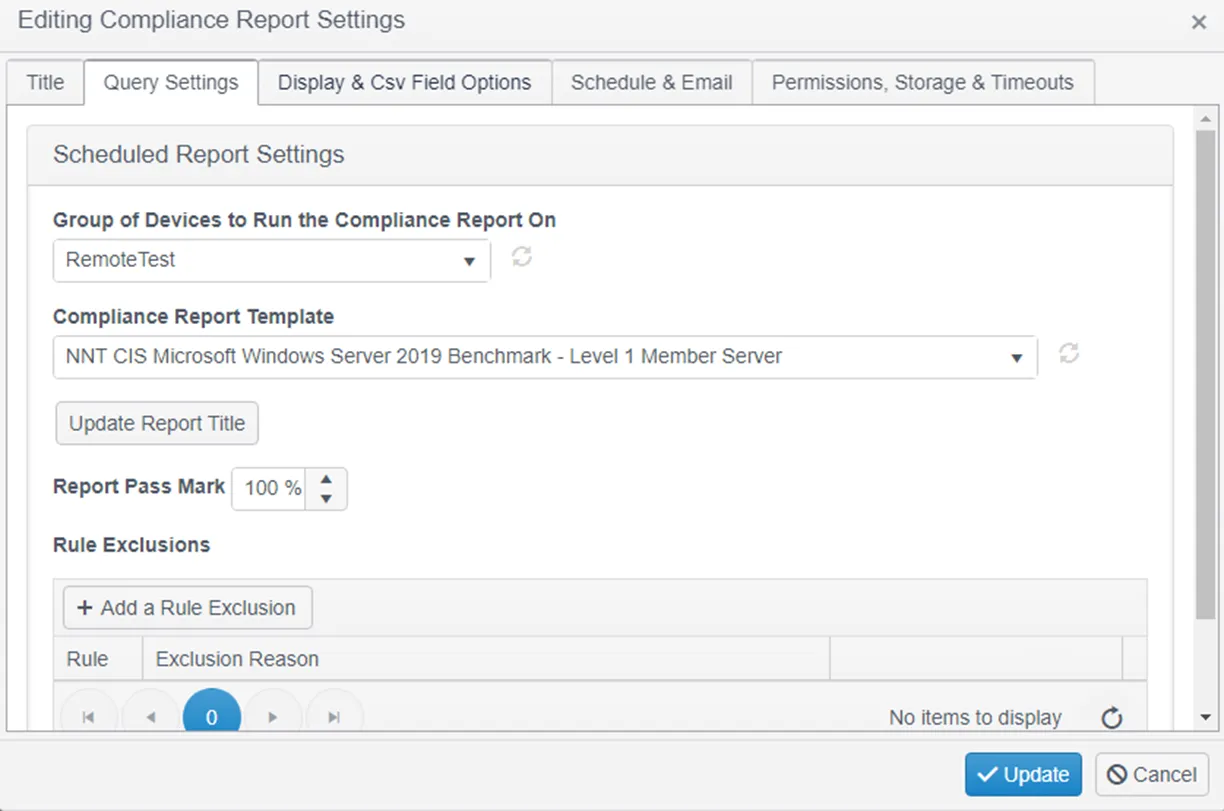
Execute the compliance report in the standard way.

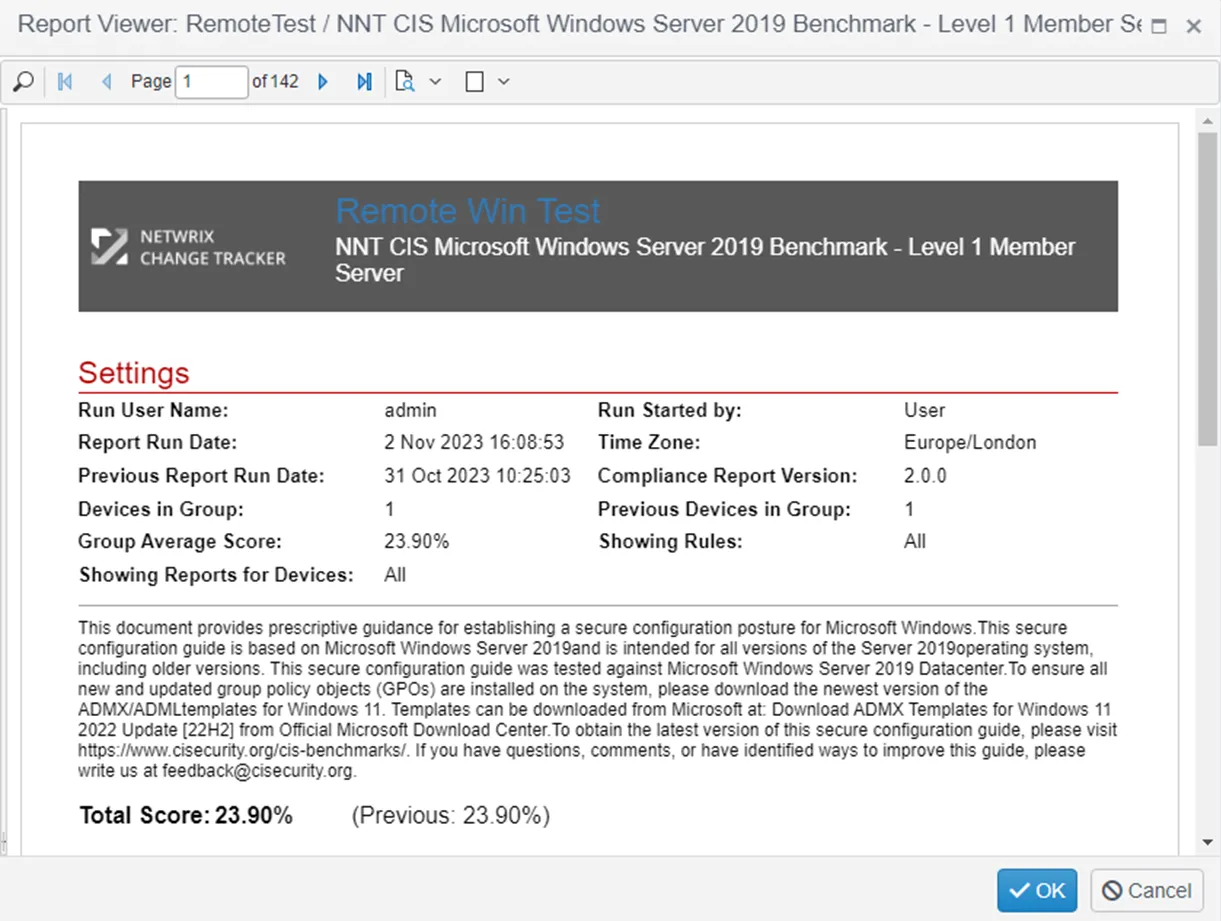
Completed compliance report:
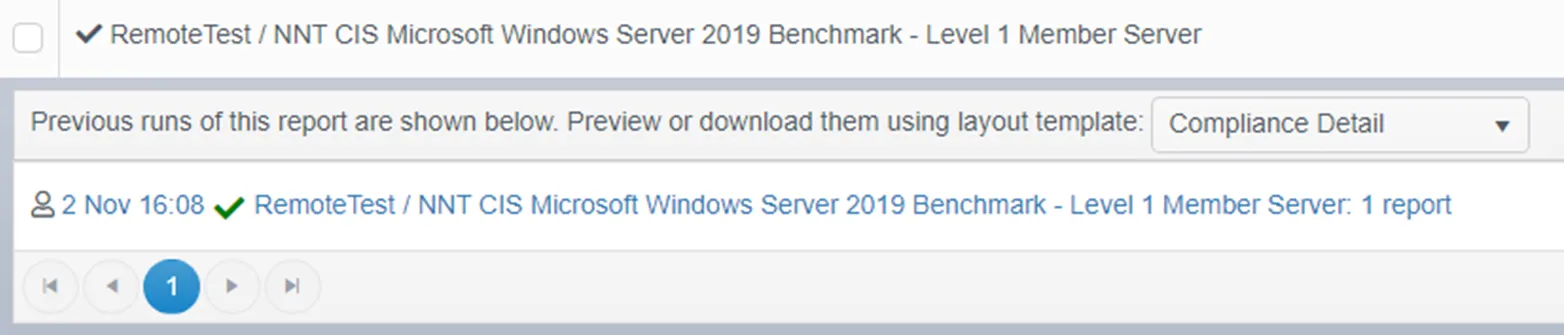
The Windows compliance report looks the same as a report run on Windows devices with agents. The report details show all passed and failed checks for the proxied Windows device.