Manage Tab
This section covers remediation and change control when you operate a Baseline Configuration Policy.
From the CIS Controls 7.1: "Maintain an up-to-date list of all authorized software that is required in the enterprise for any business purpose on any business system” and “Ensure that unauthorized software is either removed or the inventory is updated in a timely manner". Also "verify all security configuration elements, catalog approved exceptions, and alert when unauthorized changes occur".
From NERC CIP 010: "Develop a baseline configuration which shall include the following items: Operating system or firmware, commercially available or open-source application software, custom software, logical network accessible ports; and any security patches applied" then "Monitor every 35 days for changes to the baseline configuration. Document and investigate detected unauthorized changes".
In summary, the intent of this security control is to maximize security defenses and maintain them.
- Decide on a secure configuration (software, network ports, hardened configuration settings) for a device, then
- Ensure all similar devices are compliant with your Baseline Configuration
In a real-world IT environment, change is constant. You need to regularly patch devices and update configuration settings to meet changing business requirements, so the process requires an additional step: managing the Baseline Configuration.
For example, the earlier example reported three failures. One device was missing a required item (Notepad++), and another device was running the wrong version of Notepad++. Installing or updating the software on the two non-compliant devices remediates these failures. However, a third failure also occurred: Google Chrome was reported on the same two devices at a later version than required.

You have two options: downgrade the two devices showing failures to match the required version, or update the Baseline Configuration to include the newer version. This process is known as 'promoting to the baseline,' where you add a new or updated element to the existing Baseline to account for changing conditions. Netwrix Change Tracker performs this process using the Manage tab.
Using the Manage Tab
The Manage tab shows any exceptions identified from the last report run.
Change Tracker automatically sets the Date and Time filters to match the time window for the last Baseline Report run.
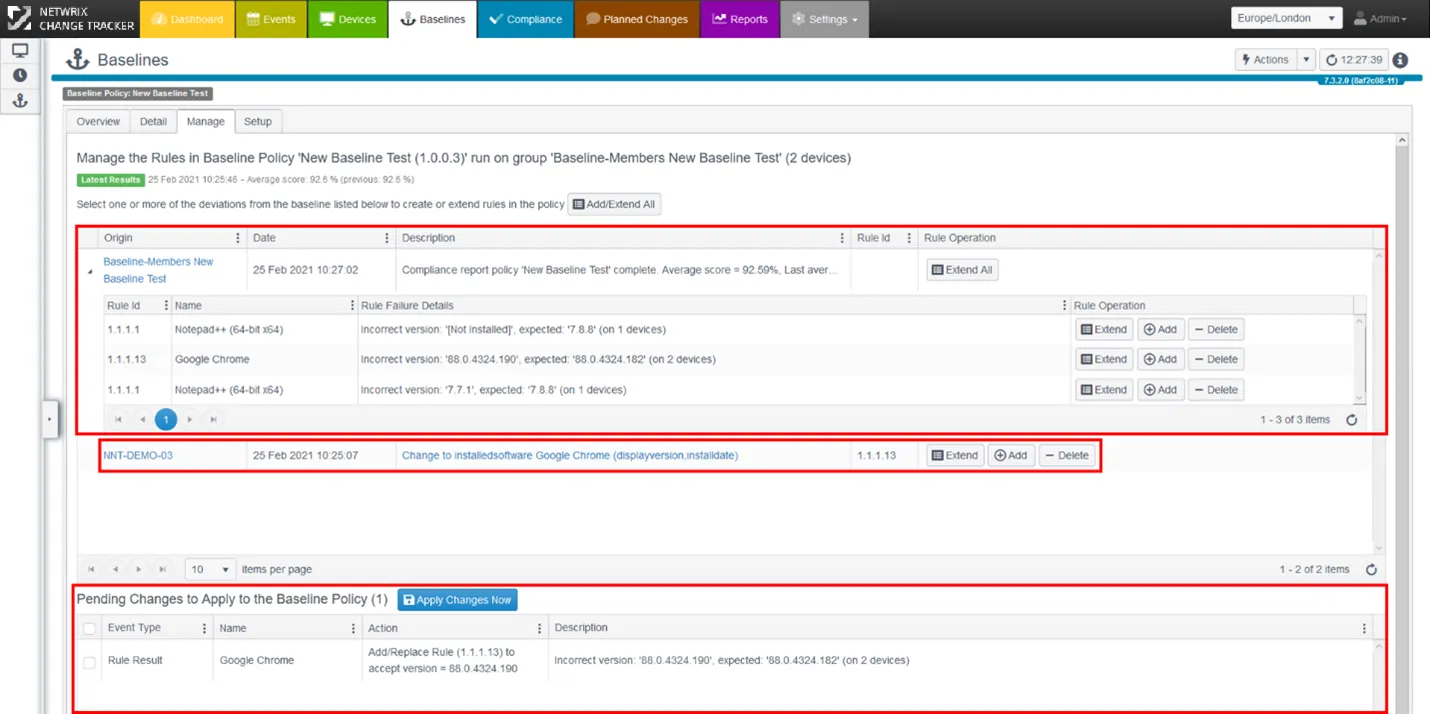
Baseline Exceptions
Exceptions include any failures according to the Baseline Policy used in the report, together with any new changes affecting the Baseline Policy referenced from the Source device. If you've chosen to include changes from Member Devices too, those changes also appear here. For more information about the step where you specify the source, see the Baseline Policy Wizard topic.
This example uses the default operation, which includes only changes originating from the Source Device for this Baseline Policy. It shows an update to the version of Google Chrome on this device, so Change Tracker highlights this change and offers it as a candidate to promote to the Baseline Policy.
Rule Operations:
There are three choices for modifying a Baseline Policy: Extend, Add, and Delete. You can also use the Rule Edit function in the Setup tab if you want to remove an existing rule entirely. Hover over each button to view a tip describing its function.

-
Extend – Extends the existing baseline rules for this exception, promoting this item as a 'valid' configuration
-
Add – Adds a new rule to the baseline that checks for the presence of this item. This overwrites any existing rule for this item.
-
Delete – Removes the baseline rule so it no longer checks for this item.
noteDeleting a 'No Others' rule failure removes all 'No Others' processing for this Tracker type.
After you decide how to handle the exceptions, click Apply Changes Now to apply the changes.

Change Tracker prompts you to enter the Business Justification for the changes, just as it did when you originally created the Baseline Policy.
Viewing the Baseline Policy details
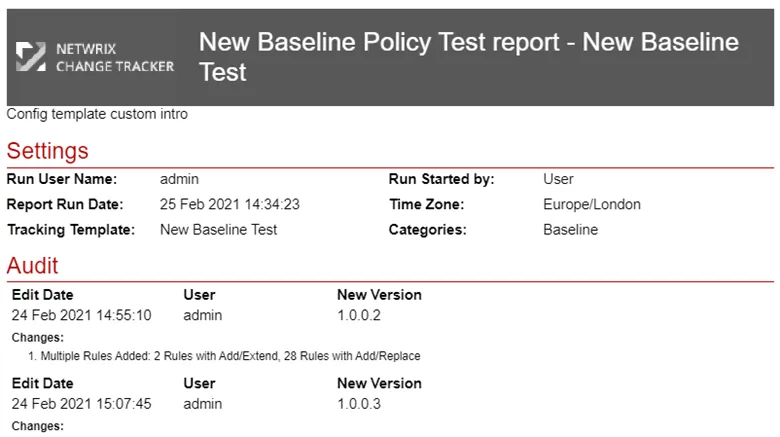
To get a hard copy of the Baseline Policy, you can create a Tracking Policy report based on the Baseline Policy. Go to the Reports Center and use the Actions button, then select Add Tracking Template Report.
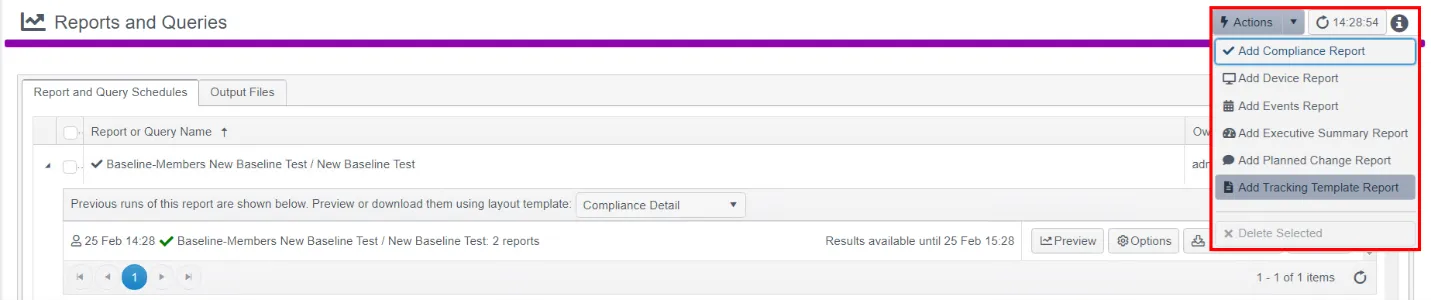
An auditor often asks to see what the Baseline Policy comprises, when changes were made, why they were made, and by whom. This report provides a complete audit trail of changes, as well as a breakdown of the rules included in the policy.