Baseline Tab
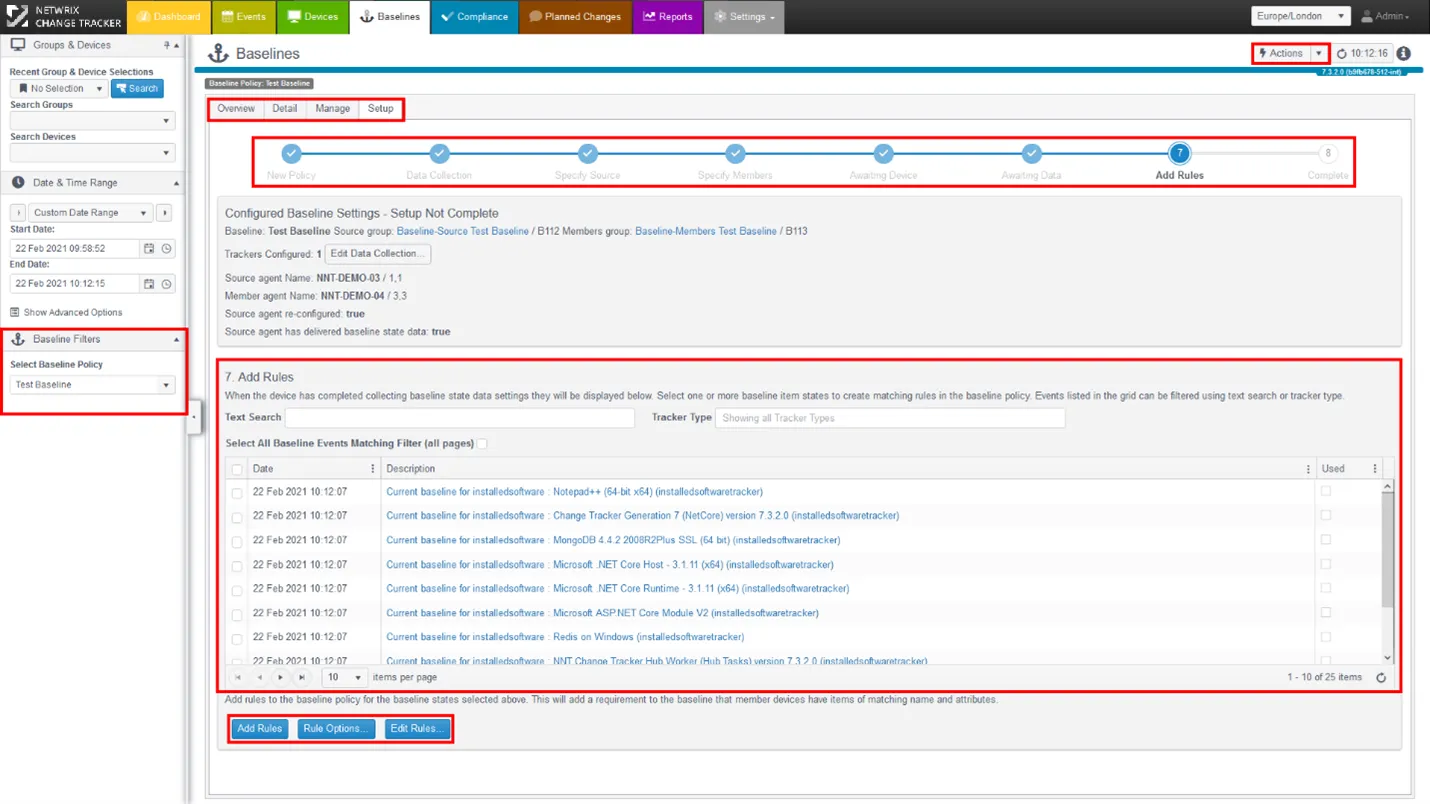
Actions button:
To create a new Baseline Policy, use the Actions button in the top-right corner of the Baselines tab. Change Tracker prompts you for a name for the new Baseline Policy, then starts the Baseline Wizard.

Baseline Wizard Progress Bar:
The Baseline Wizard Progress Bar tracks the creation of a new Baseline Policy. Creating a baseline policy with rules, a Baseline Source, a Member Device Group, and a Baseline Report takes only 8 steps.
Baseline Rules:
The Baseline Wizard takes you through a series of steps detailed in the next section of this guide. After Change Tracker harvests configuration items from the Source Device, it displays them in the Add Rules panel. You can select items individually for inclusion in your policy, or use the Select All Baseline Events Matching Filter (all pages) checkbox.
Rule Controls:
Add Rules adds the selected rules to your policy with the selected Rule Options (see later section). The Edit Rules option lets you edit an existing policy and remove rules.