Agent Credential Rotation
There are two ways to change the credentials that agents use to authenticate with the Hub. If you suspect that agents have been compromised, use the out-of-band process described in this document.
If you're rotating authentication details as part of a routine process, use the in-band alternative instead: set all agents to use new credentials from within the Hub's web console. See the Agent Configuration topic for additional information.
Use the scripts at the bottom of this page to update authentication details on devices. You can roll out these scripts to all devices with an IT automation system. Each script stops the agent, sets the new authentication details in the agent's configuration file, and restarts the agent. On restart, the agent encrypts the password. The encrypted password has E1 tags in the configuration file.
The Agent Account
Installing the Hub creates an account named Agent with just the Agent role. This role enables agents to use this account to authenticate with the Hub. Because the agent account has no other roles, only agents can use it to authenticate.
Rotate Agent Credentials
You can find the existing agent account in the Users section of the Hub.

Changing the password of an account that agents use to authenticate causes the agents to go offline because they keep attempting to authenticate with the old password.
For a smooth transition, create a new account with just the Agent role. Give this account a different user name and password. After you create it, update the agent's configuration to use the new account. After you migrate all agents, remove the old agent account.
Create the new agent account:
Step 1 – Click Create New User, give it a user name and just the Agent role.

Step 2 – Click Update, and the User Password dialog opens with a complex password. This is only shown once, so save it in a password management system for future use.
Agent Authentication Update on Windows
For Windows devices, use the ChangePasswordOOB.ps1 PowerShell script to update the
authentication details and restart the agent.
Set the two variables, $newUsername and $newPassword, near the top of the script, to
match the new agent account.
Running the script sets the new authentication details, restarts the agent, and produces output similar to the following.

ChangePasswordOOB.ps1
# Define the service name and default config file path
$serviceName = "Gen7AgentCore"
$configFilePath = "C:\ProgramData\NNT\gen7agent.app.netcore\HubDetails.xml"
# Set the new password here
$newPassword = ""
$newUsername = ""
# Check if the new password is set
if ([string]::IsNullOrEmpty($newPassword)) {
 Write-Error "Please set a new password in the `$newPassword variable" -ErrorAction Stop
 return
}
# Check if the new username is set
if ([string]::IsNullOrEmpty($newUsername)) {
 Write-Error "Please set a new username in the `$newUsername variable" -ErrorAction Stop
 return
}
# Stop the service if it's running
$service = Get-Service -Name $serviceName -ErrorAction SilentlyContinue
if ($service.Status -eq "Running") {
 Write-Host "Stopping service '$serviceName'..."
 Stop-Service -Name $serviceName -Force
 Write-Host "Service '$serviceName' stopped successfully."
} else {
 Write-Host "Service '$serviceName' is not running or does not exist."
}
# Read the contents of the config file
$configContent = Get-Content -Path $configFilePath
# Replace any <Password>...</Password> or <Password/> tag with the new password
$configContent = $configContent -replace "<Password>.*?</Password>", "<Password>$newPassword</Password>"
$configContent = $configContent -replace "<Password\s*/>", "<Password>$newPassword</Password>"
# Replace any <Username>...</Username> or <Username/> tag with the new username
$configContent = $configContent -replace "<Username>.*?</Username>", "<Username>$newUsername</Username>"
$configContent = $configContent -replace "<Username\s*/>", "<Username>$newUsername</Username>"
# Remove all occurrences of the <E1/> tag
$configContent = $configContent -replace "<E1\s*/>", ""
# Write the updated content back to the config file
$configContent | Set-Content -Path $configFilePath
Write-Host "The username and password have been replaced and <E1/> tag(s) removed successfully."
# Restart the service after the change
Start-Service -Name $serviceName
Write-Host "Service '$serviceName' started successfully."
Agent Authentication Update on Linux
For Linux devices, use the bash script named UpdatePasswordOOB.sh to set the authentication
details and restart the agent.
Set the two variables newUsername and newPassword near the top of the script to match
the new agent account.
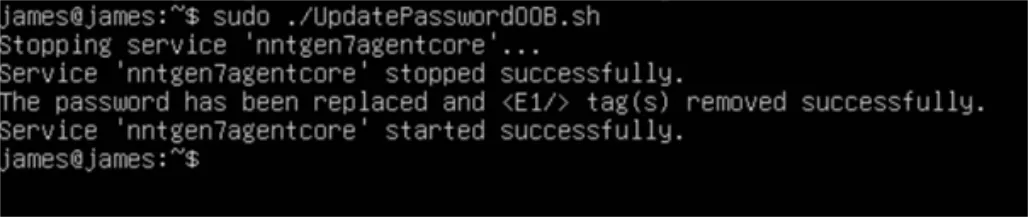
Running the script sets the password, restarts the agent, and produces output similar to the following.
UpdatePasswordOOB.sh
#!/bin/bash
# Define the service name and default config file path
SERVICE_NAME="nntgen7agentcore"
CONFIG_FILE_PATH="/etc/NNT/gen7agent.app.netcore/HubDetails.xml"
# Set the new password here
newPassword=""
newUsername=""
# Check if the new password is set
if [ -z "$newPassword" ]; then
 echo "Error: Please set a new password in the 'newPassword' variable."
 exit 1
fi
# Check if the new username is set
if [ -z "$newUsername" ]; then
 echo "Error: Please set a new username in the 'newUsername' variable."
 exit 1
fi
# Stop the service if it's running
if systemctl is-active --quiet $SERVICE_NAME; then
 echo "Stopping service '$SERVICE_NAME'..."
 systemctl stop $SERVICE_NAME
 echo "Service '$SERVICE_NAME' stopped successfully."
else
 echo "Service '$SERVICE_NAME' is not running or does not exist."
fi
# Check if the config file exists
if [ ! -f "$CONFIG_FILE_PATH" ]; then
 echo "Error: Config file not found at $CONFIG_FILE_PATH"
 exit 1
fi
# Replace any <Password>...</Password> or <Password/> tag with the new password
sed -i "s|<Password>.*</Password>|<Password>$newPassword</Password>|g" "$CONFIG_FILE_PATH"
sed -i "s|<Password\s*/>|<Password>$newPassword</Password>|g" "$CONFIG_FILE_PATH"
# Replace any <Username>...</Username> or <Username/> tag with the new password
sed -i "s|<Username>.*</Username>|<Username>$newUsername</Username>|g" "$CONFIG_FILE_PATH"
sed -i "s|<Username\s*/>|<Username>$newUsername</Username>|g" "$CONFIG_FILE_PATH"
# Remove all occurrences of the <E1/> tag
sed -i "s|<E1\s*/>||g" "$CONFIG_FILE_PATH"
echo "The username and password have been replaced and <E1/> tag(s) removed successfully."
# Restart the service after the change
systemctl start $SERVICE_NAME
echo "Service '$SERVICE_NAME' started successfully."