Export Reports
To export filtered events, use the Report/Export button and menu. Most fields and settings are self-explanatory, but the following covers those that need more explanation.
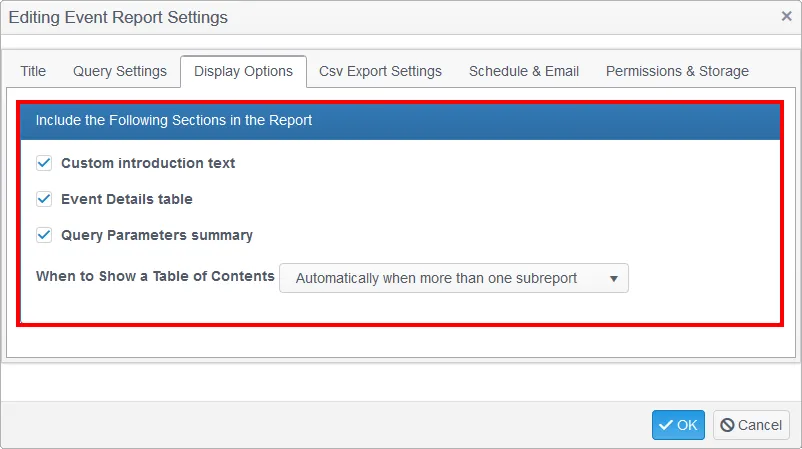
These options control the report display. If you need a condensed, simplified report, uncheck these options. Generally, though, the tables and analysis charts help identify sources of change noise.
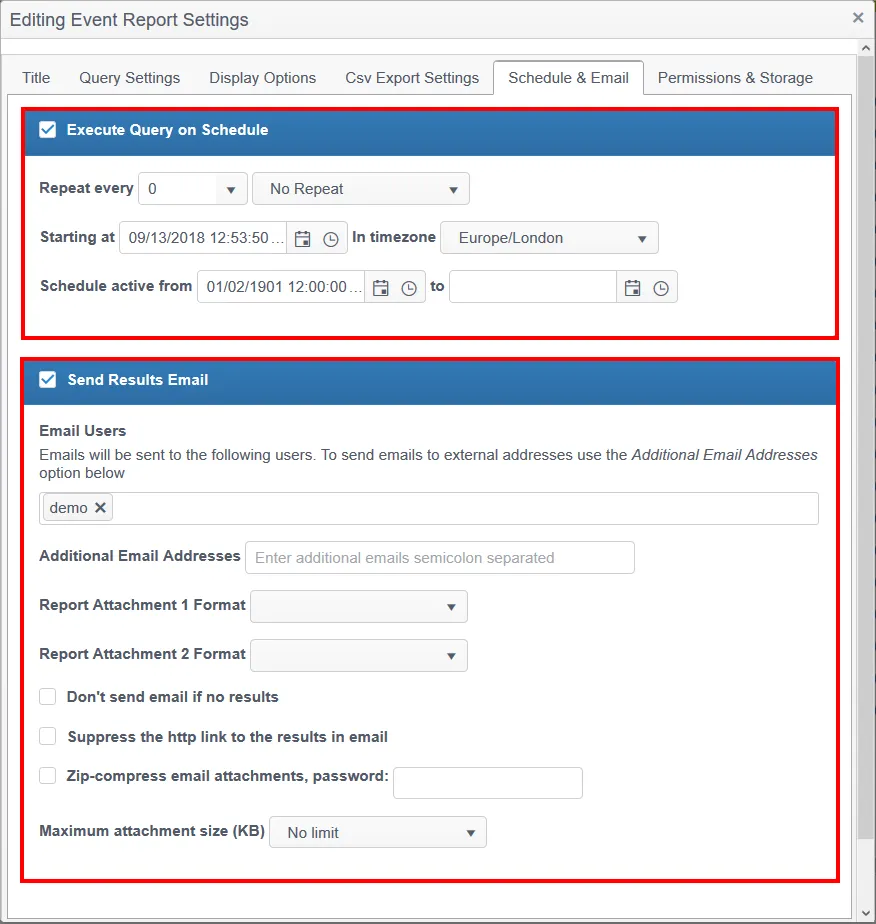
Set the start and end time for the reporting schedule, along with the frequency for repeating report delivery.
Results Delivery options include:
- List of recipient emails
- Two different report formats, such as PDF and CSV
- No email if no results, otherwise Change Tracker always sends a reassuring email, even if there's nothing to report
- Maximum attachment size, a safety measure that prevents sending, for example, a 5 TB report
Press the OK button at the bottom of the window when done.
Permission and Storage Settings
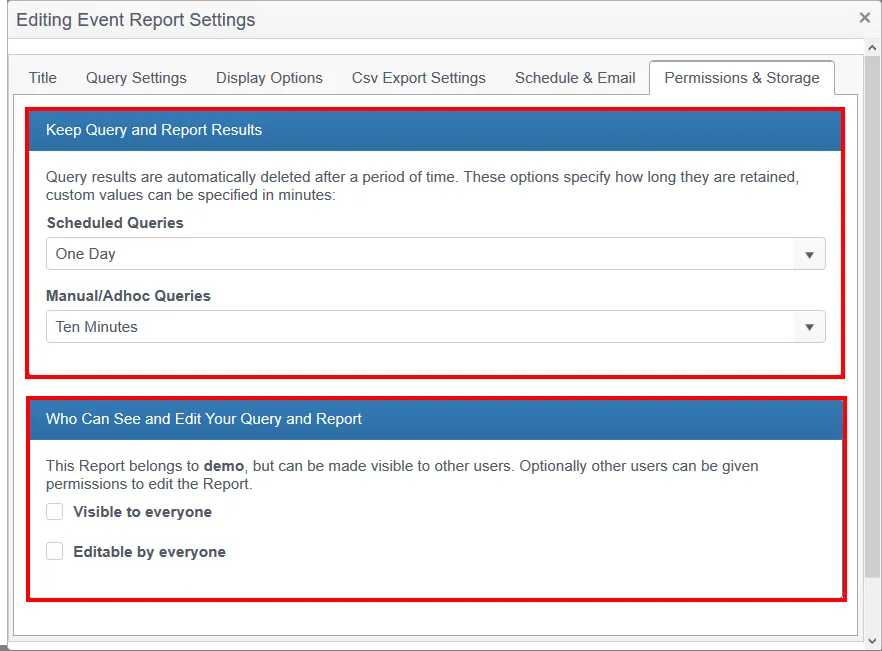
Netwrix Change Tracker gives you greater control over storage usage. By default, Change Tracker retains generated reports for a finite period, then removes them. Change Tracker typically delivers reports by email and stores them outside of the database (DB), so it doesn't need to also retain the reports within the DB. The events within the reports remain, but Change Tracker removes the duplicate set of events created for the report.
By default, only the report's originator can view it, but you can also make reports visible or editable by other users, if required.
Press the OK button at the bottom of the window when done.
You can see and edit report settings, schedules, and results on the Reports tab. See Report Options for more information.