Reports Tab
To view all the reports, from compliance to the executive summary, click the Reports tab.
By default, Change Tracker adds the CIS compliance reports, but additional report types are available, as detailed later. Click Run to run the report; it becomes available below for preview. You can schedule these reports to run at specific times and deliver them via email in a variety of formats.
To add a new report type, select the report from the dropdown menu, then click Add. Change Tracker adds these reports to a new page on the Reports tab, and they might not show until you refresh the browser. If you add a new report and don't see it, ensure you refresh the page and use the bottom navigation to move to the second page of reports.
Reports and Queries Tab
All new for Gen7 R2, the Reports Tab provides complete control over all report functions.
Add new reports using the dropdown selector and +Add button in the top-right corner of the page, or using the Query/Report button on the Events and Planned Change tabs.

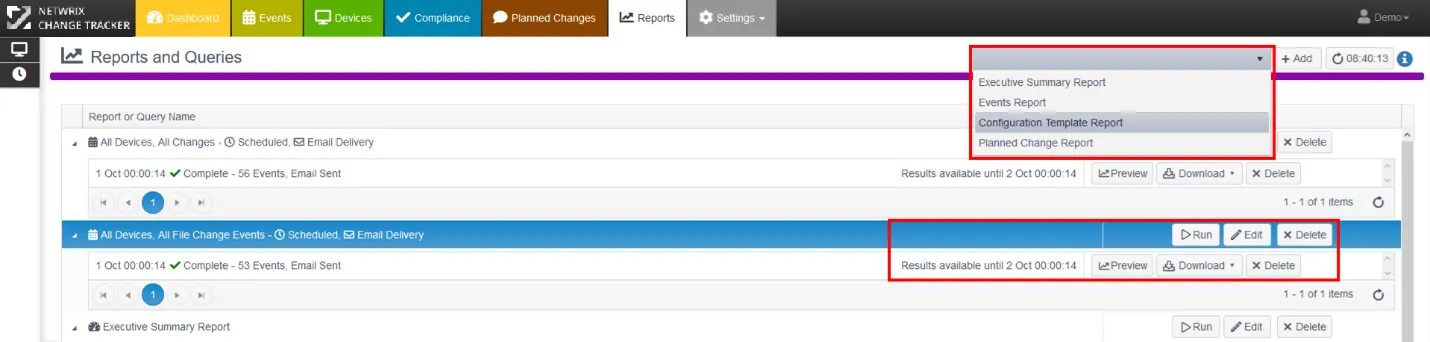
The built-in Compliance report templates control report formatting. See the topic for more information. Any report has a ‘Results available until xx yy zz’ label. This retention period prevents reports from remaining in storage forever and using resources unnecessarily. Change Tracker emails most reports at the time of production; you then either consume them or store them externally, removing the need to store reports long term at the Change Tracker Hub. Don't worry — the events remain as long as needed, governed by the separate DaysToKeepEventsFor system setting. See System Settings for more information. You can regenerate reports at any time in the future, if needed.
Executive Summary Report
This report shows at a high level the changes in planned vs. unplanned change and compliance. Edit the report to define the group of interest - this can be all devices or a subset of devices.
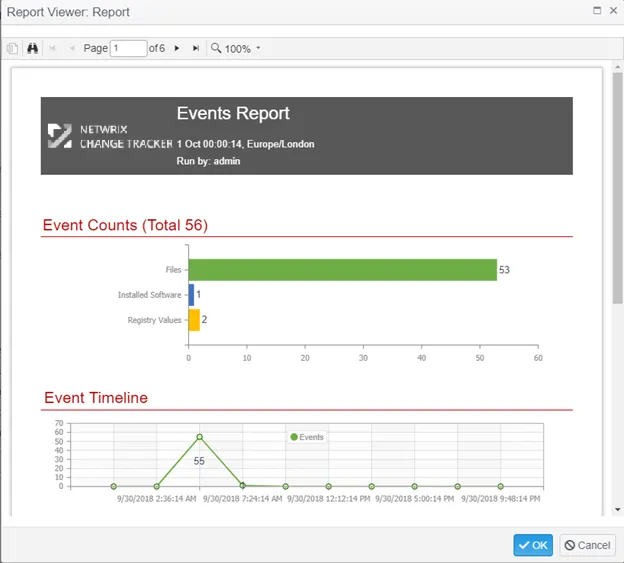
Events Report
The events report shows the same data available on the Events tab, but in an easier-to-read format. You can filter by group or device, date range, event, and change type, with a text search option. This reflects the same filtering options available on the side panel filter from the events page.
Configuration Template Report
This report shows all the monitored items for a given configuration template. Use it to prove to an auditor what is being monitored for change in the environment.
Planned Change Report
This report shows all the changes associated with a Planned Change. This could be from manually added planned changes, FAST approved changes, or an integration with a ticketing system like ServiceNow.
Compliance Reports
Compliance reports show the level of compliance to a given standard, including CIS, PCI, NIST, and others. There are two options for previewing or downloading the data: either a full report showing all the passing/failing tests with remediation guidance, or a summary of change over time.
To see the full results of the report, click View Report for the report you want. You can also open the compliance reports from the Compliance tab at the top.
The Report view shows all rules and results. You can also export report results in PDF, Excel, or CSV format. The Template selector alongside the Export button provides options for either summarized pass/fail format or full results details format.
See Overview Tab for more information.