Configure Audit Object Access Policy
Configure the Audit object access policy on the OU that contains your Dell Data Storage appliance.
Netwrix recommends that you avoid linking a GPO to the top level of the domain due to the potential impact. Instead, create a new organization unit for your file servers within your domain and assign GPO there. For instructions on creating a new OU, see the Microsoft article Create a New Organizational Unit. Step 1 – Open the Group Policy Management console on any domain controller in the target domain: navigate to Start > Windows Administrative Tools**→ Group Policy Management.**
Step 2 – In the left pane, navigate to Forest: <forest_name> → Domains →
<domain_name>, right-click <OU_name> and select Create a GPO in this domain and Link it
here.
Step 3 – Enter the name for the new GPO.
Step 4 – Right-click the newly created GPO and select Edit.
Step 5 – In the Group Policy Management Editor dialog, expand the Computer Configuration node on the left and navigate to Policies → Windows Settings → Security Settings → Local Policies → Audit Policy.
| Policy Subnode | Policy Name | Audit Events |
|---|---|---|
| Audit Policy | Audit object access | "Success" and "Failure" |
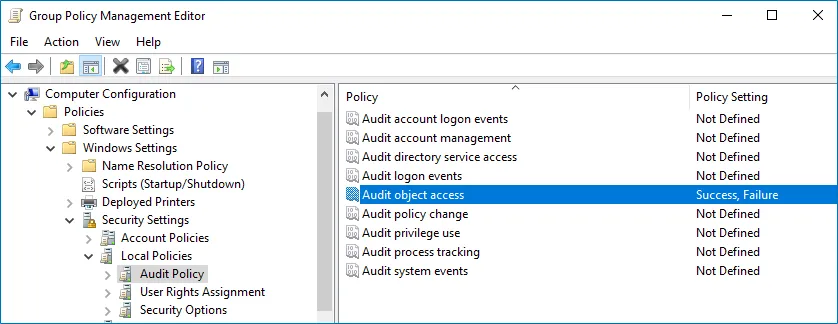
Step 6 – To update the group policies, execute the following command:
-
For Dell Unity:
svc_cifssupport
<NAS Server Name>-gpo -updatewhere
<NAS Server Name>is the name of the target Unity\VNX server. -
For Dell VNX:
server_security
<NAS Server Name>-update -policy gpowhere
<NAS Server Name>is the name of the target Unity\VNX server.To update group policies for Dell VNX, you must log in as the
nasadminuser.
You can configure advanced audit policy to narrow the range of events Auditor tracks and records. This prevents your AuditArchive and the Security event log from overfilling. See the Configure Security Event Log topic for additional information.