User Activity
NOTE: Before you configure your monitoring plan, read the following topics and complete the instructions in them:
-
Protocols and Ports Required – To ensure successful data collection and activity monitoring configure necessary protocols and ports for inbound and outbound connections
-
Data Collecting Account – Configure data collecting accounts as required to audit your IT systems
-
User Activity – Configure the data source for monitoring as required
Complete the following fields:
| Option | Description |
|---|---|
| General | |
| Monitor this data source and collect activity data | Enable monitoring of the selected data source and configure Auditor to collect and store audit data. |
| Notify users about activity monitoring | You can enable the message that appears when a user logs in and specify the message text. |
| Record video of user activity within sessions | - If you disable this option, the product collects only user session events (regardless of whether the user is idle). - If you enable it, the product both collects user session events and records video of user activity. By default, this option is disabled. |
| Video Recording For these settings to become effective, enable video recording on the General tab. | |
| Adjust video quality | Optimize video file by adjusting the following: - File size and video quality - Save video in grayscale - CPU load and Video smoothness. |
| Adjust video duration | Limit video file length by adjusting the following: - Recording lasts for <...> minutes—Netwrix Auditor stops video recording after the selected time period. - User has been idle for <...> minutes—Netwrix Auditor stops video recording if a user is inactive during the selected time period. If you enable the Record video of user activity within sessions option, the User Sessions report shows active time that excludes the user idle period. Windows treats a computer as idle if the user hasn't interacted with the mouse or keyboard for a given time and if the hard drives and processors have been idle more than 90% of that time. - Free disk space is less than <...> MB—Netwrix Auditor stops video recording upon reaching the selected disk space limit. - Consider user activity — Select one of the following: - Stop if user has been idle for <...> minutes. Select this option if you want Netwrix Auditor to stop video recording for a user after the specified time period. - Continue video recording regardless of the user idle state. When you select this option, Netwrix Auditor continues video recording for idle users. |
| Set a retention period to clear stale videos | When the selected retention period is over, Netwrix Auditor deletes your video recordings. |
| Users | |
| Specify users to track their activity | Select the users whose activity you want to record. You can select All users or create a list of Specific users or user groups. You can also add certain users to the Exceptions list. |
| Applications | |
| Specify applications you want to track | Select the applications that you want to monitor. You can select All applications or create a list of Specific applications. You can also add certain applications to the Exceptions list. |
| Monitored Computers | |
| For a newly created monitoring plan for User Activity, the list of monitored computers is empty. Add items to your monitoring plan and wait until Netwrix Auditor retrieves all computers within these items. See Add Items for Monitoring for the item types each data source supports and the steps for adding them. The list contains computer name, its current status and last activity time. |
Review your data source settings and click Add to go back to your plan. The newly created data source will appear in the Data source list. As a next step, click Add item to specify an object for monitoring. See the Add Items for Monitoring topic for additional information.
How to Include/Exclude Applications
To create a list of applications to include in or exclude from monitoring, provide the following:
-
Title — application title as shown on top of the application window, for example, MonthlyReport.docx - Word.
- You can also find the title in the "What" column of related Netwrix Auditor reports and search results, for example, in the User Sessions report.
-
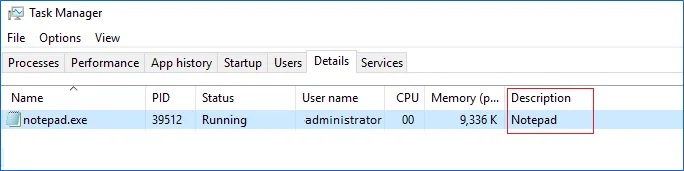
Description — as shown in the Description column on theDetails tab of Windows Task Manager.
- Using Description can help filter out several components of a single application — for example, all executables having TeamViewer 14 description belong to the same app (see the screenshots in the following example).
To create a list of inclusions / exclusions for applications:
Step 1 – Click Add on the right of the list.
Step 2 – Enter application title and description you have identified.
Netwrix Auditor supports wildcards (*?) and applies them as follows:
- * - Notepad (the "Title" filter) will exclude all Notepad windows.
- colo?r * (the "Title" filter) will exclude all application window titles containing "color" or "colour".
Same logic applies to the inclusion rules.
Example
To exclude the Notepad application window with "Document1" open, add the following filter values:
-
In the Title filter enter "Document1.txt - Notepad":

-
In the Description filter, enter the corresponding value, here it will be "Notepad".
Computer
For evaluation purposes, Netwrix recommends selecting Computer as an item for a monitoring plan. After you configure the product to collect data from the specified items, it applies audit settings (including Core and Compression services installation) to all computers within the AD Container or IP Range.
Complete the following fields:
| Option | Description |
|---|---|
| General | |
| Specify a computer | Provide a server name by entering its FQDN, NETBIOS, or IPv4 address. You can click Browse to select a computer from the list of computers in your network. |
| Specify the account for collecting data | Select the account that Netwrix Auditor will use to collect data for this item. If you want to use a specific account (other than the one you specified during monitoring plan creation), select account type you want to use and enter credentials. The following choices are available: - User/password. The account must have the same permissions and access rights as the default account used for data collection. See the Data Collecting Account topic for additional information. - Group Managed Service Account (gMSA). You should specify only the account name in the domain\account$ format. See the Use Group Managed Service Account (gMSA) topic for additional information. |
IP Range
Complete the following fields:
| Option | Description |
|---|---|
| General | |
| Specify IP range | Specify an IP range for the audited computers. To exclude computers from within the specified range, click Exclude. Enter the IP subrange you want to exclude, and click Add. |
| Specify the account for collecting data | Select the account that Netwrix Auditor will use to collect data for this item. If you want to use a specific account (other than the one you specified during monitoring plan creation), select Custom account and enter credentials. The credentials are case sensitive. A custom account must have the same permissions and access rights as the default account used for data collection. See the Data Collecting Account topic for additional information. |
| Specify monitoring restrictions | Specify restriction filters to narrow your monitoring scope (search results, reports, and Activity Summaries). To exclude specific IP subranges from data collection, click Exclude next to the IP range fields. In the Exclude Subranges dialog, specify the Start IP and End IP for each subrange you want to exclude. Click + Add to add more subranges. Exclusions apply only to the specific monitoring plan item where you configure them. |
AD Container
Complete the following fields:
| Option | Description |
|---|---|
| General | |
| Specify AD container | Specify a whole AD domain, OU, or container. Click Browse to select from the list of containers in your network. You can also: - Select a particular computer type to audit within the chosen AD container: Domain controllers, Servers (excluding domain controllers), or Workstations. - Click Exclude to specify AD domains, OUs, and containers you don't want to audit. In the Exclude Containers dialog, click Add and specify an object. The list of containers doesn't include child domains of trusted domains. Use other options (Computer, IP range to specify the target computers. |
| Specify the account for collecting data | Select the account that Netwrix Auditor will use to collect data for this item. If you want to use a specific account (other than the one you specified during monitoring plan creation), select Custom account and enter credentials. The credentials are case sensitive. If using a group Managed Service Account (gMSA), you can specify only the account name in the domain\account$ format. Password field can be empty. A custom account must have the same permissions and access rights as the default account used for data collection. See theData Collecting Account topic for additional information. |
| Specify monitoring restrictions | Specify restriction filters to narrow your monitoring scope (search results, reports, and Activity Summaries). Netwrix Auditor applies all filters using AND logic. Depending on the type of the object you want to exclude, select one of the following: - Add AD Container – Browse for a container to exclude from auditing. You can select a whole AD domain, OU, or container. - Add Computer – Provide the name of the computer you want to exclude as shown in the "Where" column of reports and Activity Summaries. For example, backupsrv01.mydomain.local. Netwrix Auditor doesn't support wildcards (*). |